Table of Contents
Android's Private DNS setting encrypts DNS lookups with DNS over TLS when the selected provider supports it. It can prevent local network operators from reading or modifying ordinary unencrypted DNS requests, and some providers can also block known malicious or advertising domains.
Private DNS does not make browsing anonymous, encrypt all internet traffic, or replace a VPN. Websites, apps, network operators, and the DNS provider can still learn information from connections in other ways.
What Private DNS changes
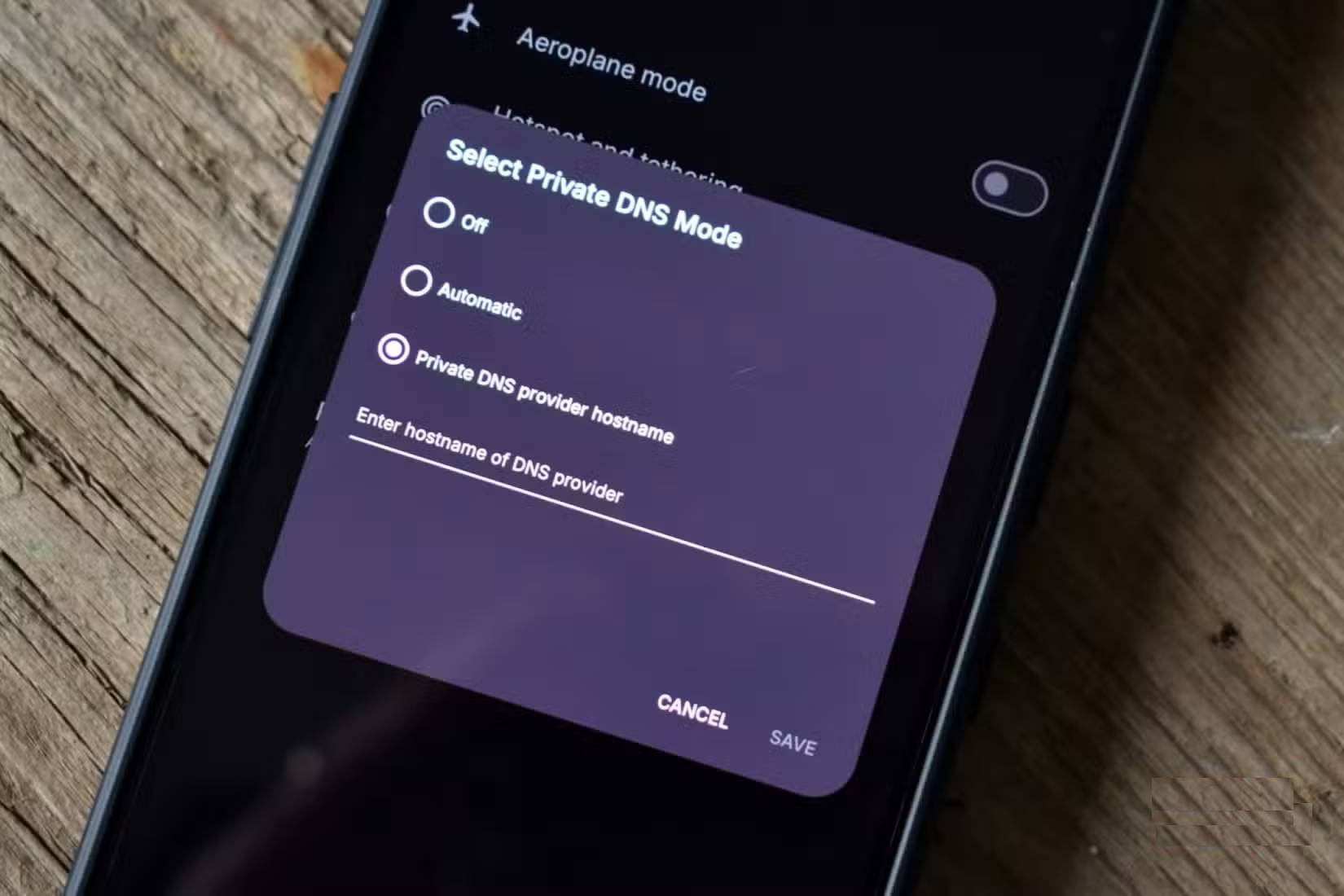
DNS translates a name such as tipsmake.com into the IP address a device uses to connect. Android normally obtains a resolver automatically from the Wi-Fi network or mobile carrier. Private DNS lets the phone use an encrypted DNS-over-TLS connection to a compatible provider instead.
The setting applies system-wide on supported Android versions, including Wi-Fi and mobile-data connections. Individual apps can still use their own DNS method, and some VPNs or managed networks may override or conflict with the setting.
Choose a provider based on your goal
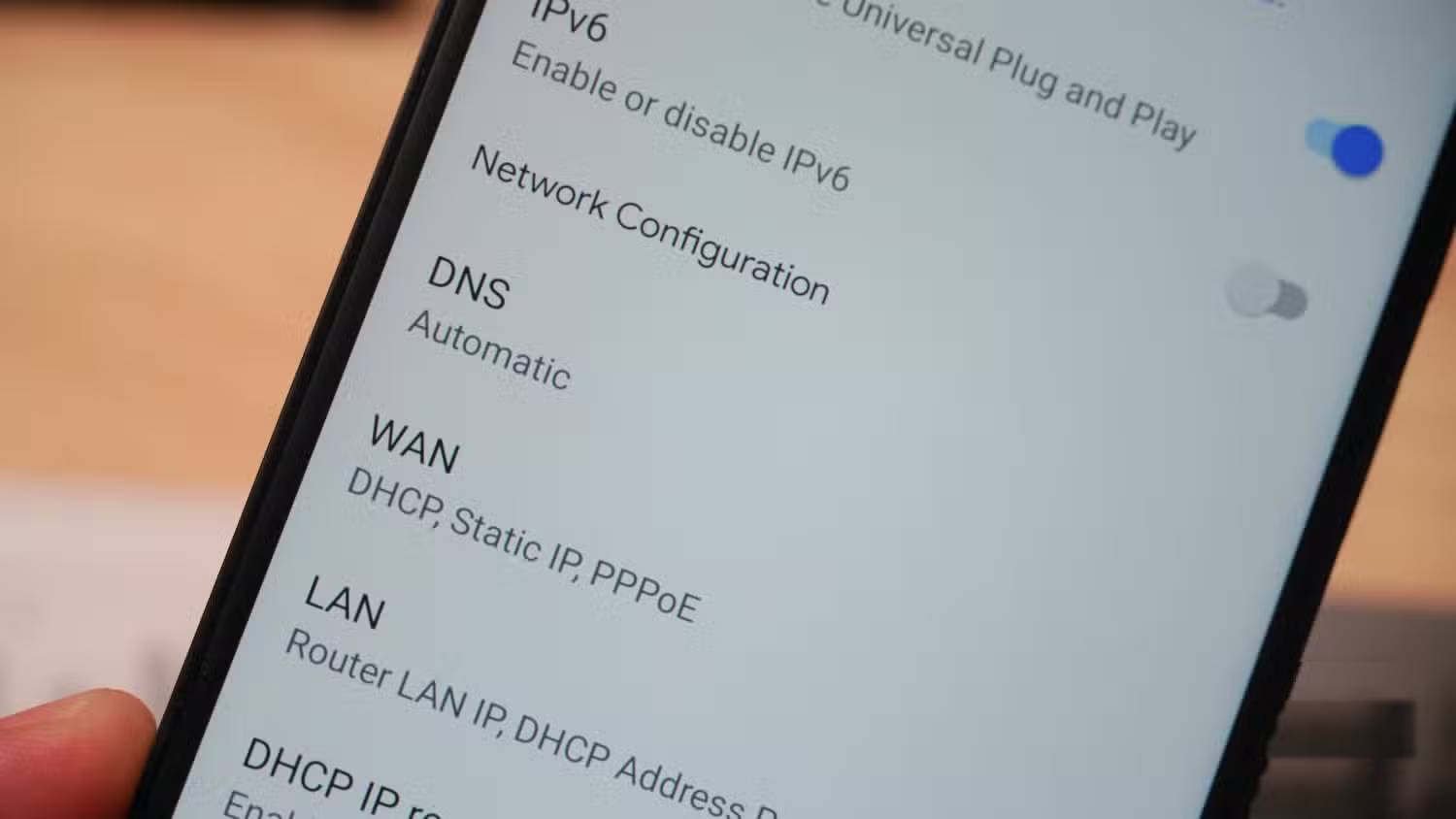
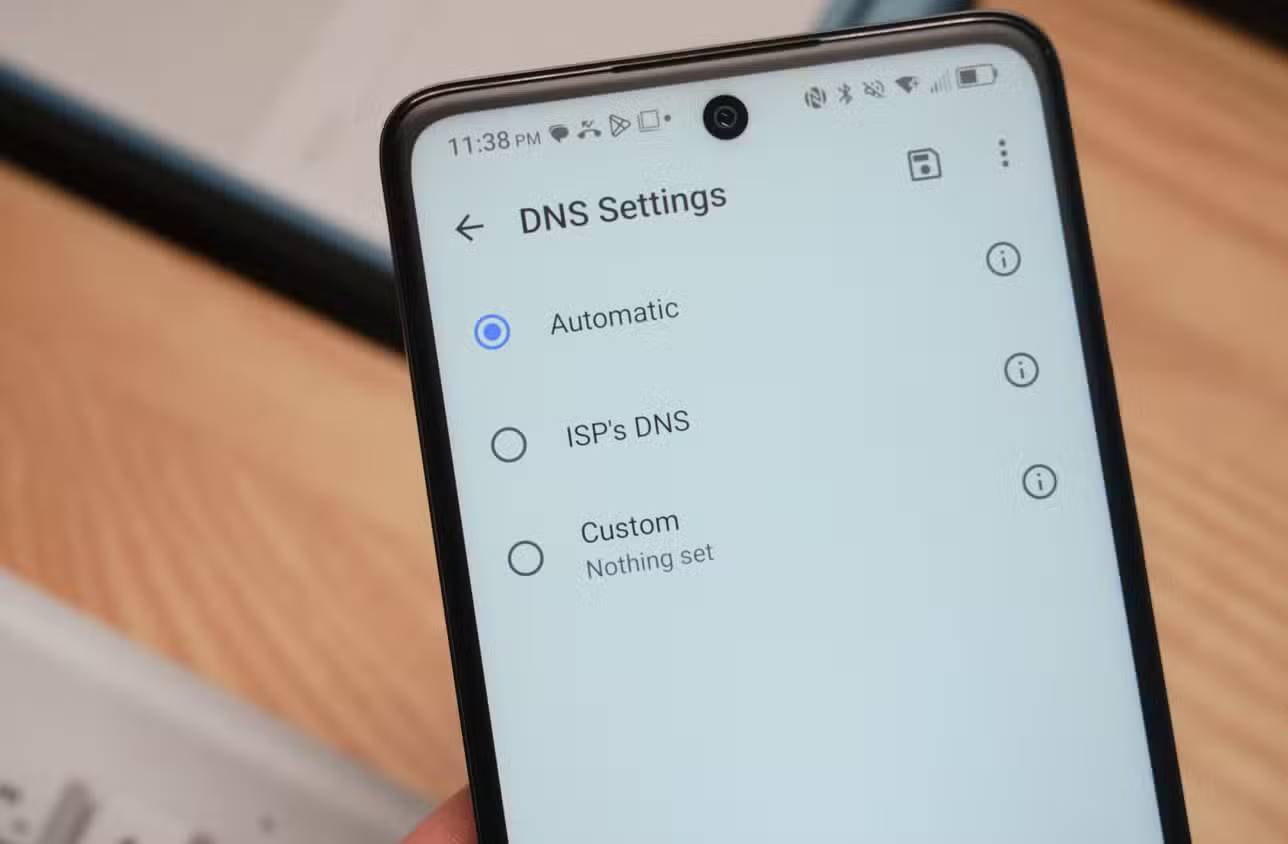
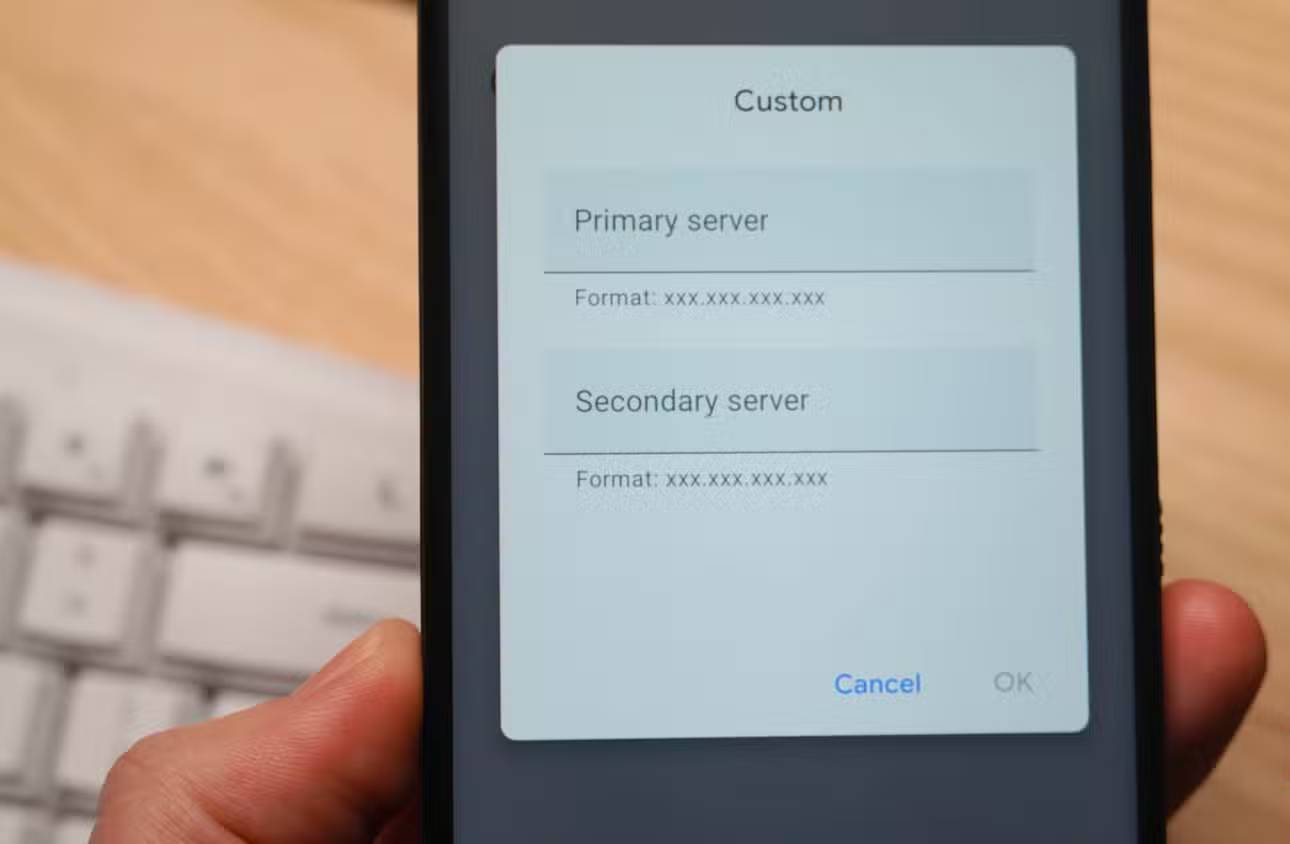
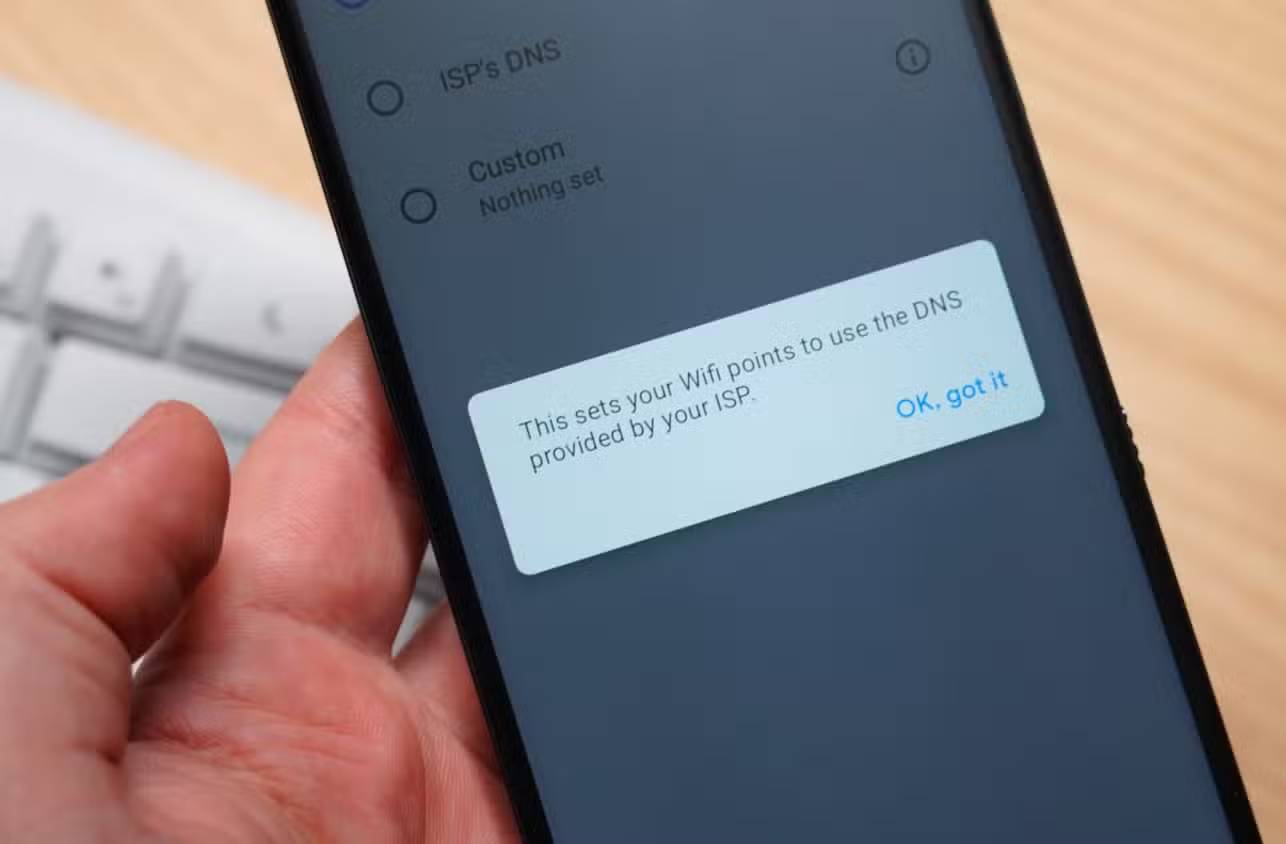
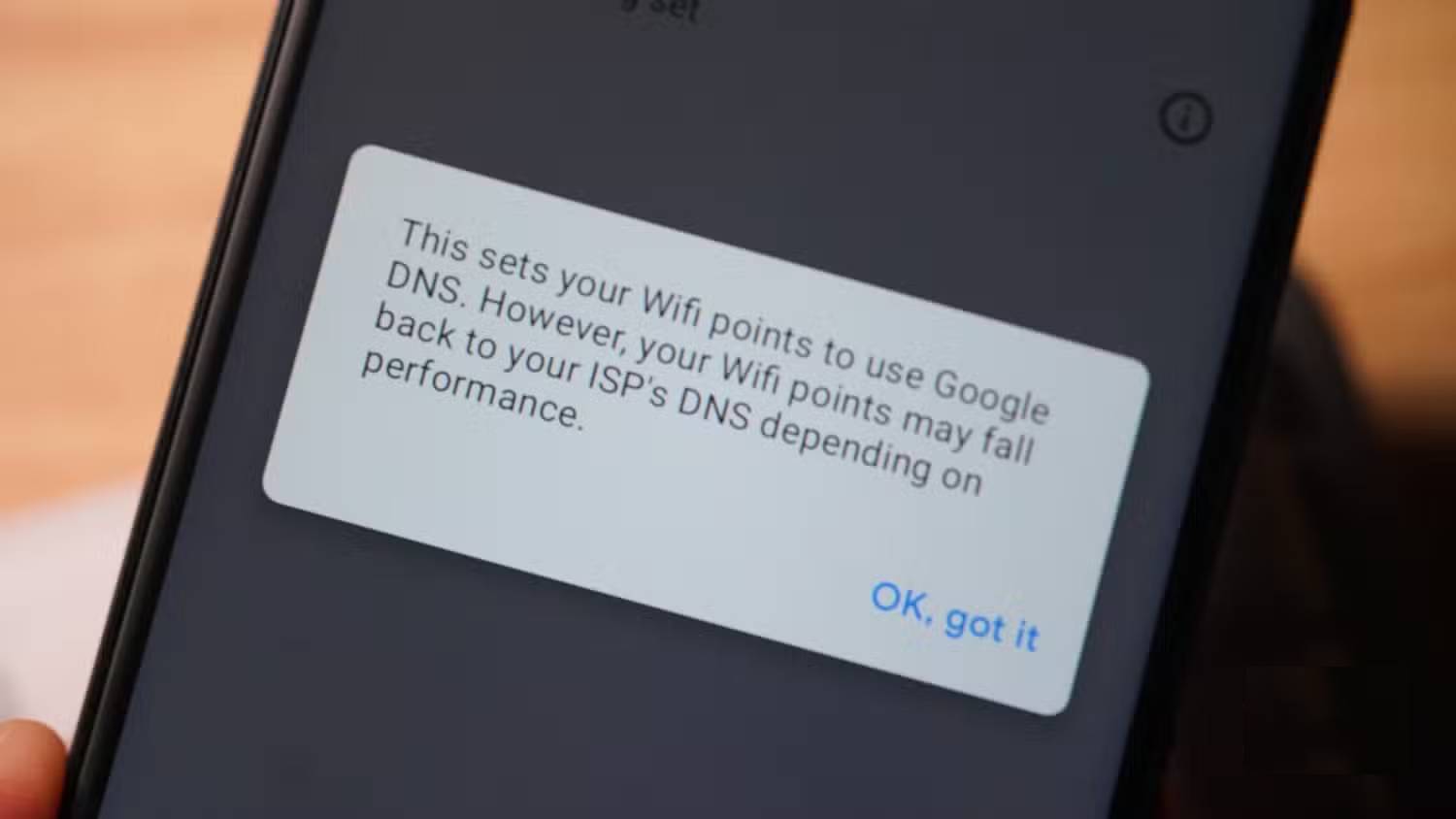
Providers have different privacy policies and filtering rules. A general resolver may focus on reliability, while a security-focused service may block domains associated with malware. An ad-filtering resolver blocks requests to domains on its lists, but it cannot remove every advertisement—for example, ads delivered from the same domain as the main content may still appear.
Common provider hostnames include:
- Google Public DNS:
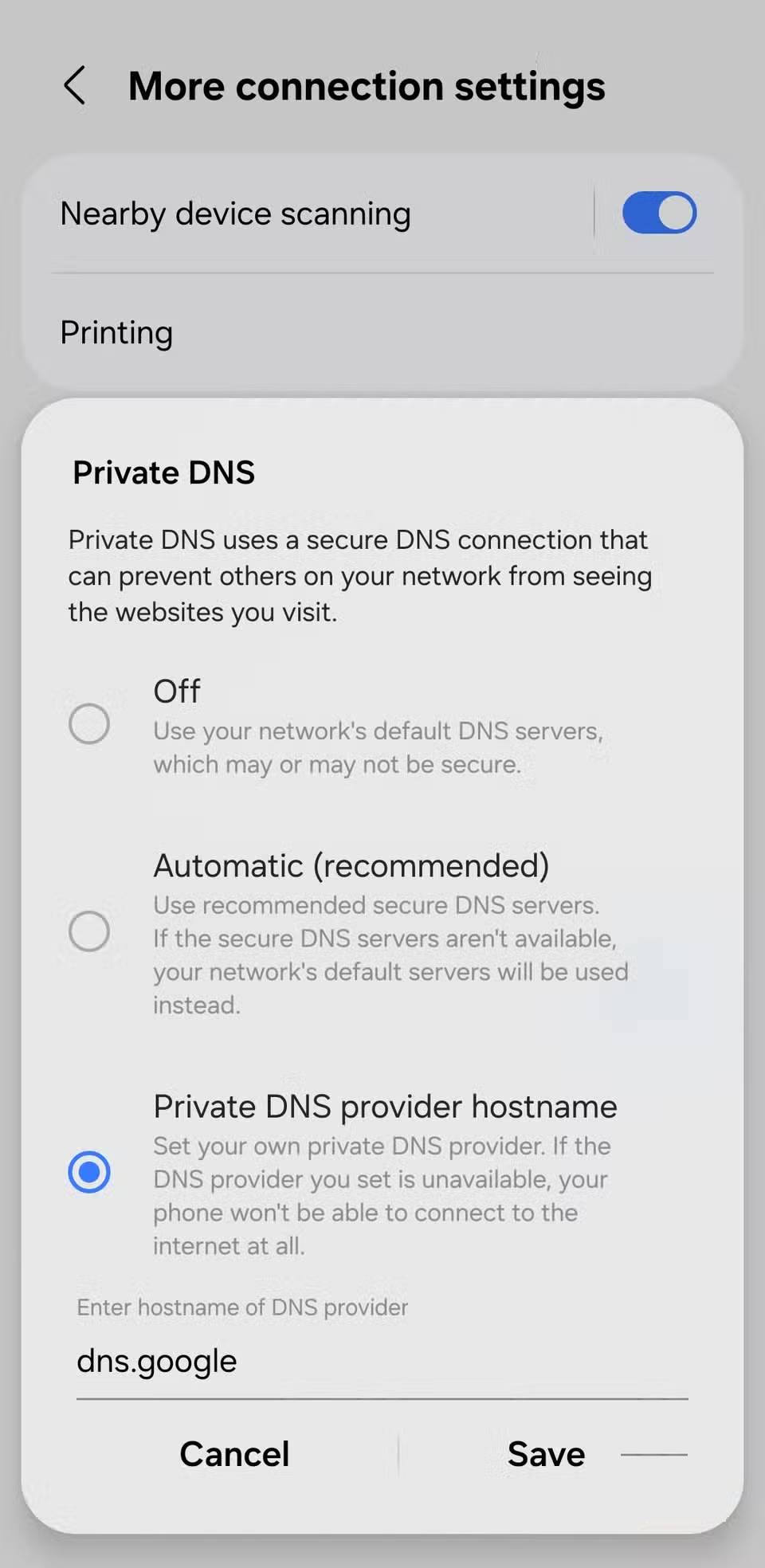
dns.google - Cloudflare:
one.one.one.one - Quad9 malware blocking:
dns.quad9.net - AdGuard DNS default filtering:
dns.adguard-dns.com
Check the provider's current documentation and privacy policy before choosing it. The Android field requires a DNS-over-TLS hostname, not a numeric IP address such as 8.8.8.8.
Enable Private DNS on Android
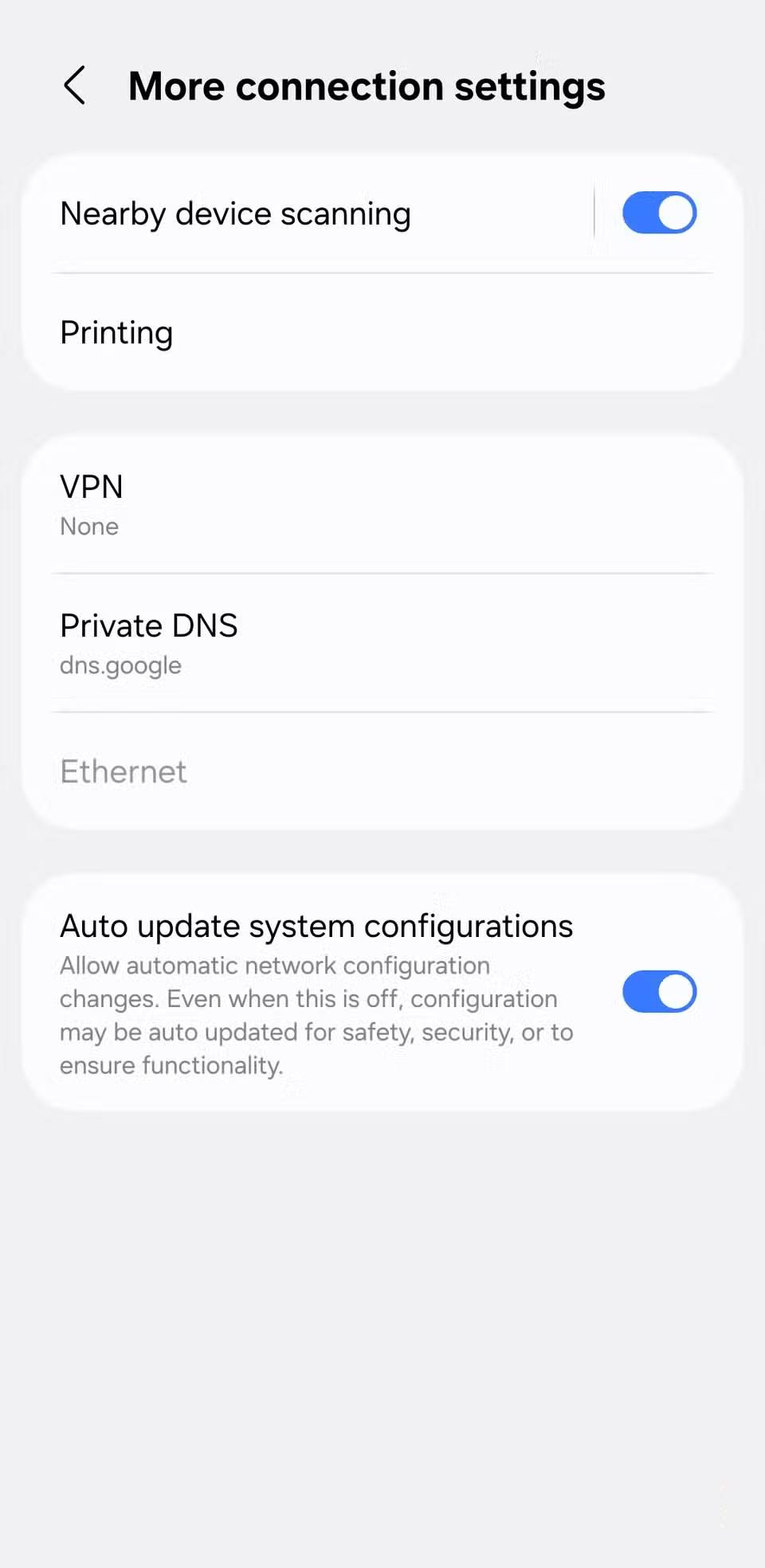
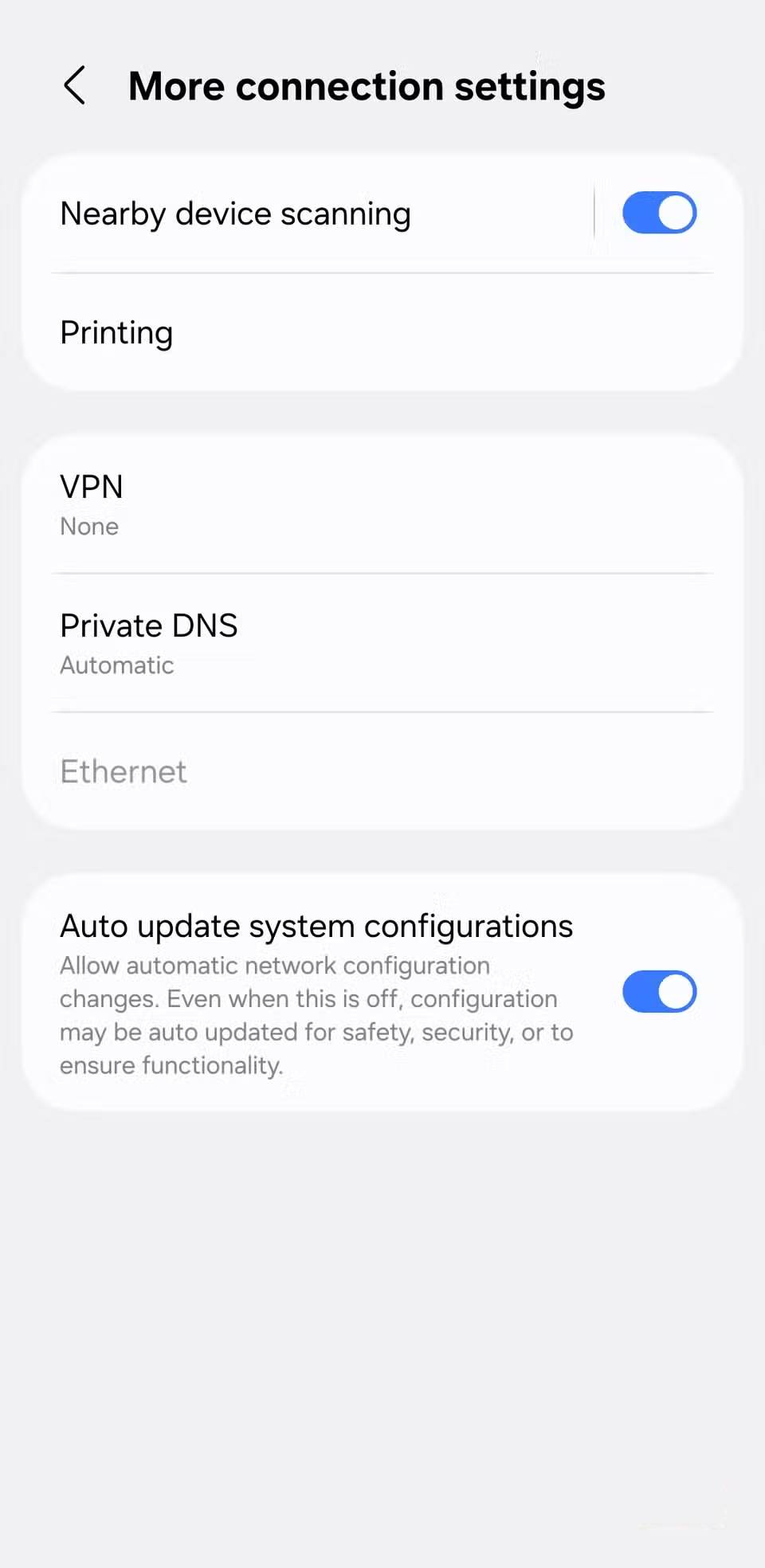
- Open Settings.
- Go to Network & internet > Private DNS. On Samsung devices, the path is usually Connections > More connection settings > Private DNS.
- Select Private DNS provider hostname.
- Enter the provider hostname exactly, without
https://or a path. - Tap Save.
Menu names vary by manufacturer. Searching Settings for “Private DNS” is often the fastest way to find it.
How to verify and troubleshoot it
Open a few websites on both Wi-Fi and mobile data. Some providers offer a diagnostic page that confirms whether encrypted DNS is active. If Android reports that the network has no internet access or pages stop loading, temporarily switch Private DNS to Automatic.
- Check the hostname for typing errors.
- Try another network; a captive portal may need to be completed before Private DNS works.
- Disable a VPN temporarily to test for a conflict.
- Confirm that the network permits outbound DNS over TLS.
- If filtering blocks a legitimate service, use the provider's allowlist or choose a non-filtering resolver.
Automatic is the safest fallback when a strict provider hostname is unreachable. Off disables Android's Private DNS handling and should normally be used only for diagnosis.
Related Articles
 How to Turn Off Sensors on an Android Phone3 minutes read
 Things You Need to Know About Private IP Addresses8 minutes read
 How to Download Private Facebook Videos to Your Phone Super Fast4 minutes read
 How Is Private Space Used in Android 15?3 minutes read
 How to Automatically Turn Off the Phone5 minutes read
 What Information Can Your ISP See When You Turn on a VPN?5 minutes read
Reader Comments 0
Sign in with email or Google to join the discussion.