Table of Contents
Windows 11 can show taskbar buttons on every connected display or limit an app's button to the monitor where its window is open. The setting is available when the taskbar is enabled on all displays.
Choose the multi-monitor taskbar behavior
- Press Windows + I to open Settings.
- Select Personalization > Taskbar.
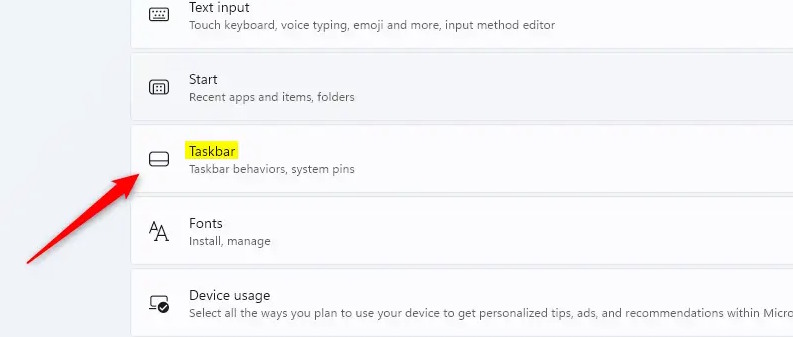
- Expand Taskbar behaviors.
- Enable Show my taskbar on all displays.
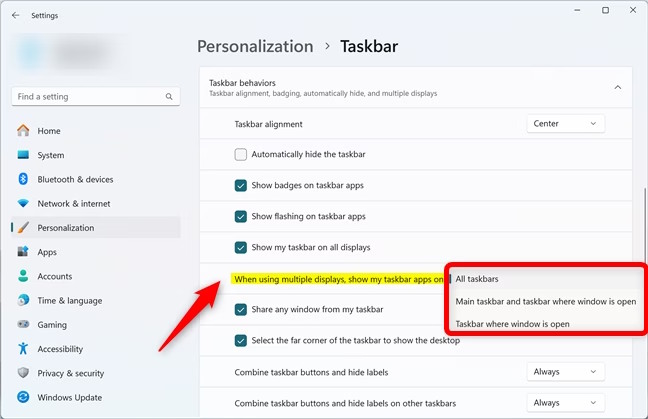
- Open When using multiple displays, show my taskbar apps on and choose the behavior you want.
What the three options mean
- All taskbars: app buttons appear on the taskbar of every monitor.
- Main taskbar and taskbar where window is open: the button appears on the primary monitor and on the monitor containing that app window.
- Taskbar where window is open: an open window's button appears only on the taskbar of the monitor containing it. Pinned apps remain on the main taskbar.
If the drop-down is unavailable, confirm that Windows detects more than one display and that Show my taskbar on all displays is enabled.
Change the main display
The primary monitor contains the main taskbar, notification area, and system clock. To choose a different one, open Settings > System > Display, select the desired monitor in the layout, expand Multiple displays, and enable Make this my main display.
Optional registry method
The Settings app is safer and easier. If you need to automate the current user's choice, open Command Prompt under that user account and run the matching commands below. These values are stored under HKEY_CURRENT_USER, so administrator privileges are normally unnecessary.
Show app buttons on all taskbars:
reg add "HKCUSoftwareMicrosoftWindowsCurrentVersionExplorerAdvanced" /v MMTaskbarEnabled /t REG_DWORD /d 1 /f
reg add "HKCUSoftwareMicrosoftWindowsCurrentVersionExplorerAdvanced" /v MMTaskbarMode /t REG_DWORD /d 0 /f
Use 1 for “Main taskbar and taskbar where window is open,” or 2 for “Taskbar where window is open.” Sign out and back in, or restart Windows Explorer from Task Manager, to apply the change. Restarting Explorer temporarily hides and reloads the desktop and taskbar, so save work first.
If apps still appear on the wrong monitor
Move the app window fully onto the intended display and reopen it. Also check the monitor arrangement under Settings > System > Display. Some apps with multiple windows can show separate buttons on different monitors according to where each window is located.
Related Articles
 How to Change the Taskbar Position on Windows 11 to the Left5 minutes read
 How to Change the Position of the Taskbar in Windows 74 minutes read
 How to Change the Position of the Taskbar on Windows 115 minutes read
 How to Show the Taskbar on All Monitors in a Multi-monitor5 minutes read
 How to Change the Windows Taskbar Position4 minutes read
 Steps to Change Taskbar Position on Windows 114 minutes read
Reader Comments 0
Sign in with email or Google to join the discussion.