Table of Contents
This updated guide explores Samsung private sharing: faster, safer file transfers with practical details, clear explanations, and useful takeaways. Quick Share has always been great for sending files quickly, but Private Sharing is even smarter. Now, when you send something important, you do not have to tell people to delete it later. Just set a timer and your Samsung phone will take care of the rest.
There's a Smarter Way to Share Files on Samsung Phones
Sharing files is often a one-way street. You hit 'Send,' and that is it. The file is out of your hands. After that, who knows what happens? Maybe they downloaded it, forwarded it, or forgot to delete it like you asked. You're essentially handing over a permanent copy, which can be frustrating, especially if it is personal, sensitive, or only meant to be temporary.
that is exactly the problem Private Sharing was built to solve. it is still file sharing, but in a much smarter way. Instead of sitting back and hoping people treat your files right, you can control everything with pre-set access rules.
This feature uses blockchain- based encryption to keep files secure during transfer and ensure that only authorized users can access them. Each share is linked to the recipient's phone number and Samsung account, so no one else can forward or open the file. You can even check the status afterwards to see if the file is still active or has expired.
On top of that, Private Sharing locks everything inside the secure viewer. Recipients cannot forward, save, copy, or even take screenshots of what you've sent. So you're not just limiting access; you're also closing off all the common workarounds people use to keep a copy.
How to Use Private Sharing: Why Is It Better Than the Conventional Method?
Private Sharing handles the privacy aspect. If you send something sensitive, like a scanned ID, a signed contract, or even a personal photo, you can set an expiration date so that the file can only be viewed, not downloaded. When the time is up, the file disappears. You do not have to track or remind anyone to delete the file. The system will take care of it quietly.
But since Private Sharing only works within the Galaxy ecosystem, it is not enough. What if you need to send a file to someone using an Android phone, iPhone, or even another laptop? that is where Quick Share comes in. it is built into Galaxy devices and handles almost every sharing scenario. Whether you want to send a video to a nearby Android phone, a document to a Windows laptop, or a photo to an iPhone, you can do it all from one place.
If your recipient is nearby and has a compatible device, you can send files instantly over Wi-Fi and Bluetooth. No internet is required, and file transfers are often faster than messaging apps. But if they're not nearby or using another platform, you can switch to link sharing. Quick Share temporarily uploads the file to Samsung Cloud and generates a secure link. You can share that link through any messaging app or display it as a QR code for them to scan.
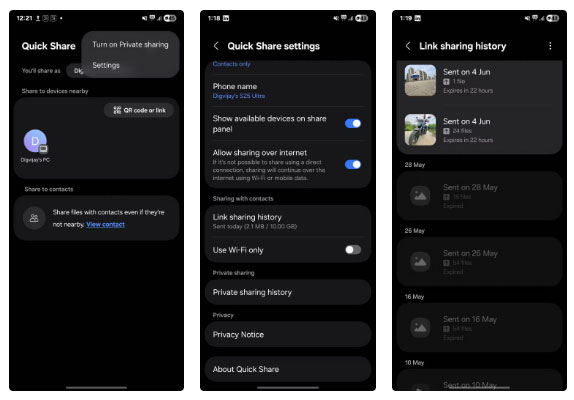
The link expires after a set time, so you do not have to worry about it sticking around indefinitely. Just share, let them download the file, and move on. No mess, no chasing, and no forgotten files sitting in someone's inbox or downloads folder.
So instead of having to switch between apps or guess which one will work, you can rely on Quick Share for flexibility and Private Sharing for security. Combined, they cover almost every situation, whether you're sending something casual or something that needs more control.
Sharing Is Easier Than You Think
Quick Share is built into Samsung Galaxy phones running Android 10 with One UI 2.1 or later. It works out of the box and does not require any additional apps or setup. Just tap Share , select Quick Share and send files to nearby devices over Wi-Fi and Bluetooth, or create a link or QR code to share more widely. it is fast, simple, and works across platforms.
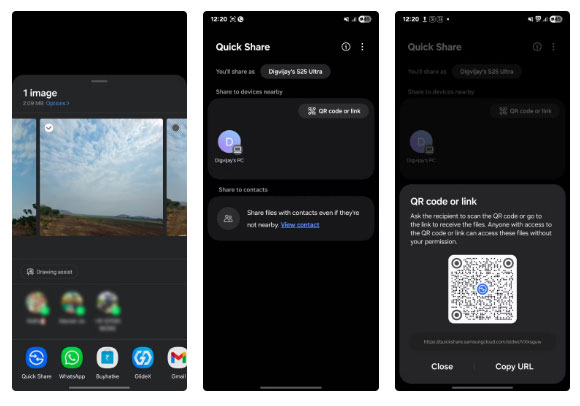
Private Sharing is now part of Quick Share and no longer a separate service. On supported Galaxy devices, tap Share , select Quick Share , then tap Turn on Private sharing in the upper-right corner. Set an expiration time, choose recipients, and send.
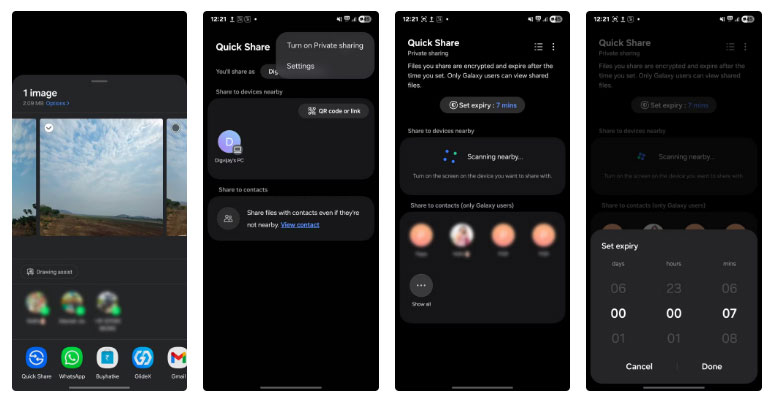
Files open in secure viewer with no options to save, copy, forward, or screenshot. Access ends automatically when time expires.
Limitations It Is Best to Know
While Private Sharing is useful, it is not perfect for every situation. There are a few things to consider before you rely on it completely. First, you can only share up to 20 files at a time, with a total size limit of 200 MB.
Typically, this is enough for documents, photos, or short videos, but may not be ideal for large files or high-resolution media content.
Another thing to consider is compatibility. Private Sharing only works between Samsung Galaxy devices. If the person you're sharing with uses a different brand of Android or an iPhone, this method will not work. Both users need a Galaxy device, and the recipient needs to be signed in with a Samsung account.
You will find also limitations on supported file types. Private Sharing works with images ( JPG, PNG, HEIC ), audio ( MP3, WAV, OGG, M4A ), documents ( PDF, text files ), and videos ( MP4, MKV, WebM ). Files that do not fall into these categories require different sharing options.
So while Private Sharing offers great privacy, it works best when both the sender and recipient are using Samsung devices and your files are within the supported size and format limits.
FAQ
What is the main takeaway about Samsung Private Sharing: Faster, Safer File Transfers?
The key is to understand the core idea, compare the available options, and apply the practical guidance that matches your situation.
What should beginners know about Samsung Private Sharing: Faster, Safer File Transfers?
Start with the essential steps and terminology. Avoid changing advanced settings until you understand how they affect performance, privacy, cost, or compatibility.
How can I use this information in practice?
Follow the relevant section in order, test one change at a time, and confirm the result before moving to the next step or recommendation.
Related Articles
 How to Share Original Quality Files with Anyone on Samsung4 minutes read
 Share Any Size File with Onionshare4 minutes read
 How to Share Files by Self-Destruct Using Share Files4 minutes read
 How to Share Files with Nearby Sharing in Windows 113 minutes read
 How to Use Share Me Files to Share Windows 10 Files5 minutes read
 How to Transfer Files Quickly on Windows 10 with Near Share4 minutes read
Reader Comments 0
Sign in with email or Google to join the discussion.