Table of Contents
Quick answer
Do you want to change the font size in PowerPoint to make your slides easier to read and more professional? This article will guide you through a simple process, allowing you to quickly adjust your text.
Adjusting font size is a crucial skill in PowerPoint, helping to improve the clarity and aesthetics of your presentation. Let's explore simple ways to optimize font size for optimal results.
How to increase or decrease font size in PowerPoint
In this article, Free Download will use PowerPoint 2010 .
Method 1: Using built-in features in PowerPoint
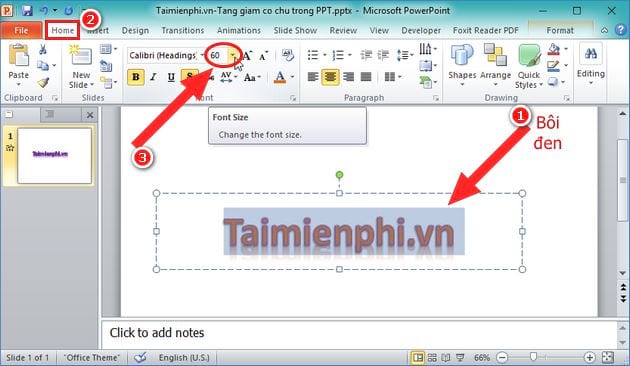
Step 1: On the PowerPoint application interface, highlight the text or paragraph you want to increase or decrease the font size of -> then go to the Home tab -> select Font Size to increase or decrease the font size.
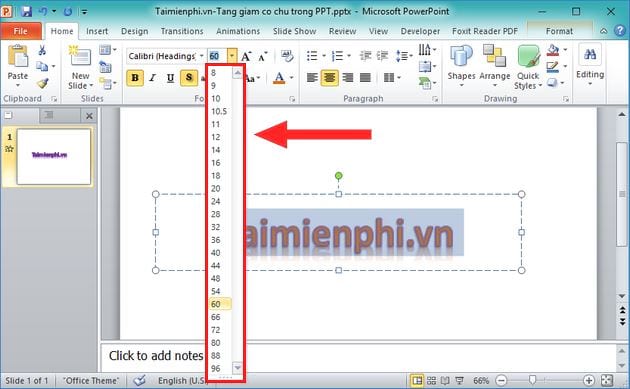
Step 2: You will see a list of font sizes to choose from.
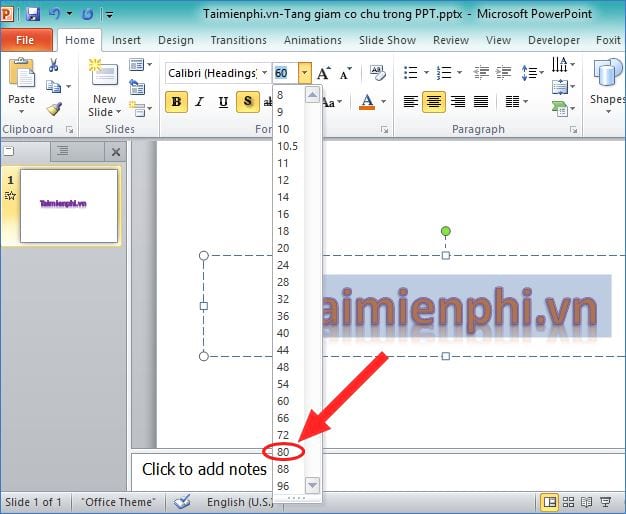
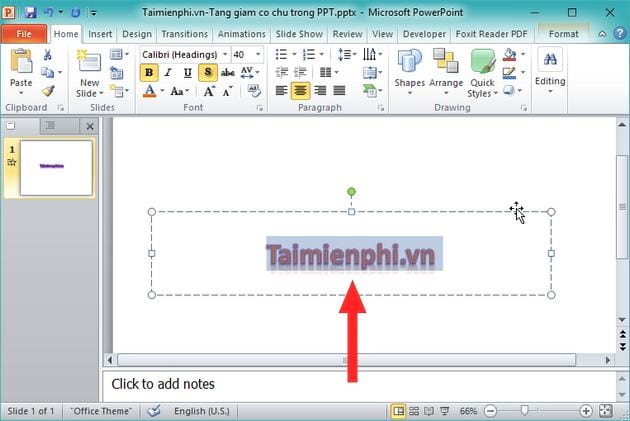
Step 3: Let's assume you choose to increase the font size to 80, as shown in the image below:
The resulting font size in PowerPoint will automatically increase to the size you select.
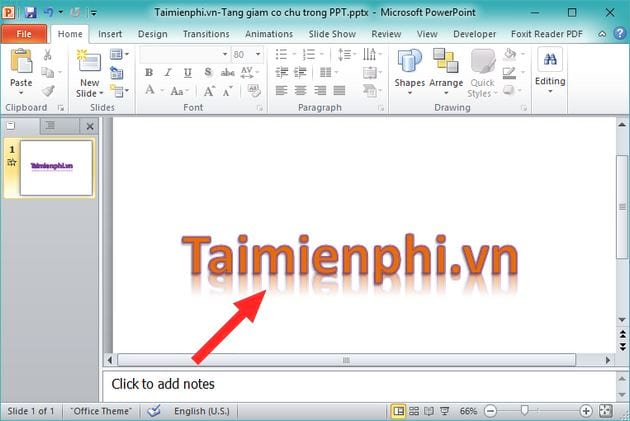
If you want to reduce the font size, for example, choosing a font size of 40, the result will look like the image below:
Method 2: Using keyboard shortcuts
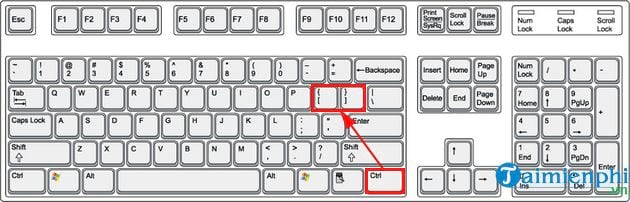
Similar to Method 1, to increase or decrease font size in PowerPoint , you need to highlight the text or paragraph you want to increase or decrease the font size, then press the keyboard shortcut Ctrl + ] to increase the font size or Ctrl + [ to decrease the font size.
The image below shows a screenshot of the keyboard to help you visualize how to use the keyboard shortcuts:
With the two methods for increasing and decreasing font size in PowerPoint that have been explained, you can easily adjust the font size to suit the content of your presentation. Depending on your needs, you can use keyboard shortcuts to increase or decrease font size or adjust the font size using the slide master to save time and optimize efficiency.
When using PowerPoint, you should also pay attention to aligning other elements such as images and text appropriately, making your presentation more professional and easier to read. Try other techniques such as text formatting or font adjustments to improve the quality of your presentation.
Related Articles
 How to Increas or Decreasing Font Size on PowerPoint5 minutes read
 Set the Default Font and Font Size in Excel3 minutes read
 How to Adjust the Font Size on Windows 10 Screens3 minutes read
 Use the Font Format Text Dialog Box in PowerPoint3 minutes read
 How to Change the Default Font in Powerpoint5 minutes read
 How to Change the Font Size of Safari Mac OS Browser4 minutes read
Reader Comments 0
Sign in with email or Google to join the discussion.