Table of Contents
Quick answer
PowerPoint is one of the most popular presentation software programs. However, creating impressive slides can be challenging for beginners. Therefore, TipsMake shares the following detailed instructions on how to use PowerPoint.
Creating professional slides using PowerPoint isn't easy for beginners. However, with just a few tips that tipsmake introduces in the article "How to use PowerPoint to create professional presentation slides," you can apply them to make your slides more professional for presentations at work or school.
Instructions on using PowerPoint templates to create presentation slides.
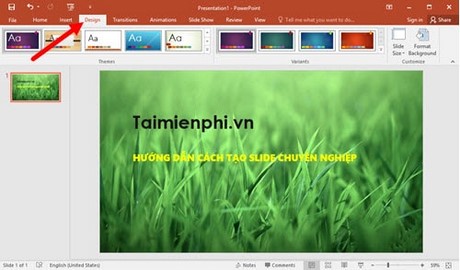
Microsoft PowerPoint comes with several pre-designed, professional-looking templates by default. You can use these templates to create your own slides.
To open these pre-made templates, in the main PowerPoint interface, click the Design tab, then select a template that suits the slide's theme.
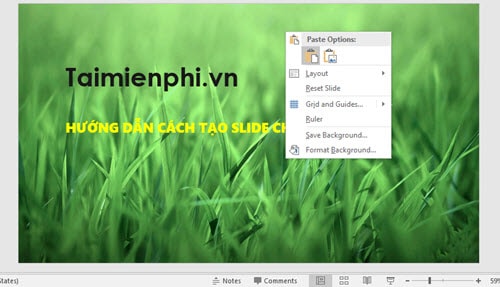
Even within each pre-made template, you can edit the objects within it to suit your needs.
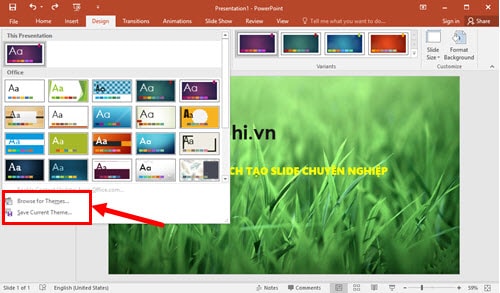
Additionally, you can add external templates or save the edited template as a new version for later use.
How to insert videos and images into PowerPoint slides
Multimedia files such as videos and images will make your slides richer and more professional. To insert images, videos, and audio files into your slides, open the PowerPoint interface and click the Insert tab. From there, you can add the files you want to your slides.
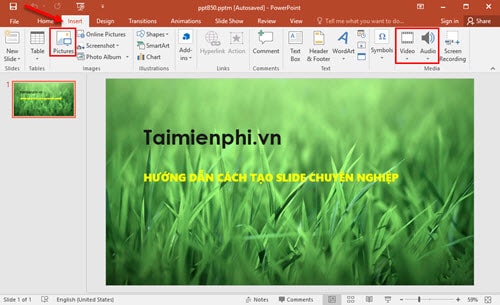
Additionally, Microsoft supports inserting many other files and images into slides. You can choose and insert them as you wish.
How to use PowerPoint effects with animation effects.
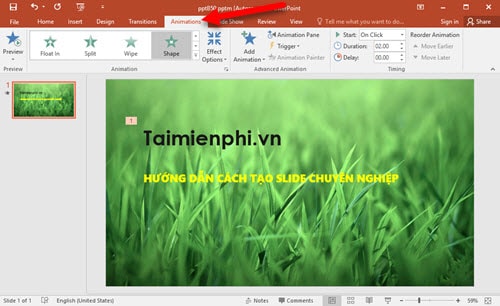
Sound effects, special effects, and motion are all collectively called animation. These pre-made effects, when used appropriately, can make your slides look professional. However, you should consider that using too many in a single slide can create visual clutter and have the opposite effect.
To add effects, click on the Animation tab , select the moving object , and then choose an animation effect from above .
Specifically, when you hover your mouse over these effects, a preview will appear so you can see them before making your decision.
Save the fonts you used along with the PowerPoint file.
Typically, when using a computer to create slides with PowerPoint, you'll use many different fonts such as VNI, calligraphy, etc. However, not all computers have these fonts installed. Transferring those slides to another computer without the corresponding fonts will result in display errors.
Microsoft PowerPoint has added useful options that allow these fonts to be included in the slide file so they can display normally on other computers even if they don't support the corresponding fonts.
To save the fonts included with the PowerPoint file , follow these steps:
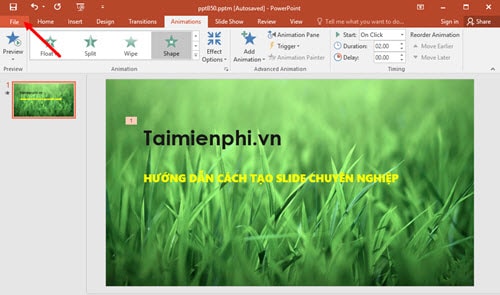
Step 1 : Click on the File tab in the Microsoft PowerPoint interface.
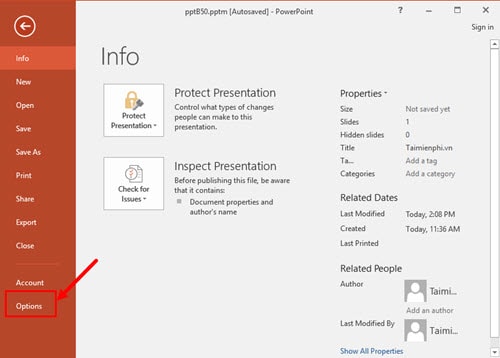
Step 2 : Click on the Options menu.
Step 3 : In the Options window , select Save , and check the box " Embed fonts in the file".
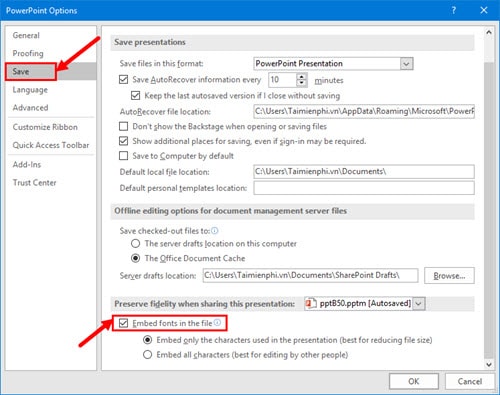
Embed only the characters used in the preset (best for reducing file size) : This option allows users to save only the fonts, preventing further editing on different computers. This option will help make the slide file more compact.
Embed all characters (best for editing by others) : This option saves the font and allows users to continue editing with that font in the slide file. However, saving the file using this option will result in a much larger file size.
If you want to insert a background into PowerPoint, please refer to our article on inserting a background into PowerPoint .
Use keyboard shortcuts effectively.
Press Shift + F3 : Quickly convert uppercase to lowercase.
Press B to black out the screen while the slide is running, press B again to resume the slideshow. Similarly, press W to white out the screen while the slideshow is running, press W again to resume the slideshow.
Press 1 + Enter to return to the first slide; similarly, press the slide number + Enter to jump to the next slide.
Above are some ways to use Microsoft PowerPoint to create professional slides. These are very basic methods, but they are highly effective if applied properly. Please share any other useful tips you may have. Additionally, Microsoft PowerPoint also supports creating mind maps ; you can refer to this and apply it to your work.
Related Articles
 MS PowerPoint 2007 - Lesson 3: Create a Slideshow11 minutes read
 How to Create Presentation Slides on ChatGPT5 minutes read
 Create Beautiful Slides for PowerPoint Presentations with 8 Tips6 minutes read
 How to Choose the Right Number of Slides for a Powerpoint9 minutes read
 Top 6 Free and Open Source Software to Create Professional Presentations6 minutes read
 PowerPoint 2019 (Part 24): Spell and Grammar Check: Explained5 minutes read
Reader Comments 0
Sign in with email or Google to join the discussion.