Table of Contents
Quick answer
Inserting videos into PowerPoint 2016 makes presentations more visual and engaging. You can insert videos from your computer or embed them directly from YouTube.
Want to insert a video into PowerPoint 2016 but don't know how? Check out this detailed step-by-step guide to easily add videos from your computer or YouTube to your presentation.
Instructions on how to insert videos into PowerPoint 2016
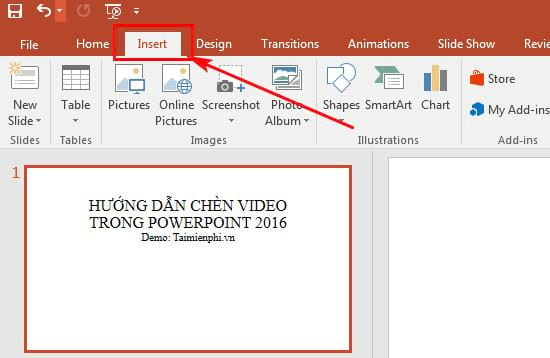
Step 1: On the Ribbon toolbar, select the Insert tab.
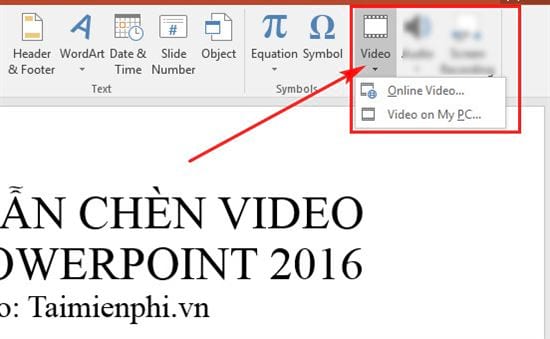
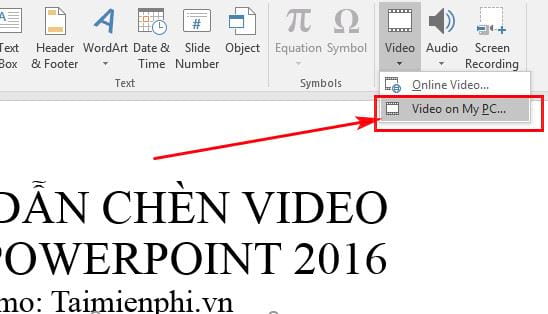
Step 2: Select the Video tool in the Media section . You will see two options: Online Video and Video on My PC.
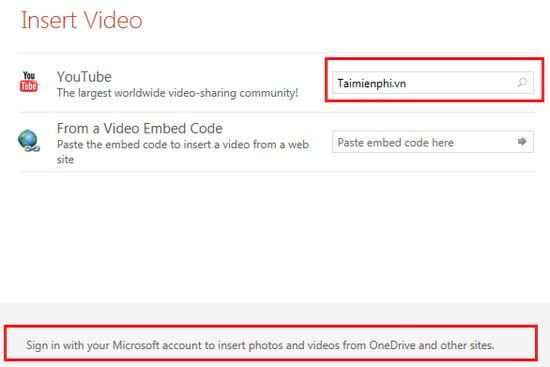
Step 3: For online videos , in the Insert Video dialog box that appears, enter the keyword you want to search for in one of the two search options, then press Enter to search. In this example, TipsMake will search on YouTube because it is currently the largest and most comprehensive video sharing site in the world. Alternatively, you can log in to OneDrive to upload videos from OneDrive by clicking on Sign in with your Microsoft account to insert photos.
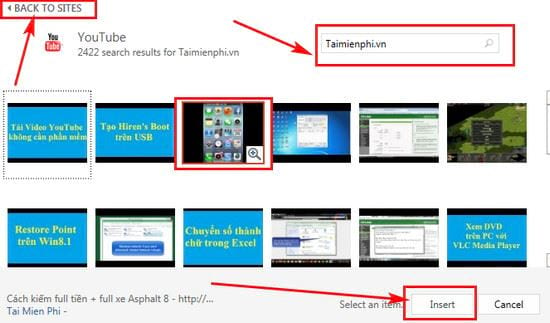
Step 4: Next, select the video you want to insert into PowerPoint, then click Insert to add it. If you want to search for videos using different keywords, re-enter the keywords into the search bar or click Back to sites to choose a different search method.
Step 5: Results:

Step 6: To insert a video offline , click on "Video on my PC."
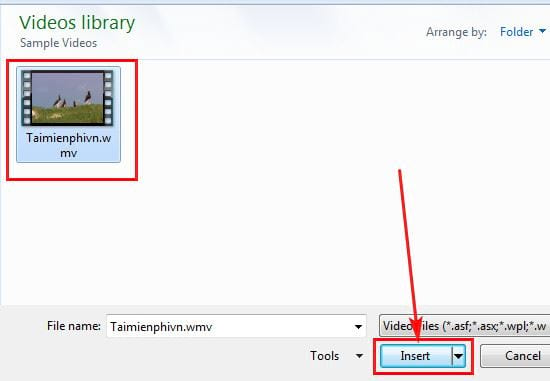
Step 7: Navigate to the folder containing the video you want to add, select the video, and click Insert to insert it.
Step 8: The video has been inserted into the slide. You can resize the video using the resizing buttons on the video.
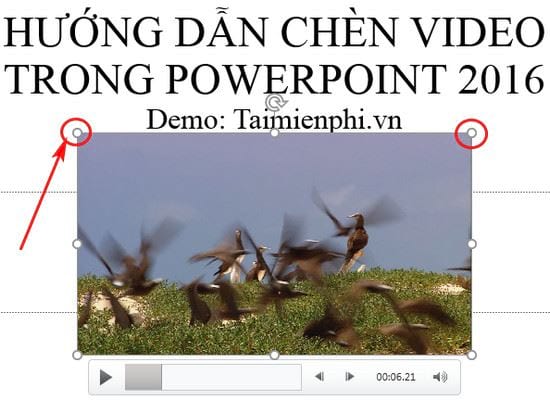
So you've successfully inserted a video into PowerPoint 2016, making your presentation more lively and visually appealing. If you encounter errors inserting a video into PowerPoint, check the file format or update your software version. Alternatively, you can try inserting videos from YouTube into PowerPoint to take advantage of the abundant video resources available online.
Related Articles
 A Simple Guide to Inserting Videos into PowerPoint Without Errors3 minutes read
 Instructions for Inserting YouTube Videos into PowerPoint4 minutes read
 PowerPoint 2019 (Part 19): Inserting Video: Explained8 minutes read
 How to Put a Picture Behind Text in PowerPoint8 minutes read
 Tips to Fix Microsoft Powerpoint Not Opening Videos5 minutes read
 PowerPoint 2019 (Part 16): Shapes: Explained7 minutes read
Reader Comments 0
Sign in with email or Google to join the discussion.