Table of Contents
Cached RAM is memory Windows uses to keep recently accessed file data and code ready for reuse. It normally improves performance and is available to be reclaimed when an application needs more memory. A large Cached value in Task Manager is therefore not, by itself, a problem and usually should not be cleared.
How Windows uses cached memory
Reading data from RAM is much faster than loading it again from an SSD or hard drive. Windows keeps useful pages in its file cache and standby lists after an application stops actively using them. If another process requests memory, the memory manager can discard suitable cached pages and assign the RAM to that process.

Cached memory is volatile: it disappears at shutdown or restart. That does not mean the cache is wasted. Unused physical RAM provides no performance benefit, while a cache can avoid repeated storage reads.
Cached, available, and in-use memory
- In use: memory currently assigned to processes, drivers, and Windows.
- Available: memory that can be given to an application immediately, including standby cache and free pages.
- Cached: data retained for faster reuse; much of it is included in Available.
- Committed: virtual memory Windows has promised to processes, backed by RAM or the page file.
Judge memory pressure mainly by the Available value, paging activity, application behavior, and committed-memory limits—not by the Cached number alone.
Clearing cached RAM is not the same as freeing a process
Closing an application releases its private working memory. Clearing a standby list discards reusable cached pages. Deleting temporary files removes data from storage, not from the RAM cache; the original advice that these actions are equivalent is incorrect.
What to do when Windows feels short of memory
- Open Task Manager > Processes and sort by Memory.
- Close an unneeded application normally and save its work first.
- Check for a process whose memory continuously grows, which may indicate a leak.
- Leave the page file system-managed unless you have a documented reason to change it.
- Update or restart the application causing the problem.
- Restart Windows if memory pressure persists and you need a clean diagnostic baseline.
Use RAMMap for diagnosis
Microsoft Sysinternals RAMMap breaks physical memory down by process, page list, file, kernel, and driver use. It is appropriate when Task Manager cannot explain where memory went.
RAMMap includes advanced commands that can empty standby or working-set lists. Use them only for controlled troubleshooting because clearing useful cache can make applications slower until data is read again. It does not repair a memory leak or add physical RAM.
Avoid “memory optimizer” utilities
Third-party RAM cleaners often force applications out of physical memory or discard caches so Task Manager briefly shows more free RAM. Windows may then reload the same data, causing extra storage activity and worse responsiveness. Some utilities also bundle unwanted software or request unnecessary privileges.
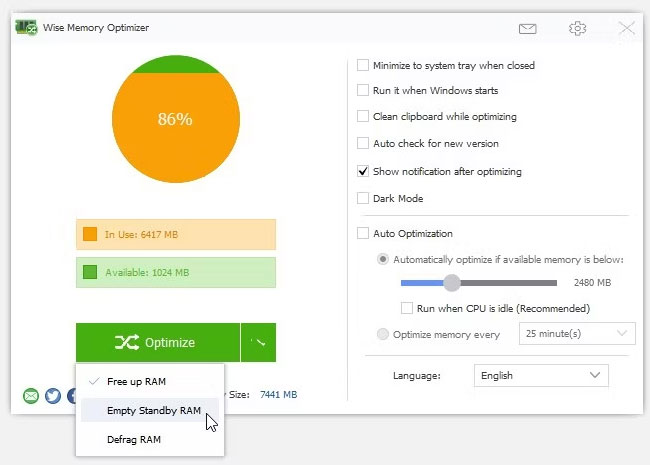
If you test such a tool, download it only from its verified publisher, scan the installer, create a restore point, and measure real application performance rather than trusting a “RAM freed” counter. For most users, Task Manager, Resource Monitor, a restart, and RAMMap provide safer diagnostics.
When more RAM may help
An upgrade can help when normal workloads repeatedly leave little available memory, generate sustained paging, and slow down despite healthy software. Before buying hardware, confirm that the device supports an upgrade and that a runaway application or driver is not the real cause.
Related Articles
 minutes read
 Cache: What It Is and How to Clear It in Windows 104 minutes read
 Cleaner for PC Pro Clear Cache: Complete Guide4 minutes read
 How to Clear Cache on Mac: Practical Guide6 minutes read
 How to Clear the Cache in Windows 8?4 minutes read
 Instructions to Clear DNS Cache with CMD Command on Windows5 minutes read
Reader Comments 0
Sign in with email or Google to join the discussion.