Table of Contents
Formatting an SD card erases its file system and prepares it for reuse. Before starting, copy off every file you need, confirm the card is not locked, and identify its exact drive letter and capacity. Selecting the wrong drive can erase another storage device.
Choose the right file system
| File system | Best use | Main limitation |
|---|---|---|
| FAT32 | Broad compatibility with older cameras, consoles, and devices | Individual files cannot exceed 4 GB; Windows' built-in formatter limits FAT32 volume size |
| exFAT | Modern SDXC cards and large files across Windows and macOS | Some older devices do not support it |
| NTFS | A card used mainly as Windows storage | Cameras, phones, Macs, and embedded devices may have limited support |
When the card will be used in a camera, dashcam, handheld console, or other appliance, check that device's manual. Formatting the card inside the destination device is often the safest way to obtain the expected file system and folder structure. This FAT32 and exFAT overview explains additional compatibility differences.
Before you format
- Back up the card and open a few copied files to confirm the backup works.
- Remove other USB drives to reduce the chance of selecting the wrong disk.
- If the adapter has a physical lock switch, move it to the unlocked position.
- Note the SD card's capacity and drive letter in File Explorer.
- Connect a laptop to power so formatting is not interrupted.
Format an SD card in File Explorer
- Insert the card into the computer or a USB card reader.
- Open File Explorer > This PC.
- Confirm the removable drive by its capacity and contents.
- Right-click the SD card and select Format.
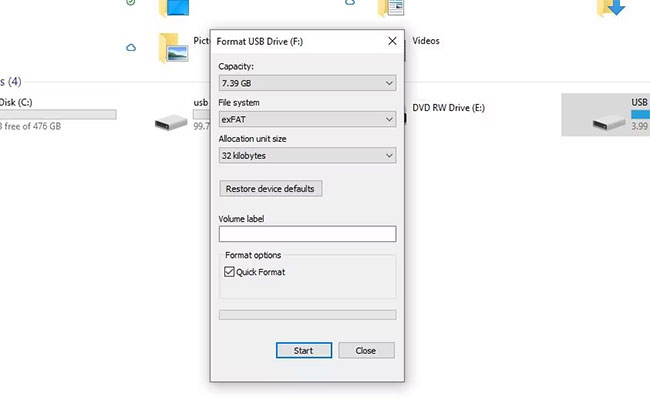
- Choose the file system required by the destination device. For many modern cards, this is exFAT.
- Leave Allocation unit size at Default unless the device manufacturer specifies otherwise.
- Enter an optional volume label.
- Leave Quick Format selected for routine reuse. Clear it only when you intentionally want a slower full format and have time to complete it.
- Select Start, read the erasure warning, and confirm only after rechecking the drive.
Wait for Windows to report completion before removing the card. Eject it from the taskbar or File Explorer to reduce the risk of corruption.
Use DiskPart only when File Explorer cannot format the card
DiskPart is an advanced tool that can remove the card's partition table and rebuild it. A mistaken disk number can wipe an internal or external drive, so prefer File Explorer for normal formatting.
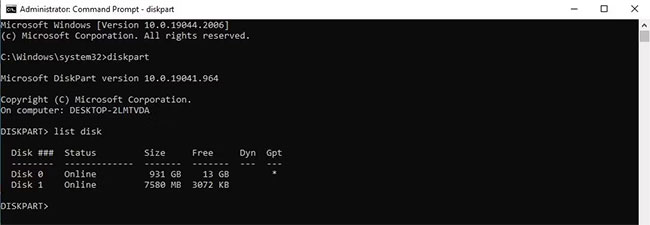
- Open Windows Terminal or Command Prompt as administrator.
- Enter
diskpart, then enterlist disk. - Identify the SD card by its exact capacity. If there is any doubt, type
exitand stop. - Enter
select disk N, replacingNwith the SD card's disk number. - Enter
detail diskand verify the model and capacity again.
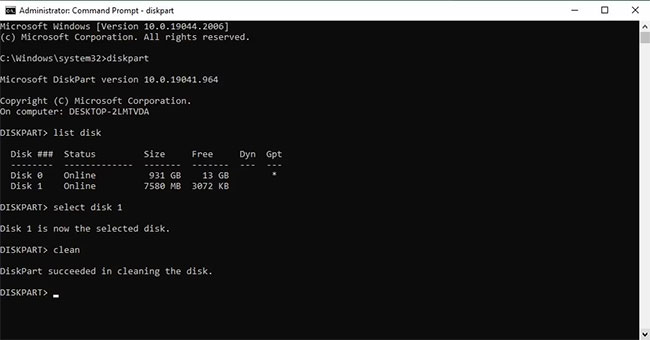
Only after both checks match the SD card, run:
clean
create partition primary
format fs=exfat quick
assign
exit
Replace exfat with fat32 or ntfs only when the destination device requires that format. For more detail on the commands and their risks, see how to format a drive with Command Prompt.
If formatting fails
- Check the card or adapter's lock switch.
- Try another card reader or USB port.
- Use Disk Management to see whether Windows detects the correct capacity.
- Test the card in its destination device.
- Replace the card if it repeatedly becomes read-only, disconnects, reports errors, or corrupts new files.
Do not rely on formatting to securely destroy sensitive data, and do not keep using a card that shows repeated errors. Flash memory wears out; a fresh card is cheaper than losing irreplaceable photos or recordings.
Related Articles
 How to Fix Errors That Cannot Format Memory Card3 minutes read
 How to Format a Micro SD Card: Clear Instructions14 minutes read
 How to Format a Memory Card Using a Windows Computer11 minutes read
 The Best Memory Card Format Software for Android Phones7 minutes read
 How to Quickly Format an SD Card on a Mac5 minutes read
 How to Format the Memory Card Directly on Your Android Phone5 minutes read
Reader Comments 0
Sign in with email or Google to join the discussion.