Table of Contents
To put an app on a laptop desktop, create a shortcut on Windows or an alias on macOS. Do not move the installed application itself. Windows users can create a desktop shortcut from the Start menu, the AppsFolder view, or an executable file. Mac users should use Make Alias or hold Option and Command while dragging from Applications.
Desktop shortcut, Start menu, taskbar, or Dock?
- Desktop shortcut or Mac alias: an icon placed on the desktop that points to the installed app.
- Windows taskbar: a convenient place for apps opened many times a day.
- Windows Start menu: keeps apps searchable without adding desktop clutter.
- Mac Dock: the closest equivalent to the Windows taskbar for launching favorite apps.
Deleting a Windows shortcut or Mac alias removes only that pointer. Deleting the actual application from its installation folder is different and may uninstall or damage it.
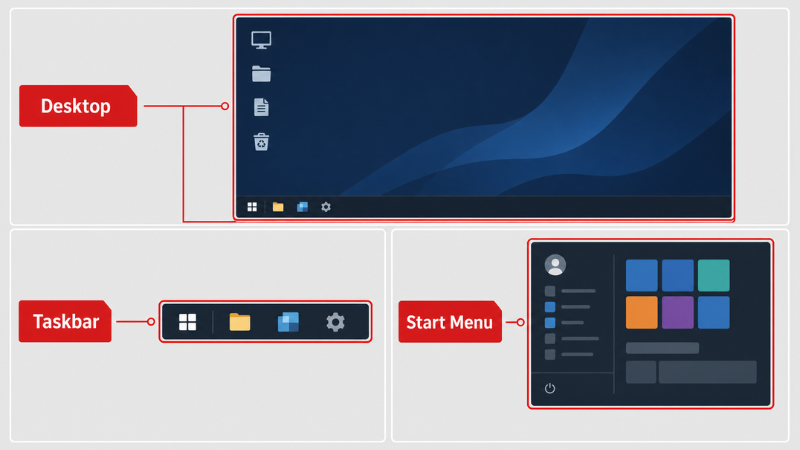
Choose the desktop, taskbar, Start menu, or Dock according to how often you use the app.
Create an app shortcut on Windows 11 or Windows 10
Method 1: Drag from Start when Windows allows it
- Press the Windows key and choose All or All apps.
- Find the app, then drag its entry to an empty area of the desktop.
- Release the mouse when the pointer indicates that a link will be created.
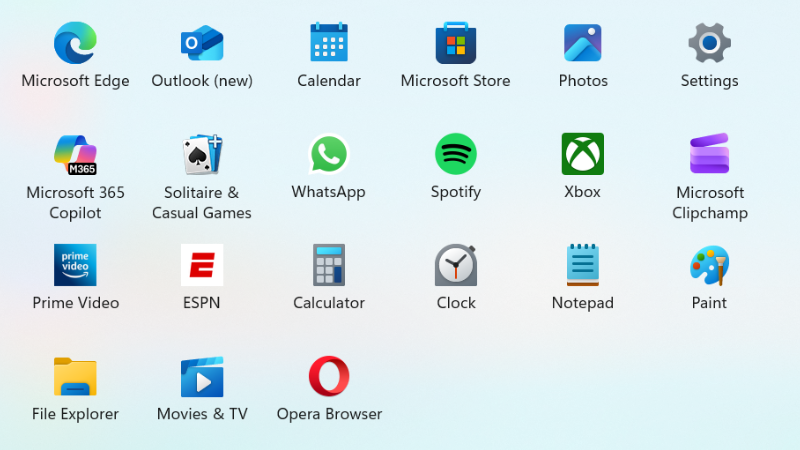
Open the full app list from Start.
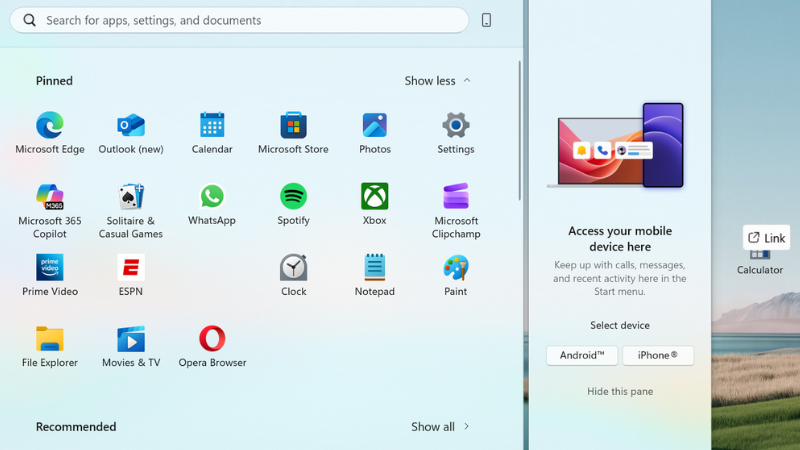
Drag to the desktop only when Windows shows that it will create a link.
This method is quick but does not work for every app or Windows configuration. If dragging has no effect, use AppsFolder instead of searching for an installation file.
Method 2: Use the AppsFolder view
This is the most reliable method for Microsoft Store apps and many traditional desktop programs.
- Press Windows + R.
- Enter
shell:AppsFolderand press Enter. Enteringexplorer shell:AppsFolderalso opens the same view. - Right-click the app and choose Create shortcut. If Windows says it cannot create the shortcut there, choose Yes to put it on the desktop.
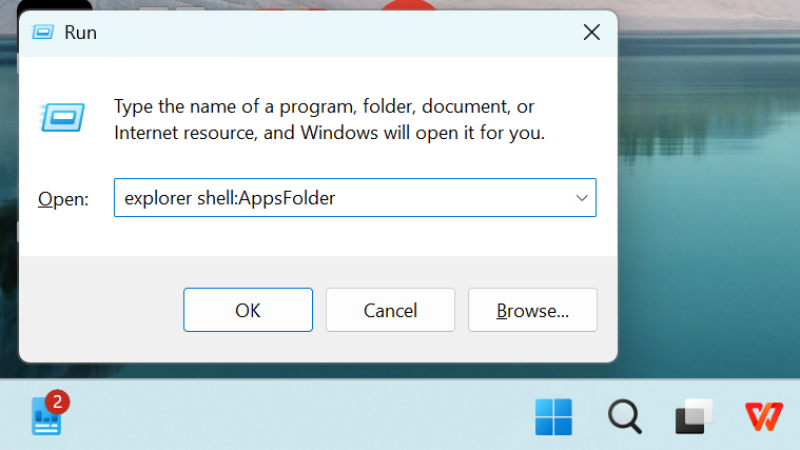
Open the AppsFolder view from the Run dialog.
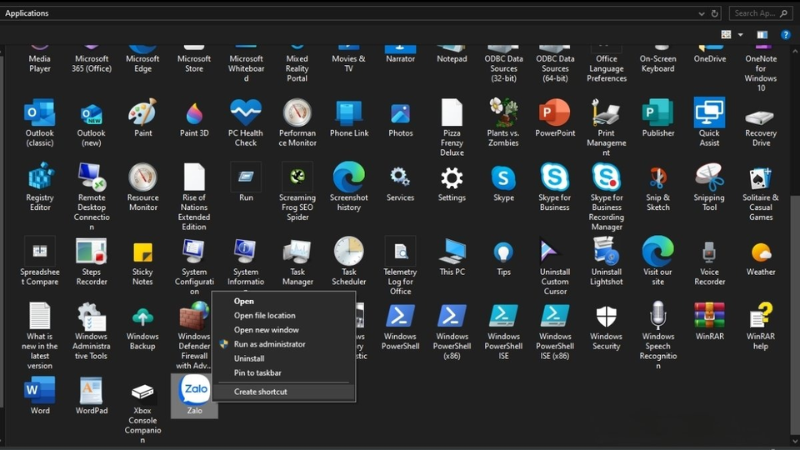
Right-click the correct app and choose Create shortcut.
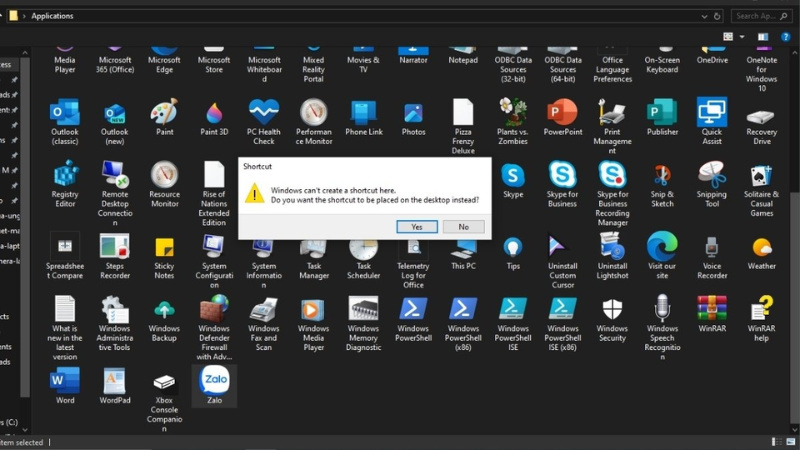
Confirm that Windows should place the shortcut on the desktop.
Method 3: Create a shortcut to a known executable
Use this method when you know the program's executable or have been given a trusted path by the software vendor.
- Right-click an empty area of the desktop and choose New > Shortcut.
- Select Browse and choose the application's
.exefile, or enter its full path. - Select Next, give the shortcut a clear name, and select Finish.
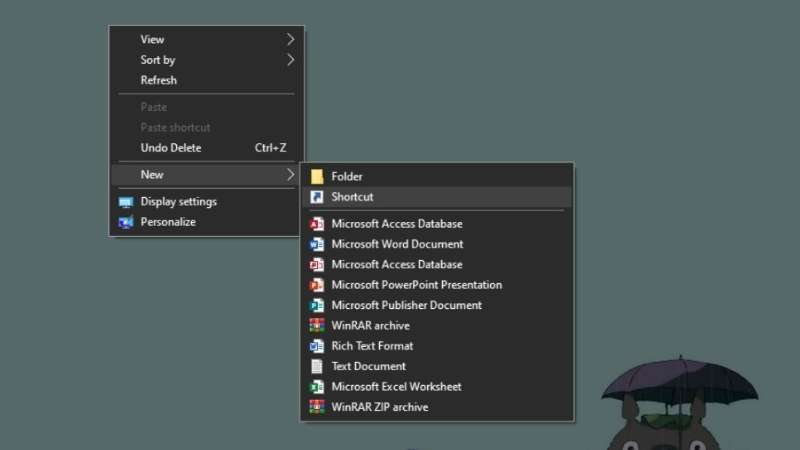
Choose New, then Shortcut, on an empty desktop area.
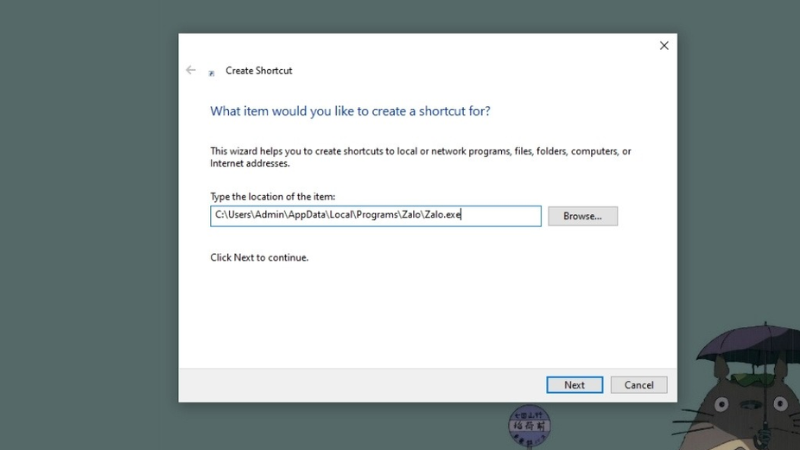
Browse to the intended executable instead of guessing its path.
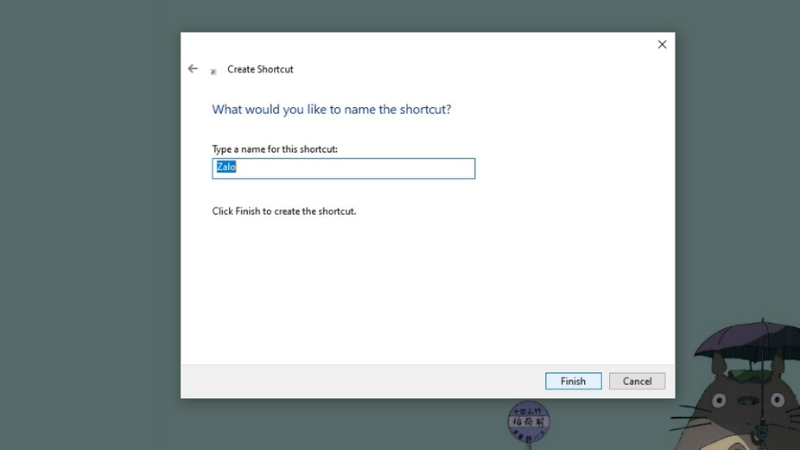
Name the shortcut and finish the wizard.
Do not create shortcuts to unknown executables found in temporary folders or email attachments. If an app is installed but difficult to locate, AppsFolder is the safer route.
Pin a Windows app instead of adding a desktop icon
Open Start, right-click the app, and choose Pin to taskbar if offered. Some entries place that command under More. Pinning does not create a desktop icon, but it keeps the app one click away without covering the desktop. For more organization options, see these useful Windows 11 taskbar features.
Windows system icons such as This PC and Recycle Bin are controlled separately. Use Settings > Personalization > Themes > Desktop icon settings, or follow the guide to display This PC on the Windows 11 desktop.
Create an app alias on a Mac
Do not simply drag an application from the Applications folder to the desktop. Depending on the source and destination, Finder may try to move the application rather than create a link. Create an alias explicitly.
- Open Finder and choose Go > Applications, or select Applications in the sidebar.
- Select the app and choose File > Make Alias, or right-click it and choose Make Alias.
- Drag the new item whose name ends in “alias” to the desktop. You can rename the alias without renaming the installed app.
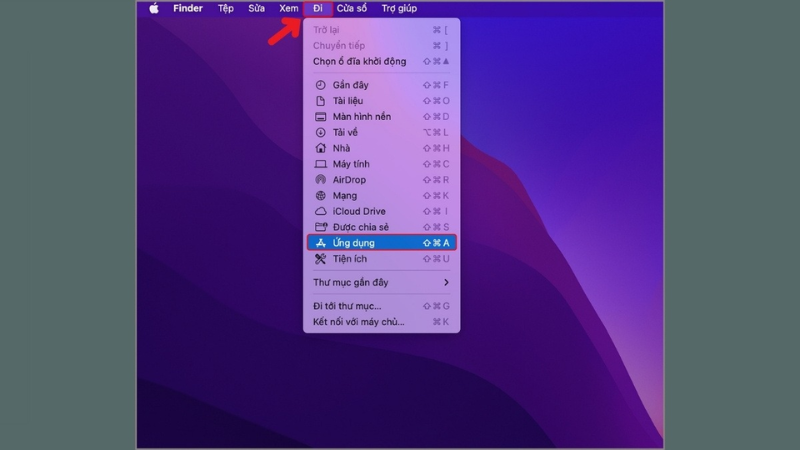
Open the Applications folder in Finder.
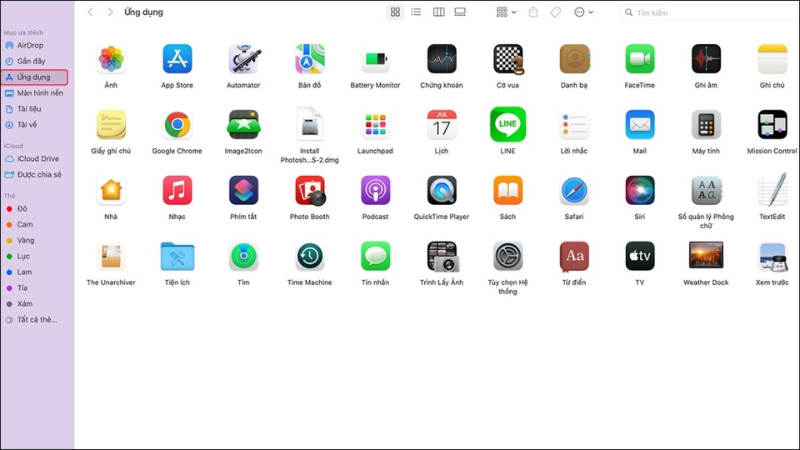
Select the installed app, then create an alias for it.
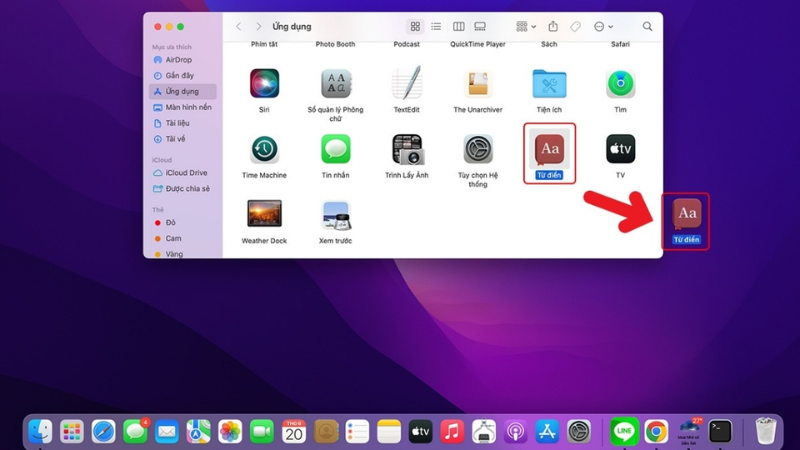
Move the alias—not the original application—to the desktop.
As a shortcut, hold Option + Command while dragging the app from Applications to the desktop. Confirm that the pointer shows the alias indicator before releasing the mouse.
Add a Mac app to the Dock
Open Applications in Finder and drag the app to the app section of the Dock, or open the app, Control-click its Dock icon, and choose Options > Keep in Dock. Removing an icon from the Dock does not uninstall the application.
Manage and remove shortcuts safely
- To reposition an icon, drag it to an empty area. On Windows, desktop sorting or auto-arrange settings may control where it lands.
- To rename a shortcut or alias, select it and use the rename command; the original application's name does not change.
- To remove it, delete the desktop shortcut or alias, or unpin the app from the taskbar or Dock.
- If an icon stops working, the application may have been moved, updated, or uninstalled. Recreate the shortcut from Start, AppsFolder, or Applications.
For a less crowded Windows desktop, you can also adjust icon size and spacing with this guide to changing Windows desktop icon size.
Related Articles
 How to Unhide Hidden Apps on iPhone: Step-by-Step Guide11 minutes read
 iOS 14 in IPhone's Radical New Home Screen Changes Aren't on by Default4 minutes read
 Instructions for Arranging Android Home Screen12 minutes read
 Customize and Add Apps to the Lock Screen of Windows 104 minutes read
 This Is Why People Don't Have to Switch Between Apps on Samsung Devices So7 minutes read
 The iOS Concept with Widgets on the Home Screen: Resembles3 minutes read
Reader Comments 0
Sign in with email or Google to join the discussion.