In this tutorial, we'll continue learning how to use Photoshop CS6 to create an abstract image of colorful geometric shapes. This technique is quite simple, and the entire tutorial can be completed in less than an hour.
- 10 common problems in Photoshop and how to fix them.
Start by creating a new document ( Ctrl + N ) in Adobe Photoshop CS6 with dimensions of 1920px x 1200px ( RGB color mode ) at a resolution of 72 pixels per inch . Click the Add a layer style icon in the Layers panel and select Gradient Overlay .
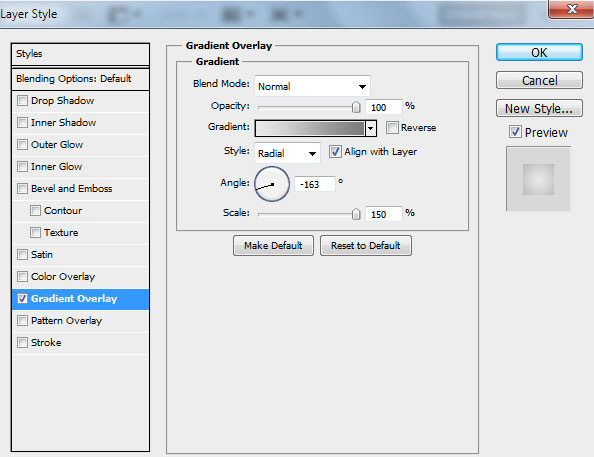
Click the color bar to open the Gradient Editor and set the color stops as shown below. Press OK to close the Gradient Editor dialog box .
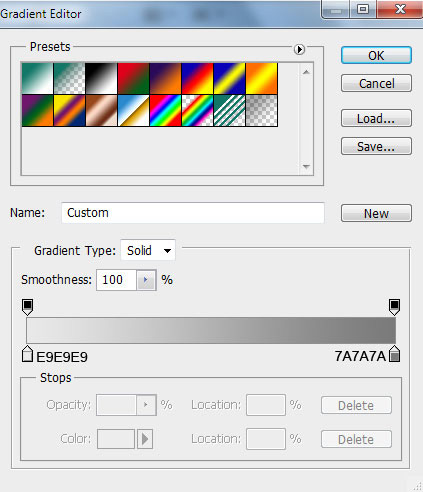
We have the following result:

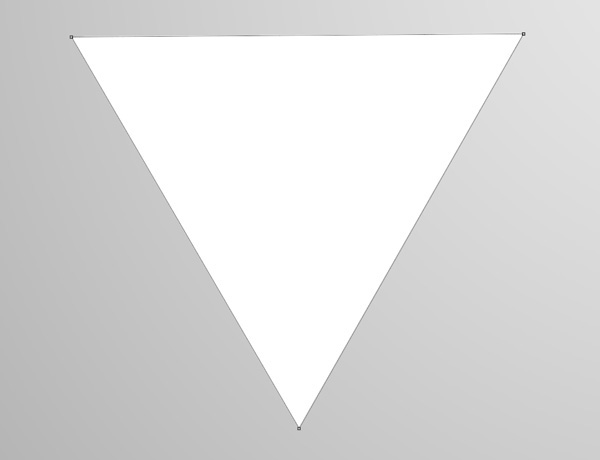
Now let's create a tetrahedron, but first we'll draw a triangle. Select the Pen Tool (P) , set the drawing mode to Shape Layers in the Options bar , and draw the following shape as shown.
Click the Add a layer style icon in the Layers panel and select Gradient Overlay .
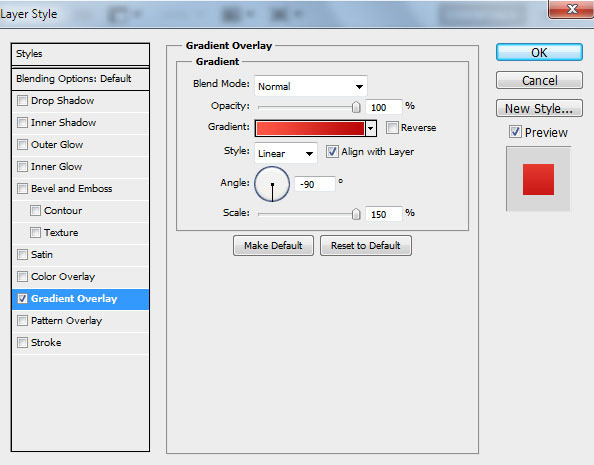
Click the color bar to open the Gradient Editor and set the color stops as shown. Press OK to close the Gradient Editor dialog box .
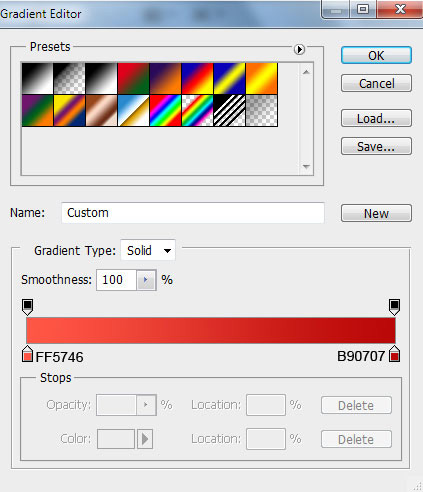
We have the following result:

Next, draw the triangular face using the Pen Tool (P) as above.
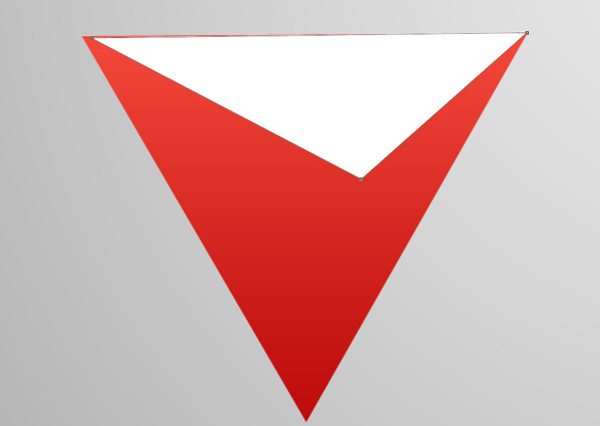
Click the Add a layer style icon in the Layers panel and select Gradient Overlay .
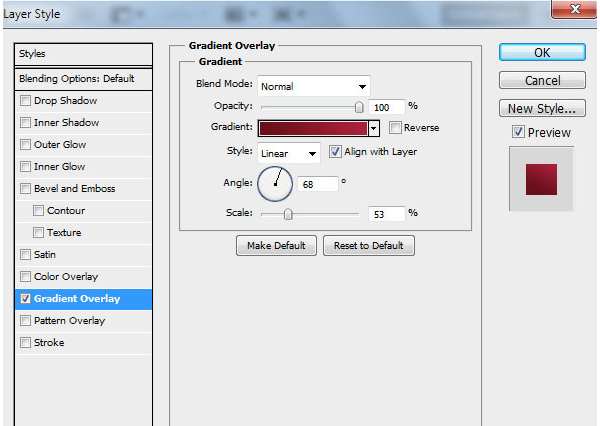
Click the color bar to open the Gradient Editor and set the color stops as shown below. Press OK to close the Gradient Editor dialog box .
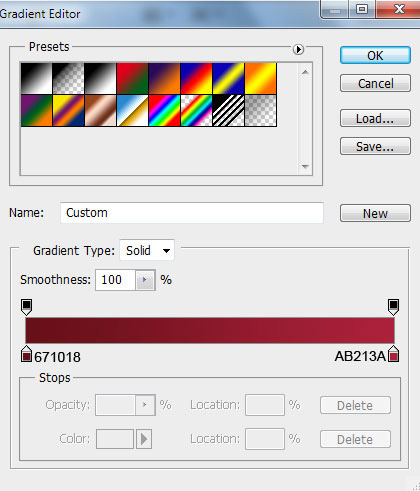
We have the following result:

Use the same tool to draw the next triangle:

Click the Add a layer style icon in the Layers panel and select Gradient Overlay .
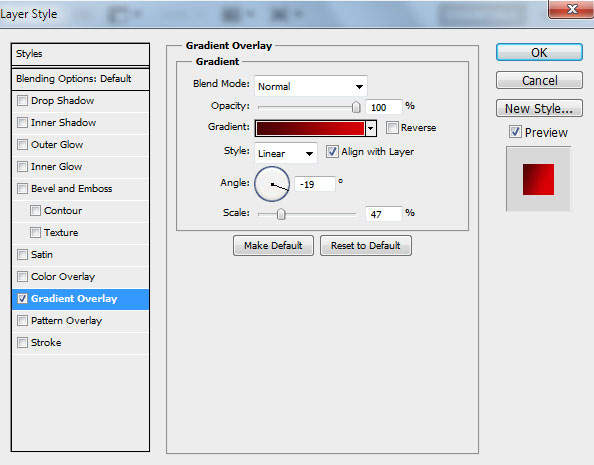
Click the color bar to open the Gradient Editor and set the color stops as shown below. Press OK to close the Gradient Editor dialog box .
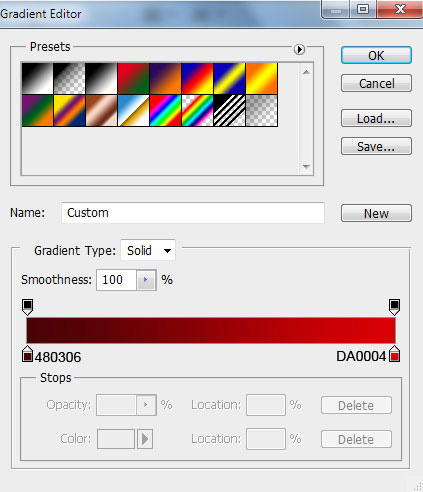
We have the following result:
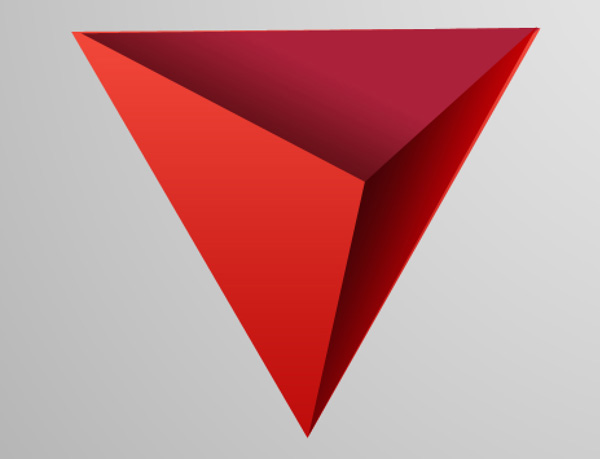
Next, to draw other tetrahedra, first create the base layer using the Pen Tool (P) .
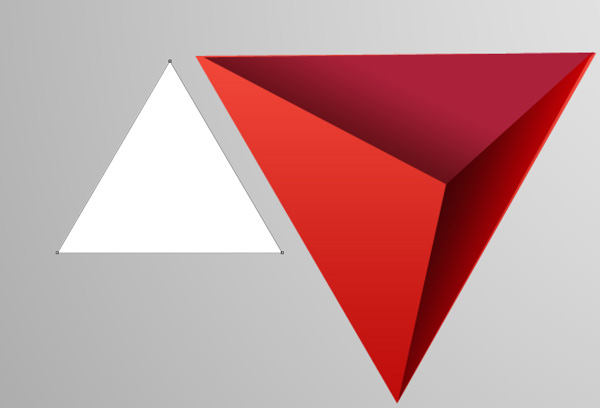
Click the Add a layer style icon in the Layers panel and select Gradient Overlay .
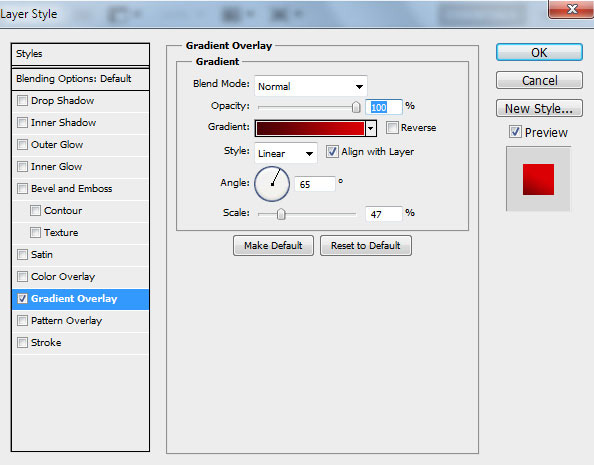
Click the color bar to open the Gradient Editor and set the color stops as shown. Press OK to close the Gradient Editor dialog box .
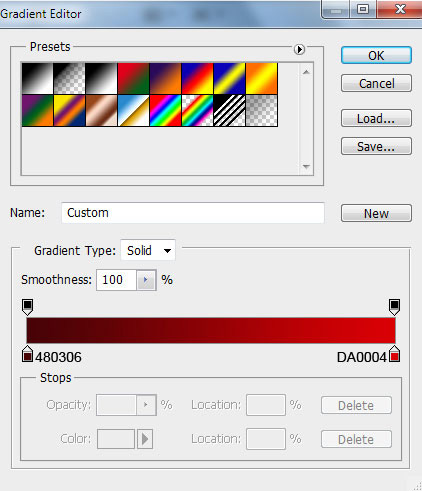
We have the following result:
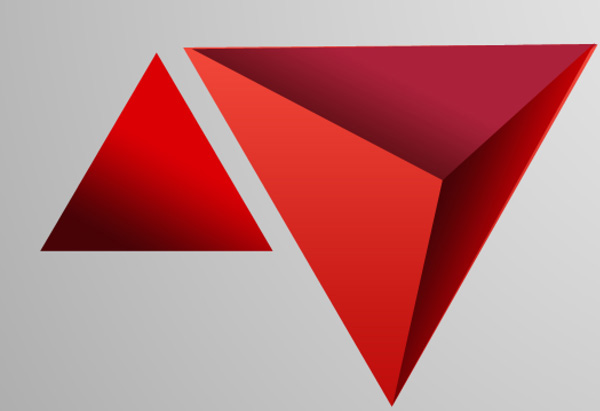
Use the same tool to draw the next triangular face:

In the Layers panel, select Gradient Overlay .
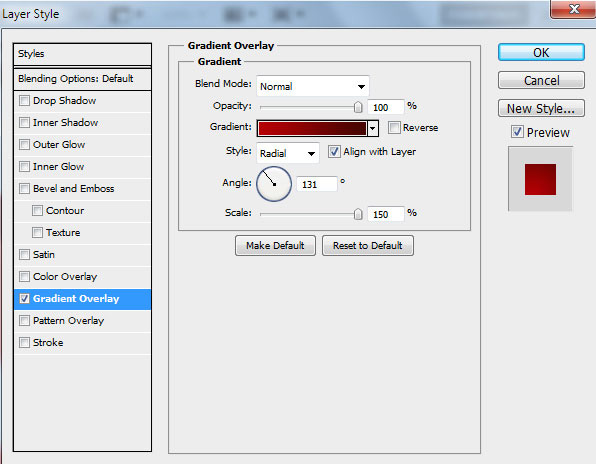
Set the color stops as shown. Press OK to close the Gradient Editor dialog box .
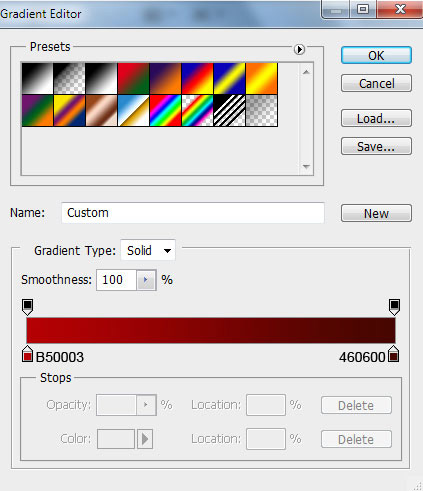
We have the following result:
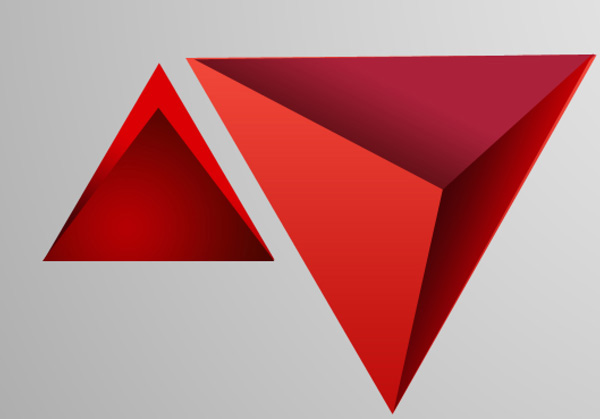
Next, draw another tetrahedron using the Pen Tool (P) .
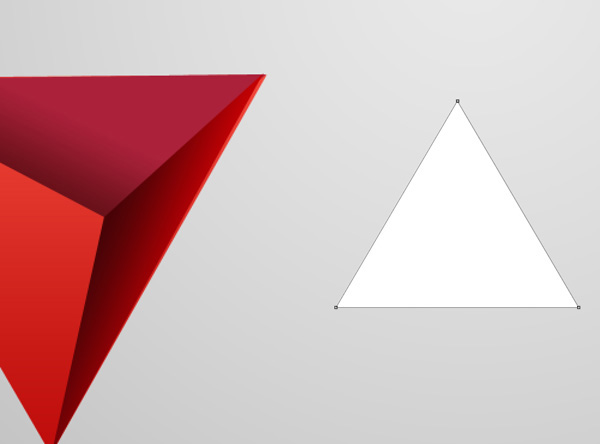
Click the Add a layer style icon in the Layers panel and select Gradient Overlay .
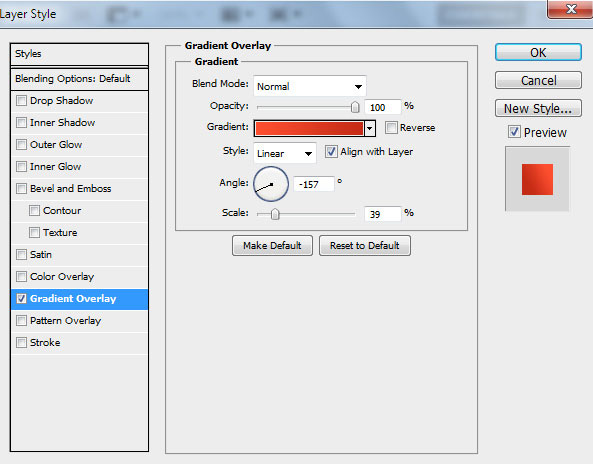
Click on the color bar to open the Gradient Editor and set the color stops as shown below. Press OK to close the Gradient Editor dialog box .
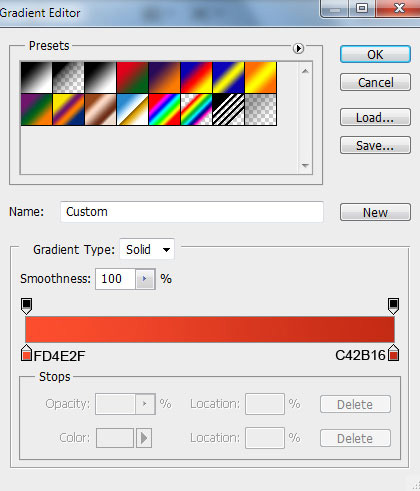
We have the following result:
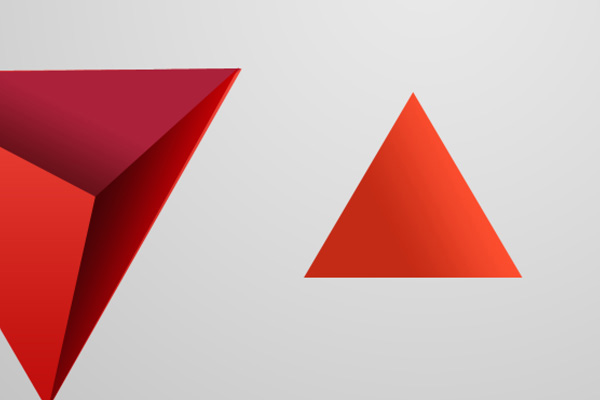
Now draw the triangle face using the Pen Tool (P) .

In the Layers panel, select Add a layer style and choose Gradient Overlay .
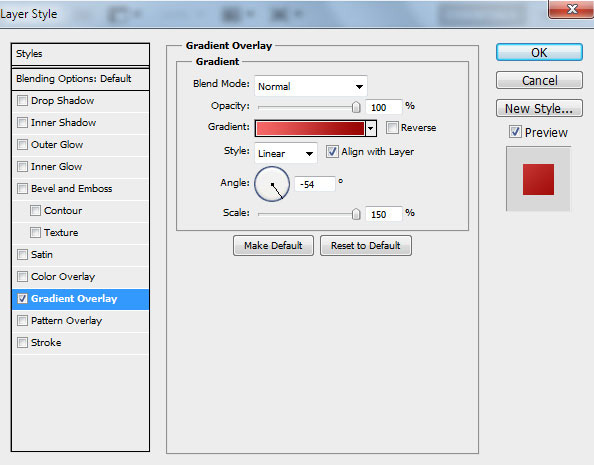
Similarly, set the color stops as shown below in the Gradient Editor, then click OK to close.
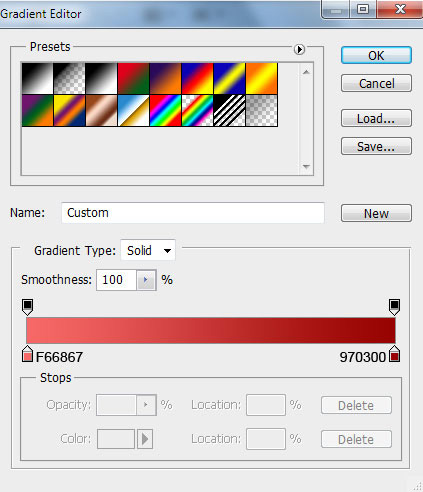
Here's the next image:
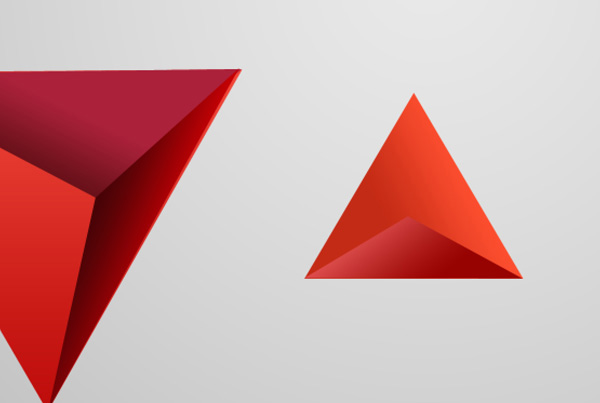
Use the Pen Tool (P) to create an additional triangular face for the tetrahedron.
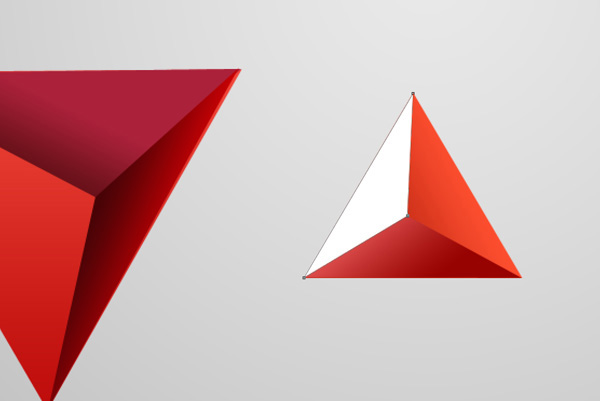
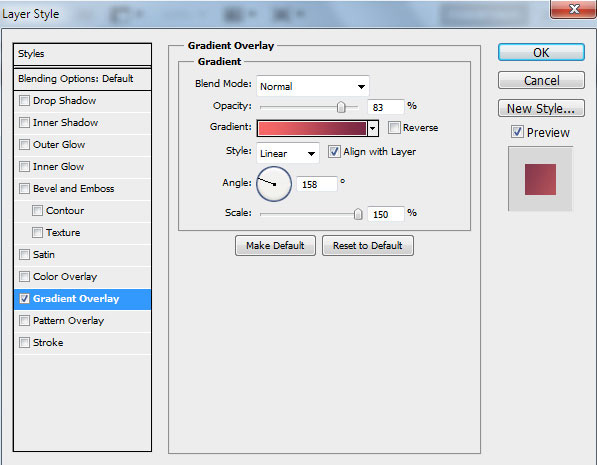
Click the Add a layer style icon in the Layers panel and select Gradient Overlay .
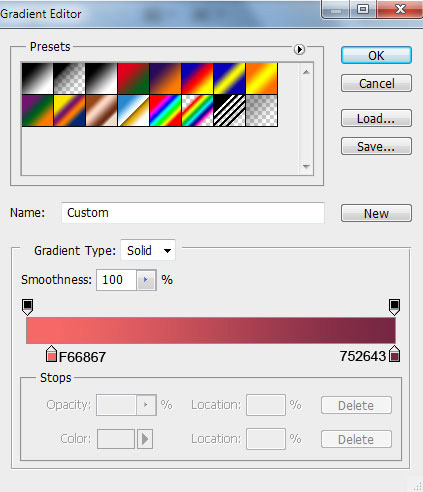
Set the color stops as shown in the image and click OK to close the Gradient Editor dialog box .
Here's the next image:
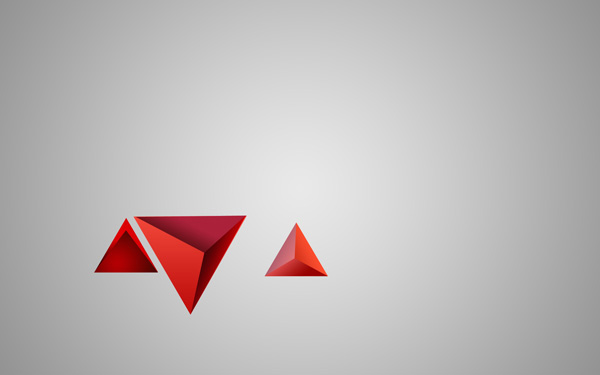
Combine all the tetrahedral layers into one group (press the CTRL button to select the necessary layers and hold down the left mouse button while dragging the selected layers to the Create a new group icon in the Layers panel ).
Now we need to create multiple copies of that group. Make some copies the opposite direction using the Free Transform command (Ctrl + T) . Change the gradient color direction of the triangle faces to change the shading. The gradient color direction is reversed.
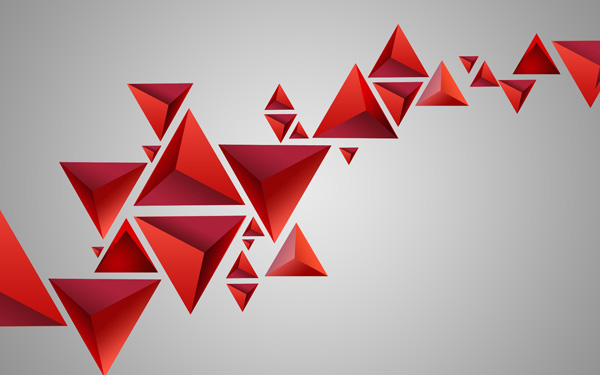
Now we need to combine all the tetrahedral groups into one (do the same as above). Create a copy of the newly created group and rasterize it. Press CTRL + E to Merge Down the layer (merge the top layer into the bottom layer) of the selected group in the Layers panel . The rasterized layer will be placed below the first tetrahedral group.
Create a copy of the rasterized layer and use the Free Transform command (Ctrl + T) to move the copy layer down a bit.
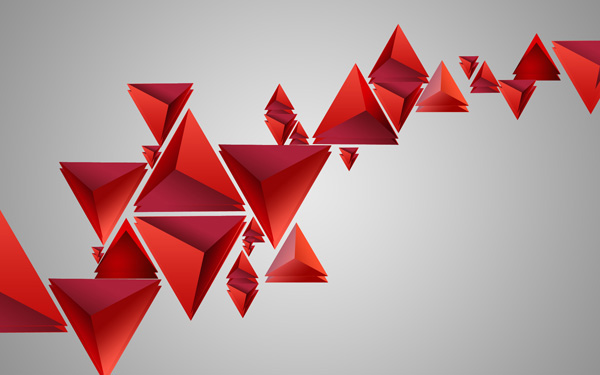
Set the Fill value to 20% for this layer.
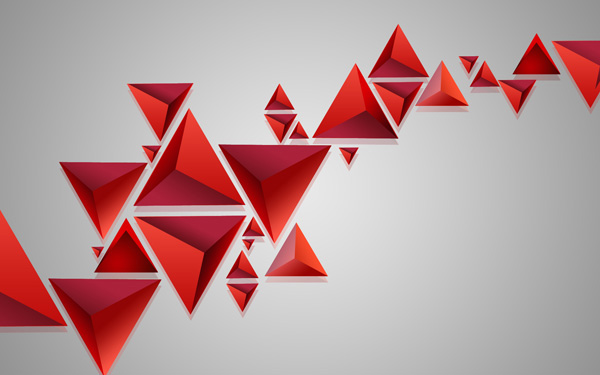
Insert a mask on this layer by selecting Add layer mask at the bottom of the Layers panel and choosing a black Soft Round brush (set the Opacity to 40% in the Options bar ).
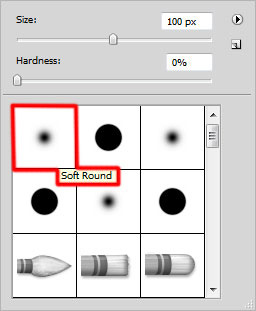
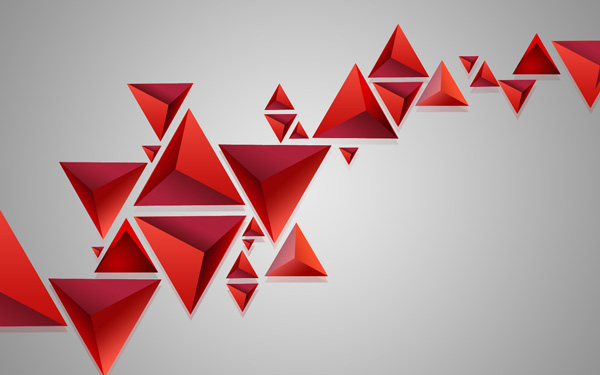
Paint the mask using this brush to hide the tetrahedral elements as shown.
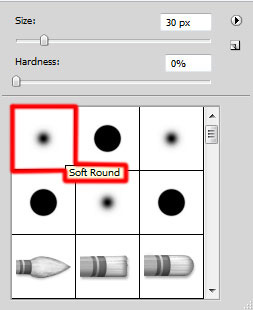
Create a new layer and select the Soft Round brush from the Brush Tool (B) . Use this brush to represent some colored dots on the tetrahedra. The brush color is #F008D (Brush has an Opacity of 30% ). The layer will be placed on top of the first group.
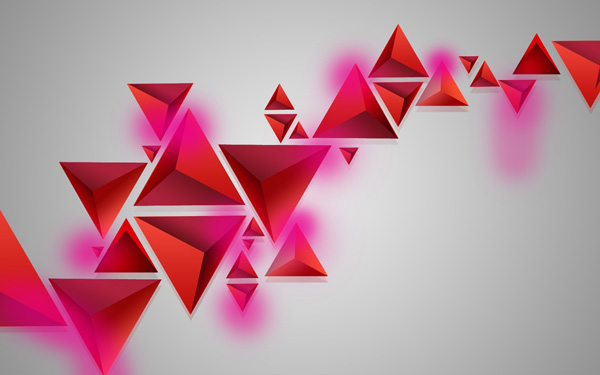
Set the Fill value to 40% for this layer and change the Blending mode to Linear Dodge .
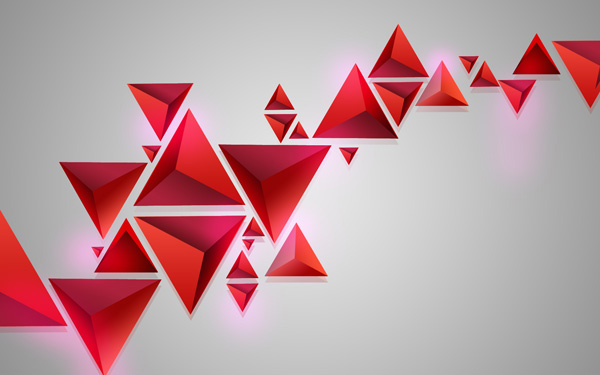
Make sure this layer is selected in the Layers panel, hold down the Ctrl button and click on the layer containing the tetrahedra located under the first group (without Displacement).
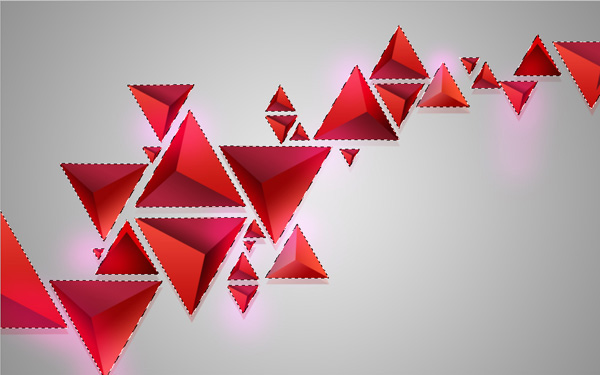
Now, on the layer using the pink brush, click at the bottom of the Layers panel and select Add layer mask . This way we will cut out the color points.
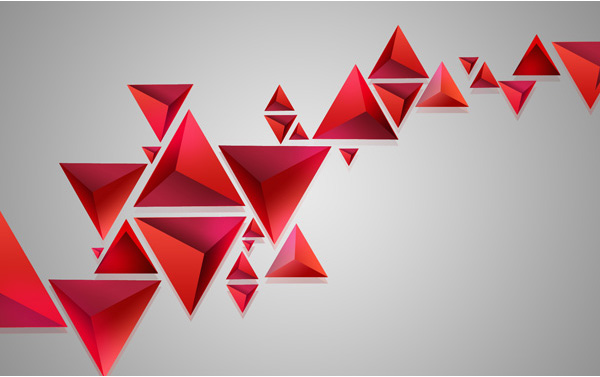
Create a copy of the rasterized tetrahedron layer. Place the copy on top of all other layers and select the Free Transform command (Ctrl + T) to flip the copy's layer, then use CTRL + SHIFT + U to Desaturate (convert the color image to black and white).
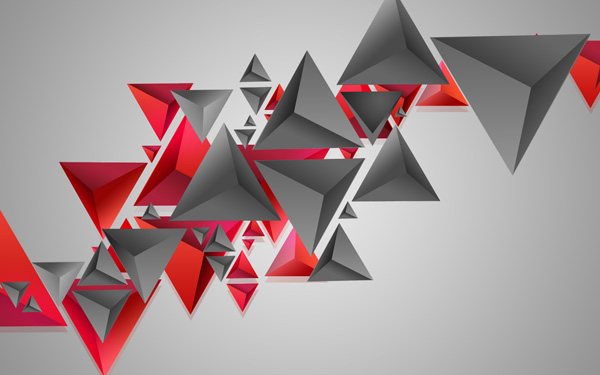
Set the Fill value to 14% for this layer and change the Blending mode to Subtract .
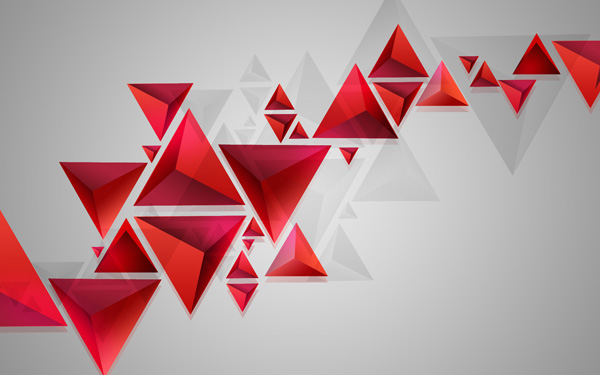
Cut out the colorless shadows behind the tetrahedra as described above by inserting a mask into the selection area.
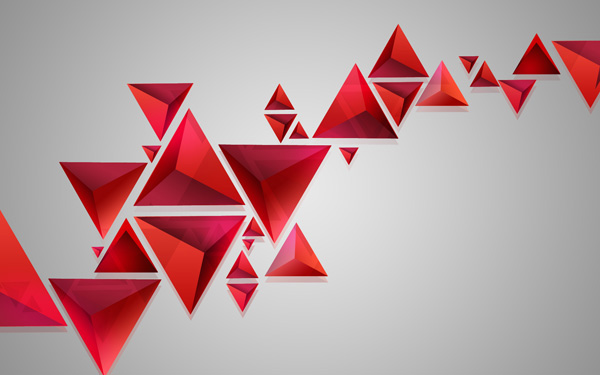
Create a new layer and use it on the Soft Round brush to render multiple dots with the color #F008D ( brush opacity is 30% ).
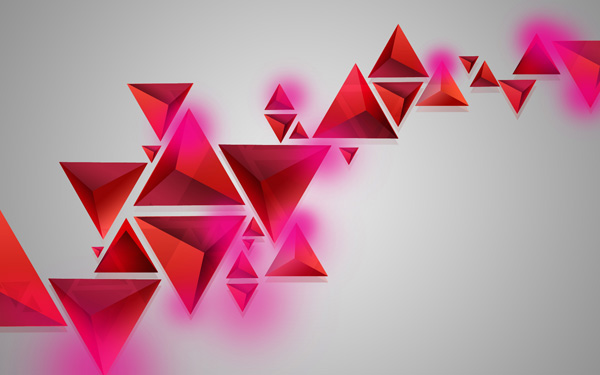
Set the Fill value to 20% for this layer and change the Blending mode to Pin Light .
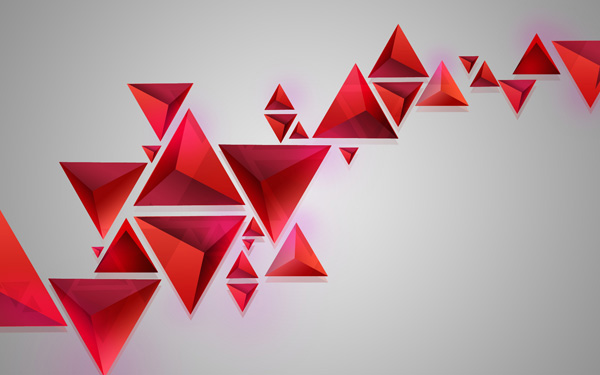
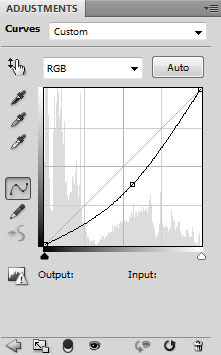
Click on Create new fill or adjustment layer from the bottom of the Layers panel and click on Curves to adjust the curve as shown below to make a small color modification.
We have the following result:
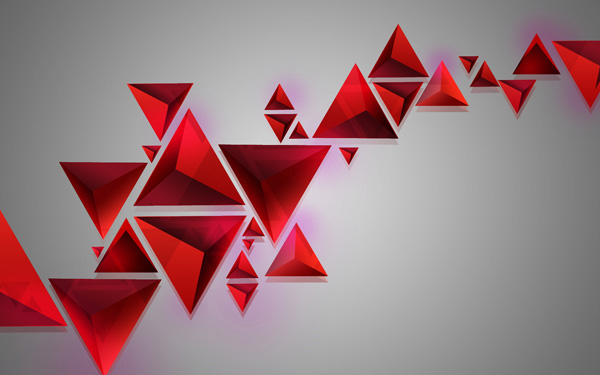
Set the Fill value to 45% for this layer.
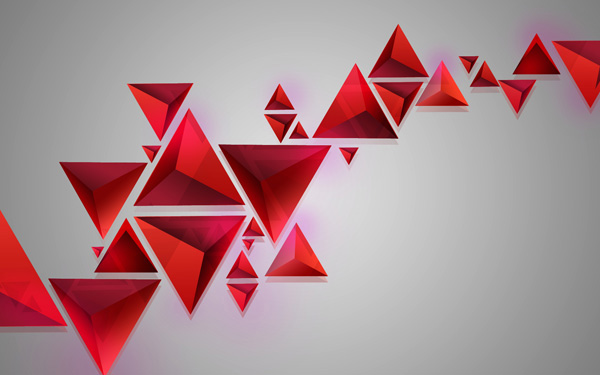
Insert a mask into this layer by selecting Add layer mask at the bottom of the Layers panel , pressing CTRL + I to inverse the mask's color, and selecting a white Soft Round brush (set the Opacity down to 65% in the Options bar ).
By painting the mask using this brush to hide the effect, she demonstrates smooth points on the tetrahedra.
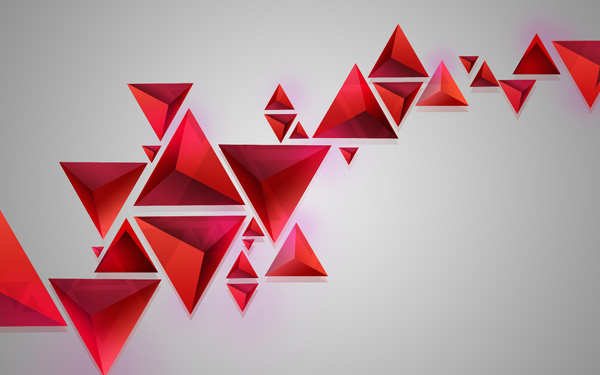
Create a new layer and use the Soft Round brush mentioned above to highlight with yellow ( brush opacity is 20% ).
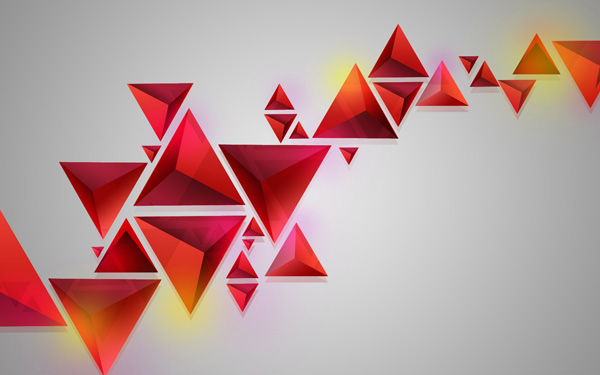
Set the Fill to 40% for this layer and change the Blending mode to Screen .
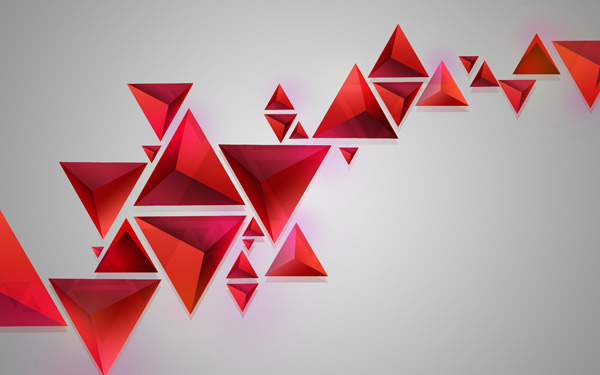
Next, we will create a new layer and select the Soft Round brush with white color ( Brush Opacity is 30% ) to create a highlight on the tetrahedra.
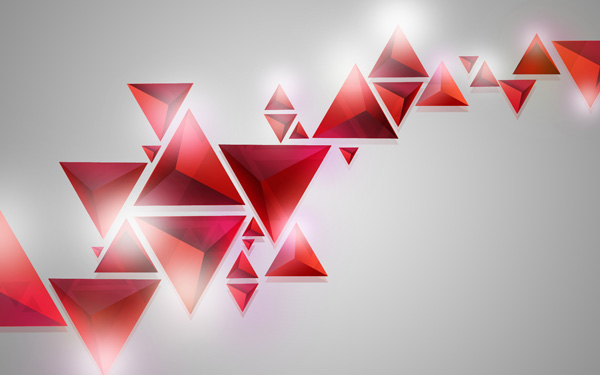
Set the Fill to 50% for this layer and change the Blending mode to Hard Mix .
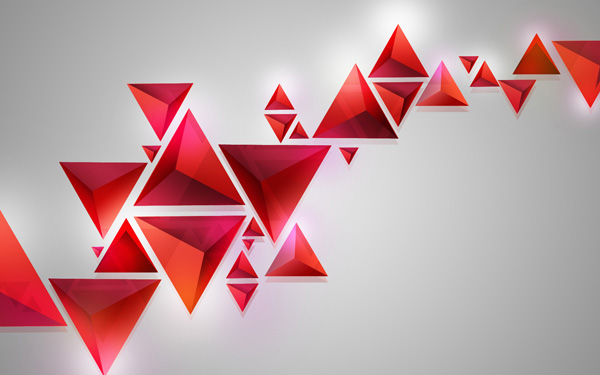
Make sure this layer is selected in the Layers panel , then press Ctrl and click on the rasterized layer of the tetrahedron (we will get a selection area) and insert a mask onto this active layer. The white highlights are cut off.
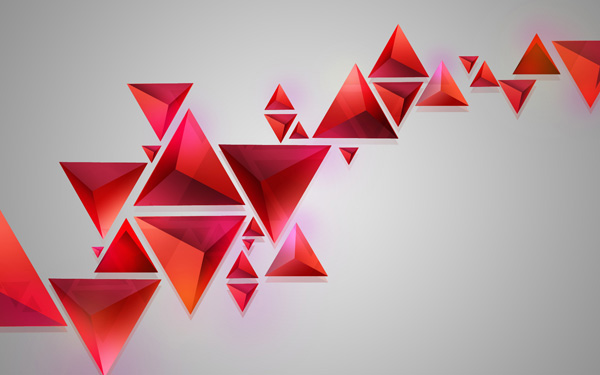
Create a new layer and use the Soft Round brush mentioned above. Select a white brush ( the brush opacity is 15% to show the luminescence emanating from the tetrahedra).
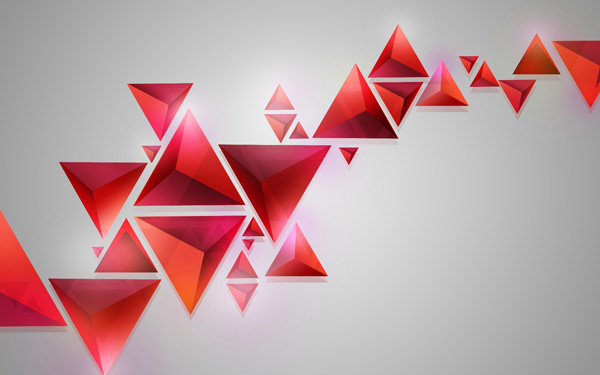
Finally, create a new layer and apply a white Soft Round brush to create multiple dots of varying diameters.
We have the final image:

Download the Layered PSD file for free .
You can find more information here:
- Photoshop CS6 Tutorial (Part 1): Creating Digital Images
- Photoshop CS6 Tutorial (Part 2): Creating Fashion Collage Images
- Photoshop CS6 Tutorial (Part 3) - Creating Artistic Image Manipulation with Exposure Effects
- Photoshop CS6 Tutorial (Part 4): Creating a Dissolving Effect
- Photoshop CS6 Tutorial (Part 5): Creating a Christmas Card with Snowflakes on a Red Background
Related Articles
 How to Use Photoshop CS6 (Part 6): Create Abstract Geometric Blocks11 minutes read
 Download Beautiful Custom Shapes for Photoshop3 minutes read
 How Abstract Physics Connects Quantum Foundations and Cosmic Destiny9 minutes read
 How to Split Photos with Photoshop: Edit Photos11 minutes read
 How to Draw Triangles in Photoshop: Step-by-Step Guide3 minutes read
 How to Fix the Insertion Block in Excel: How to Insert Excel Shapes4 minutes read
Reader Comments 0
Sign in with email or Google to join the discussion.