Table of Contents
A start screen gives players a clear way to begin a ScratchJr quiz, while an end screen confirms that they have completed it. Both screens can be controlled with the same color-coded messages used to show and hide quiz questions.
This guide creates a custom Play button for the start and a closing character for the finish. Before beginning, make sure the quiz questions already respond to message blocks.
Create a start screen for the ScratchJr quiz
Step 1: Add a custom Play character
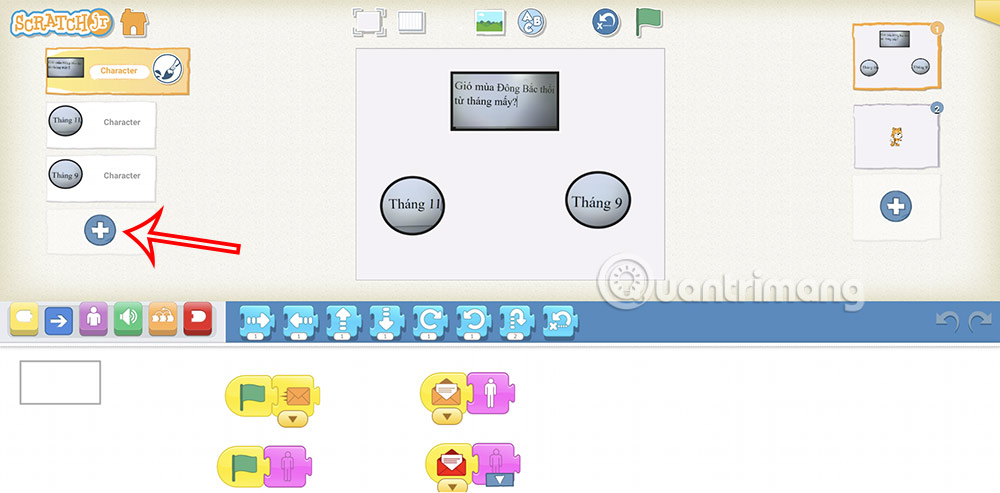
Open the page containing the first question and tap the plus sign in the character area.
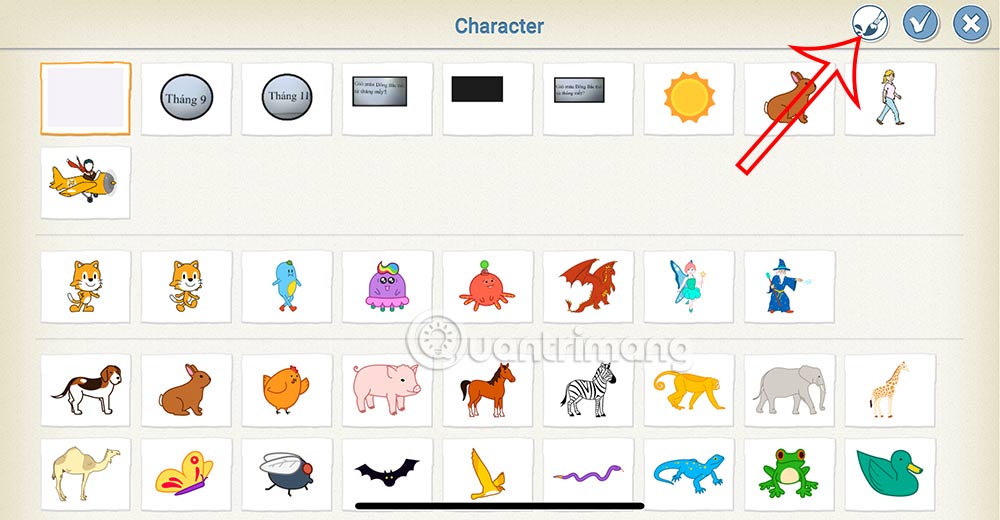
Choose the blank character and tap the paintbrush to open the ScratchJr paint editor.
Step 2: Draw the Play icon
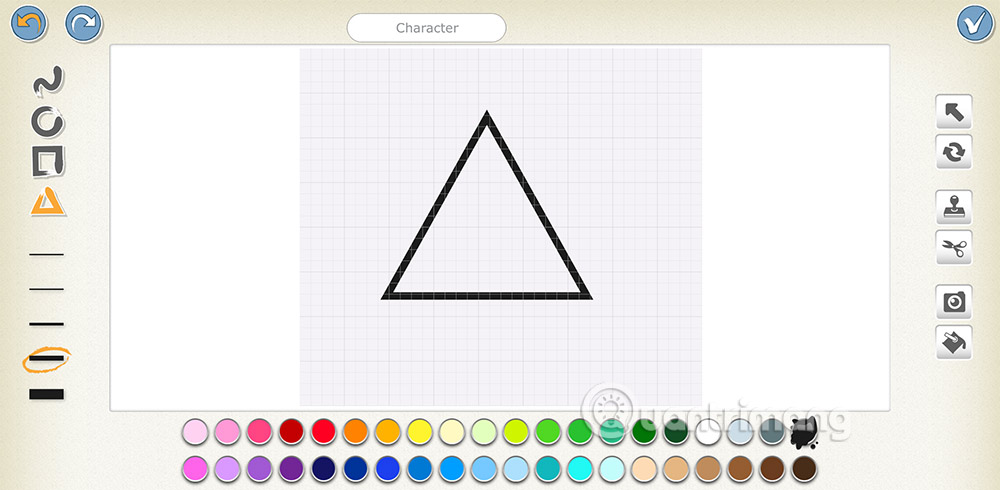
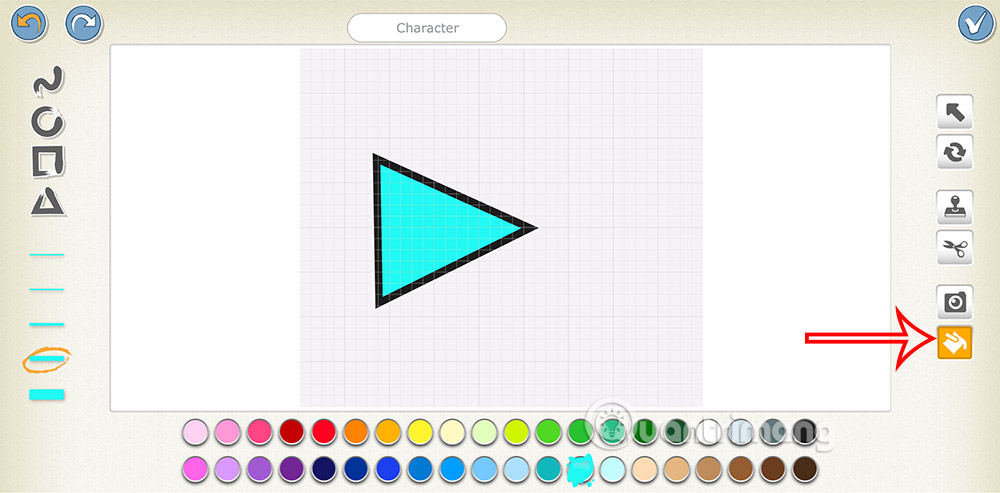
Select the triangle tool and draw a triangle in the size and outline color you want.
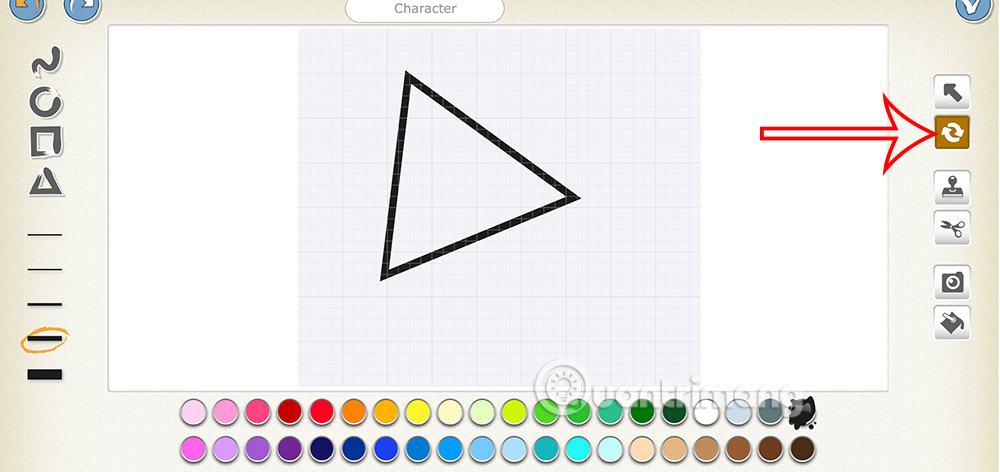
Use the rotate tool to turn the triangle 90 degrees so it points to the right like a familiar Play symbol.
Select the fill tool, choose a color with good contrast, and tap inside the triangle. Tap the checkmark when the icon is complete.
Step 3: Position the button
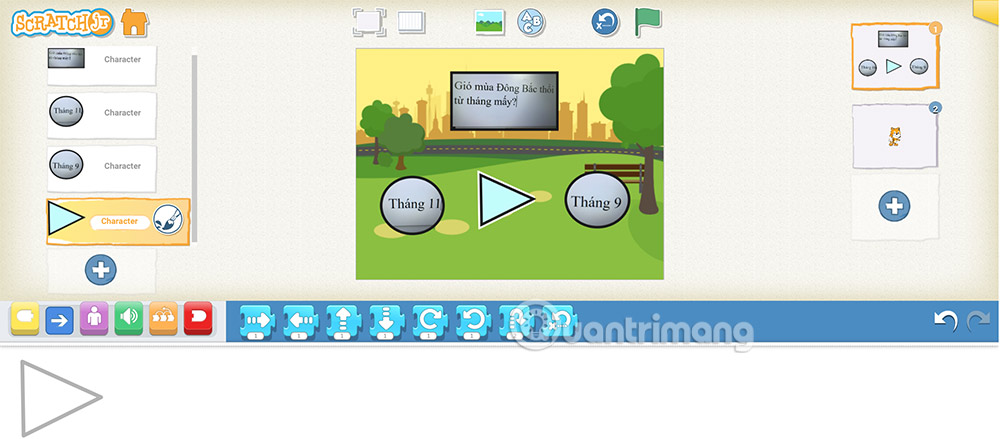
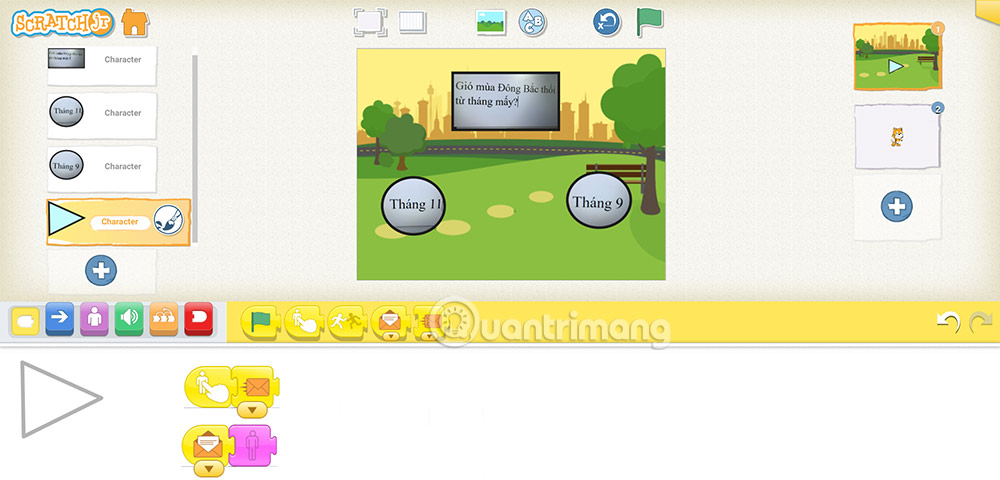
Place the new Play character where it is easy to see and tap. The question and answer characters may still be visible while you are editing; the next steps control what appears when the project runs.
Step 4: Make the button start the quiz
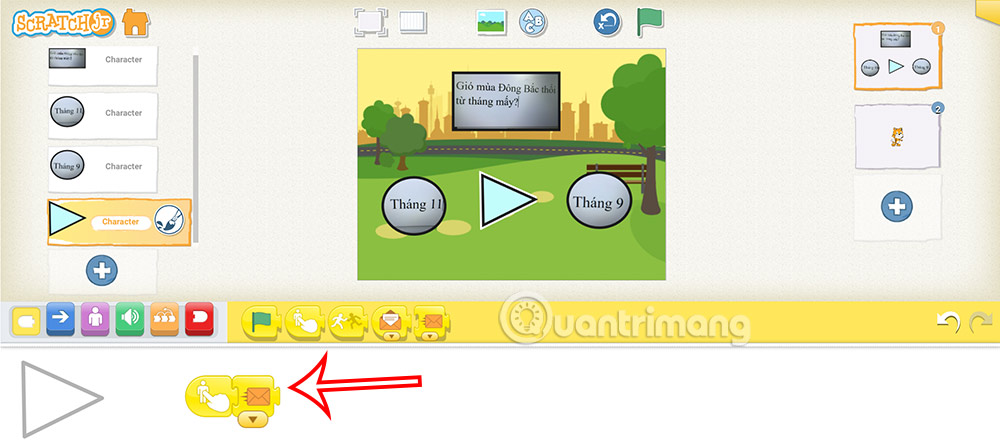
Select the Play character and create a script with Start on Tap followed by an orange Send Message block. Tapping the button now broadcasts the same orange message that starts the first question.
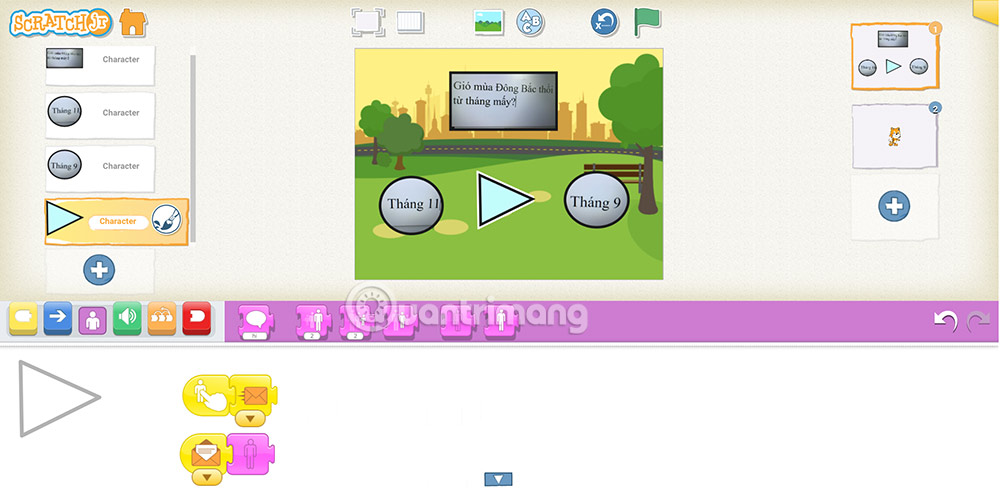
Add a separate script to the Play character beginning with the orange Start on Message block and followed by Hide. The same tap therefore starts the quiz and removes the button from the stage.
Step 5: Let the button control the first question
Select the first question character and remove any green-flag script that sends the orange start message automatically. The orange message should now come from the Play button. Keep the orange receiver and Show blocks on the question and its answer choices.
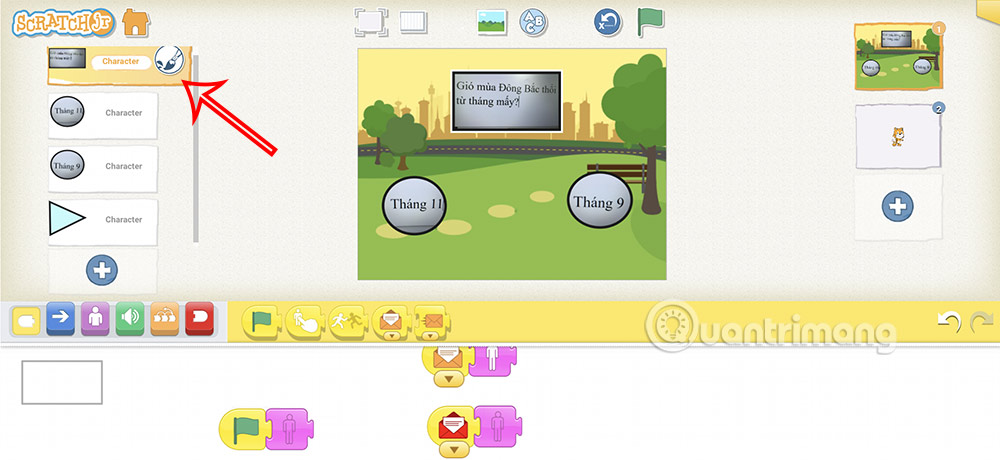
When the project is reset, only the Play button should be visible on the opening screen.
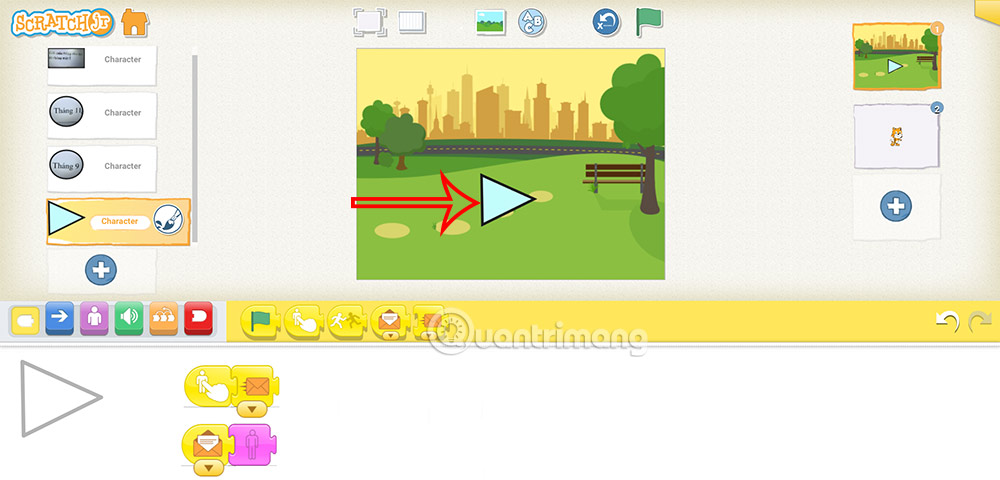
Tap the button. It should disappear as the first question and answer characters appear.
Add an end screen to the ScratchJr quiz
Step 1: Prepare a closing character
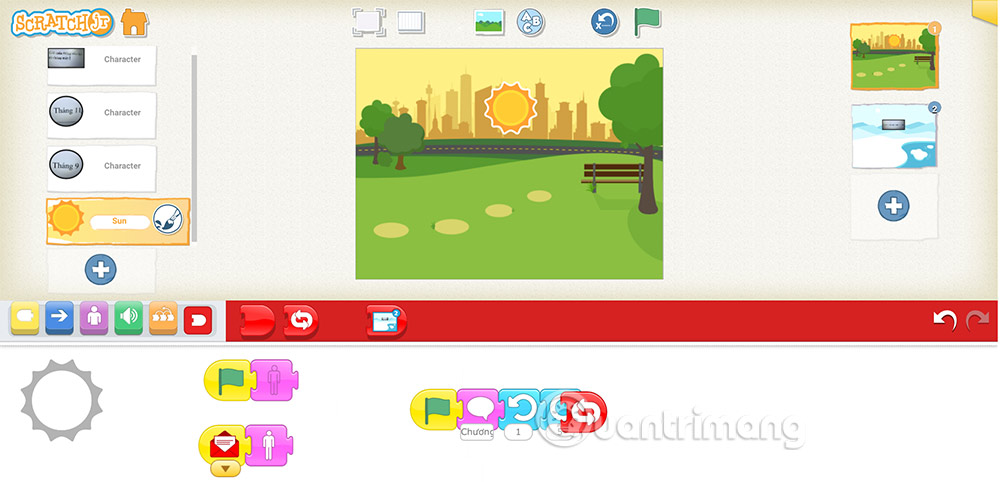
Add a character that will appear when the quiz ends. It can be a mascot, a trophy, or a custom graphic. Give it a green-flag script followed by Hide so it is not visible when the project starts.
Choose an unused message color for finishing the quiz. Add a second script to the closing character with the matching Start on Message block followed by Show. Attach a Send Message block of that color to the correct answer in the final question.
Step 2: Add the closing action
After the closing character appears, it can move, grow, or display a short message such as “Quiz complete!” Keep the feedback clear so the player knows there are no more questions.
Test the whole quiz
- Reset the project and verify that only the Play button appears.
- Tap Play and confirm that the button hides and question 1 appears.
- Complete every question, testing incorrect answers as well as correct ones.
- Check that only the final correct answer sends the finish message.
- Confirm that the closing character appears once and the last question hides.
If several characters appear at the wrong time, inspect their message colors. Each sender must match the intended receivers, and a color reused elsewhere can start unexpected scripts.
For more ways to teach coding through play, compare these programming games and apps for kids. Learners ready for a larger Scratch project can follow the Scratch maze game tutorial.
Related Articles
 ScratchJr Quiz - Lesson 2: Adding Characters4 minutes read
 ScratchJr Quiz - Lesson 5: Review of Commands3 minutes read
 Basic ScratchJr Quiz - Lesson 1 with Answers4 minutes read
 ScratchJR Maze Game Design Tutorial (Final Lesson)5 minutes read
 ScratchJR Maze Game Design Tutorial (Part 2)4 minutes read
 What Is ScratchJr?4 minutes read
Reader Comments 0
Sign in with email or Google to join the discussion.