Table of Contents
Shapes are a great way to make presentations more engaging. PowerPoint 2016 offers users a wide variety of shapes to choose from, and these can be customized to suit individual needs. While it's not necessary to use shapes in all presentations, when used correctly, they can enhance visual appeal.
How to insert a shape into a slide
1. Select the Insert tab, then click the Shapes command in the Illustrations group. A drop-down menu containing shapes will appear.
2. Choose your desired shape.
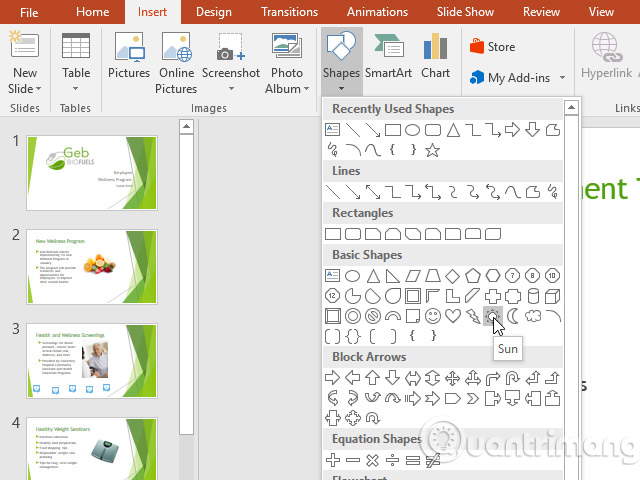
3. Click and drag to the desired location to add the shape to the slide.
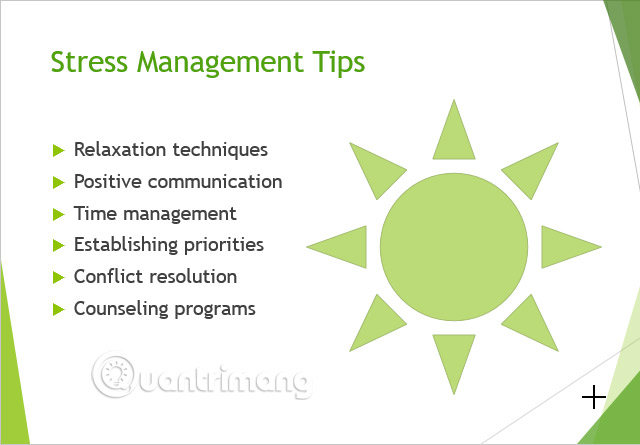
Modify the shape or text box
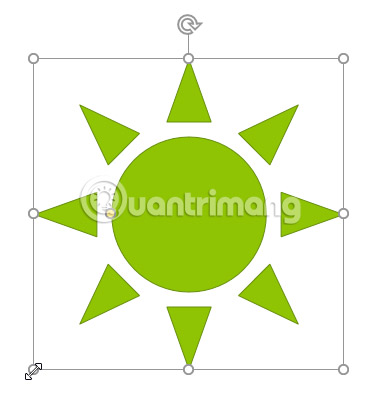
When you click on a shape or text box, handles (circles) will appear, allowing you to manipulate the shape. There are several types of handles.
- Resize handle : Click and drag the resize handle until the shape or text box is the desired size. The resize handles at the corners can be used to change both height and width simultaneously.
- Rotate handle : Click and drag the rotate handle to rotate the shape.
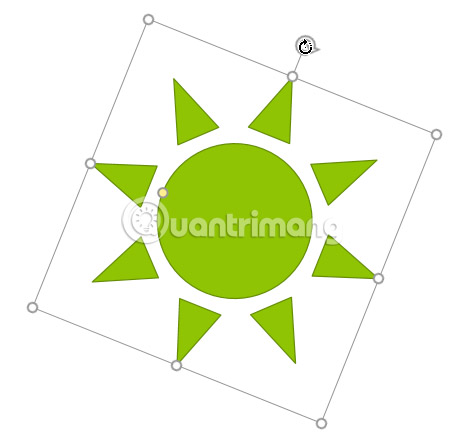
- Handle Yellow: Some shapes have one or more yellow handles that can be used to customize the shape. For example, with the sun shape, you can change its proportions.
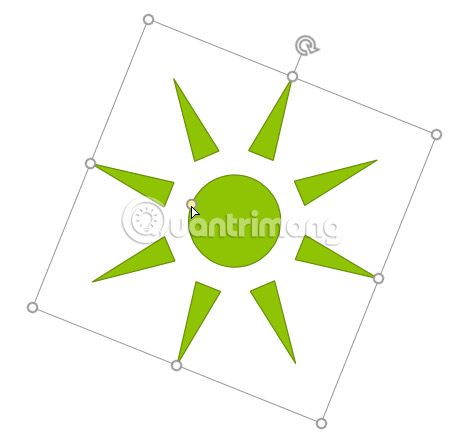
In addition to resizing, customizing, and rotating their shapes, they can also be aligned, arranged, and grouped together.
Format shapes and text boxes
PowerPoint allows you to modify the shape and text box in many different ways so you can adjust them to suit your project. You can change the shape and text box to different shapes, format the style and color, and add effects to them.
How to change the shape
Choosing a style for a shape allows you to apply predefined colors and effects to quickly change the appearance of the shape or text box. These options will depend on the colors currently in use, which are part of the theme.
1. Select the shape or text box you want to change.
2. On the Format tab, click the More drop-down arrow in the Shape Styles group.
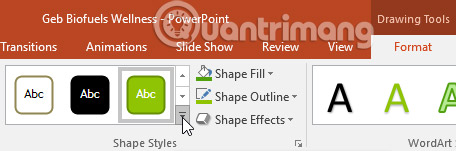
3. A drop-down menu containing various styles will appear. Choose the style you want to use.
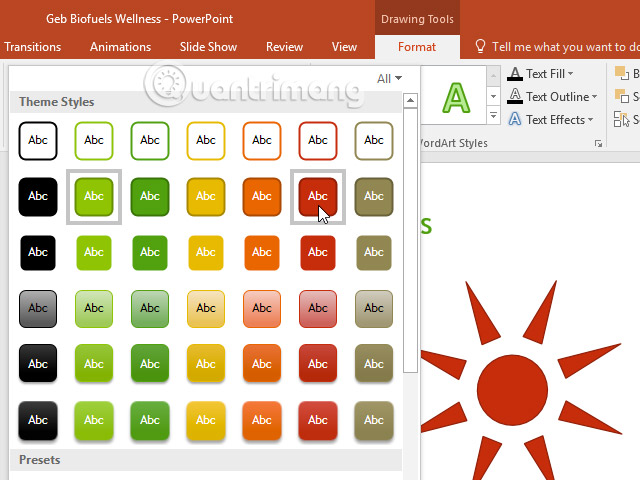
4. The shape or text box will appear in the style you selected.
How to change the Shape Fill color
1. Select the shape or text box you want to change.
2. On the Format tab, click the Shape Fill drop-down arrow . The Shape Fill menu will appear.
3. Hover your mouse over the different colors to select the color you want to use. To see more color options, select More Fill Colors .
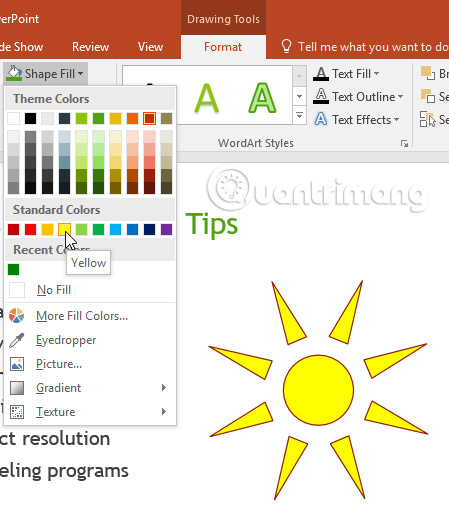
4. The shape or text box will appear with the selected color.
If you want to use a different type of fill , select Gradient or Texture from the drop-down menu. You can also select No Fill to make it transparent.
How to change the outline shape
1. Select the shape or text box you want to change.
2. On the Format tab, click the Shape Outline drop-down arrow . The Shape Outline menu will appear.
3. Choose the color you want to use. If you want to make the outline transparent, select No Outline.
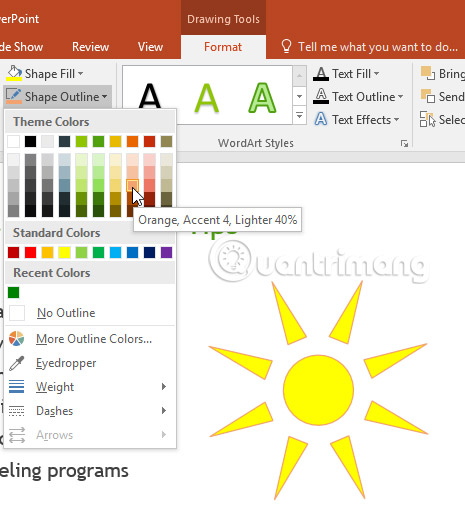
4. The shape or text box will appear with the selected outline color.
From the drop-down menu, you can change the color, outline thickness, and choose whether or not to use a dashed line.
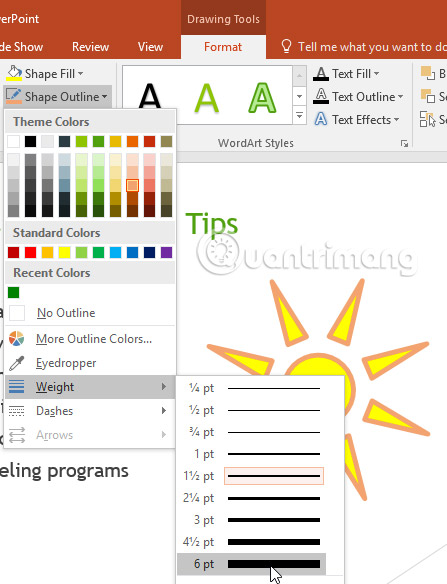
How to add effects to shapes
1. Select the shape or text box you want to change.
2. On the Format tab, click the Shape Effects drop-down arrow. In the menu that appears, hover over the desired effect style, then select your desired preset effects.
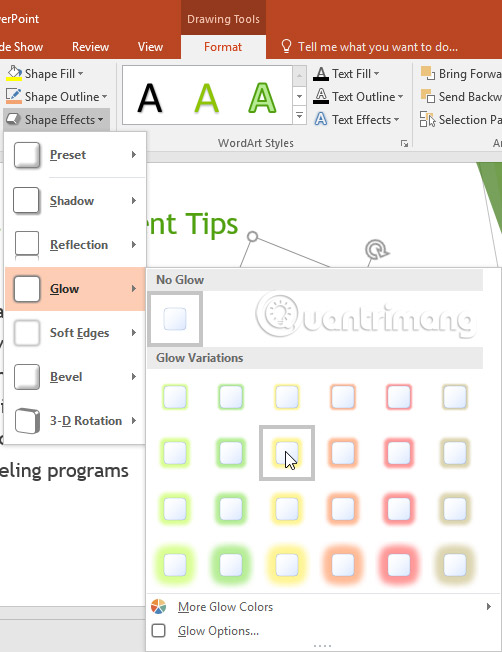
3. The shape will appear with the selected effect.
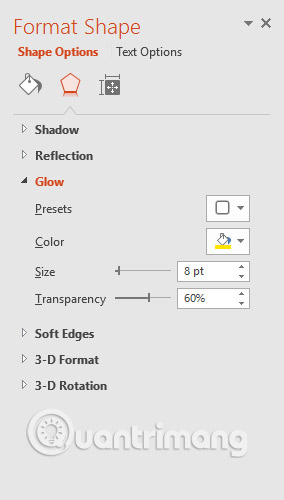
To further adjust the effects for the shape, select Options at the bottom of each menu. The Format Shape window will appear, allowing you to customize the effects.
How to change to a different shape
1. Select the shape or text box you want to change. The Format tab will appear.
2. On the Format tab, click the Edit Shape command. In the menu that appears, hover over Change Shape and select the desired shape.
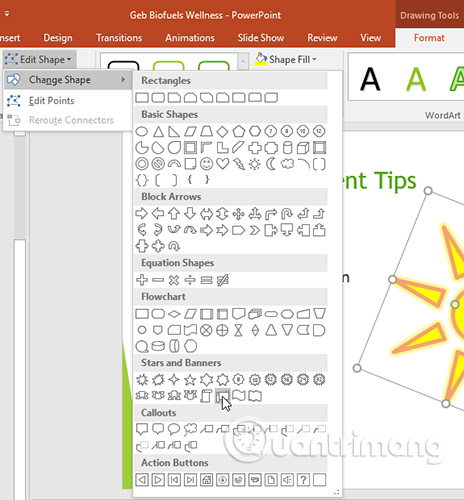
3. A new shape will appear.
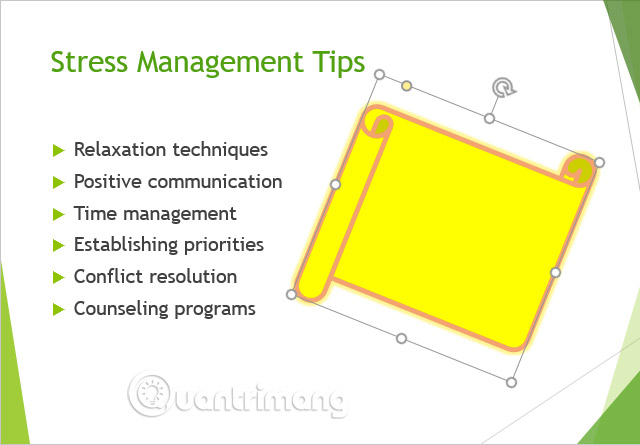
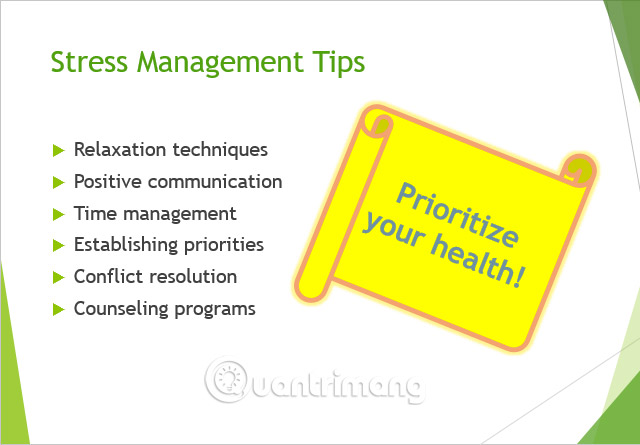
If you wish, you can enter text into the shape. Once the shape appears in the document, you can simply start typing. Then, you can use the formatting options on the Home tab to change the font, font size, or color of the text.
Practice
1. Open the presentation with a practice example .
2. On slide 5, titled Stress Management Tips , insert a shape from the Basic Shapes category .
3. Rotate the image slightly.
4. Change the fill color of the image to yellow.
5. Change the outline to No Outline .
6. Use shape effects to add shadows from the Outer category.
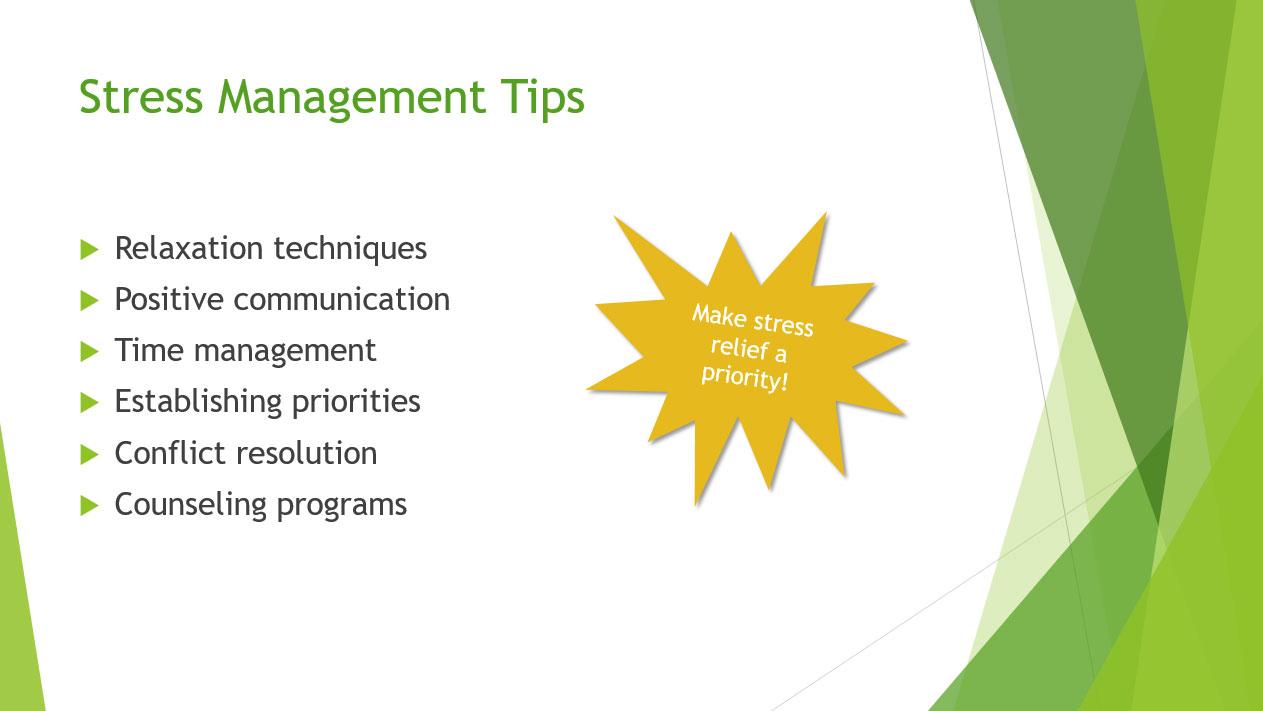
7. Add the following text to the shape: Make stress relief a priority!
8. Change the shape to one of your choices.
Note : You may need to resize the shape to see all the text.
9. When you're finished, your slide will look like this:
I wish you success!
See more:
- Recover unsaved PowerPoint files.
- How to convert PDF to Word without font errors
- Slide presentation effects
Related Articles
 Shapes Powerpoint: How to Include Shapes in Powerpoint3 minutes read
 PowerPoint 2019 (Part 16): Shapes: Explained7 minutes read
 Manipulate Shapes in PowerPoint 20166 minutes read
 PowerPoint 2019 (Part 5): Working with Text: Explained4 minutes read
 Insert and Draw Shapes on Slide in PowerPoint4 minutes read
 Tutorial for Word 2016 (Part 18): How to Add Shape Shapes5 minutes read
Reader Comments 0
Sign in with email or Google to join the discussion.