Table of Contents
A finished ScratchJr maze is easier to understand when it has a welcome page, a clear way to start, and a win page after the player reaches the goal. This final lesson adds those pages and gives the player options to replay the maze or return to the welcome screen.
The project should already contain the maze page, movement controls, wall-collision reset, and a goal character.
Create the maze welcome page
Step 1: Add and reorder a page
Open the existing maze project and tap the plus sign in the page area on the right to add a page.
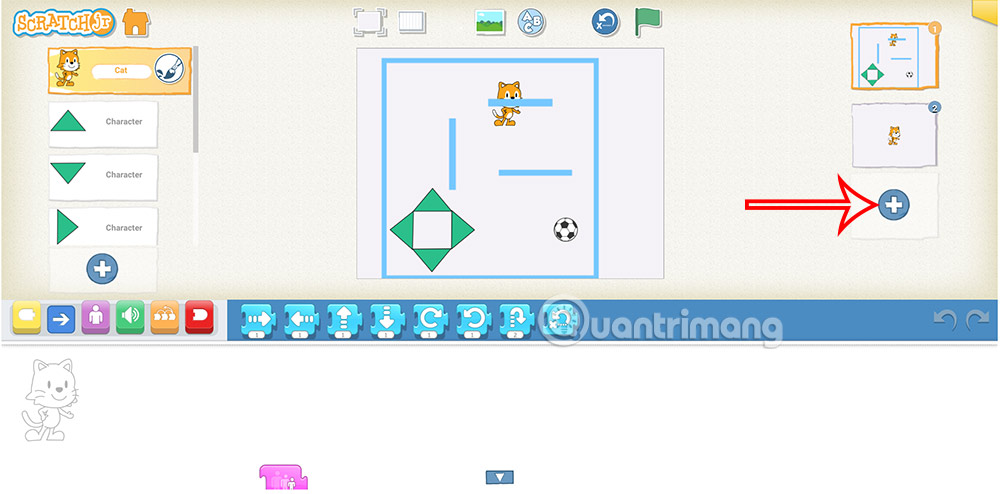
Drag the new page above the maze page so it becomes page 1. The original maze should now be page 2. Check every existing Go to Page block after reordering pages, because its destination must still point to the intended page.
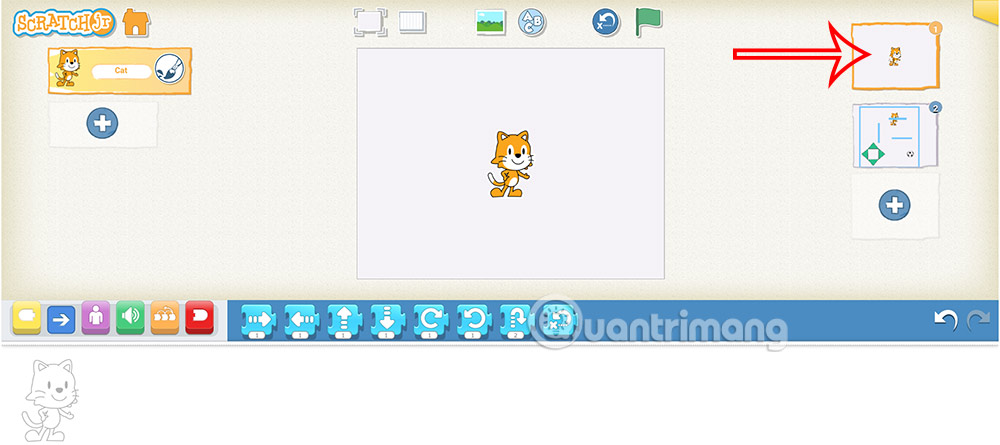
Step 2: Design the welcome screen
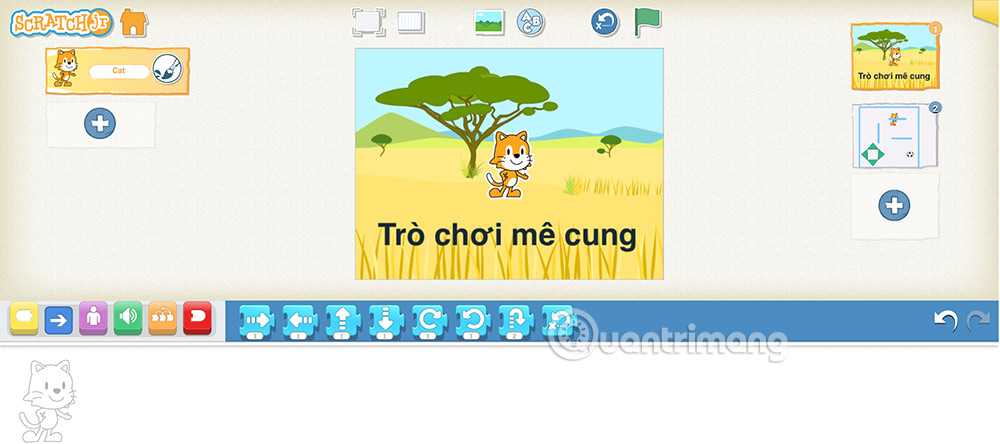
Choose a background for page 1 and add a short title or instruction. Keep the action clear, such as “Tap the cat to start,” rather than filling the screen with several directions.
Step 3: Draw an arrow prompt
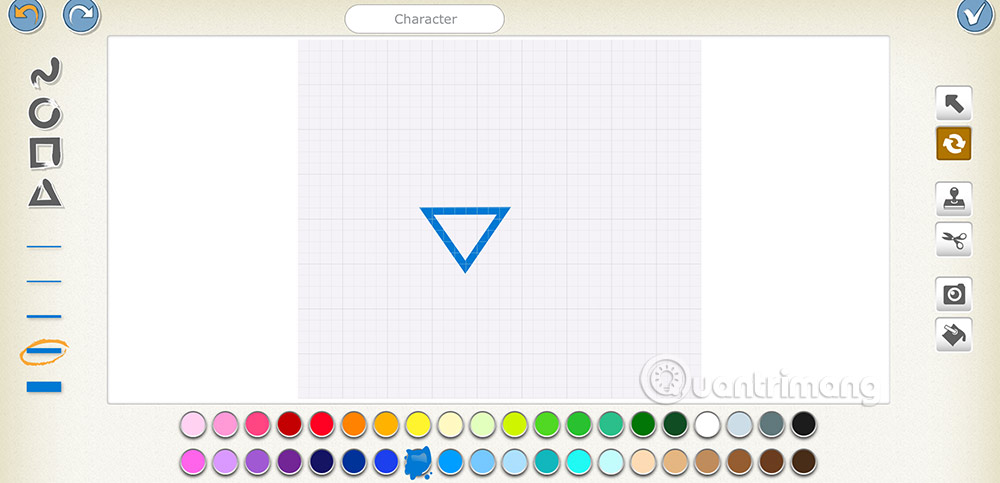
Add a custom character and draw a triangle in the paint editor. Rotate and position it so the arrow points toward the cat or whichever character will start the game.
Step 4: Animate the arrow
Select the arrow and build a short script that moves it up and down. End the script with Repeat Forever so the motion continues while the welcome page is open. Use small movement values so the prompt attracts attention without covering the start character.
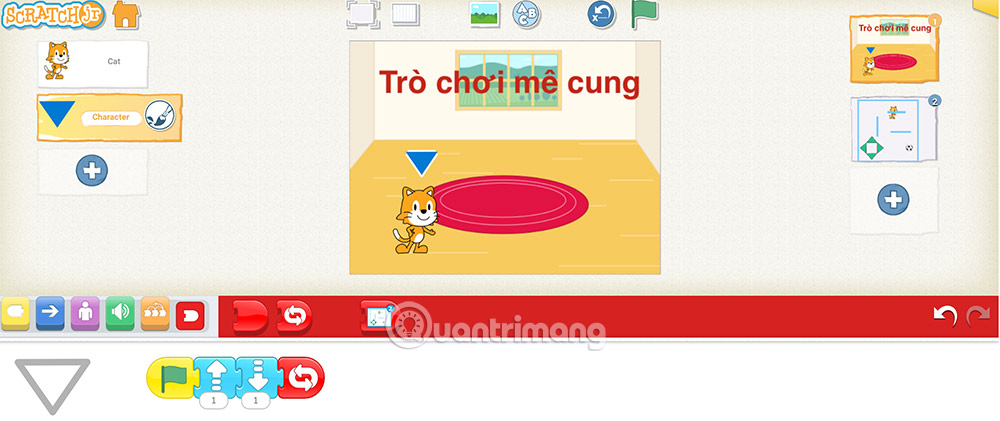
Run the page and confirm that the arrow motion clearly points the player toward the cat.
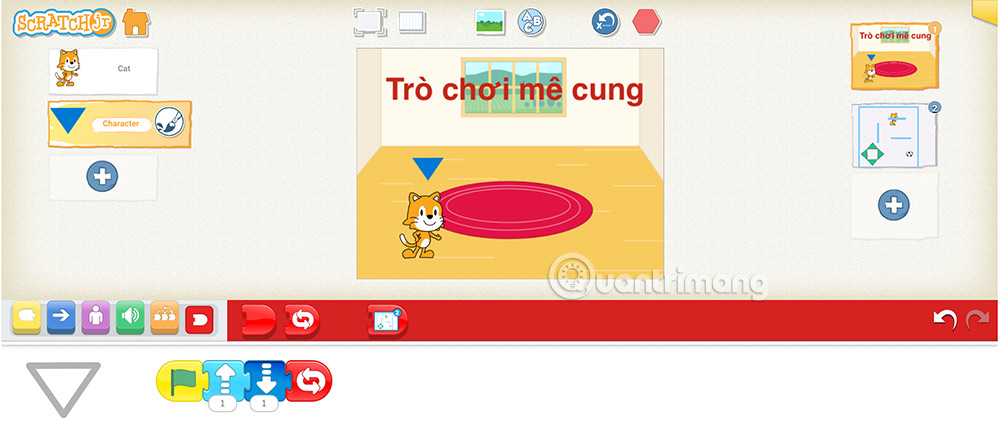
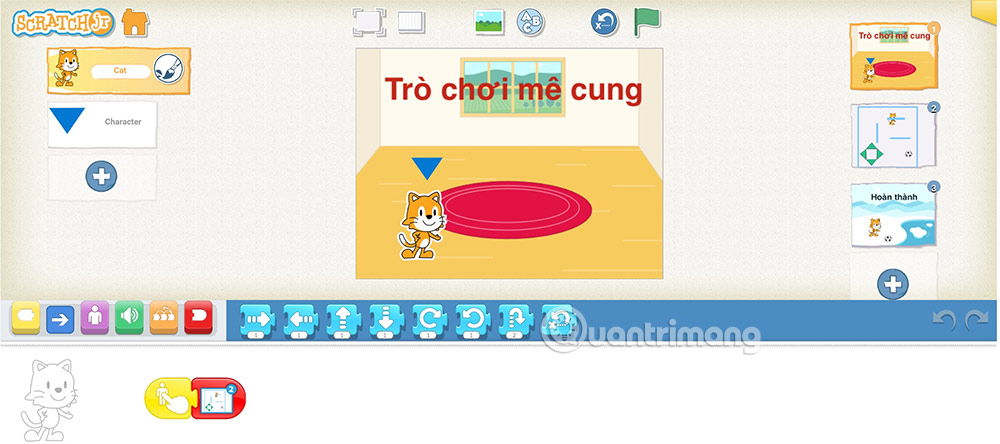
Step 5: Make the cat start the maze
Select the cat on page 1. Add Start on Tap followed by the red Go to Page 2 block. Tapping the cat should now open the maze page.
Create a win and restart page
Step 1: Add the third page
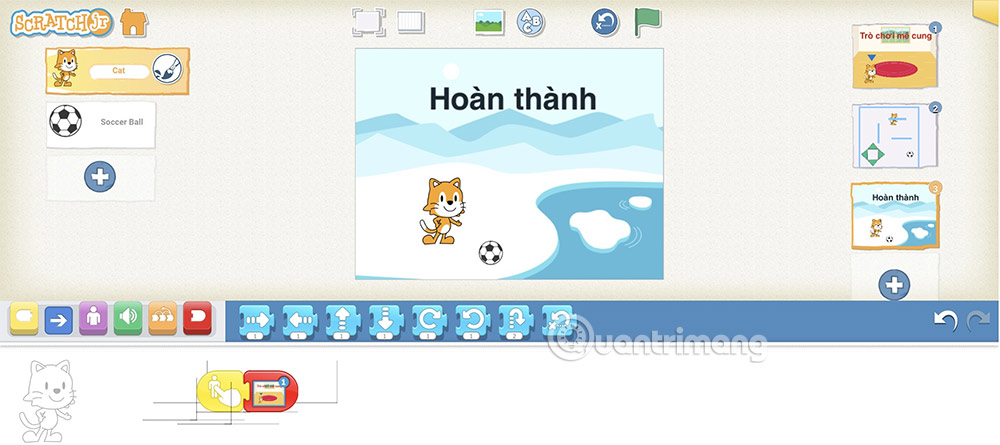
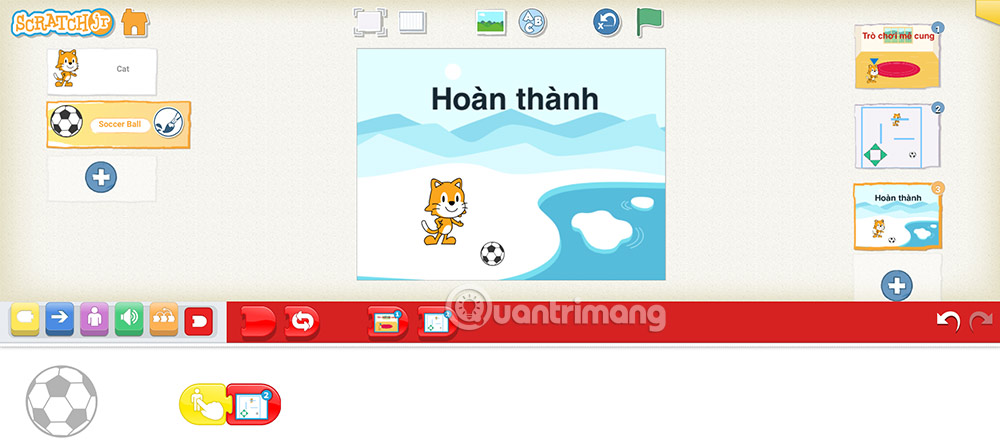
Add another page after the maze. This becomes page 3, the win screen. Choose a distinct background and place characters that will work as navigation buttons. In this example, the cat returns to the welcome page and the ball starts the maze again.
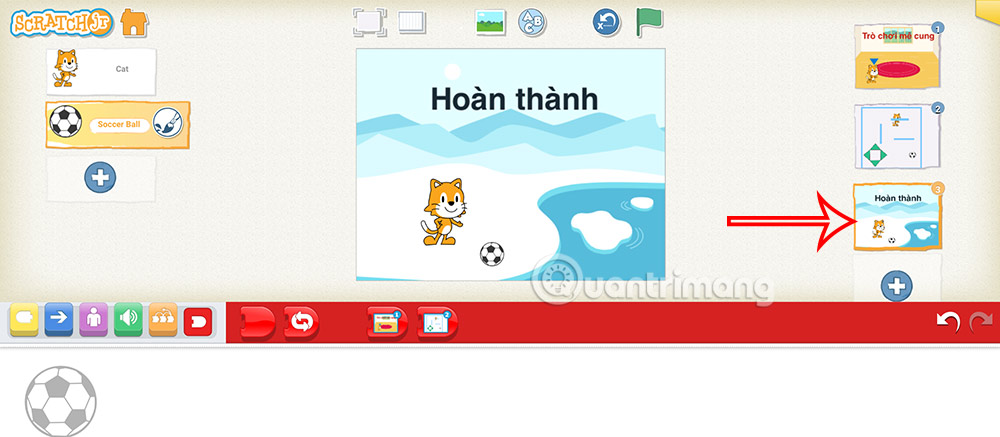
Step 2: Program the two choices
Select the cat on page 3 and attach Start on Tap to Go to Page 1. Add a label or speech bubble if the character's purpose is not obvious.
Select the ball and attach Start on Tap to Go to Page 2. This gives the player a direct replay option.
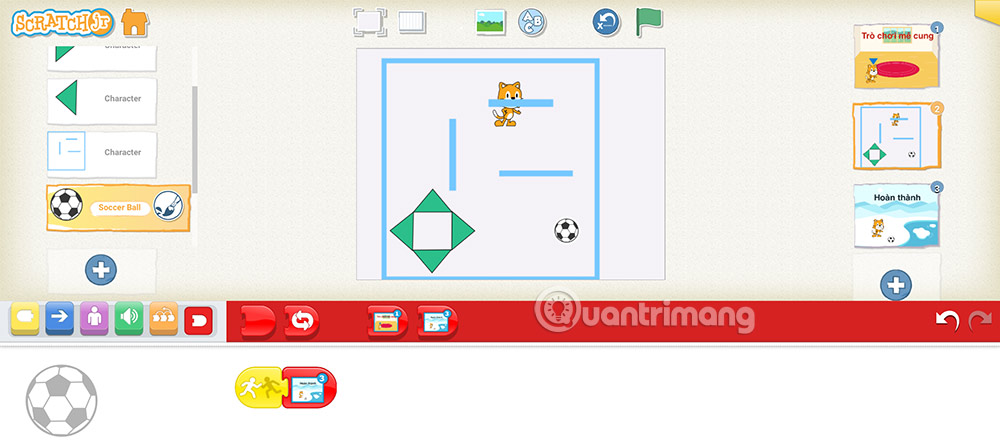
Step 3: Open the win page from the goal
Return to page 2 and select the goal character. Add a collision trigger for the player, followed by Go to Page 3. When the player reaches the goal, the project should leave the maze and display the win screen.
Test all page transitions
- Reset the project and confirm that it opens on page 1.
- Tap the cat and verify that page 2 appears with the player at the correct start position.
- Reach the goal and check that page 3 opens.
- Tap the cat on page 3 to return to page 1.
- Complete the maze again, then tap the ball on page 3 to replay page 2.
If replay begins with the player in an unexpected position, reset its position when the maze page starts or check how the project stores the character's home position.
Learners ready for the full Scratch editor can next follow this Scratch maze game tutorial. For more introductory coding projects, see these programming games and apps for kids.
Related Articles
 ScratchJR Maze Game Design Tutorial (Part 2)4 minutes read
 Instructions for Designing a Maze Game in ScratchJR4 minutes read
 A Compilation of Control and Termination Statements in ScratchJR4 minutes read
 How to Create a Maze Game in Scratch6 minutes read
 Basic ScratchJr Quiz - Lesson 1 with Answers4 minutes read
 ScratchJr Quiz - Lesson 2: Adding Characters4 minutes read
Reader Comments 0
Sign in with email or Google to join the discussion.