Table of Contents
You can build a simple multiple-choice quiz in ScratchJr by using one character to show the question and other characters as answer choices. A correct answer sends the player to the next page, while an incorrect answer can display a message and let the player try again.
This first part creates one question with two answer choices and connects the correct choice to a second page.
Plan the first quiz question
Before adding blocks, choose a short question and two possible answers. Decide which character will present the question and which characters will represent the correct and incorrect answers. Short text works best because ScratchJr speech bubbles have limited space.
Create a multiple-choice quiz in ScratchJr
Step 1: Arrange the question page
Create a new ScratchJr project. Use the cat as the question character and drag it toward the top of the stage, leaving room below for the answer characters.
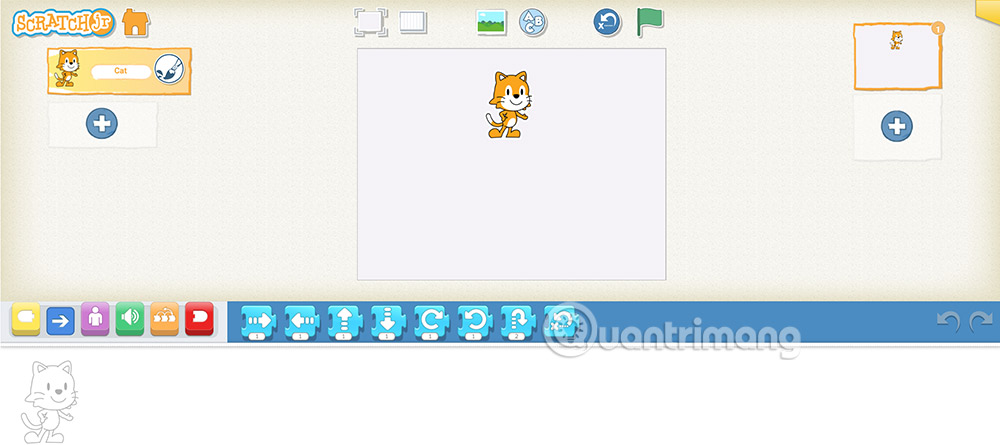
Step 2: Make the cat show the question
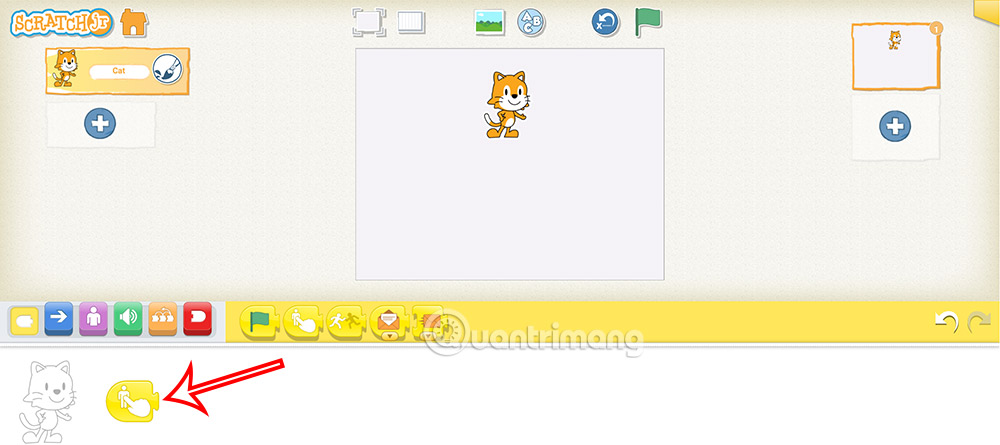
Select the cat. Open the yellow Triggering block category and add the Start on Tap block to the programming area.
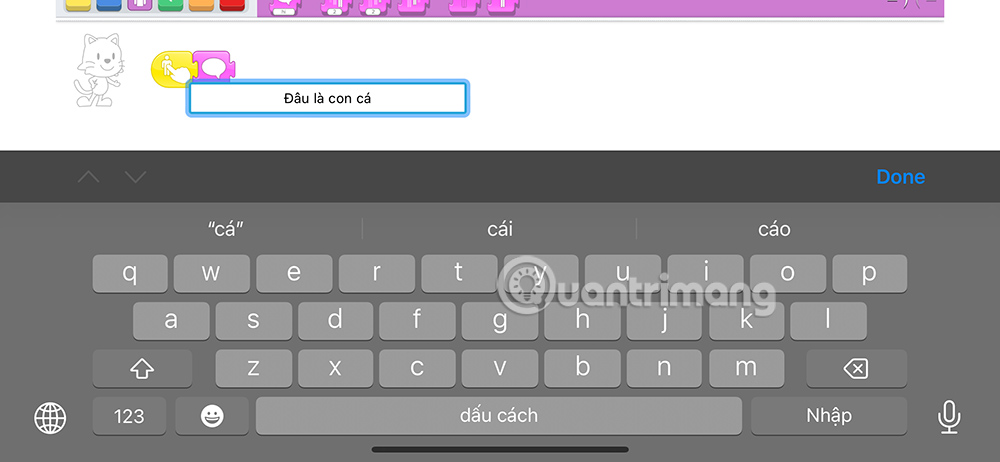
Open the purple Looks category, attach a Say block, and enter the quiz question. When the player taps the cat, the question appears in a speech bubble.
Step 3: Add the correct-answer character
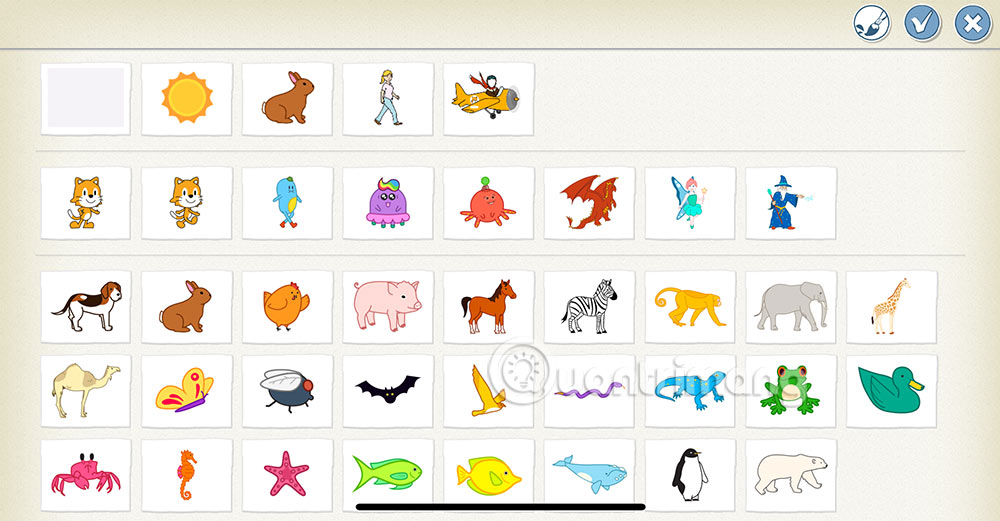
Tap the plus sign in the character area to add a character for the correct answer. This example uses the fish. Place it below the cat so the player can see the question and both choices clearly.
Step 4: Give the correct answer a response
Select the fish and create its own script. Start with Start on Tap, then attach a Say block with a short confirmation such as “Correct!” Each character has separate scripts, so confirm that the fish is selected before adding these blocks.
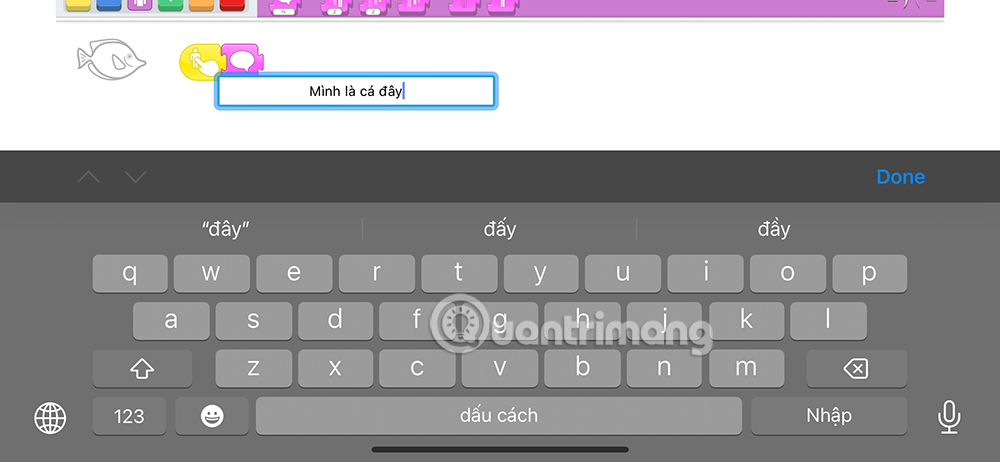
Step 5: Add an incorrect answer
Add a second answer character. Select it and create another Start on Tap script followed by a Say block. Use a helpful message such as “Try again” instead of moving to another page. Because the script ends after the message, the player can tap an answer again.
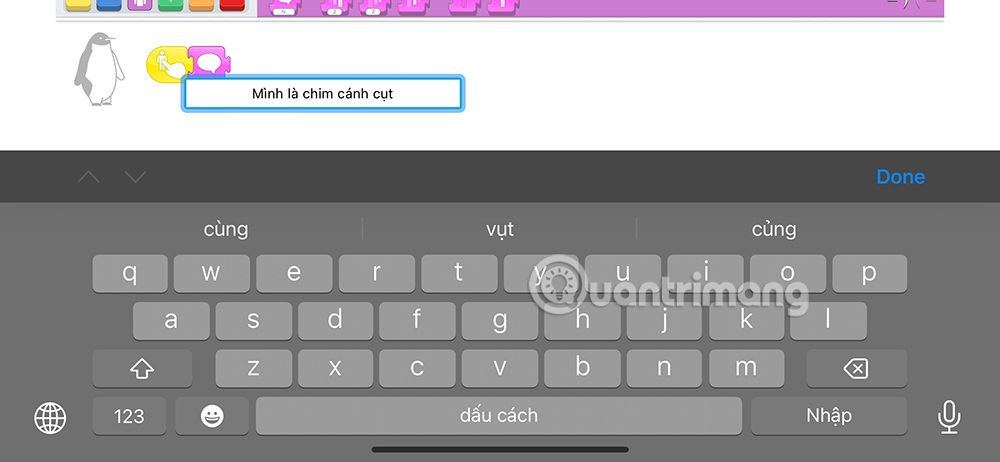
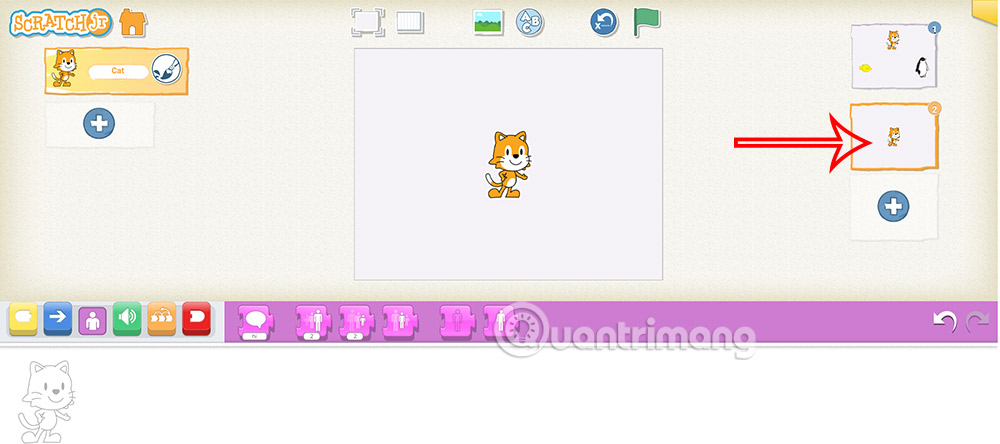
Step 6: Send the correct answer to the next page
Tap the plus sign in the page area on the right to add a second page. This page will eventually contain the next question.
Return to the first page and select the fish. Open the red End block category, then add the Go to Page block for page 2 after the fish's Say block. The transition must be in the correct-answer character's script; do not add it to the incorrect answer.
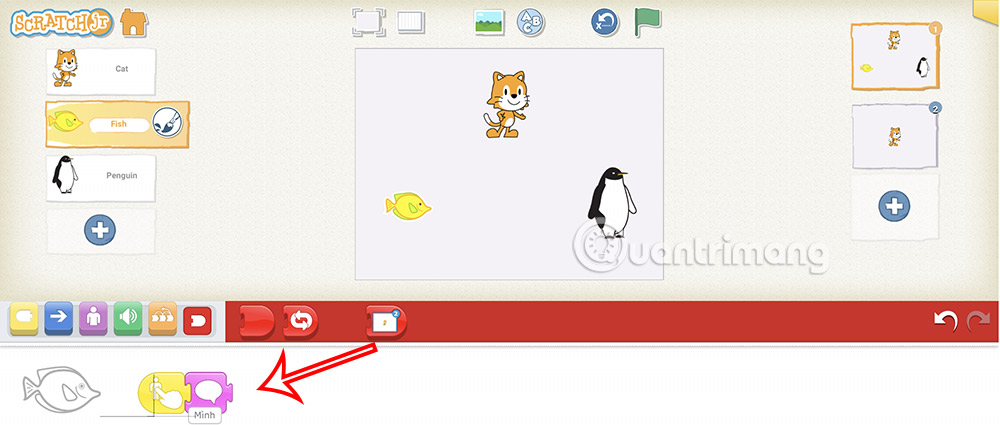
Test the first question
Run the project from page 1 and test each path:
- Tap the cat and confirm that the question appears.
- Tap the incorrect answer and check that its message appears without changing pages.
- Tap the fish and confirm that the project moves to page 2.
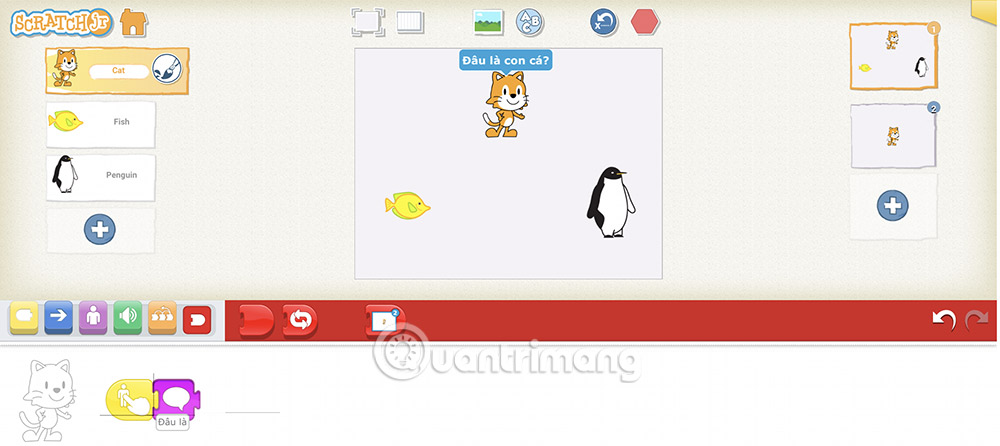
If a block does not run, select the relevant character and inspect that character's script. A common mistake is placing the right block under the wrong character.
What to add next
Use page 2 to build another question with the same pattern: question character, correct answer, incorrect answer, and a Go to Page block on the correct choice. ScratchJr projects support a small number of pages, so keep the quiz focused and test every transition before adding the next question.
For more beginner-friendly coding activities, see these programming games and apps for kids. Children who later move to the full Scratch editor can also follow this Scratch maze game tutorial.
Related Articles
 How to Create Multiple-choice Questions in ScratchJR (Part 2)6 minutes read
 Basic ScratchJr Quiz - Lesson 1 with Answers4 minutes read
 ScratchJr Quiz - Lesson 5: Review of Commands3 minutes read
 Guide to Creating Multiple Choice Questions on Vnedu4 minutes read
 ScratchJr Quiz - Lesson 2: Adding Characters4 minutes read
 How to Create Multiple Choice Questions on Vnedu6 minutes read
Reader Comments 0
Sign in with email or Google to join the discussion.