Table of Contents
ScratchJr's color-coded message blocks let one character start scripts for other characters. In a quiz, you can use those messages to hide the current question and reveal the next one without changing pages. This makes it possible to place several questions in the same scene.
This guide builds on a basic multiple-choice quiz. First you will turn photographed text into custom question and answer characters. Then you will coordinate those characters with matching send-message and receive-message blocks.
1. Create custom question and answer characters
Step 1: Open the character editor
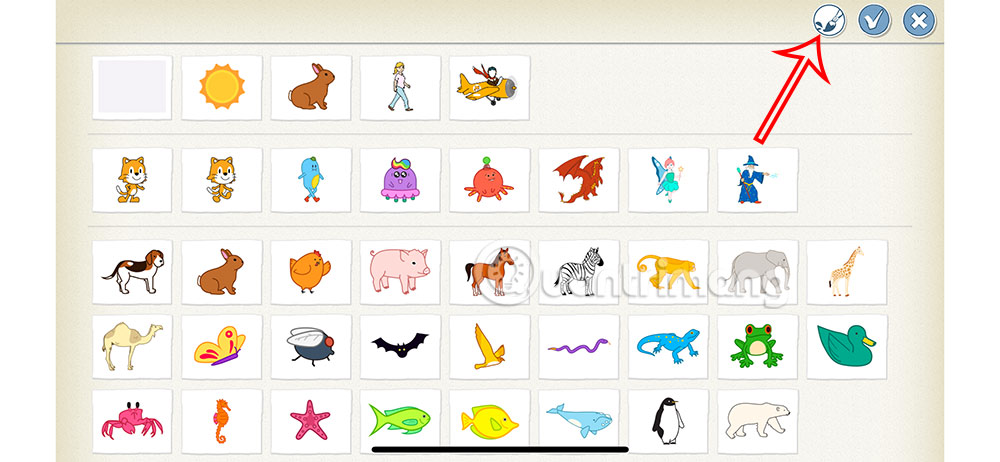
Open a project and tap the plus sign in the character area. In the character library, tap the paintbrush to create a new character instead of selecting a ready-made one.
Step 2: Draw a frame for the text
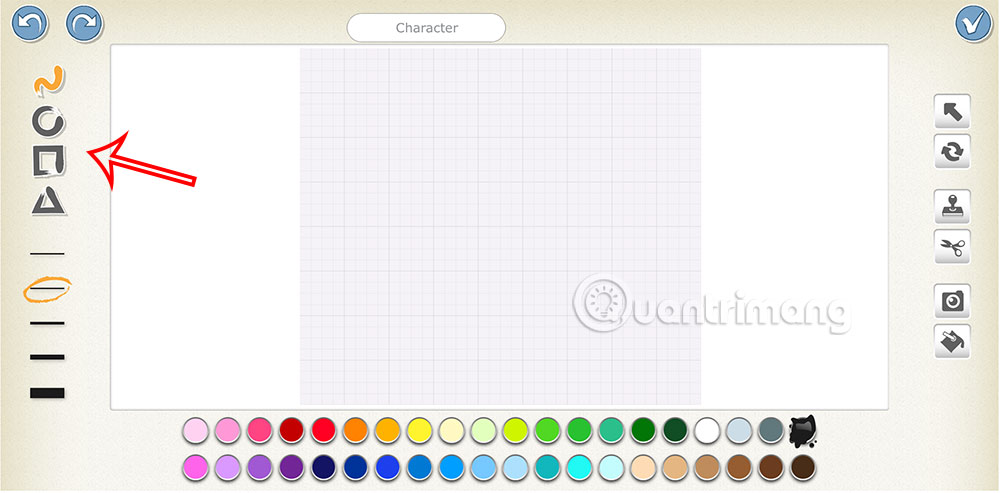
Select a shape tool on the left, such as the rectangle, and draw a frame. Adjust its color and outline width so the question remains easy to read against the stage background.
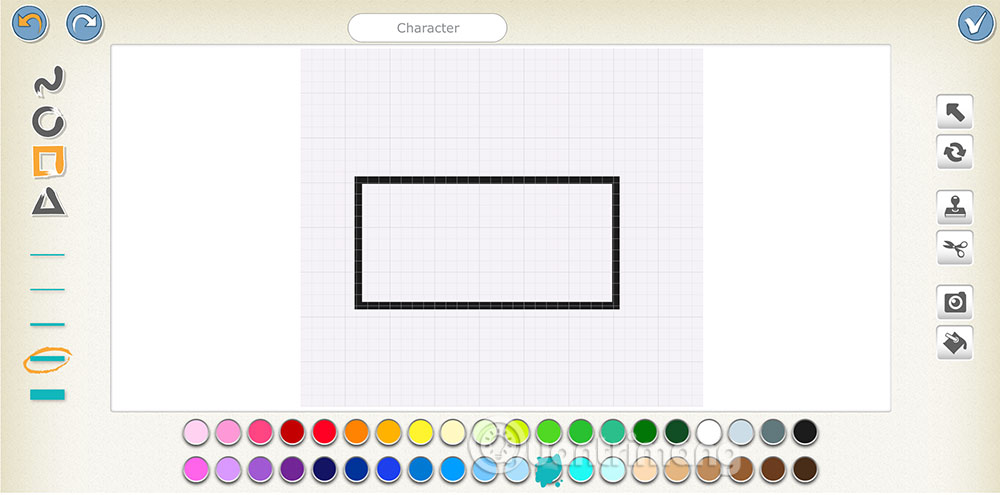
Draw a rectangular area large enough to hold the question or answer. Keep the design simple; several large answer characters can quickly make the stage crowded.
Step 3: Insert a photo into the frame
Select the camera tool, then tap the inside of the frame. ScratchJr opens the camera so you can photograph a question or answer that has already been written or printed.
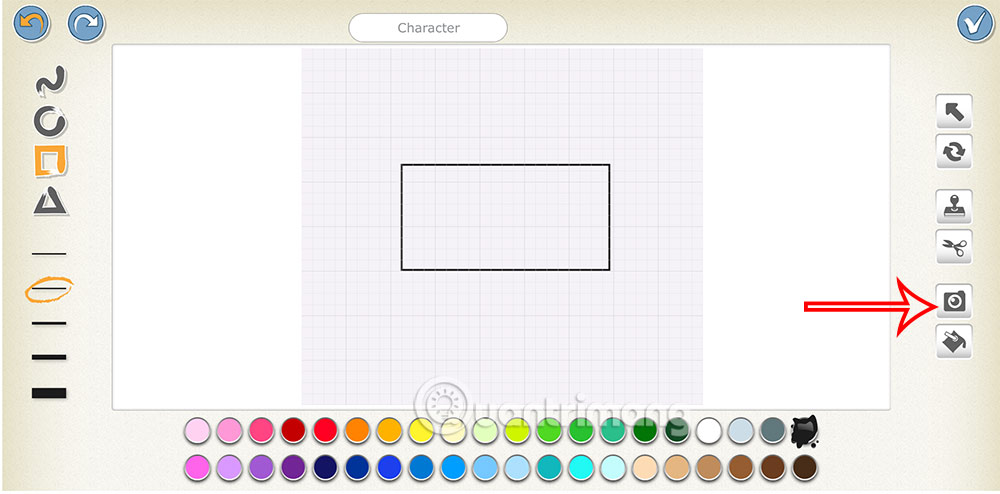
Position the text within the camera area and take the photo. Use good lighting, hold the device steady, and make sure the entire line is legible before accepting it. Avoid photographing personal information or other sensitive material.
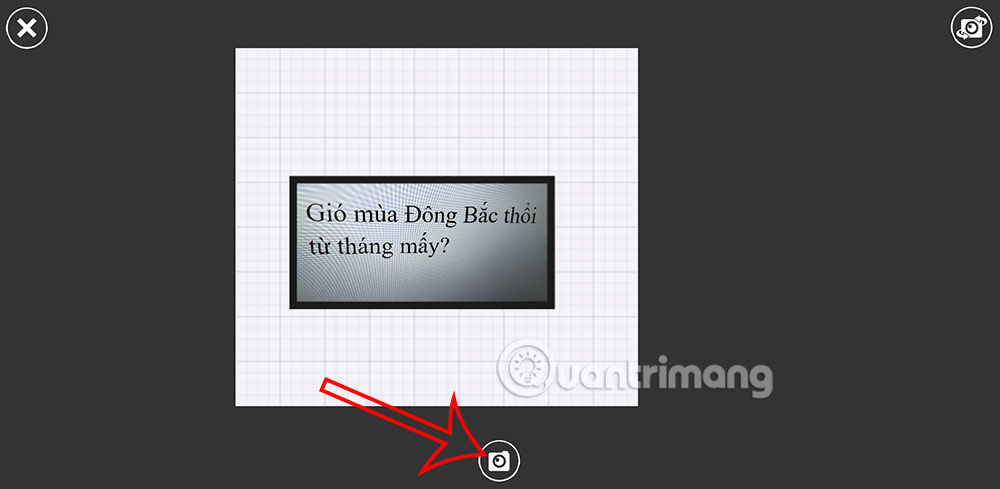
Step 4: Save and repeat for the answers
Review the result and tap the checkmark to save the question character.
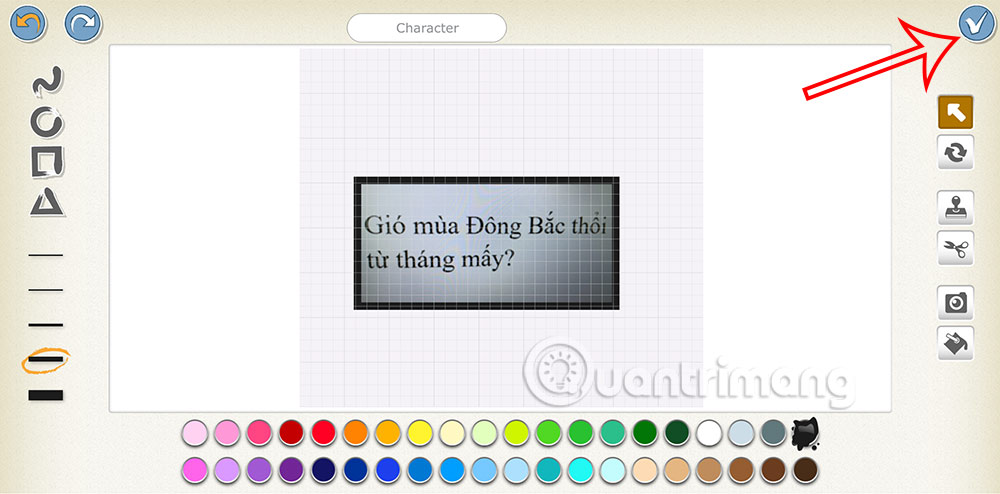
Create the answer choices in the same way. Different shapes or colors can help distinguish the choices, but do not rely on color alone to identify the correct answer.
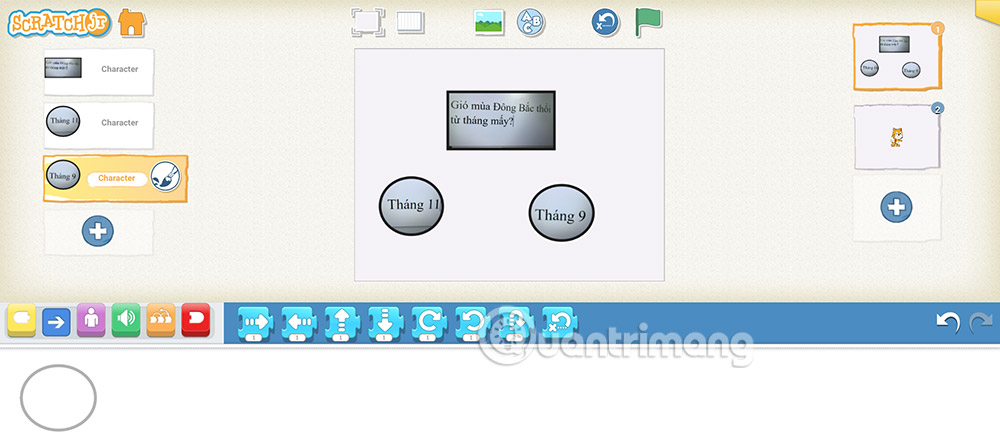
2. Coordinate quiz questions with messages
A ScratchJr message has a color. A Send Message block broadcasts that color, and every script beginning with the matching Start on Message block runs. Orange only triggers orange receivers, red triggers red receivers, and so on.
Step 1: Start the first question
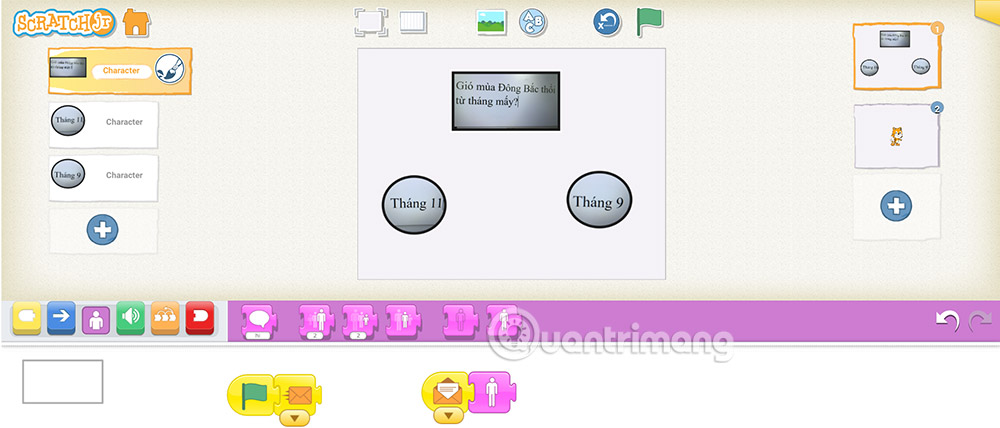
Select the first question character. Add a Start on Green Flag block, followed by a Send Message block. The example sends an orange message when the project starts.
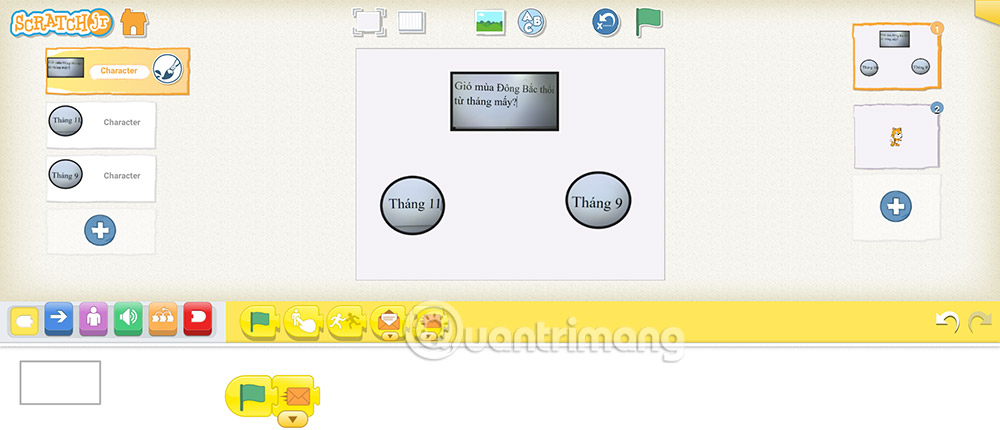
Step 2: Show the first question set
Add a separate script to each character that belongs to the first question, including the question and its answer choices. Begin that script with the orange Start on Message block and attach the purple Show block. When the orange message is sent, all characters with this script appear.
Step 3: Hide the completed question
Choose another message color for advancing the quiz. In the example, the correct answer sends a red message. Add a script beginning with the red Start on Message block and followed by Hide to every character in the first question set.
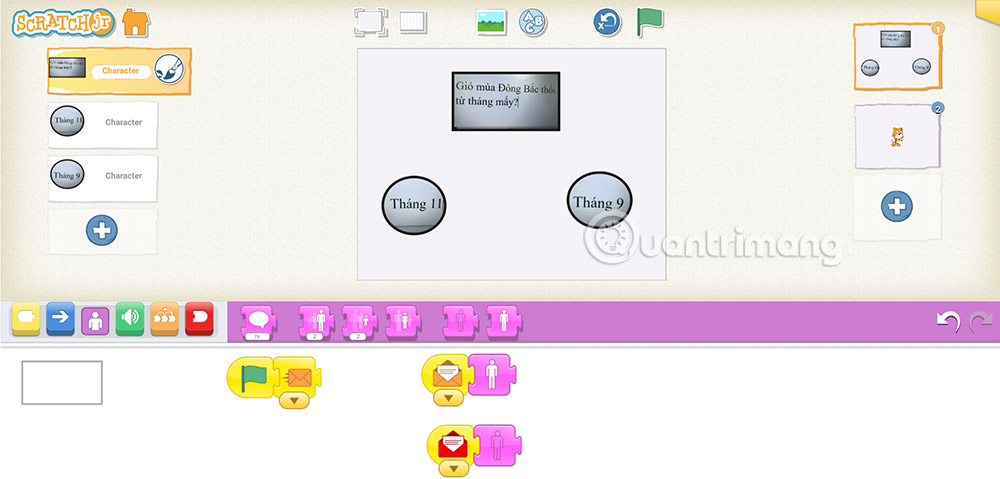
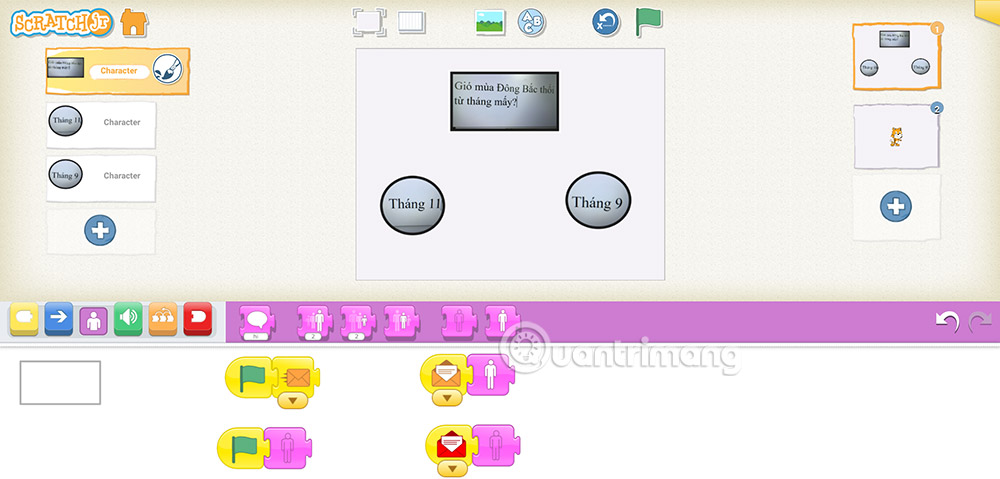
The first question character now has separate scripts for starting, showing, and hiding. Keeping each trigger in its own script makes the sequence easier to inspect.
Step 4: Program correct and incorrect answers
Select an answer character and add a Start on Tap block followed by a Say block. Enter “Correct” for the right choice and a brief prompt such as “Try again” for each wrong choice.
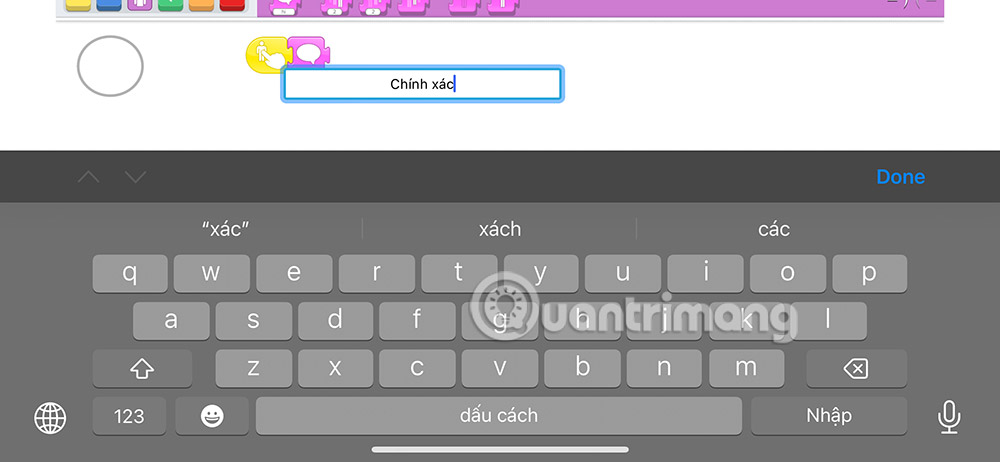
After the correct answer's feedback, add the red Send Message block. That broadcast hides the current question set and can also reveal the next set if the next question's characters begin their Show scripts with a red receiver.
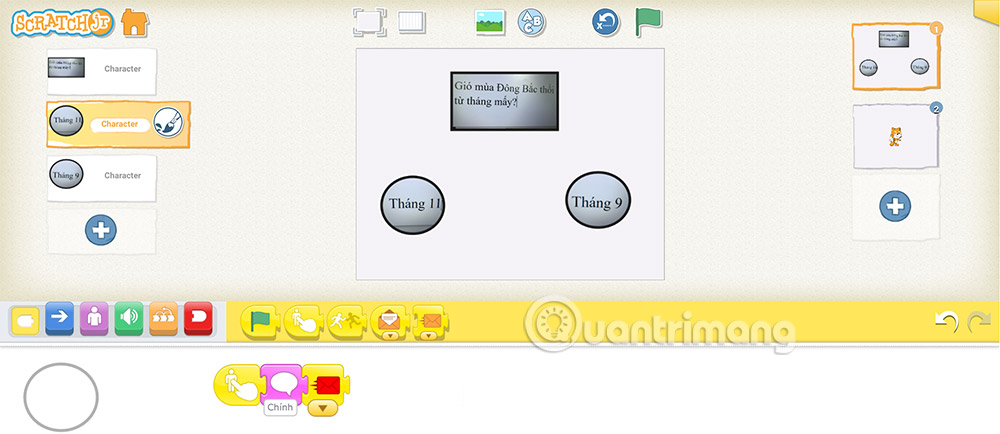
Complete the correct answer's scripts as shown, checking that the sent message color matches both the characters that should hide and those that should appear next.
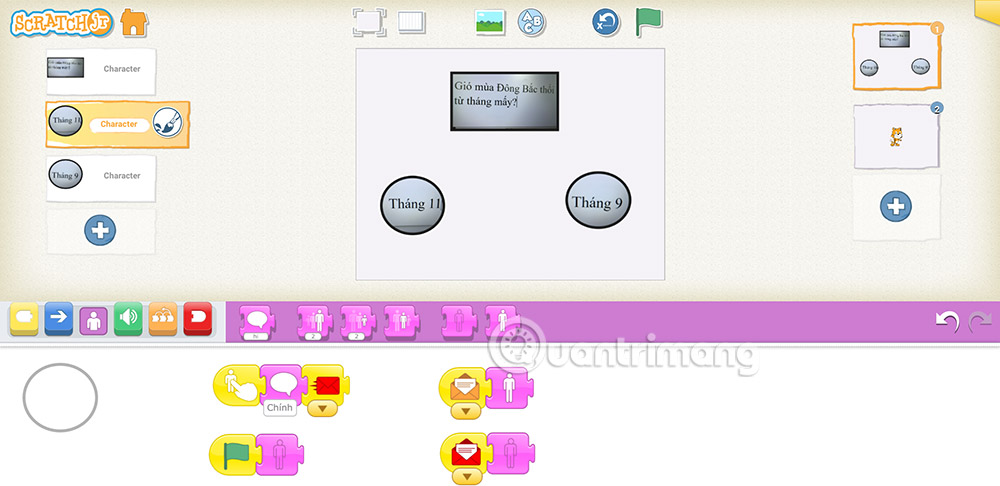
Step 5: Keep incorrect answers on the same question
Program each incorrect choice to show feedback without sending the advance message. The current question then stays visible and the player can choose again.
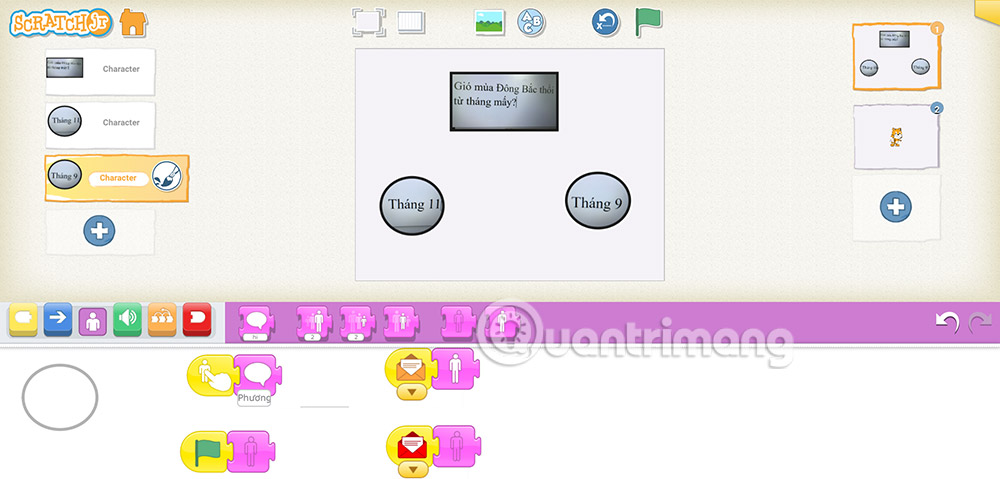
Test the message sequence
- Tap the green flag and confirm that only the first question set appears.
- Choose a wrong answer and verify that the scene does not advance.
- Choose the correct answer and check that every first-question character hides.
- Confirm that the next question appears from the same message.
- If the wrong characters respond, compare every sender and receiver color.
Build and test one transition before adding more questions. Reusing a color carelessly can trigger several character scripts at once, so write down which color starts each question.
For more projects that introduce coding through play, see these programming games and apps for kids. Learners ready for the full Scratch environment can next try the Scratch maze game tutorial.
Related Articles
 How to Create Multiple-choice Questions in ScratchJR (Part 1)4 minutes read
 Basic ScratchJr Quiz - Lesson 1 with Answers4 minutes read
 ScratchJr Quiz - Lesson 5: Review of Commands3 minutes read
 Guide to Creating Multiple Choice Questions on Vnedu4 minutes read
 ScratchJr Quiz - Lesson 2: Adding Characters4 minutes read
 How to Create Multiple Choice Questions on Vnedu6 minutes read
Reader Comments 0
Sign in with email or Google to join the discussion.