Table of Contents
This updated guide explores Microsoft authenticator no longer saves your passwords: export them now with practical details, clear explanations, and useful takeaways. Autofill is a lifesaver — until it isn't. Microsoft Authenticator will soon stop saving your passwords, which means it is time to switch to Edge or a better alternative.
Say Goodbye to Password Autofill in Microsoft Authenticator
If you use Microsoft Authenticator to autofill passwords on your phone, you'll soon see a warning to export your passwords and switch to Microsoft Edge or another password manager by July 2025, if you haven't already. This feature will be removed from Authenticator by August 2025.
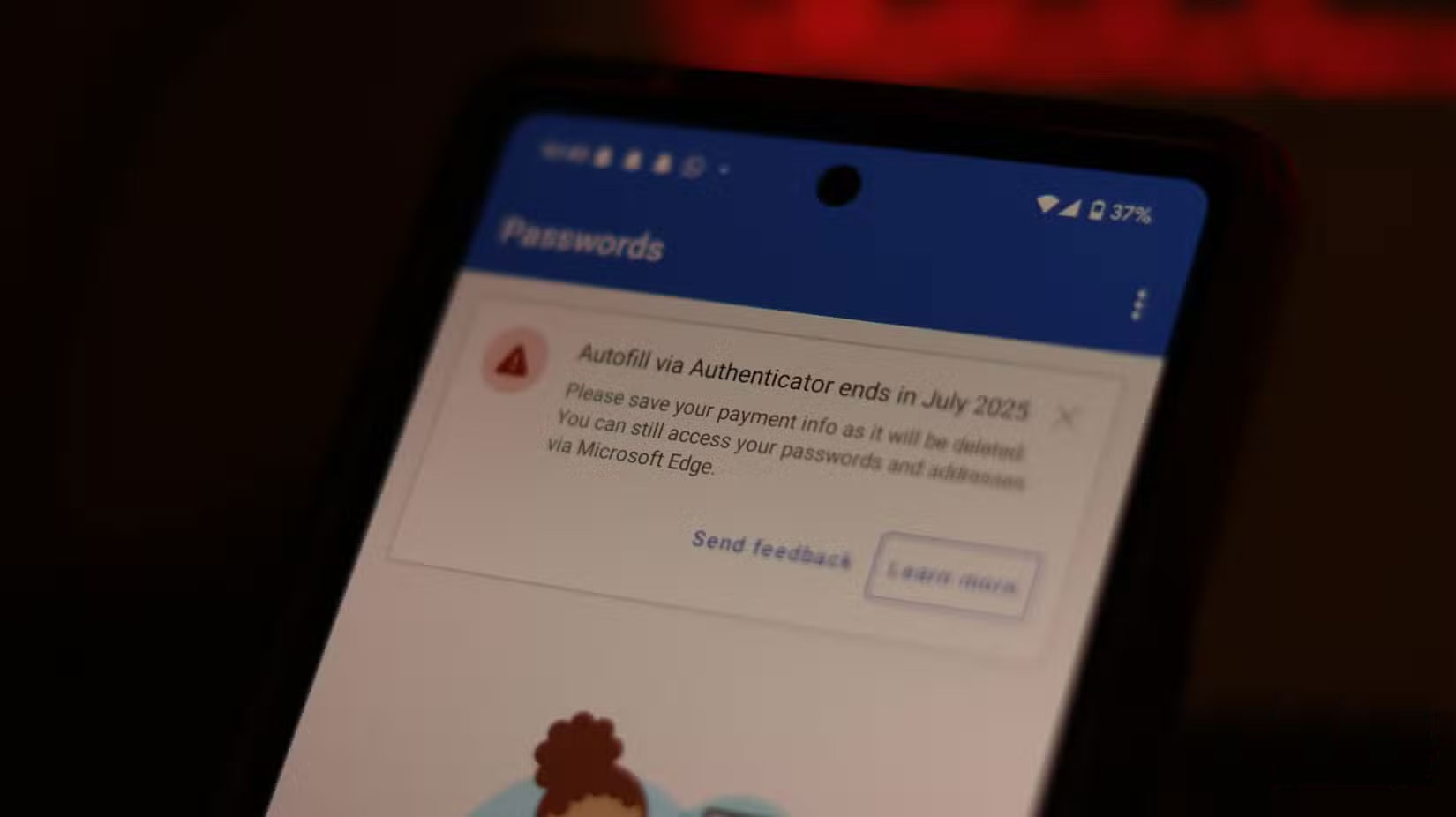
The warning links to a Microsoft support article that provides a full timeline for the deprecation of this feature as follows:
- Starting June 2025, Authenticator will no longer save new passwords.
- Autofill with Authenticator will stop working in July 2025. Any payment information saved on your device will be deleted after July.
- Any saved passwords will be inaccessible in Authenticator starting in August 2025. Any passwords that have not been generated will be deleted.
Since your saved passwords and addresses are synced to your Microsoft account, you can still access them from Edge's built-in password manager, even if you do not export your password data from Authenticator. Still, your generated password history isn't synced. That means if you've used Authenticator's password generator to create any accounts, you'll need to save any passwords you've created from the Generator history section in the Passwords tab to your saved passwords.
Exporting your passwords from Microsoft Authenticator is a simple process. Follow these steps:
- Open Microsoft Authenticator and tap the three vertical dots in the upper right. Then tap Settings .
- Scroll down until you see the Export Passwords option. This will save your passwords in a CSV file that you can use to import them into another password manager.
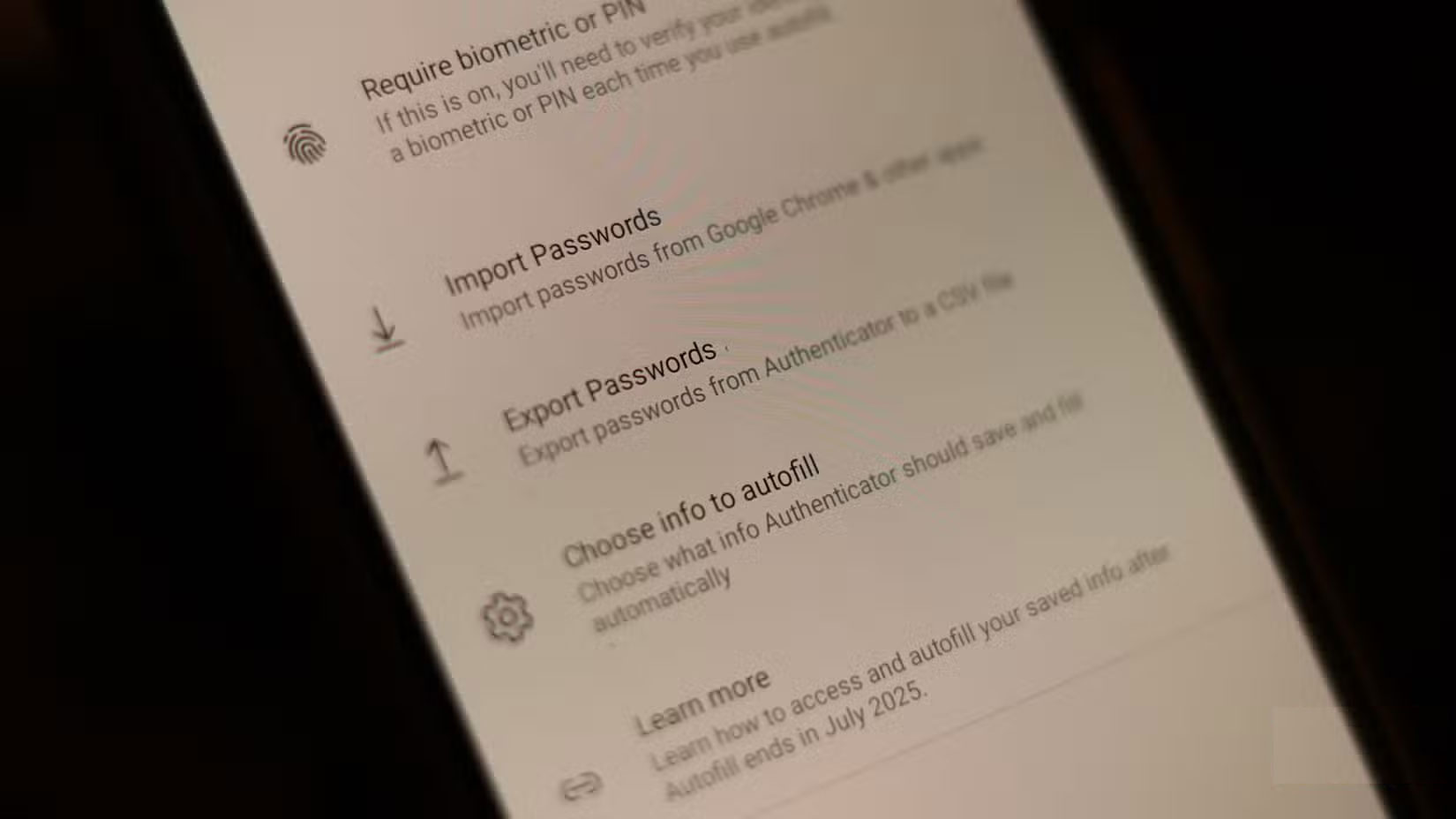
Warning : Remember that your passwords are not encrypted in the CSV file and are readable in plain text. Delete this file Once you are done entering it and do not share it with anyone.
Note that this only applies to Authenticator's password manager. The rest of the app, including the multi-factor code generator and passcode lock support, will continue to function as normal.
Other Tools Still Do Better
it is clear that Microsoft wants you to start using Edge's autofill capabilities, which gives you another reason to switch to their browser on mobile if you're using another browser. If you do not want to use Edge, do not start saving your passwords in a notes app just yet; there are better options.
There are precautions you can take using your browser's password manager, whether you're on a PC or phone, but a dedicated password manager is always the best solution. Here's a list of the best password managers for every situation to get you started. We recommend Proton Pass, but feel free to experiment with other options like 1Password or Bitwarden.
Whether or not you're willing to pay for a password manager, there are good options. Most, if not all, of the password managers you can download to your Android or iOS device also support autofill, so you're not missing out on any functionality, but you're getting better password management and generation.
FAQ
What is the main takeaway about Microsoft Authenticator No Longer Saves Your Passwords: Export Them Now?
The key is to understand the core idea, compare the available options, and apply the practical guidance that matches your situation.
What should beginners know about Microsoft Authenticator No Longer Saves Your Passwords: Export Them Now?
Start with the essential steps and terminology. Avoid changing advanced settings until you understand how they affect performance, privacy, cost, or compatibility.
How can I use this information in practice?
Follow the relevant section in order, test one change at a time, and confirm the result before moving to the next step or recommendation.
Related Articles
 How to Use the Microsoft Authenticator App5 minutes read
 Microsoft Authenticator Password Manager Is Shutting Down7 minutes read
 How to Use Microsoft Authenticator as a Password Manager8 minutes read
 Microsoft Updates Many More Enterprise Security Features for3 minutes read
 How to Manage Saved Passwords on Microsoft Edge: View, Delete7 minutes read
 Instructions on How to Export Saved Passwords on Chrome Browser into4 minutes read
Reader Comments 0
Sign in with email or Google to join the discussion.