Table of Contents
When you don't back up your Microsoft Authenticator data, you could be locked out of 2FA-protected accounts, limiting your access.
Microsoft Authenticator is a popular choice among many other apps for account security, providing an easy and reliable way to generate one-time passwords. If you don't back up your Microsoft Authenticator data, you could be locked out of 2FA-protected accounts, limiting your access. Here's how to back up and restore Microsoft Authenticator.
How to backup Microsoft Authenticator on iPhone
Step 1:
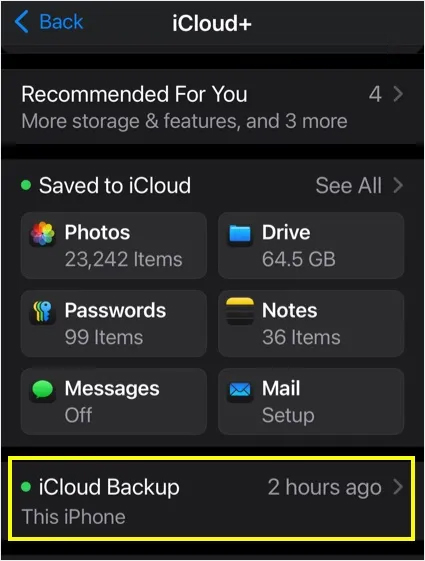
Go to Settings On your iPhone, then click on ICloud And select ICloud Backup To adjust the backup mode.
Step 2:
We Enable Back Up This iPhone To enable automatic backup. If you want to transfer the backup data immediately to another iPhone, tap the Back Up Now option to create the latest backup.
Step 3:
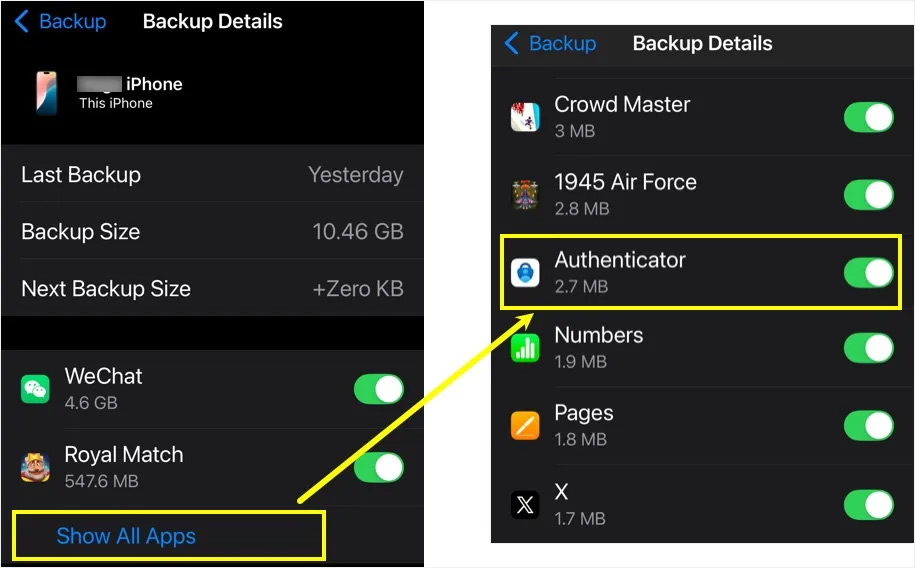
Tap Show All Apps To expand the data backup list. In the list of apps, Turn on Authenticator To enable in-app data backup.
Step 4:
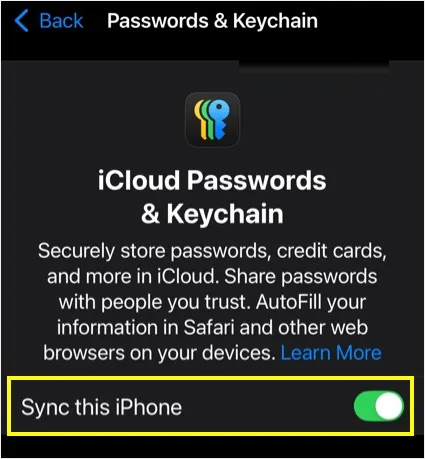
Next, go back to iCloud, Click on the Passwords app And select See All . Next, Select Passwords and Keychain. Then you need To turn on Sync this iPhone .
Step 5:
Click iCloud in The Saved to iCloud section, click See All , then Activate the Authenticator app To enable saving mode on iCloud.
Step 6:
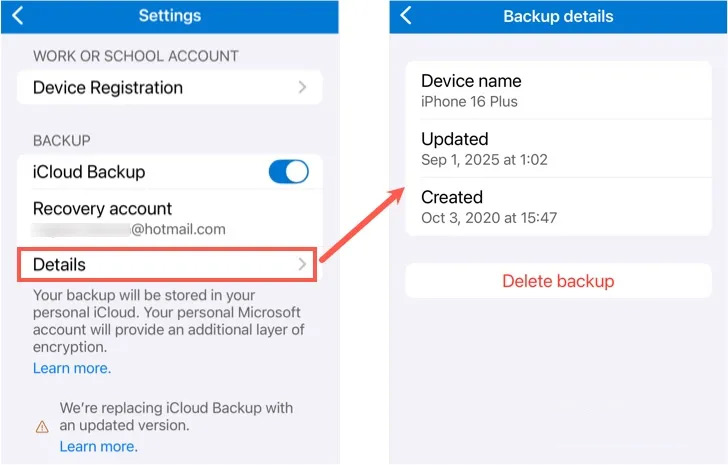
Open The Authenticator app And tap The 3 gear icon , select Settings . Next, Turn on iCloud Backup And Select your personal Microsoft account As the recovery account, Tap Details . This guide will see the most recent backup date along with your device name.
How to restore the Microsoft Authenticator app
If you switch to another device, you will also need to install the Microsoft Authenticator app. Then, for personal accounts, items that use one-time passwords will be restored and you will need to sign in again if the account is also used for passwordless sign-in.
For third party accounts all accounts with one time codes will be restored in the app.
FAQ
What should you know about backup and restore Microsoft authenticator on iPhone?
In practical terms, if you don't back up your Microsoft Authenticator data, you could be locked out of 2FA-protected accounts, limiting your access.
Why does backup and restore Microsoft authenticator on iPhone matter?
The article highlights that how to backup Microsoft Authenticator on iPhone Step 1: Go to Settings on your iPhone, then click on ICloud and select ICloud Backup to adjust the backup mode.
What is the main takeaway?
The main takeaway is that how to restore the Microsoft Authenticator app If you switch to another device, you will also need to install the Microsoft Authenticator app.
Related Articles
 How to Use the Microsoft Authenticator App5 minutes read
 How to Use Backup and Restore on Windows 7?6 minutes read
 How to Restore Data After Restoring iPhone8 minutes read
 Complete How to Use All Backup and Restore Tools on Windows 1012 minutes read
 How to Backup and Restore Data on iPhone, iPad3 minutes read
 Microsoft Updates Many More Enterprise Security Features for3 minutes read
Reader Comments 0
Sign in with email or Google to join the discussion.