Table of Contents
This updated guide answers the question 'What Is Text Blaze? How Does It Work on Chrome' with clear explanations and practical context. If you're tired of tedious typing or other keystrokes, Text Blaze for Chrome can save you hours each week. Use this text expander to eliminate your daily annoyances.
What Is Text Blaze? How Does It Work in Chrome?
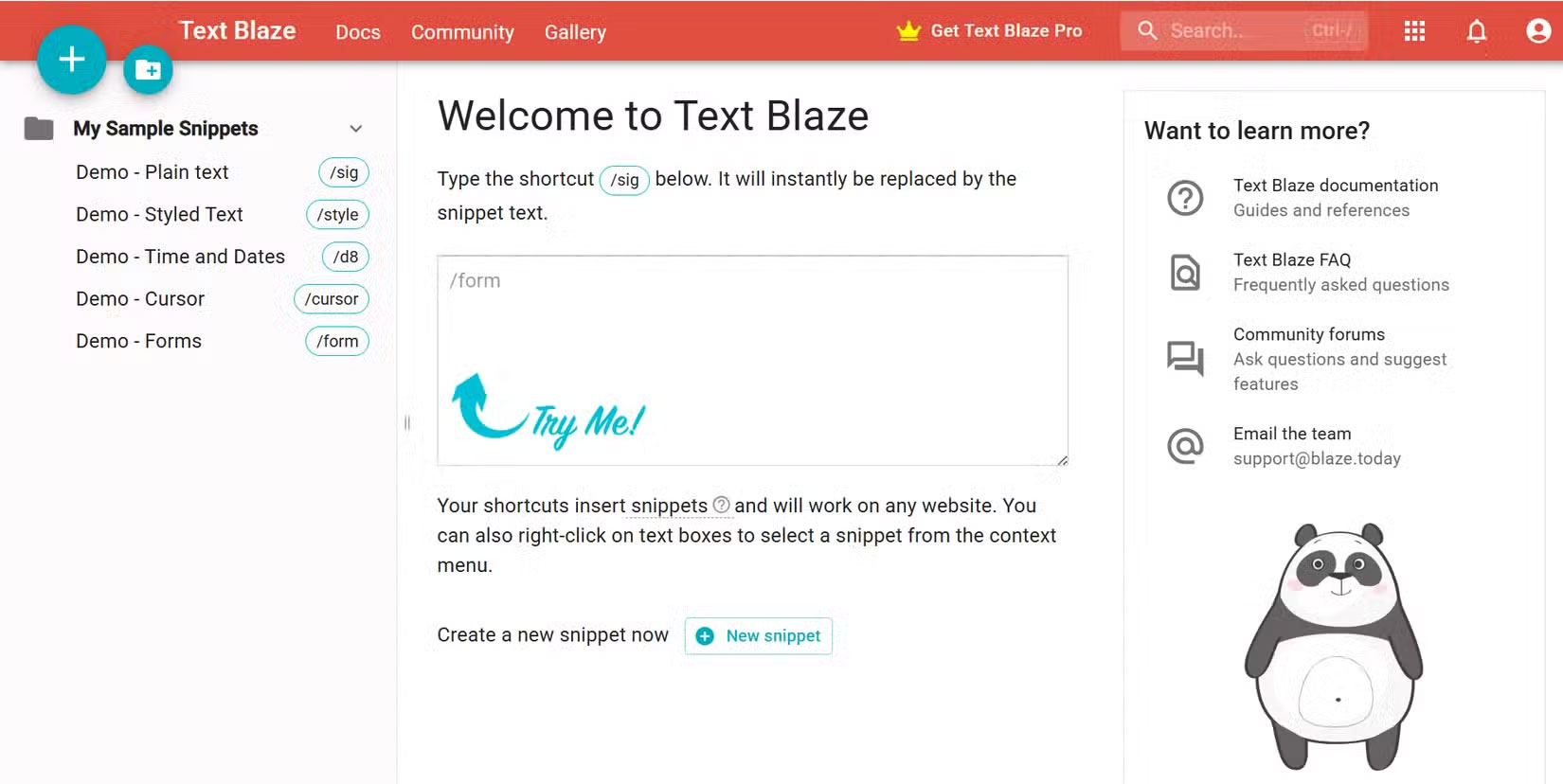
Text Blaze is a Chrome extension that lets you create custom shortcuts called snippets for any text you use frequently. When you type a shortcut, Text Blaze instantly replaces it with the full text you saved. It works everywhere in Chrome: Gmail, Google Docs, web forms, or even chat tools like Slack.
Setting up Text Blaze is simple. Once you install it from the Chrome Web Store, you'll see its icon in your Chrome toolbar. Once you sign up as a new user on the Text Blaze website, you'll be greeted with your dashboard. This account will store all of your snippets.
The Chrome toolbar has a ton of other extensions. If you plan on using Text Blaze often, pin it to your toolbar for quick access.
If you've used a text expander before, Text Blaze will not take long to get used to. Check out the tutorial if this is your first time using a text expander.
choose the extension's icon and you can start generating snippets right away. Each snippet has two parts: The Shortcut you'll type (like /ty ) and the text it expands to (like " Thank you for your email. I'll get back to you soon. ").
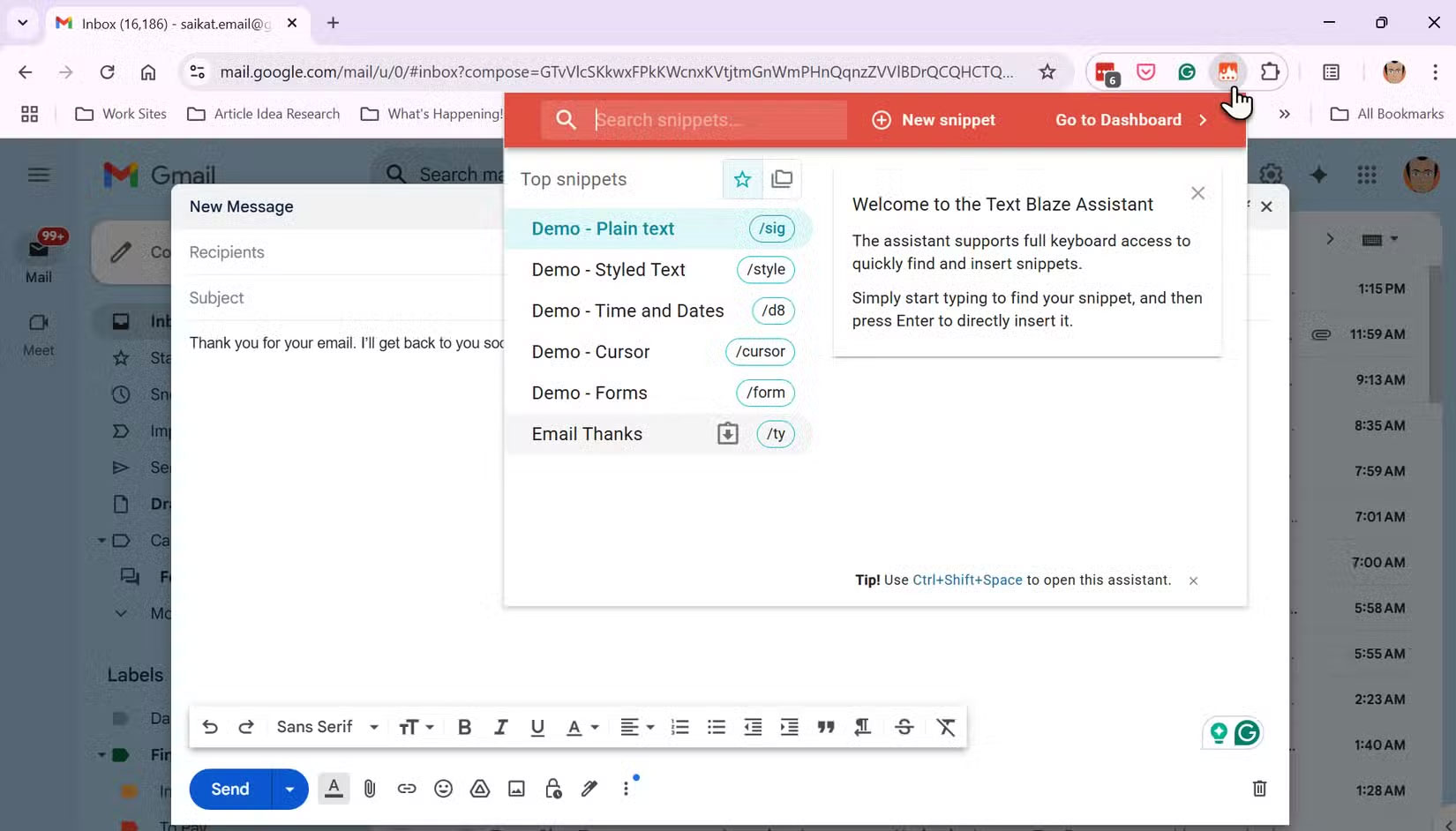
Tip : You can create and organize snippets into folders from the dashboard. This is something It is best to consider early on, as snippets can multiply very quickly.
Text Blaze supports Dynamic fields , so you can add today's date, remind yourself to enter custom data, or even insert data from your clipboard. No coding required, but to get fancy, you can add conditional logic and formulas. Get creative with the rich text editor in the Text Blaze dashboard. You can use the AI Write option to create snippets with the help of artificial intelligence.
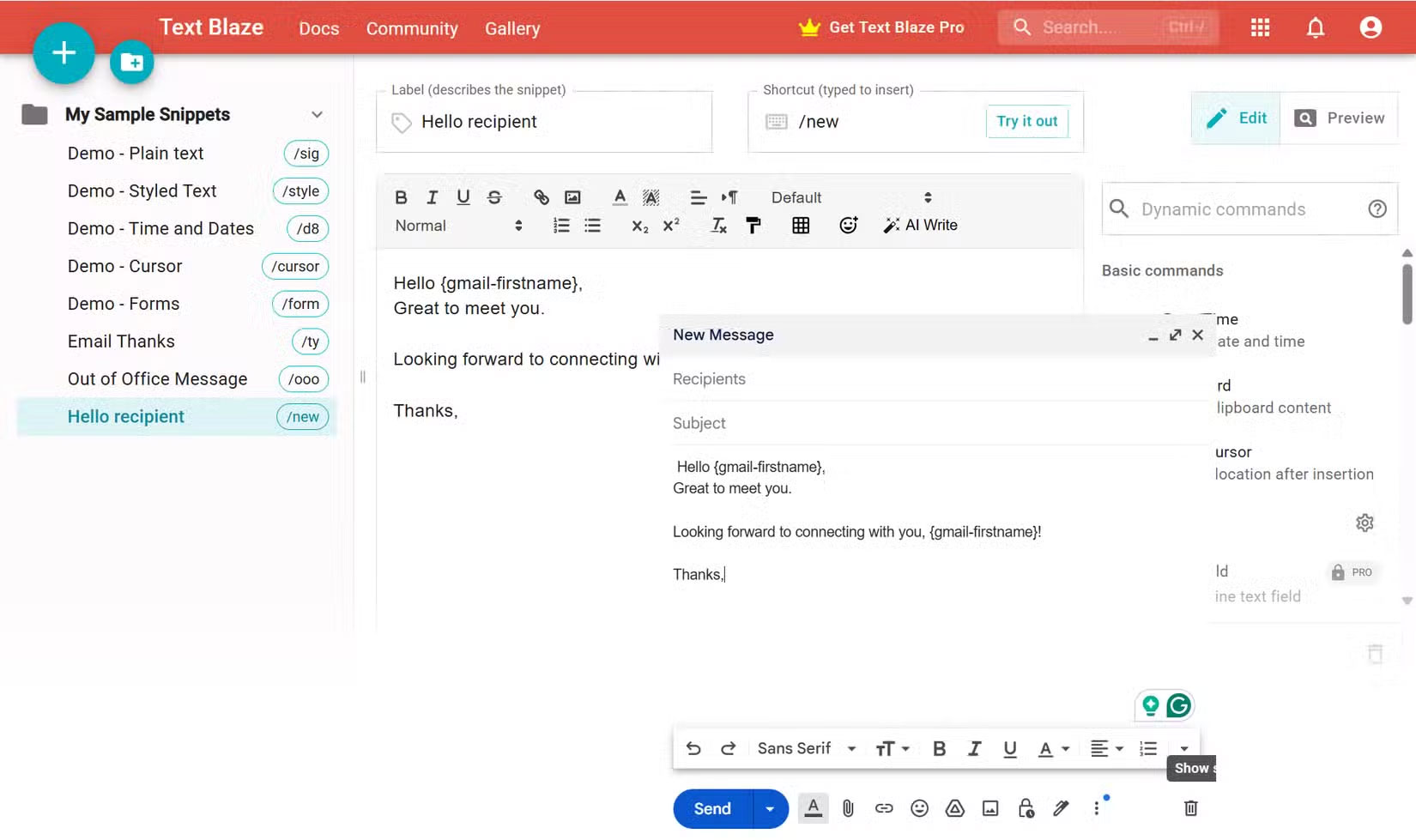
Once you have your snippet ready, simply enter the shortcut into any text field on any web page in Chrome and your saved text will expand instantly. The seconds saved from retyping across emails, documents, forms, and chat apps will quickly add up.
The extension's capabilities go far beyond the custom shortcuts you can set up in any web browser.
Note : Text Blaze has free and paid pricing plans. The free plan allows limited snippets and limited sharing. There are other limitations like using them on form fields.
How Does Text Blaze Speed Up Your Workflow?
Copy-pasting from Notepad or other documents is time-consuming. Typos are also common.
Once you've installed Text Blaze, create some basic snippets. for instance, type /sig to insert your full email signature. Type /ty to insert a polite thank you message. These shortcuts may seem strange at first, but you'll get the hang of it.
Setting up dynamic snippets can save many time. To reply to an Out of Office message, create a template that prompts you to enter the sender's name and query. When you type /ooo , you'll see a form like this:
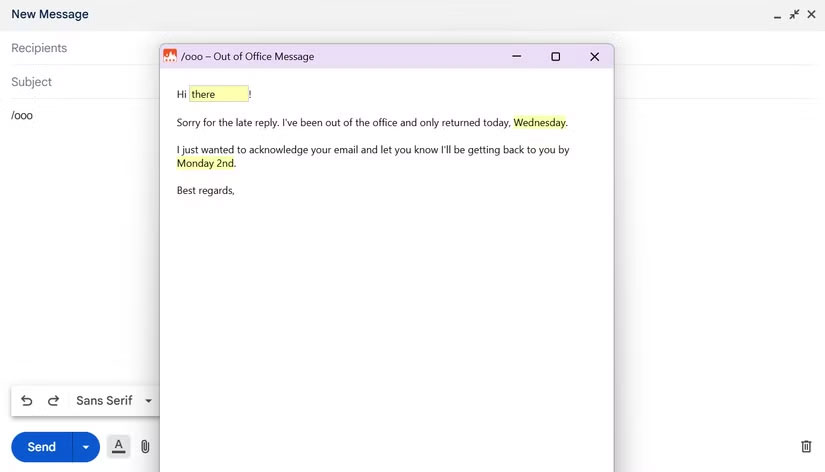
Just fill in the blanks and the rest will automatically fill in. Responses are faster, more accurate, and you can customize them to be more personal or relaxed.
naturally, it is not perfect from the start. Sometimes you accidentally trigger the wrong snippet or forget your shortcut. Snippet review lets you control when and where snippets run. Plus, you can adjust your settings and organize your snippet library to avoid confusion.
Here's a snapshot of how someone uses Text Blaze during a typical workday.
1. Morning Texting Habit
Despite the recommendation not to check your inbox before noon, many people still start their day with their inbox. Text Blaze helps you skim through it in Slack, Gmail, and even WhatsApp Web. Create snippets for greetings, follow-ups, and FAQs. Instead of typing the same thing over and over again, type /gm for "Good morning!" or /fup for "Just following up on my previous message."
2. Fill Out the Form
Whether it is a timesheet, a project update, or a sign-up, you always enter the same information. Create snippets for your name, address, and phone number. Now you can fill out forms in seconds, not minutes.
Although you shouldn't use snippets for information you want to keep private, like banking details.
3. Quick Notes and Templates
Keep snippets handy for meeting notes, to-do lists, and even code blocks. When you need to send a standard report, typing /report will insert the entire template. This is a lifesaver during busy weeks.
To experiment, improve your minimalist note-taking workflow with a few snippets from Text Blaze.
4. Personal Diary
Before signing off for the day, many people jot down some thoughts in their journal. With Text Blaze, you can structure your personalized summary with just a few keystrokes. Some snippets even automatically insert the current date.
5. Template AI Prompt
The best ChatGPT prompts have a common structure. Since copying and pasting or typing them can be tedious, save some popular ChatGPT prompts as snippets.
for instance, creating a dynamic snippet for a prompt can help you fill in specific details much faster.
Note : Visit the Text Blaze Gallery to see all the creative uses for text expansion. Use the Copy to Text Blaze button to use them or customize them to your needs.
Your fingers do not have to race across the keyboard. If you're a slow typist, you'll be less afraid of repetitive typing and make fewer mistakes. It might also help reduce hand pain from typing.
Text Blaze is free to start. You can upgrade for advanced features if needed. The Chrome extension is well supported with documentation and the Text Blaze community.
FAQ
What is Text Blaze? How Does It Work on Chrome?
Text Blaze? How Does It Work on Chrome refers to the concept, feature, product, or process explained in this guide. The main sections cover how it works and where it is useful.
Why is Text Blaze? How Does It Work on Chrome important?
Its value depends on the problem you are trying to solve. Understanding the benefits and limitations makes it easier to decide whether it fits your needs.
Is Text Blaze? How Does It Work on Chrome suitable for beginners?
Yes, beginners can start with the basic explanation and examples in this guide, then move to more advanced settings or techniques as their confidence grows.
Related Articles
 Chrome Text Tab: How to Create Text on New Tab Chrome5 minutes read
 How to Create Quick Scrolling Text Links on Chrome2 minutes read
 Applications That Support Work Right on the Google Chrome Browser5 minutes read
 How to Export Text in Photos with Chrome: Export Text in Image4 minutes read
 How to Control Gadgets That Work on Chrome: Chrome Utility4 minutes read
 Best AI Extensions for Google Chrome5 minutes read
Reader Comments 0
Sign in with email or Google to join the discussion.