Table of Contents
Canva’s Magic Morph turns selected text or a graphic element into a stylized variation based on a written prompt. It is useful when you want lettering or a shape to look like marble, fabric, metal, or another texture. Start with a simple element and describe the finish you want; inspect the generated result before adding it to your layout.
Apply Magic Morph to text or a shape
- Open your design in Canva. Select the text or element you want to transform, then open Apps in the editor and search for Magic Morph. If the app is unavailable, check the options shown for your account in Canva.

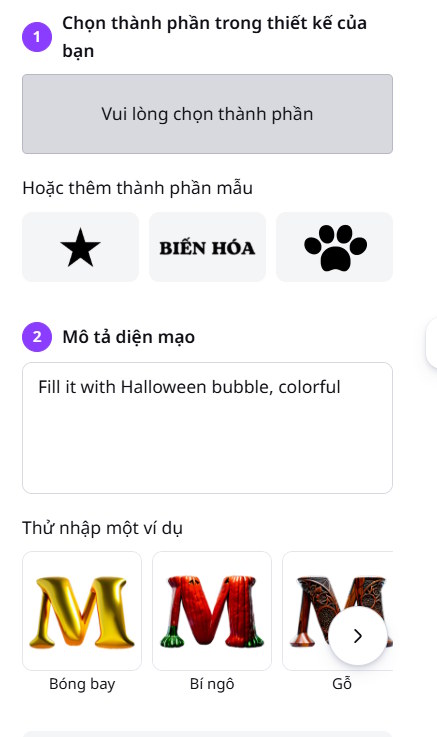
- Choose the input in the Magic Morph panel. Depending on the panel shown, you can use a selected element, add text, or start from a suggested transformation. In the example, the text is entered in the transformation template. Keep the source text short enough for the resulting lettering to remain legible.
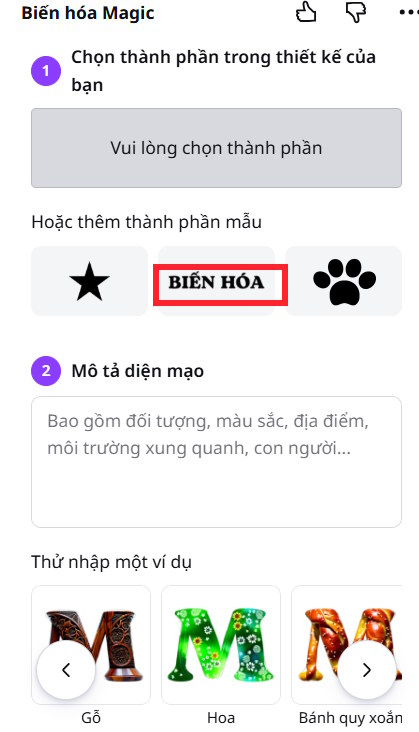
- Describe the appearance in the prompt box and select Magic Morph to generate variations. Specify the material, pattern, and color rather than a vague adjective: for example, “blue glass letters with soft highlights” or “a leaf shape with a white marble texture and subtle gray veins.”
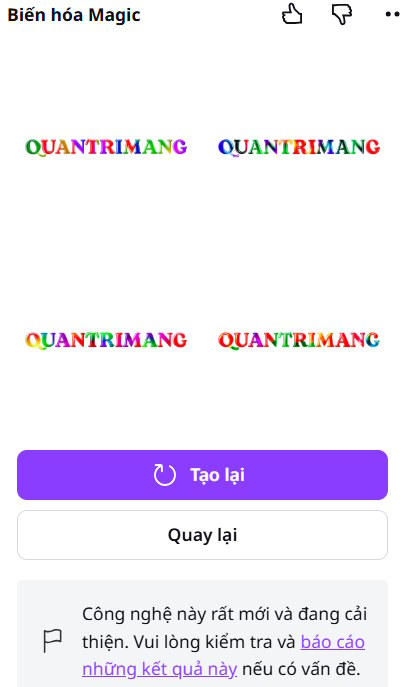
- Review the variations. Select one that fits your design and add it to the page. Check the spelling and shape of any generated text; AI styled lettering may need another attempt to be readable.
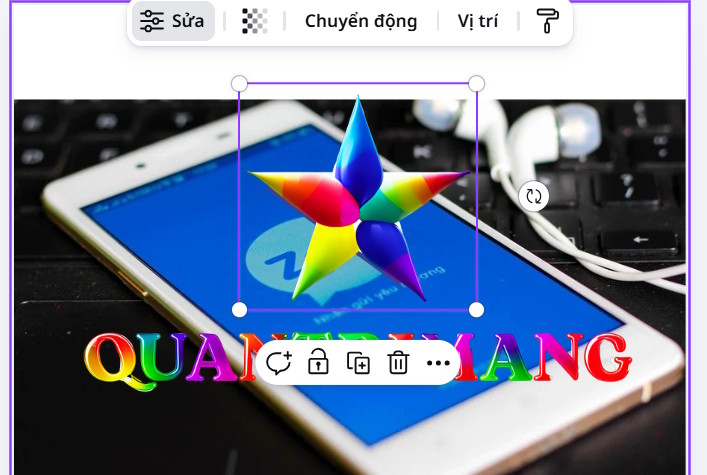
Position and resize the result alongside the other elements in your design. You can adjust surrounding colors using Canva’s element color controls or build a more structured layout with Canva frames. If you need to change the actual words later, keep a separate editable text layer or regenerate the effect from the corrected text.
Get a cleaner result
Use a high contrast source element and a short, concrete prompt. If the first variation looks crowded, change one detail at a time, such as the material or background color. View the design at the size at which it will be shared so decorative effects do not make the text hard to read.
Related Articles
 What Is Magic Write in Canva? Basic Usage of Magic Write: Clear Explanation6 minutes read
 How Do I Convert Between Different Design Formats in Canva: Explained4 minutes read
 4 New Canva Features You'll Love11 minutes read
 Instructions on Creating Worksheets in Canva4 minutes read
 Enlarge Sharp Images with Magic Expand on Canva AI4 minutes read
 AI Morph - AI Photo and Video Editing Tool5 minutes read
Reader Comments 0
Sign in with email or Google to join the discussion.