Table of Contents
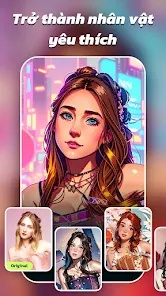
AI Morph is a mobile photo editor focused on AI-generated portraits, anime filters, cartoon styles, and short video effects. It is designed for quick transformations rather than detailed manual editing: choose a style, upload a suitable photo, and let the app generate a new version.
The app is free to install on Android, but it contains advertising and in-app purchases. Some styles, exports, or generations may require a subscription or trial, so review the price and renewal terms shown on your device before confirming.


What AI Morph can do
Anime and cartoon filters
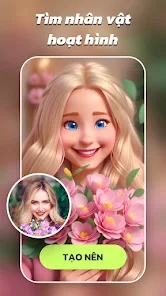
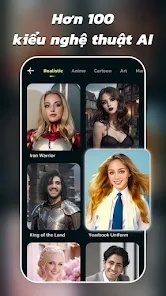
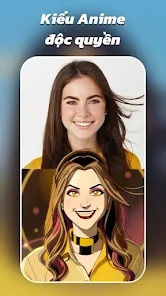
AI Morph can restyle a selfie as an anime, manga-inspired, 3D cartoon, pixel-art, or fantasy character. Results depend heavily on the source image: a well-lit, front-facing portrait with a clearly visible face generally gives the generator more useful detail.
Realistic portraits and headshots
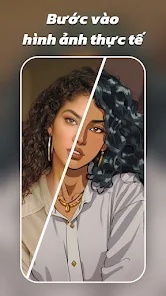
Some templates aim for a more photographic result, such as a polished profile picture, hairstyle preview, themed outfit, or studio-style headshot. These are generated interpretations, not faithful retouching, so examine facial details, hands, text, jewelry, and background objects before sharing the result.
Photo-to-video effects
The app also offers AI video effects that animate uploaded photos or combine people and pets in short scenes. Available templates can change with app updates, and generating video usually takes more processing time than applying a static filter.
Pet styles and AI editing
Pet photos can be turned into cartoons, paintings, or human-like scenes. Newer versions also advertise chat-based editing for adding, removing, or changing elements in a photo. Treat the output as creative media rather than an accurate representation of the original scene.

How to get better results
- Use a sharp photo with even lighting and minimal motion blur.
- Choose an image where the main face or pet is not blocked by hair, glasses, hands, or another subject.
- Match the source photo to the template. A headshot works better for portrait styles, while a full-body effect needs the whole subject in frame.
- Generate more than one version and inspect small details before saving.
- Avoid uploading confidential documents, private images, or photos of another person without permission.
Costs, privacy, and limitations
- Subscription: The store listing identifies in-app purchases. Trial length, price, and available free features may vary by region and version.
- Cloud processing: The developer describes AI processing on servers, so uploaded media may leave your device. Read the current privacy policy and data-safety section before using sensitive photos.
- Data disclosure: Google Play says the app may collect personal information, photos and videos, and other data types. The developer also states that data is encrypted in transit; these are developer-provided declarations and can change.
- Generated errors: AI images can distort facial features, anatomy, clothing, text, or backgrounds. Do not use an output as identity evidence or an accurate record of an event.
Is AI Morph worth trying?
AI Morph is best suited to people who want quick, template-driven portraits and playful social-media effects. It is less suitable if you need precise layer-based editing, predictable professional retouching, or local-only processing. Before subscribing, test the available free workflow, check export restrictions, and confirm how to cancel through your app store.
You can view the current Android listing on Google Play. Availability and features on other platforms should be verified in the relevant official app store.
Related Articles
 How to Use Magic Morph in Canva to Style Text and Shapes
 Instructions for creating superimposed images on smartphones
 How to Learn Editing
 Why Topaz Labs AI has the best AI photo and video editing tool?
 10 AI Photo Editors Compared: Best Uses and Limitations
 8 AI Video Editors Compared: Best Uses and Tradeoffs
Reader Comments 0
Sign in with email or Google to join the discussion.