Table of Contents
To change an element's color in Canva, select the element and look for one or more color tiles in the editor toolbar. Each tile represents an editable color in that object. If no color tile appears, Canva does not support direct color editing for that element; use an image filter such as Duotone instead.
Change the color of an editable element
This method works with supported graphics, shapes, borders, grids, charts, and some uploaded vector files. Canva's interface differs slightly between desktop and mobile, but the controls follow the same sequence.
- Select the element. Click or tap the graphic on the canvas. Move, resize, or arrange it first if needed.
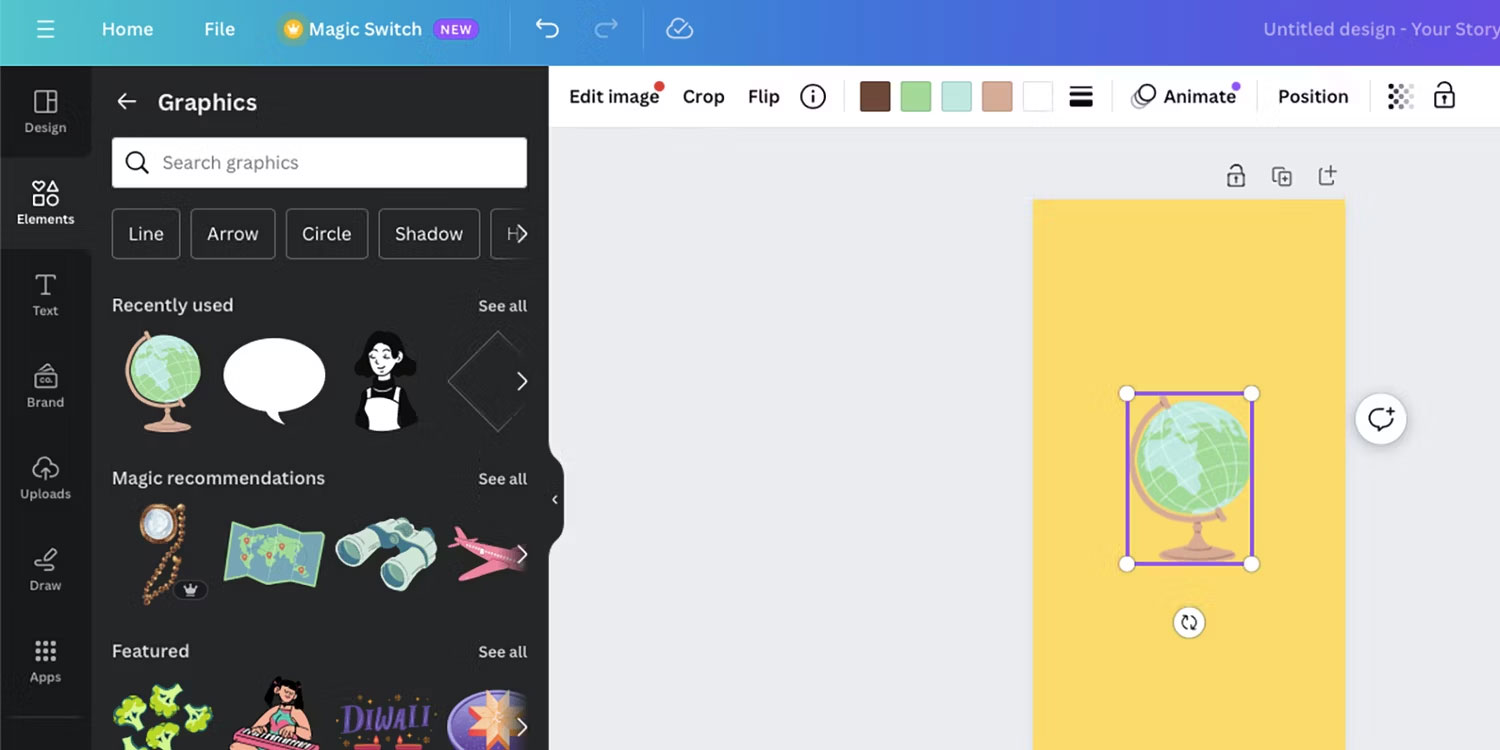
If color tiles appear on the toolbar, the element contains colors Canva can edit. A multicolor graphic may show several tiles; choose the tile that matches the area you want to change.
- Open the color panel. Select a color tile, then choose a suggested color, a Document color, or Add a new color.
- Enter an exact value when needed. Paste a HEX code to match a brand color, or use the eyedropper to sample a color already visible in the design.
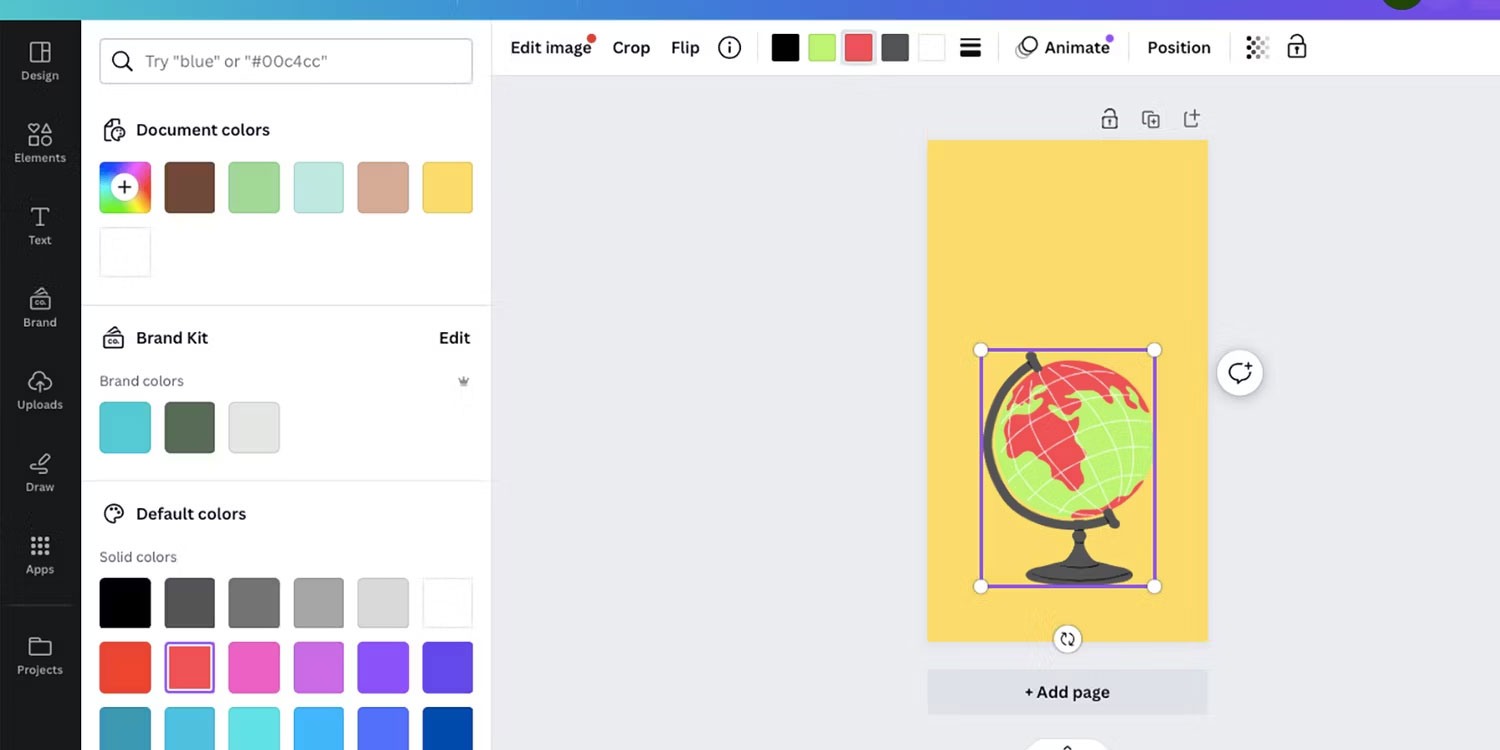
Repeat these steps for each color tile. On supported designs, Canva may also offer an option to replace the selected color on the current page or across all pages. The change applies to this instance of the element in your design; inserting a new copy from the Elements library may start with its original colors.
For Canva's current desktop and mobile controls, see the official element-color instructions.
Recolor an element with no color tiles
Raster images and some library graphics do not expose individual color tiles. You cannot precisely replace each source color in these objects, but a two-color filter can create a coordinated result.
- Select the element. Confirm that no color tiles appear in the toolbar.
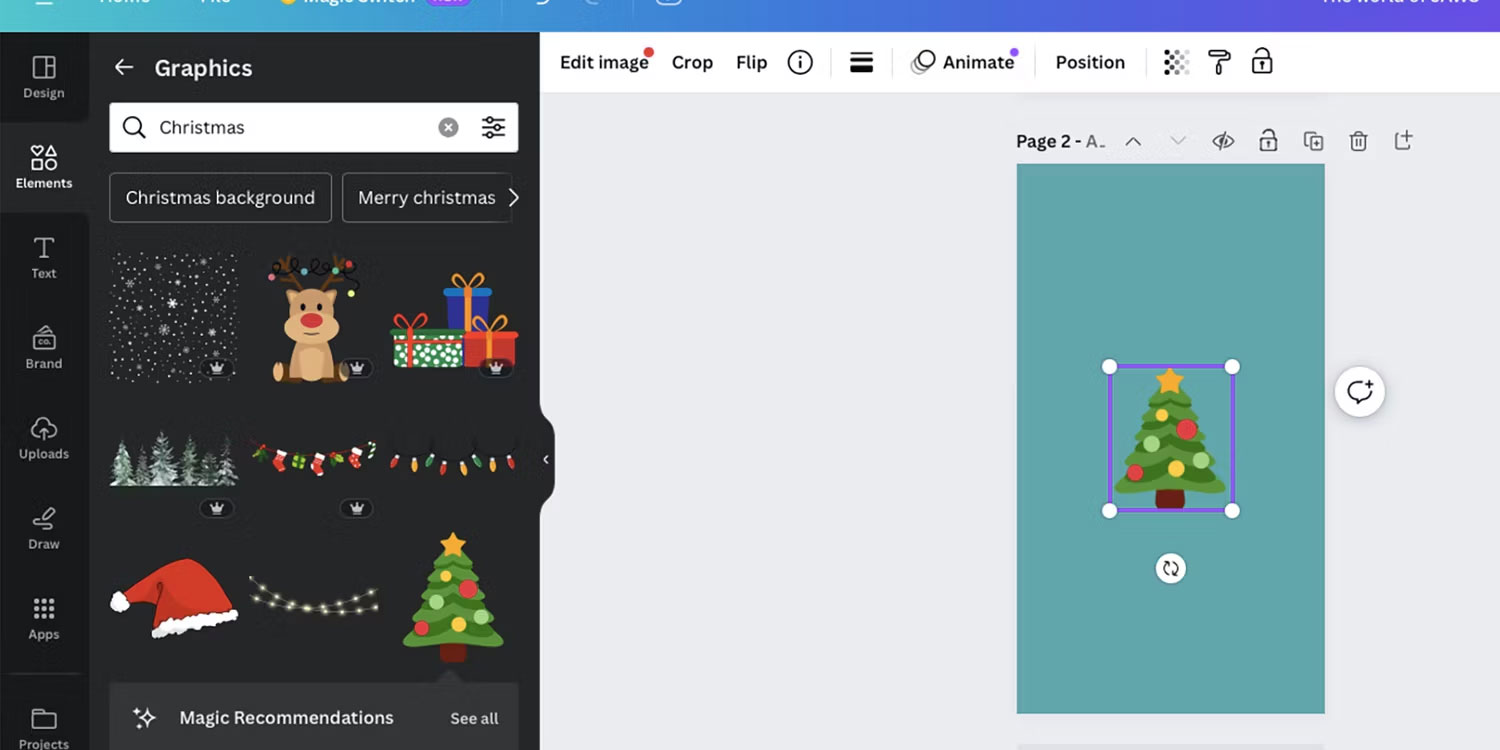
- Open the image editor. Select Edit, Edit image, or Edit photo, depending on the item and Canva version.
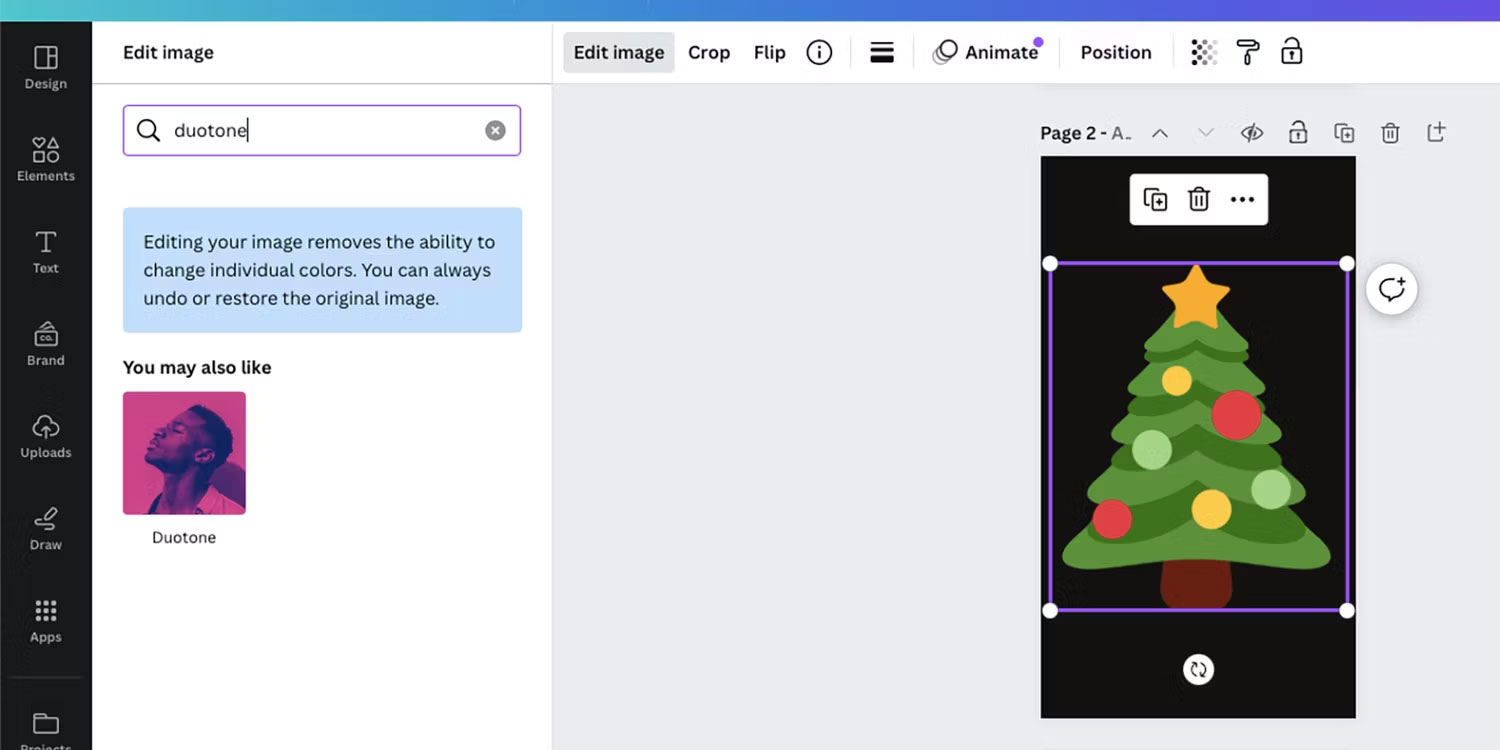
- Find Duotone. In Canva's current editor, Duotone is under Filters; scroll to the end if it is not immediately visible.
Adjust the Duotone colors
Choose a preset to apply a quick two-color treatment, then open its settings. Set the highlight and shadow colors to values that fit your design.
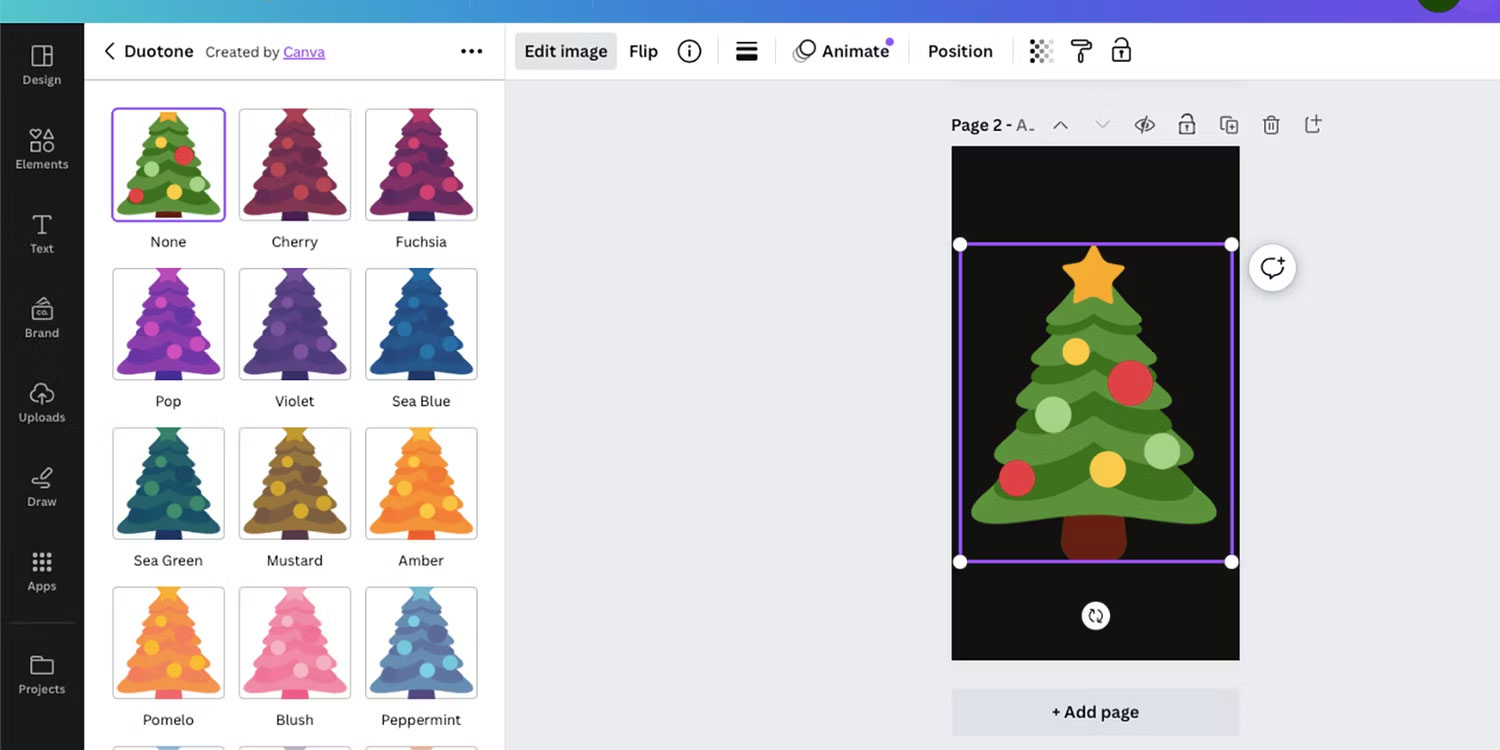
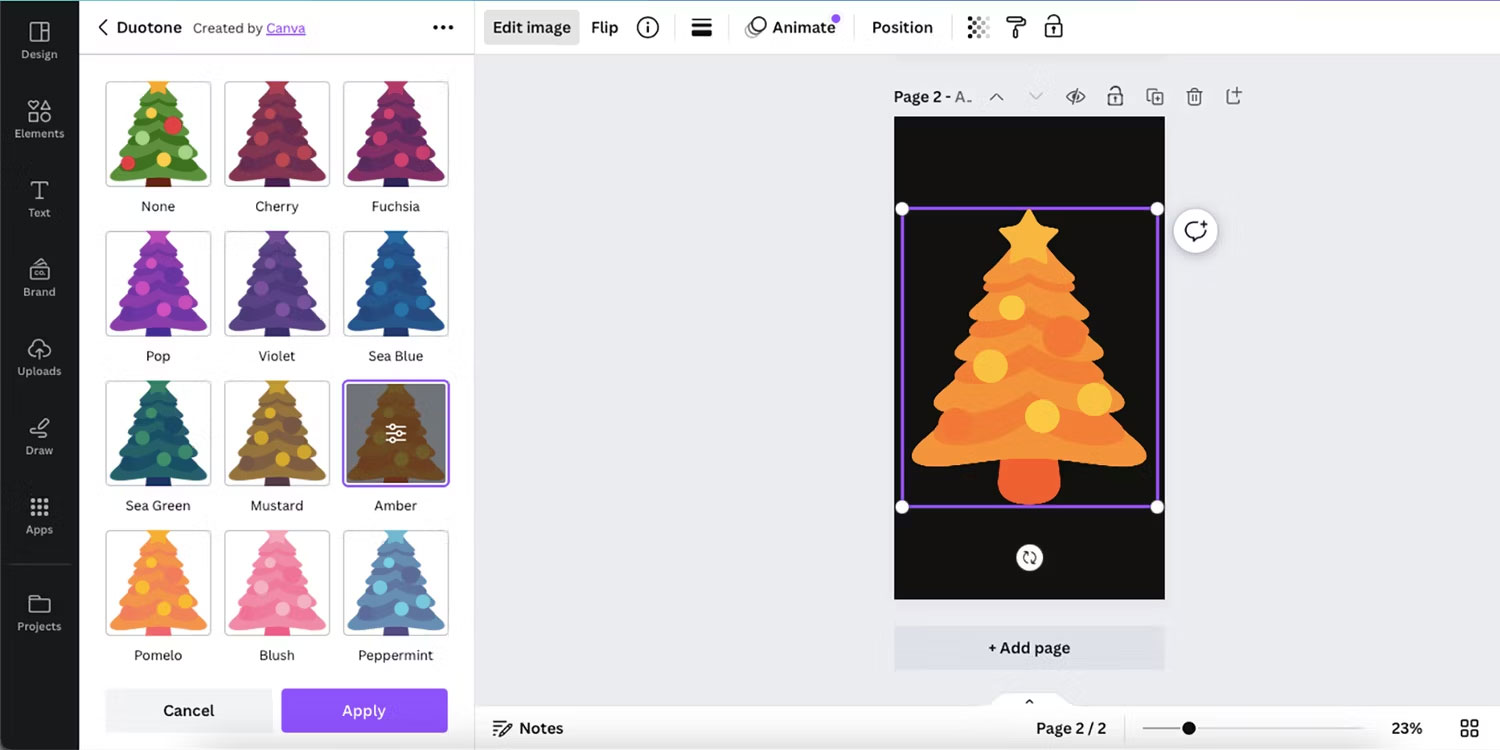
The highlight color affects lighter pixels, while the shadow color affects darker pixels. If an intensity control is available, lower it to retain more of the source image or increase it for a stronger two-color effect.
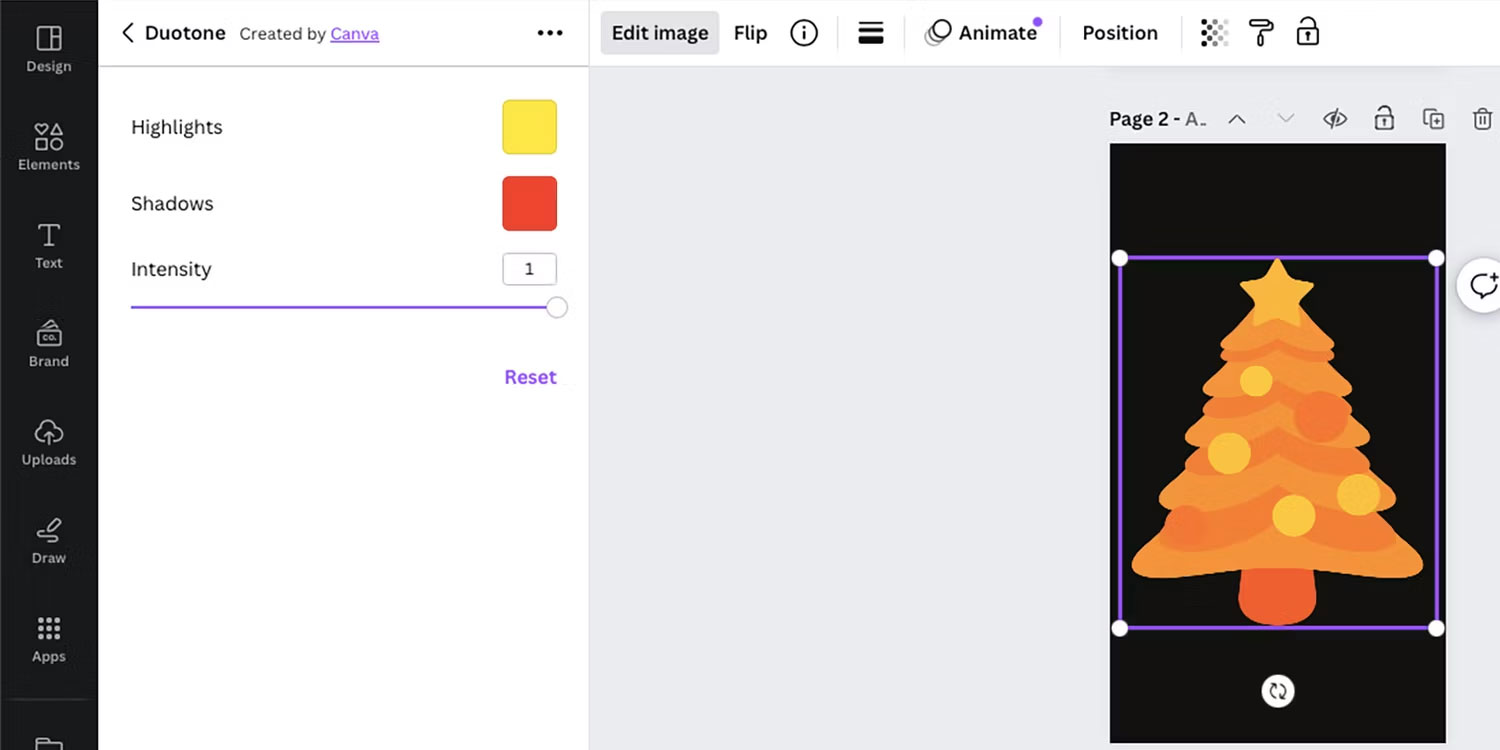
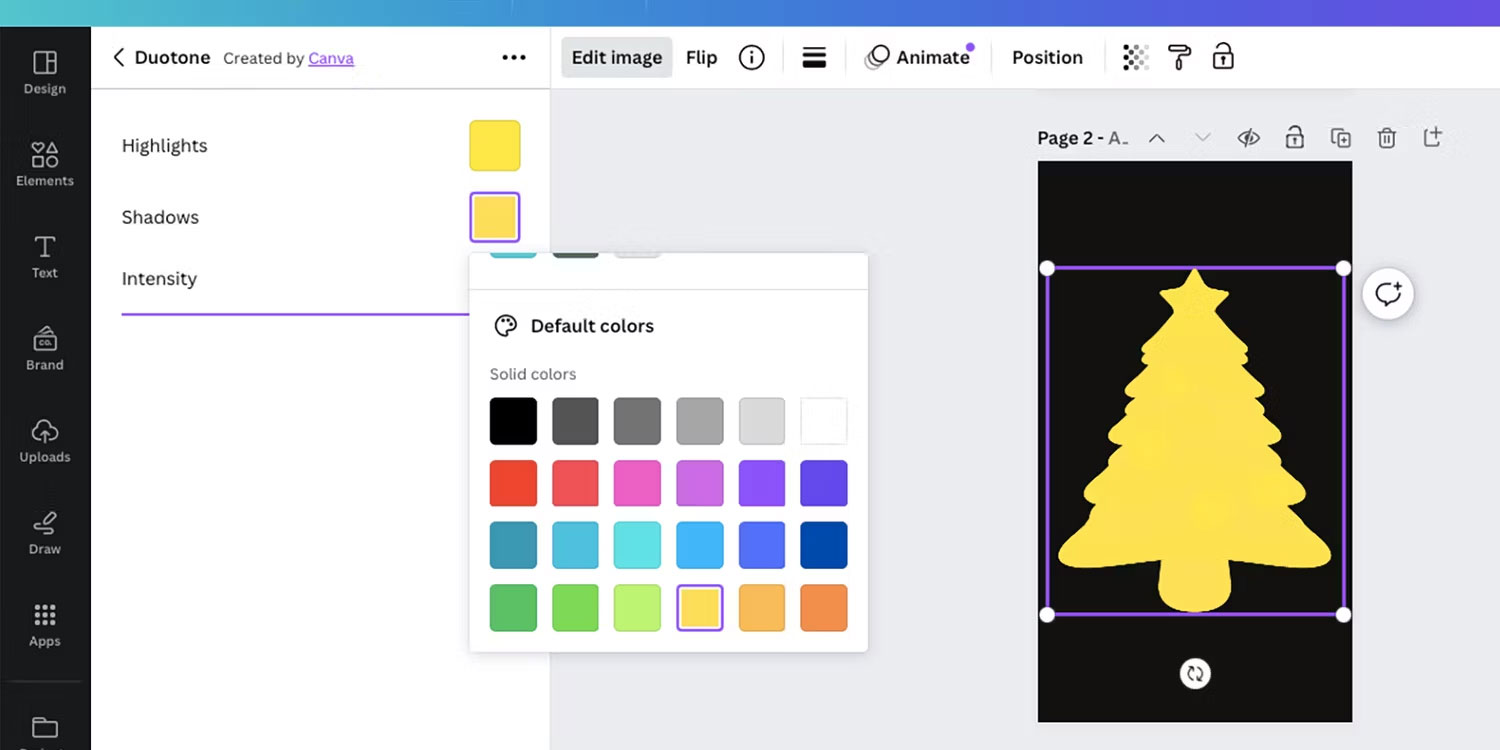
Duotone recolors tonal ranges rather than separate objects, so it works best on icons, silhouettes, and high-contrast photos. It is less suitable when several small areas must receive exact brand colors. In that case, choose a directly editable Canva element or edit the source graphic in a vector editor before uploading it.
If the color controls are missing
- Make sure you selected the element itself, not a group or the page background.
- Ungroup the design and try selecting the individual object.
- Try a different graphic from the Elements panel if precise color replacement is essential.
- For a photo, use Edit > Filters > Duotone rather than expecting element color tiles.
Related Articles
 How to Ensure Accurate Color Printing When Using Canva4 minutes read
 Changing the Design Colors in Canva Is Very Simple4 minutes read
 How to Change the Color of an Image with Canva: Step-by-Step Guide7 minutes read
 How to Change Objects in Photos with Canva AI Very Quickly4 minutes read
 Guide to Changing Image Backgrounds Using Canva AI5 minutes read
 How to Change the Background of an Image in Canva: Step-by-Step Guide4 minutes read
Reader Comments 0
Sign in with email or Google to join the discussion.