Table of Contents
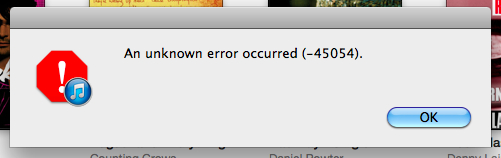
iTunes error -45054 is a legacy Store or authorization error that can block purchases, downloads, or account activity. Start with updates, connectivity, sign-in, and computer authorization. Only reset old iTunes authorization folders if the error remains and you are using the legacy Windows or Mac software.
Before changing files
- Record the full message and the action that triggers it.
- Back up the iTunes library and any locally stored media.
- Do not download a third-party “iTunes repair” utility.
- Do not change system-folder permissions or run Terminal commands copied from an old guide.
The code does not prove that the internet connection, clock, or hard drive has failed. Treat those as checks, not confirmed causes.
1. Update Apple software and the operating system
On Windows, update iTunes from the Microsoft Store if that is where it was installed, or use Apple Software Update for a standalone Apple installer. Restart the PC after the update.
In iTunes, open Help > About iTunes to identify the installed version. The older About window looks like this:
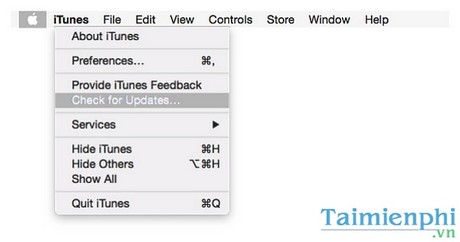
On a current Windows PC, Apple separates music, video, and device management into Apple Music, Apple TV, and Apple Devices. If the error occurs in one of those apps, update that app through Microsoft Store instead of reinstalling an unrelated iTunes package. Apple's current Windows software update guidance lists both supported update methods.
2. Check the connection, date, and Apple service
- Confirm that normal websites load and temporarily disable any VPN or filtering proxy that may interfere with the Store.
- Set Windows or macOS date, time, and time zone automatically, then sync the clock.
- Check Apple's System Status page for an iTunes Store, Apple Music, or account outage.
- Restart the computer and try the same download once more.
3. Sign out, sign in, and authorize the computer
Sign out of the Apple Account in the affected app, close it, reopen it, and sign in again. On legacy iTunes for Windows, use Account > Sign Out, then sign back in.
For purchased media, confirm that the computer is authorized. In current Apple Music or Apple TV for Windows, click your name and choose Authorize Machine. In legacy iTunes, use Account > Authorizations > Authorize This Computer. Follow Apple's computer authorization instructions; do not repeatedly deauthorize every computer unless the account limit is the actual problem.
TipsMake's device and iTunes authorization guide provides additional context.
4. Reversible reset for legacy iTunes on Mac
This section applies only to an older macOS release that still runs iTunes and contains the referenced folder. Modern macOS uses Music, TV, and Finder instead.
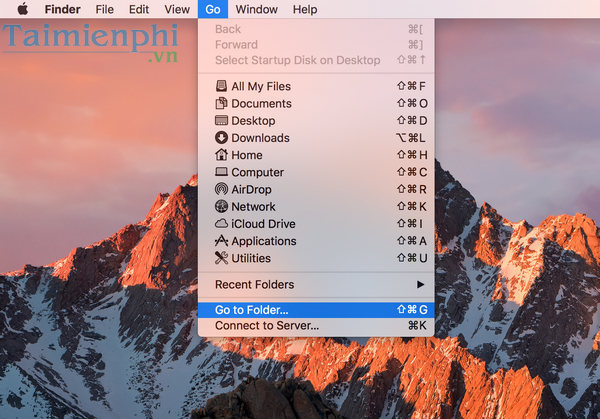
- Quit iTunes and open Finder.
- Choose Go > Go to Folder.
- Enter /Users/Shared/adi and select Go.
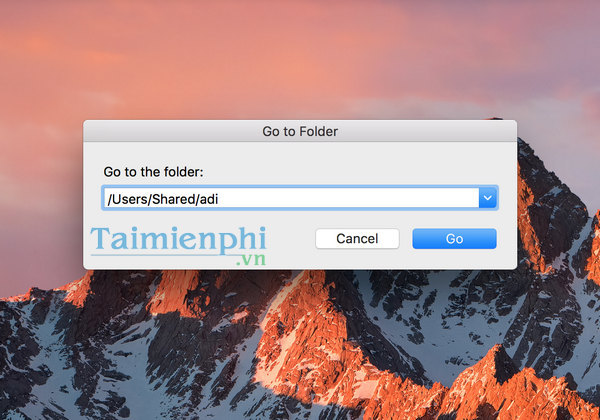
- If the folder exists, move adi to a clearly named backup folder on the Desktop instead of emptying the Trash immediately.
- Open iTunes and test the Store. If the problem is resolved, keep the backup until purchases and downloads work normally. If it is not resolved, quit iTunes and restore the folder.
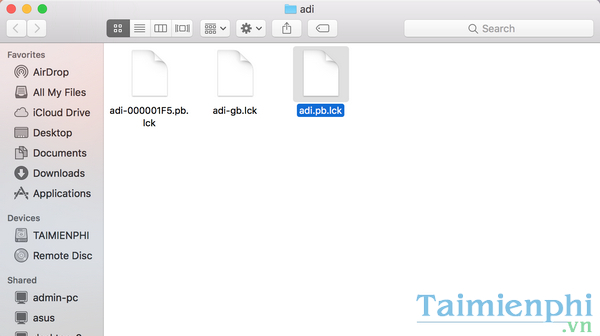
If /Users/Shared or adi does not exist, stop. Do not create it with sudo or change its permissions solely to follow an outdated repair procedure.
5. Reversible reset for legacy iTunes on Windows
- Quit iTunes. Press Windows + R, enter %ProgramData%, and press Enter.
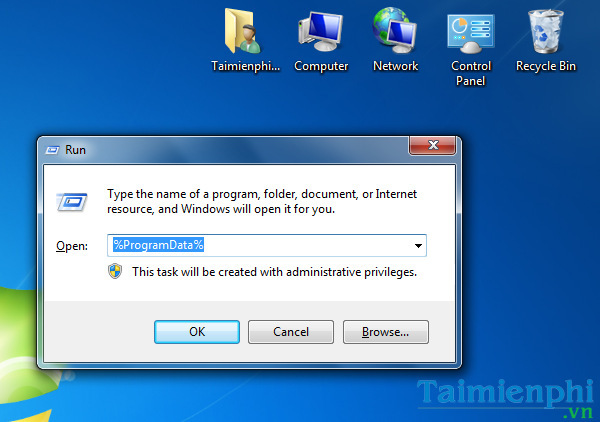
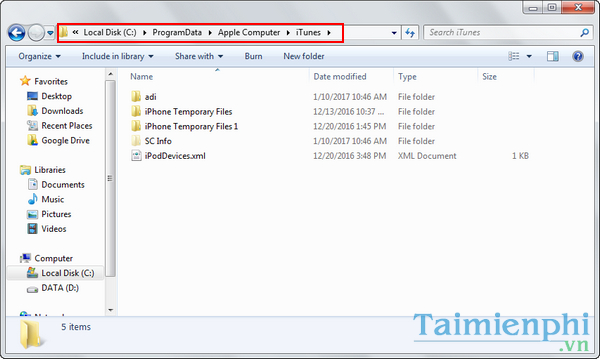
- Open Apple Computer > iTunes. Turn on hidden items in File Explorer if needed.
- If SC Info and adi are present, move them to a backup folder outside ProgramData. Do not touch the iTunes Media library.
- Restart Windows, open iTunes, sign in, and authorize the computer again.
- If the error remains, restore the folders and move to official support.
Old Disk Utility instructions no longer apply
Older versions of Disk Utility included Verify Disk Permissions and Repair Disk Permissions. Those controls appeared in the interface shown below.
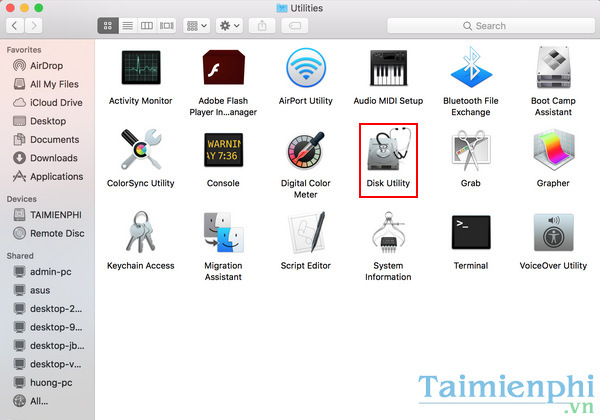
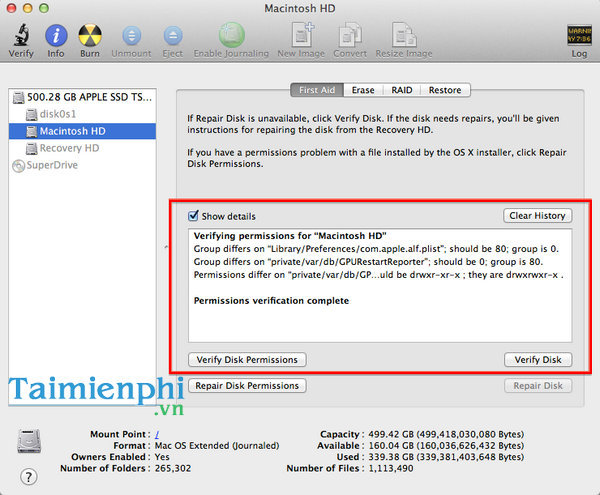
Modern macOS no longer offers that permission-repair workflow. Disk Utility's current First Aid checks storage structures, but it should not be run merely because a Store authorization error appeared. Use it only when there are independent signs of a disk problem and after making a backup.
When to contact Apple Support
Contact Apple Support if the same error persists after the app is current, the Apple Account signs in successfully elsewhere, the computer is authorized, and the legacy cache reset either does not apply or does not help. Provide the error code, operating-system version, app version, and the exact purchase or download action.
For other library-specific symptoms, see how to fix “The original file could not be found” in iTunes. If the whole interface is unfamiliar, start with the iTunes beginner guide.
Related Articles
 How to Fix iTunes Error -45054 Quickly While Downloading Files or6 minutes read
 What Is Itunes 3259 Error? How to Fix the Error 3259?3 minutes read
 Fixing iTunes Error 45075, Unable to Install iTunes on Your Computer5 minutes read
 Does Itunes Not Work on Windows 10? This Is How to Fix It15 minutes read
 Fix Itunes 1671 Error During Updating or Restoring iPhone, iPad5 minutes read
 What to Do When the Error 'iPhone Cannot Be Synced' During Data5 minutes read
Reader Comments 0
Sign in with email or Google to join the discussion.