Table of Contents
If the Tones library is missing from iTunes, it usually is not an error. Apple removed the standalone Tones media section from later iTunes workflows, and current Windows and macOS apps do not restore it with the old Edit Menu option. The most reliable current method is to create and export the ringtone directly on the iPhone with GarageBand.

Current method: create the ringtone with GarageBand
You need an audio file or an unprotected song stored locally on the iPhone. Subscription tracks protected by digital rights management cannot be imported as ordinary ringtone source files.
- Install or update GarageBand from the App Store.
- Touch and hold the GarageBand icon, then choose Create New Audio Recording.
- Open Tracks view, then open the Loops browser and choose the Files or Music tab.
- Import the audio and drag it into the track area. Trim the section you want. A GarageBand ringtone can be no longer than 30 seconds; the app can shorten a longer export.
- Return to My Songs, touch and hold the project, then choose Share > Ringtone.
- Name the tone, tap Export, and choose Use sound as if you want to set it immediately.
Apple documents this workflow in its custom ringtone guide.
Choose the new ringtone
Open Settings > Sounds & Haptics > Ringtone and select the exported tone. To assign it to one person, open Contacts, select the contact, tap Edit > Ringtone, and choose the tone.
Purchased tones can be browsed in the iTunes Store app under More > Tones. If you previously bought tones, open a sound category in Settings > Sounds & Haptics and look for Download All Purchased Tones.
Why the old Edit Menu fix may not work
The screenshots below are from an older iTunes release in which media categories could be shown or hidden. They are useful only if your installation still has that exact interface.
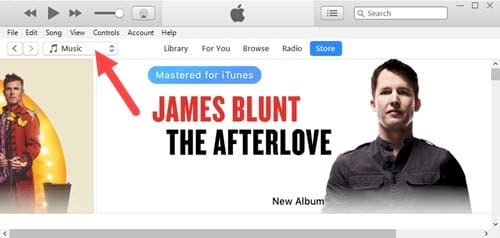
Legacy step 1: open the media selector
In old iTunes, the selector near the upper-left corner often displayed Music by default.
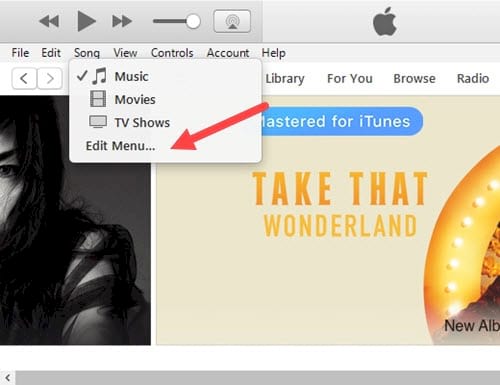
Legacy step 2: choose Edit Menu
Opening the selector displayed Music, Movies, TV Shows, and an Edit Menu command.
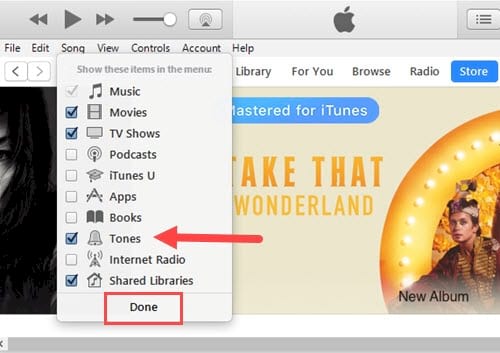
Legacy step 3: enable Tones
In versions that still supported the category, selecting the Tones checkbox and clicking Done added it to the selector.
Legacy step 4: open the Tones library
The Tones item then appeared alongside the other media categories.
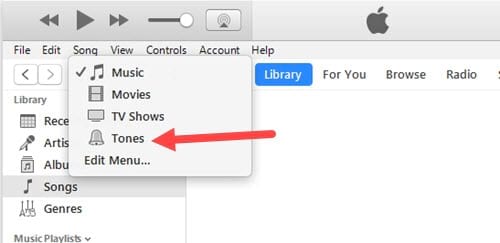
The library listed ringtone files already imported into that version of iTunes.
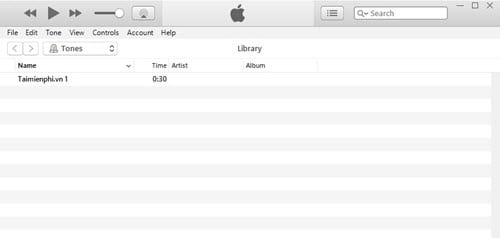
If Edit Menu exists but does not offer Tones, reinstalling an older, unsupported iTunes build is not a safe fix. Use GarageBand or the current device-management workflow instead.
If GarageBand cannot import the audio
- Move the source file into the Files app and confirm that it plays.
- Use an unprotected MP3, M4A, WAV, or other format supported by GarageBand.
- Download an eligible song locally before trying to import it.
- Shorten the source and remove long silence before export.
- Confirm that the iPhone has enough free storage.
Use only audio you own or have permission to edit. If you start from a downloaded tone, this comparison of ringtone sources and file formats explains why iPhone files often use M4R. Readers maintaining a genuinely old iTunes setup can consult the iTunes beginner guide for the historical interface.
Related Articles
 How to Fix the Error Does Not Appear Item Tones Ringtone on iTunes6 minutes read
 How to Fix m4r File Error Creating iPhone Ringtone with iTunes5 minutes read
 Create iPhone Ringtones, Message Tones, and Call Tones Using iTunes8 minutes read
 How to Create Super Fast iPhone Ringtones with iTunes on macOS4 minutes read
 Set a Message Ringtone, Call for Each Person on iPhone5 minutes read
 How to Set Different Ringtones for Each SIM on iPhone: Step-by-Step Guide4 minutes read
Reader Comments 0
Sign in with email or Google to join the discussion.