Table of Contents
UltraISO can expose a disc-image file as a virtual CD/DVD drive, so you can browse its contents without burning a disc. For a straightforward ISO on Windows, the built-in Mount command may be enough; use UltraISO when you need its image-management features.
What a virtual optical drive does
The drive receives a letter in File Explorer and displays the contents of the mounted image. It is different from a physical disc drive and from a virtual hard disk. Mounting does not extract a separate copy of every file or make an operating-system image boot automatically.
Install UltraISO and check the drive
Obtain the installer from the official UltraISO website and review the installation options. Use a valid license or the available trial under its terms. Do not use shared serial numbers or modified installers.
After installation, open This PC and look for the virtual CD/DVD drive. Its letter will depend on your computer.
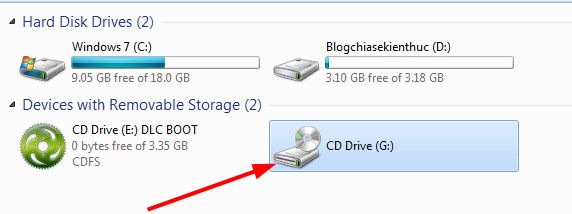
To inspect an image inside UltraISO, choose File > Open or press Ctrl+O, then select the file. The folder tree and file list let you browse its contents; opening an image in the editor is separate from mounting it in Windows.
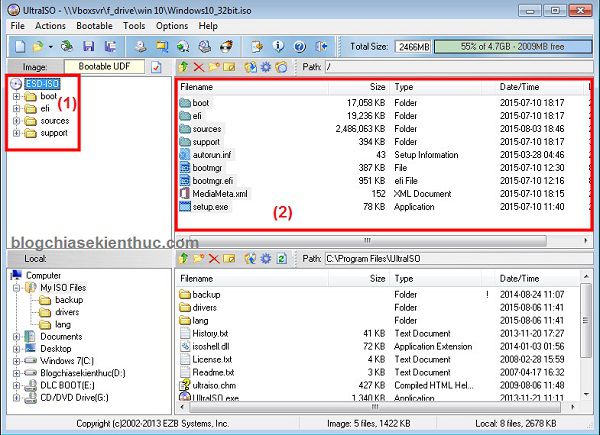
Choose how many virtual drives to create
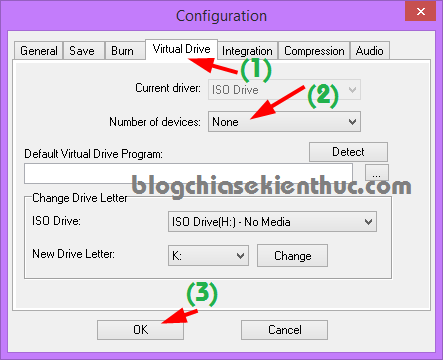
Open Options > Configuration > Virtual Drive. Set Number of devices to the number you need and apply the change. The illustrated version offers up to eight; use the choices shown in your version.
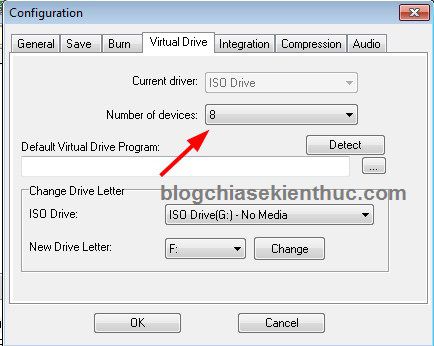
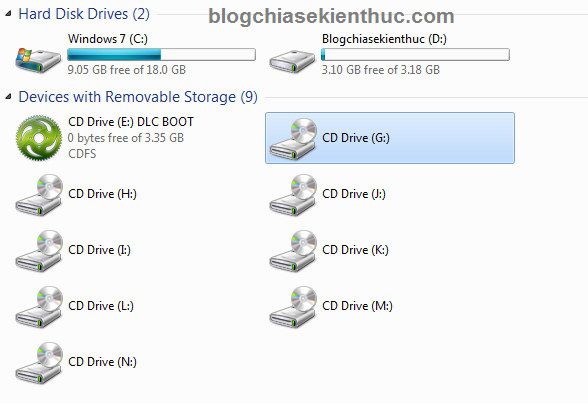
To remove UltraISO's virtual drives, return to this setting and select None. This removes the virtual devices, not the original image files.
Mount an ISO image
Use whichever of these methods is available in your installation:
From the image file
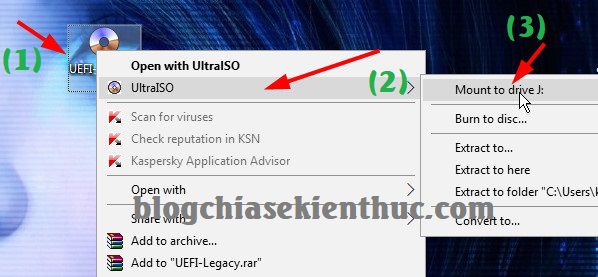
Right-click the ISO, open the UltraISO submenu, and select Mount to drive. On Windows 11, older shell commands may appear under Show more options. Confirm the displayed drive letter.
From the virtual drive
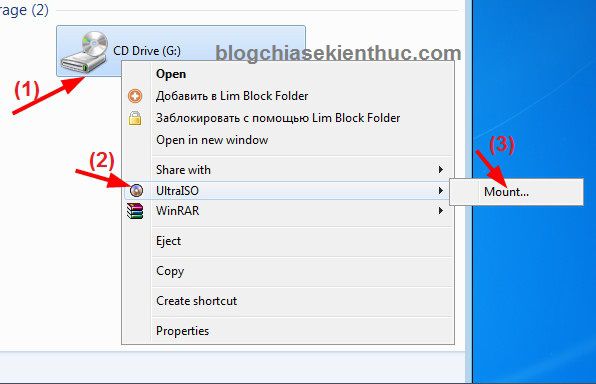
Right-click UltraISO's virtual drive in This PC and select UltraISO > Mount, then browse to the image.
From UltraISO
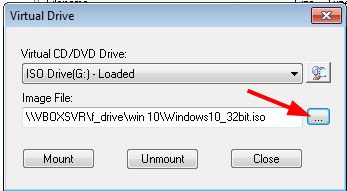
Choose Tools > Mount to Virtual Drive or press F6. Select the virtual drive, browse to the ISO, and choose Mount. Open that drive in File Explorer to verify its contents.
Only run installers or executables from sources you trust. A mounted image is not a safety check. For a separate copy of the contents, see how to extract an ISO file.
Eject the image when finished
Close files and programs using the mounted image. In This PC, right-click its virtual drive and choose Eject. Ejecting unmounts the image; it does not delete the ISO. If Windows says the drive is in use, close the application holding it open and try again.
Mount an ISO without UltraISO
In Windows 10 or 11, right-click an ISO and choose Mount. If another application owns the file association, try Open with > Windows Explorer. A new virtual DVD drive should appear. Right-click it and select Eject to unmount it.
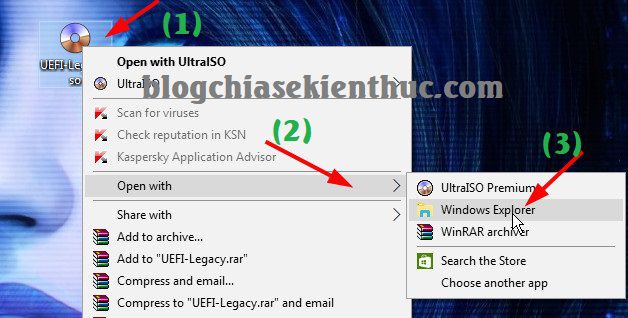
See the illustrated guide to Windows ISO mounting without extra software if the menu is unfamiliar. Do not force an unsupported image format to open by merely renaming its extension.





Reader Comments 0
Sign in with email or Google to join the discussion.