Table of Contents
Folder-locking tools can hide personal files or restrict access through a password-protected application. However, hiding a folder, locking it, and encrypting its contents are different functions. Choose the function that addresses your needs rather than assuming that a password prompt guarantees encrypted data.
This guide covers four tools featured in the original tutorial: Wise Folder Hider, Anvide Lock Folder, Free Hide Folder, and Lim Block Folder. The screenshots show older interfaces, so controls and availability may differ from a current installation.

Before protecting a folder
Back up important files before trying any folder utility. Test the full lock-and-unlock process on a copy of an unimportant folder, then restart Windows and confirm that you can still recover it. Keep passwords and any recovery information in a secure location.
A second application password can add an access check, but it does not prove that the underlying files are encrypted. For sensitive information, use a documented encryption method and understand how recovery works before moving your only copy into it.
1. Wise Folder Hider
Wise Folder Hider separates hiding, locking, and encrypted-locker features. Its official product page lists free and paid editions with different limits. Check the current feature list before choosing it for a large collection of files.
Hide a folder in the older interface
- Install the program from the developer and read the installation options.
- Create and confirm the application password.
- Add a test folder using the folder control or drag and drop.
- In the interface pictured below, the menu beside Open includes Set Password for an additional folder password.
- Use the program to open or unhide the folder, and verify access before applying the same process to important data.
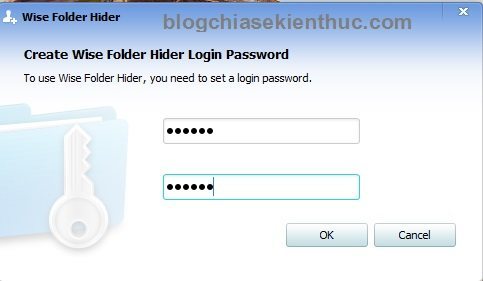
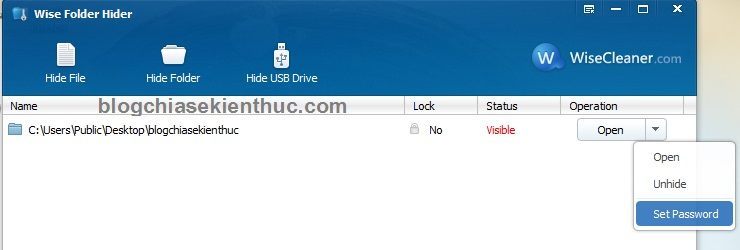
For encryption, follow the separate encrypted-locker instructions. These describe creating a locker, moving files into it, and unmounting it after use. Do not assume that selecting Hide performs those steps.
Before uninstalling the program or reinstalling Windows, restore access to protected data and verify a separate backup. Reinstallation alone should not be treated as a guaranteed recovery method.
2. Anvide Lock Folder and Anvide Seal Folder
The legacy tutorial used Anvide Lock Folder and also referenced the later Anvide Seal Folder name. Its old download and backup labels no longer provide usable links in this article. Treat the following screenshots as a record of that workflow, not confirmation of current support or compatibility.
The pictured installer includes an optional offer. Review each screen and decline unrelated software you do not want.
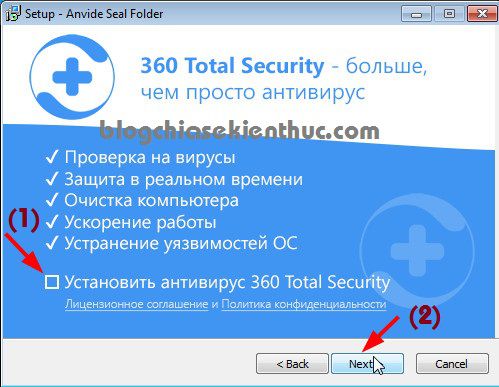
The older program starts with language selection and a license screen. Review the terms before accepting them.

In the pictured interface, use the plus button to select a folder. Select its entry, enter the same password in both fields, and choose Protect.
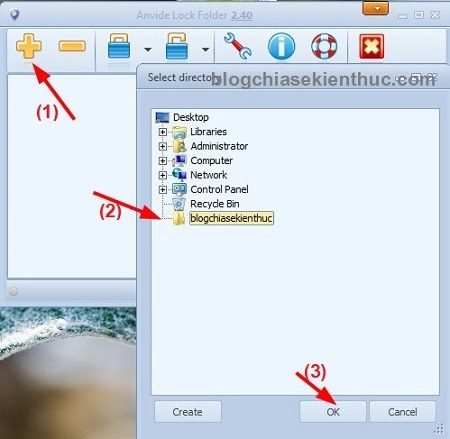
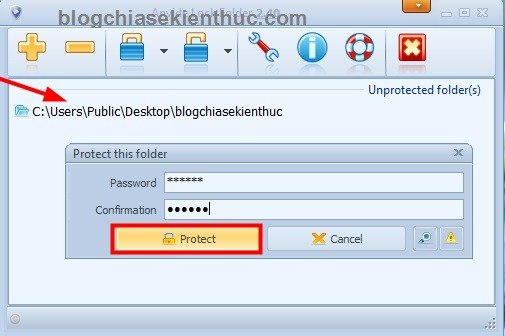
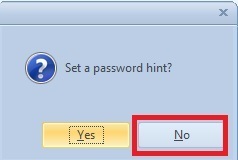
A password hint is optional; avoid a hint that reveals the password. Test the password before relying on the protected folder.
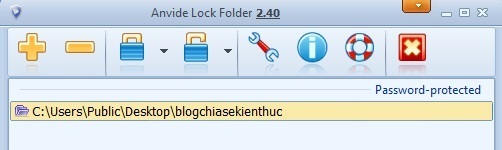
The folder’s appearance in the list indicates its program status. It is not evidence of the strength of any encryption. To restore access in this version, open the entry and enter its password.
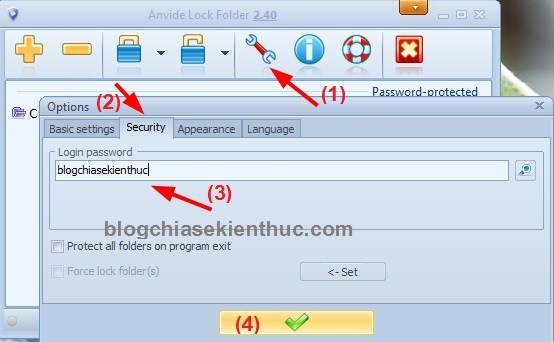
The application also provides a separate password for opening its interface, as shown below. Without current documentation of its protection and recovery behavior, do not rely on this old workflow for your only copy of sensitive files.
3. Free Hide Folder
Free Hide Folder is described by its developer as a folder-hiding utility with a password for opening the program. The official help page documents hiding and unhiding folders; it does not establish that this workflow encrypts their contents.
- Set the application password when prompted.
- Use Add or Add to List to choose a test folder.
- Use Hide Folder and Unhide Folder to change its visibility.
- Use the password setting to change the application password when needed.
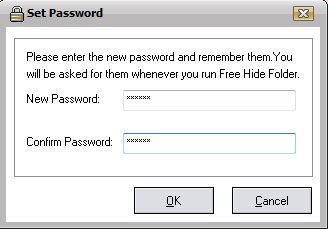
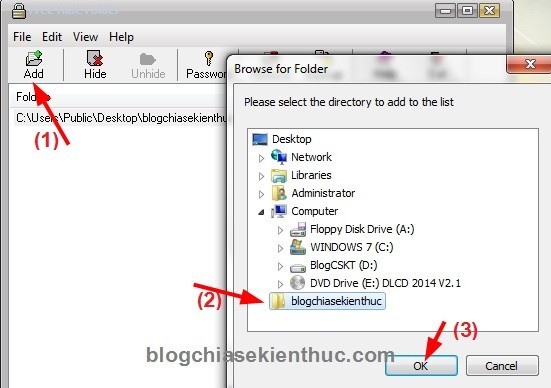
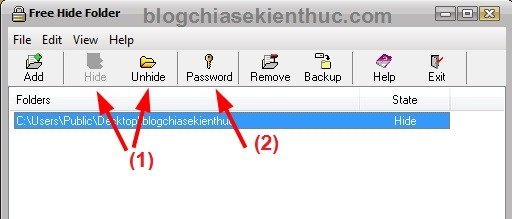
The help page also describes backing up the utility’s folder-list data. That is separate from backing up the actual contents of your folders. Keep both needs in mind, and confirm compatibility with your Windows version before installation.
4. Lim Block Folder
The original tutorial called this utility both “Limit Block Folder” and “Lim Block Folder.” Its screenshots show a Vietnamese interface. Current maintenance, compatibility, and encryption details have not been established here, so this is a description of the old interface rather than a security endorsement.
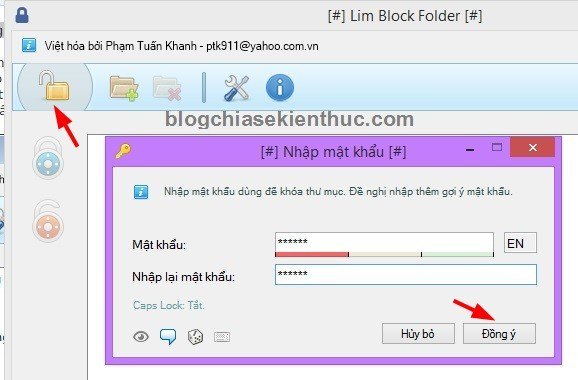
The yellow padlock control opens the master-password setup. In the shown workflow, the folder-plus button adds a folder, and the folder’s context menu offers Khóa (Lock) to set a folder password.
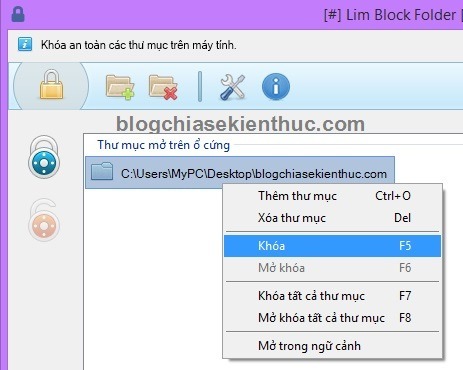
Gợi ý mật khẩu means password hint. Leave it blank if you cannot create a useful hint without revealing the password. If you already use this program, verify that folders can be unlocked and backed up before changing the installation or operating system.
When to choose encryption instead
Hiding may be sufficient for keeping ordinary files out of casual view, but encryption changes the data so that access depends on a decryption key. Microsoft documents built-in file encryption for supported Windows editions; this particular file-encryption feature is not available in Windows Home. See Microsoft’s file and folder encryption instructions and preserve the required recovery material.
For another workflow, see encrypting files in a 7-Zip archive. Creating an encrypted archive does not automatically remove unencrypted originals, and password protection does not prevent malware infection.
Whichever method you choose, keep a tested backup. The guide to backing up computer data can help you plan a separate recovery copy before changing how your files are stored.
Related Articles
 Microsoft closed the expiration date for free updates to Windows 10 on January 16, 2018
 You can still upgrade to Windows 10 for free thanks to the following 3 ways
 How to try Windows 10 S for free safely?
 Windows 10 still offers free upgrades, please install it quickly
 Is Windows 10 free?
 Free memory space after updating Windows 10 Anniversary
Reader Comments 0
Sign in with email or Google to join the discussion.