Table of Contents
VMware Workstation lets you run a Windows guest inside an Ubuntu host. Create a virtual machine, attach a licensed Windows installation ISO, install Windows on the virtual disk, and add the compatible VMware Tools package for guest integration.
The screenshots show an older Workstation release and Windows 10. Windows 10's ordinary support ended on October 14, 2025; check your edition's lifecycle and any applicable extended updates. Use a supported guest for ongoing online work where possible.
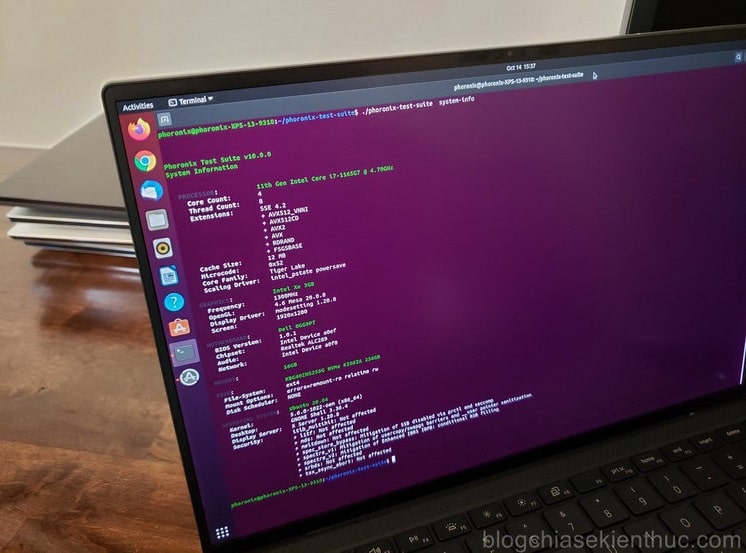
Prepare the software and storage
Use a Workstation release compatible with your Ubuntu version, kernel, and hardware. Workstation is the Windows/Linux host product; VMware Fusion is the corresponding Mac product. Do not assume the same installer applies to all three platforms.
VMware announced free Workstation use for commercial, educational, and personal users, replacing the older paid-Pro/free-Player distinction. Check the official product information and obtain software through the official distribution. Shared activation keys are unnecessary and should not be used.
Prepare a Windows ISO from Microsoft or your authorized organization and a valid Windows license. Keep sufficient RAM and disk space for Ubuntu as well as the guest. An SSD can improve responsiveness, but no fixed allocation guarantees smooth operation.
1. Start the virtual-machine wizard
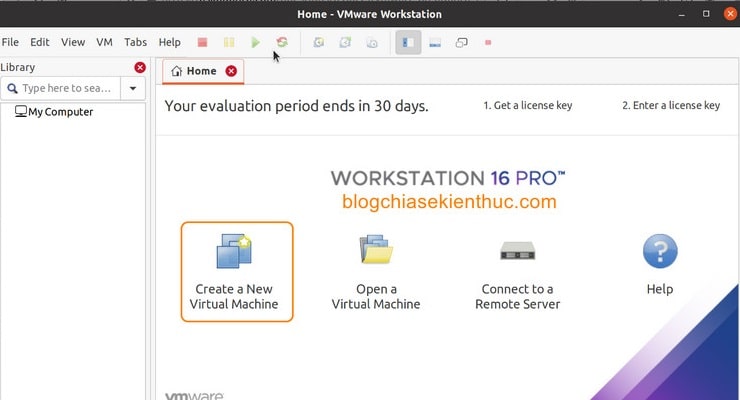
Open Workstation and choose Create a New Virtual Machine, or press Ctrl+N.
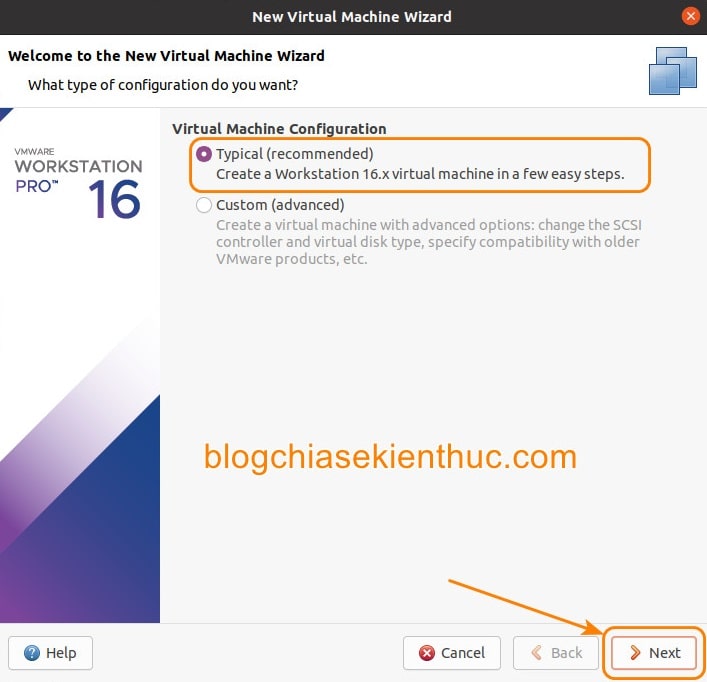
Choose Typical for a basic setup, or Custom when you need specific virtual-hardware or compatibility settings.
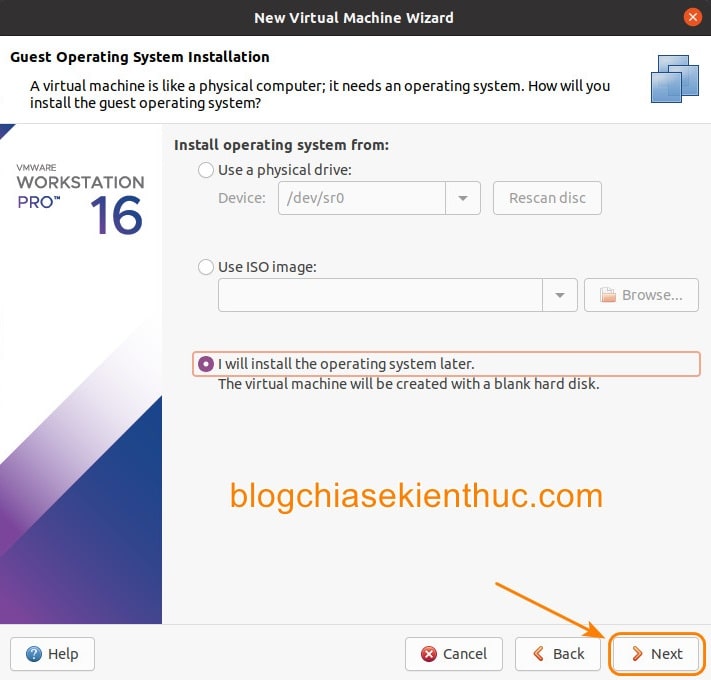
You can select the ISO now, or choose I will install the operating system later for a manual setup. Selecting an ISO does not universally require entering a product key in the wizard; prompts depend on Easy Install and the guest.
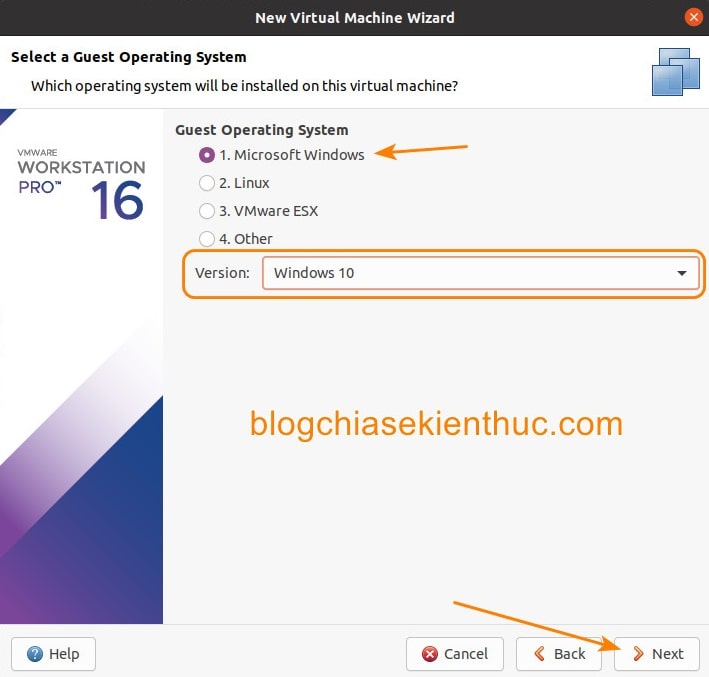
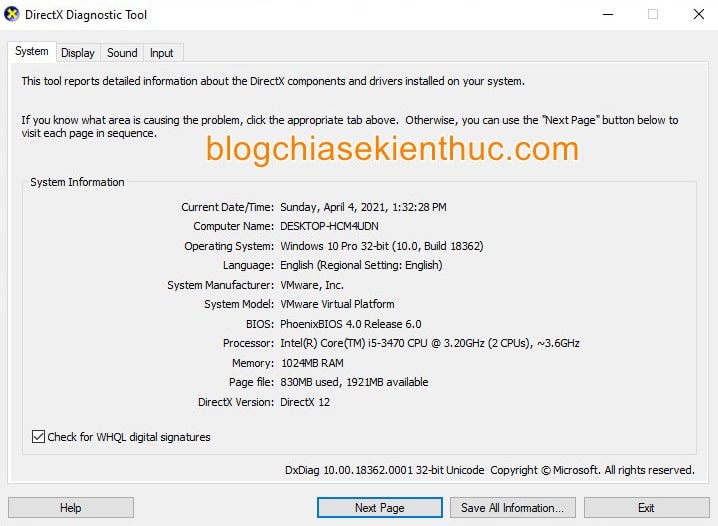
Choose Microsoft Windows and the version and architecture matching the ISO. Do not select a 32-bit guest merely because the old screenshots use one.
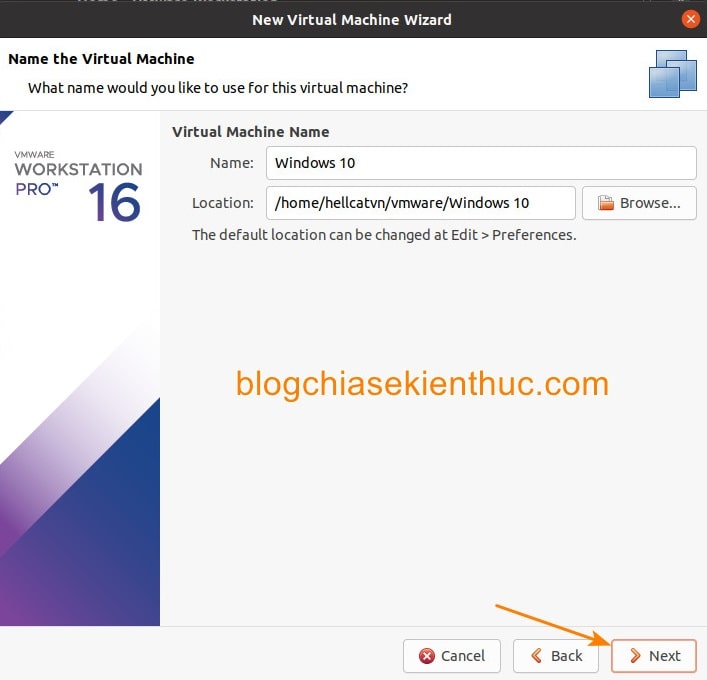
Give the VM a clear name and choose a folder on Ubuntu with sufficient space. Keep the VM's files together and record the location for backup.
2. Configure the virtual disk
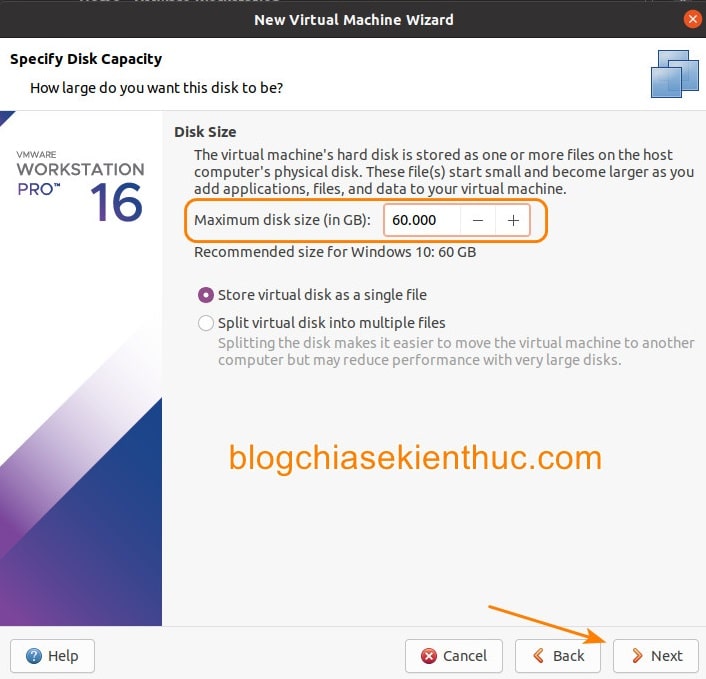
Choose a disk capacity that accommodates Windows, updates, applications, and working files. A growable disk consumes host storage as it fills; setting a maximum capacity is different from immediately allocating all of it.
Choose a single file or split files according to your storage and transfer needs. The VMDK format does not by itself make a complete VM interchangeable with every other hypervisor.
3. Review the virtual hardware
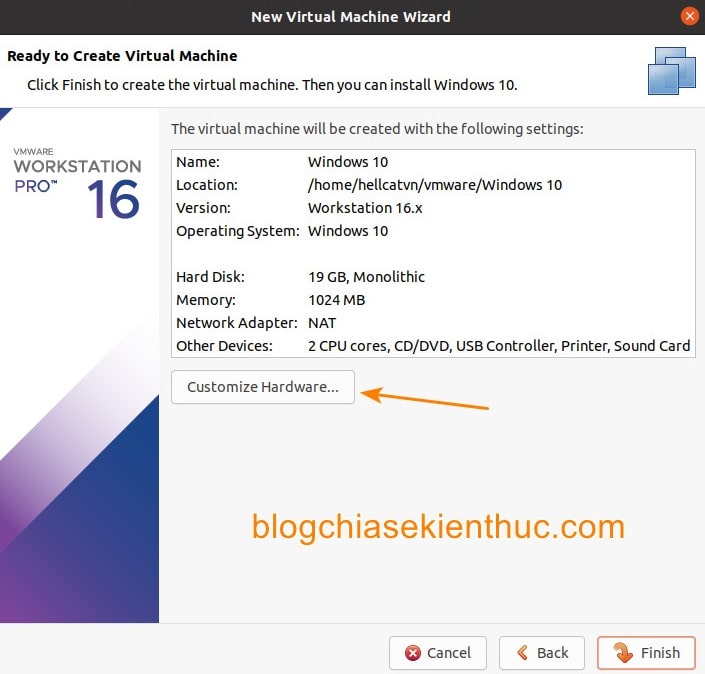
Before finishing, open Customize Hardware and review memory, processors, networking, display, and the optical drive.
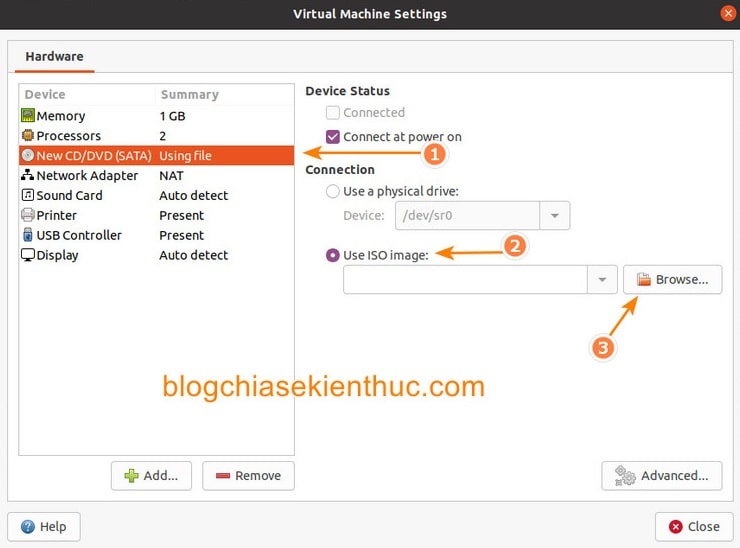
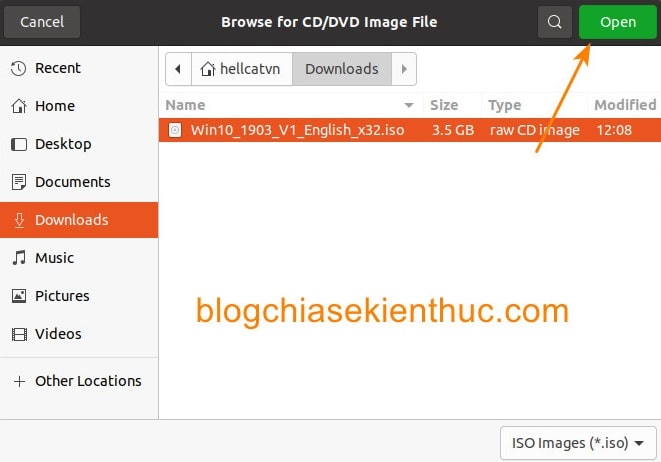
Under the CD/DVD device, choose Use ISO image file, browse to the Windows ISO, and enable connection at power-on when required.
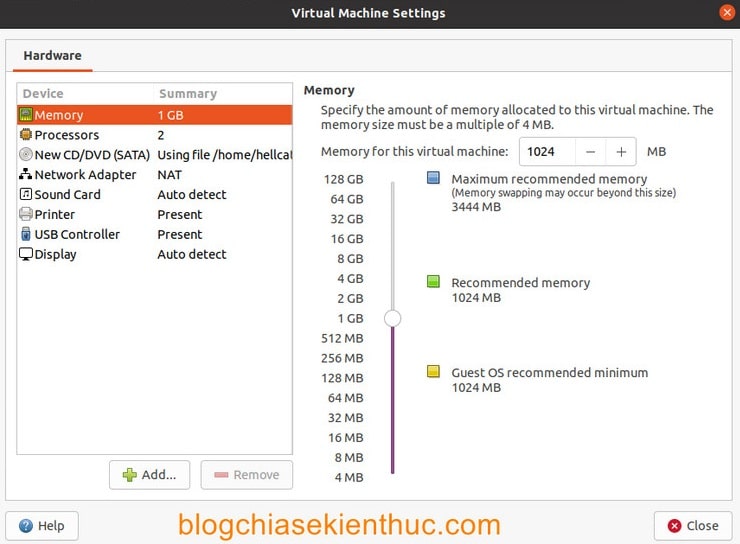
Allocate memory that suits the guest workload while leaving Ubuntu enough to run comfortably. Do not move the slider to its maximum just to avoid lag. Start conservatively, measure usage, and adjust while the VM is powered off.
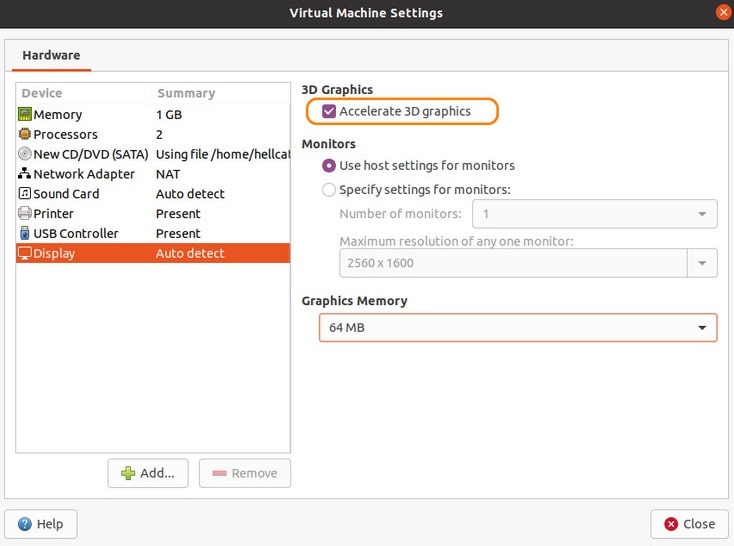
For display, use supported settings. Enable 3D acceleration only when your host drivers, guest, and Workstation version support the workload. If graphics become unstable, revisit this setting rather than assuming more acceleration is always better.
Read the final configuration and finish creation.
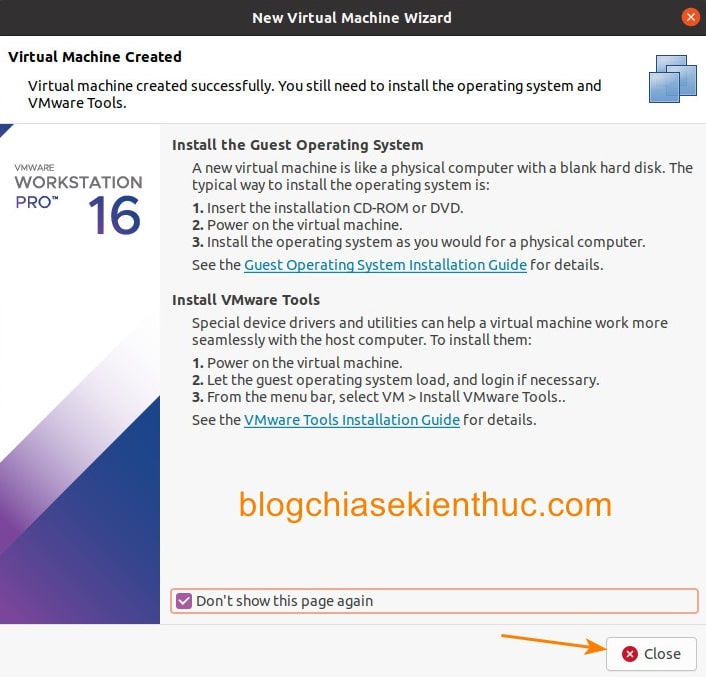
4. Install Windows
Power on the VM and boot from the ISO. If prompted during the first boot, press a key to start Setup.
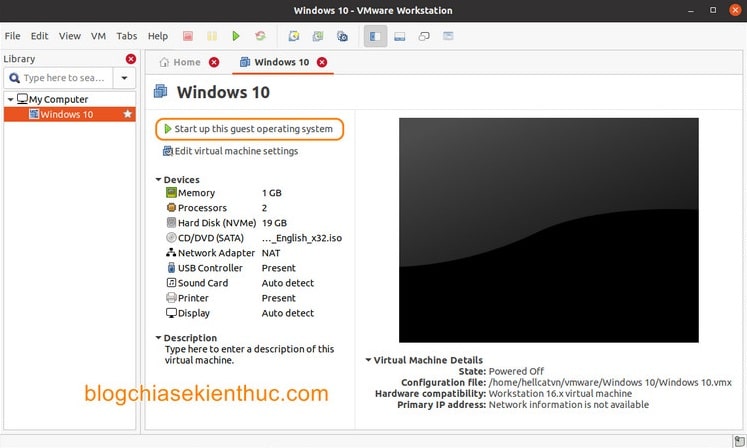
- Choose language, keyboard, edition, and licensing options appropriate to your installation.
- For a new guest, install Windows onto its new virtual disk. Check that no physical host disk has been attached by mistake.
- Allow Setup to create its partitions and copy files.
- After restarts, let Windows boot from the virtual disk rather than restarting installation from the ISO.
- Complete the account and privacy prompts and verify that the desktop loads.
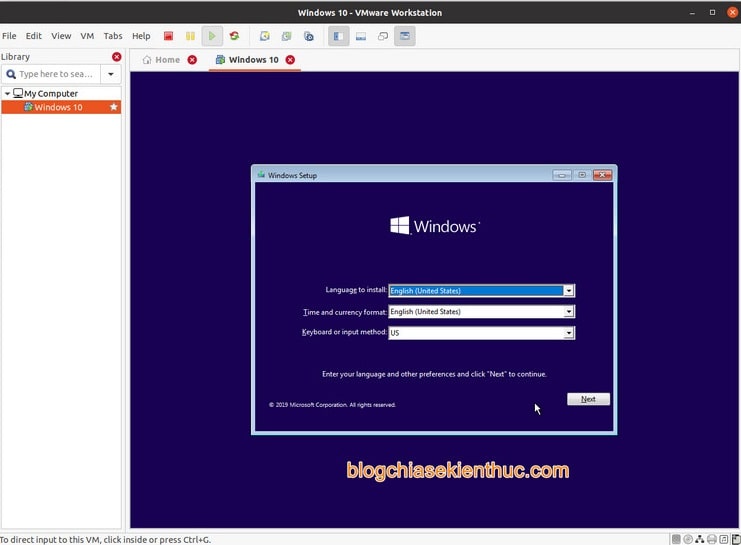
5. Install compatible VMware Tools
VMware Tools provides guest drivers and integration features. It can improve display and pointer behavior, but it cannot fix every performance problem caused by limited host resources.
With Windows running, use VM > Install VMware Tools if available. If the tools image is not bundled, use the official package and instructions compatible with your guest and Workstation release. Do not download random driver packs.
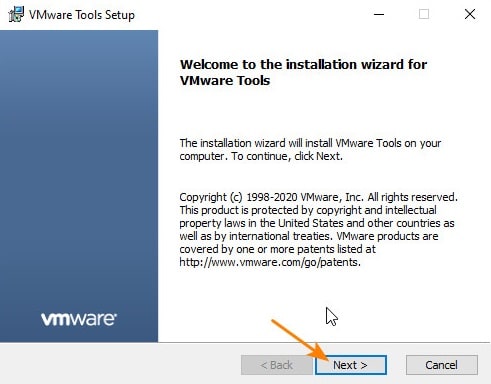
Open the mounted Tools disc inside Windows and run the installer appropriate to the guest architecture.
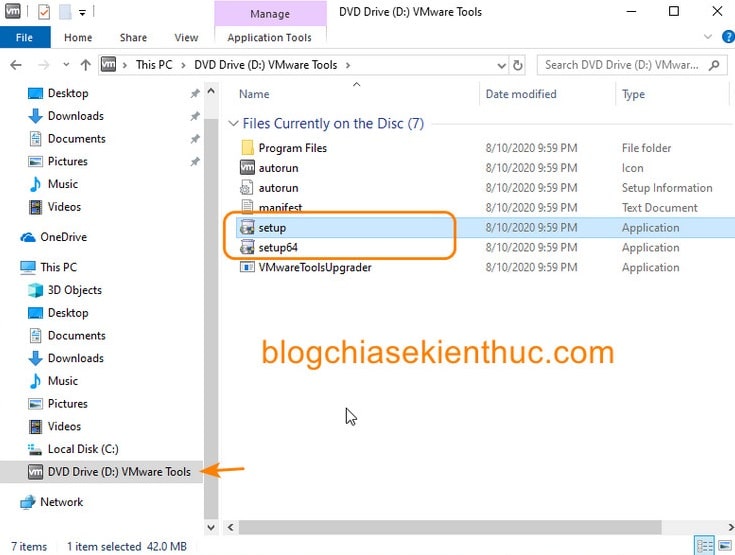
Review installation prompts, finish, and restart Windows when ready.
Check resolution changes, pointer capture, networking, and a normal shutdown/startup cycle. The usual Ctrl+Alt release shortcut returns input to the host; it does not close Windows.
Keep, back up, or remove the VM
Shut down the guest before copying its files for backup. Shared folders and clipboard features expose paths between guest and host, so enable them only for a deliberate purpose. A VM is not a guaranteed safe place to run malware.
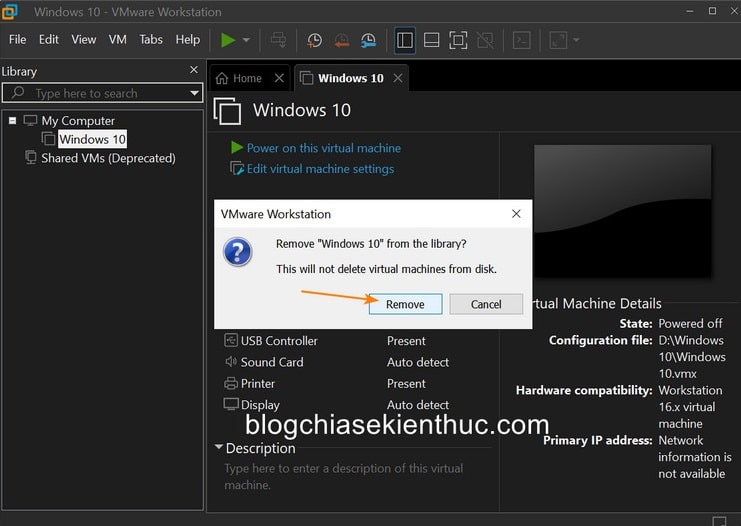
Removing a VM from the library and deleting its files are different operations. Read the exact dialog and preserve needed data before deleting anything.
For another guest example, see installing Ubuntu as a VMware guest. Compare host tools in the virtual-machine software guide if Workstation does not match your requirements.
Related Articles
 Compare VMware Workstation Pro and VMware Workstation Player
 Instructions for installing Ubuntu on VMware Workstation - Part 2
 VMware Workstation Player - Download VMware Workstation Player
 VMware Workstation Pro - Download VMware Workstation Pro here
 How to fix VMware Workstation VMCIDevVMX error on Windows
 Instructions for installing Ubuntu on VMware Workstation - Part 1
Reader Comments 0
Sign in with email or Google to join the discussion.