Table of Contents
If a laptop keyboard stops typing, first determine whether the fault affects one key, a group, the number pad, one application, or the entire keyboard. Use the on-screen or an external USB keyboard temporarily, but treat liquid exposure as an urgent hardware issue.
Urgent: liquid was spilled
Shut the laptop down, disconnect the charger and peripherals, and do not keep testing keys. If the battery is externally removable, remove it; do not open a sealed laptop unless trained. Blot visible liquid, keep the laptop in a stable position, and arrange prompt professional inspection. Do not use a hair dryer, rice, or power it on “to see if it works.” Corrosion can continue after the surface looks dry.
Identify the pattern
- Only numbers fail: check Num Lock and whether the laptop has an embedded numeric layer.
- Keys type the wrong characters: check keyboard language/layout and Fn/Num Lock state.
- One row or cluster fails: suspect debris, impact, a membrane fault, or a loose cable.
- One app is affected: test Notepad; the issue may be the application or its shortcuts.
- Nothing works before Windows loads: hardware or firmware is more likely than a Windows driver.
Use the on-screen keyboard
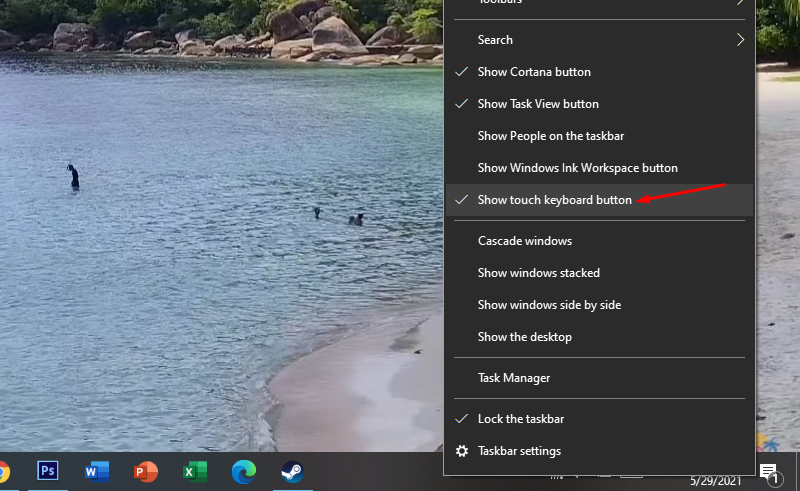
At the sign-in screen, select Accessibility and open On-Screen Keyboard. In Windows, open Settings > Accessibility > Keyboard. This provides temporary input for troubleshooting and backups.
Check Windows settings
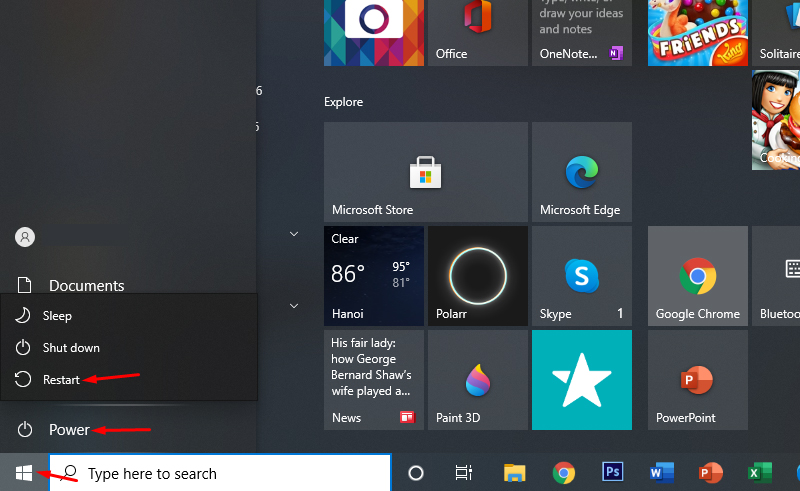
- Restart Windows normally.
- Under Settings > Time & language > Language & region, select the intended keyboard layout and remove unwanted layouts.
- Under Accessibility > Keyboard, review Filter Keys, Sticky Keys, and Toggle Keys. Filter Keys can ignore brief or repeated presses; turn it off unless you need it.
- Check the manufacturer's manual for any keyboard-lock or Fn-lock shortcut. There is no universal Windows+Space or Shift+Esc unlock command.
Check the driver
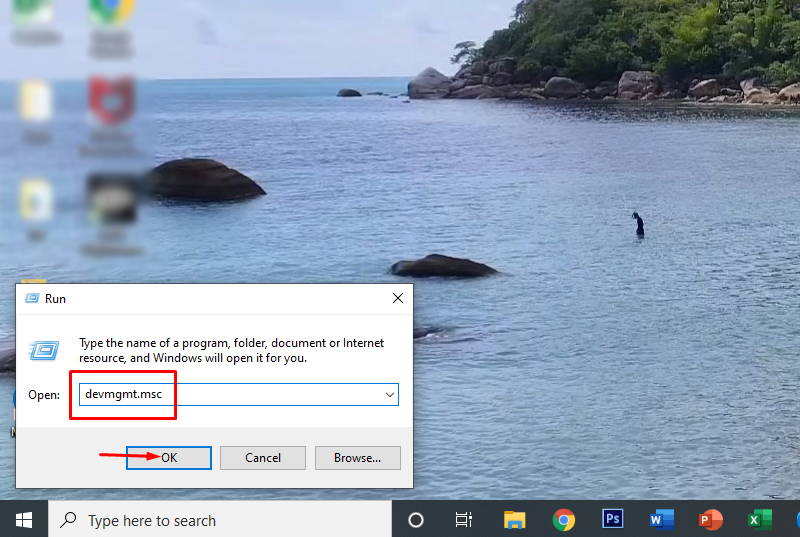
- Open Device Manager and expand Keyboards.
- Open the keyboard's properties and read any error code.
- Install stable Windows updates and the laptop maker's chipset, hotkey, and input drivers for the exact model.
- If the failure began after a driver update, try Roll Back Driver.
- As a final software check, uninstall the specific keyboard device and restart Windows so it is redetected.
Do not assume every built-in keyboard is named Standard PS/2 Keyboard, and avoid generic driver-updater tools.
Clean safely
Power off and unplug the laptop. Hold it at a safe angle and use a soft brush or short bursts of electronics-safe compressed air around the affected keys. Keep the can upright and follow its instructions. Do not pry off laptop keycaps unless the service manual says they are removable; scissor mechanisms break easily.
Test hardware versus software
Try the keyboard in the firmware setup or boot menu, or use the manufacturer's preboot diagnostic. If the same keys fail there, Windows is not the cause. An external keyboard can keep you working, but back up files before service.
When repair is needed
Seek service for liquid exposure, impact damage, lifted or broken keys, swelling beneath the keyboard, an intermittently working cable, or failures that persist outside Windows. Use authorized warranty service for a new laptop. For related input settings, see how to change the Windows keyboard layout and how to enable the on-screen keyboard.
Related Articles
 How to Fix Laptop Keyboard Not Working Error on Windows 105 minutes read
 Tips to Make Perform Laptop Keyboard Quick Fix8 minutes read
 Fix Keyboard Error Not Working on Windows 105 minutes read
 How to Cleaning Laptop Keyboard Without Turning Off the Computer (Safe && Effective)8 minutes read4 Ways to Fix Laptop Keyboard Errors Should Try Before You Buy a New5 minutes read
 How to Handle When the Laptop Keyboard Key Is Broken6 minutes read
Reader Comments 0
Sign in with email or Google to join the discussion.