Table of Contents
Microsoft's Media Creation Tool downloads Windows installation files and writes them to a bootable USB drive. Use the tool for the Windows version you intend to install. Creating the USB does not install Windows on the computer running the tool.
The selected USB drive will be erased. Copy its files elsewhere first and check its identity before continuing. You normally do not need to format it manually; the tool prepares the drive.
What you need
- A Windows PC with a reliable internet connection and enough free working space.
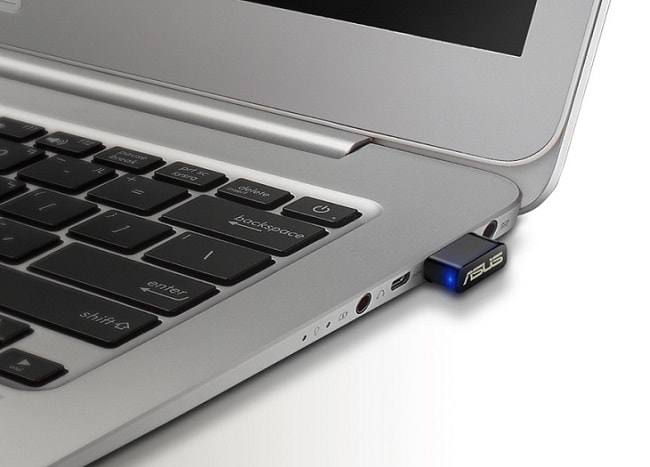
- A blank USB flash drive with at least 8GB of capacity; use a larger drive if the tool requires it.
- A suitable Windows license or existing digital entitlement for the edition you will install.
- A destination computer that meets the chosen Windows version's requirements.
Windows 11 Media Creation Tool creates x64 installation media, not Arm64 media. Arm-based PCs require the appropriate download and device-specific guidance. Windows 10's standard support ended on October 14, 2025; check applicable extended-support arrangements before planning a Windows 10 installation.
1. Download the correct Microsoft tool
Use the official Windows 11 download page or Windows 10 download page. Find the section for creating installation media. The Windows Installation Assistant is a different option intended for upgrading the current PC.
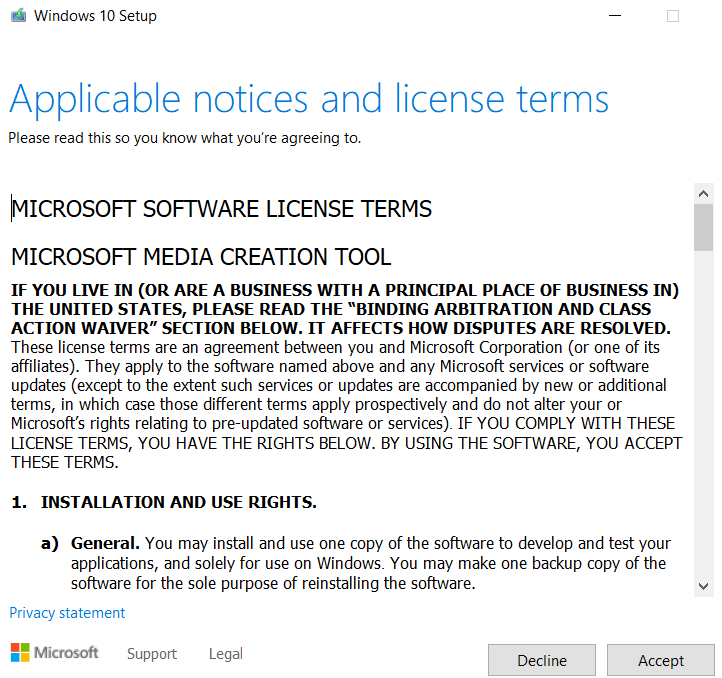
Run the downloaded Media Creation Tool and read its license terms. Continue if you accept them. The screenshots here show an older Windows 10 tool; Windows 11's screens and available choices can differ.
2. Choose installation media and language
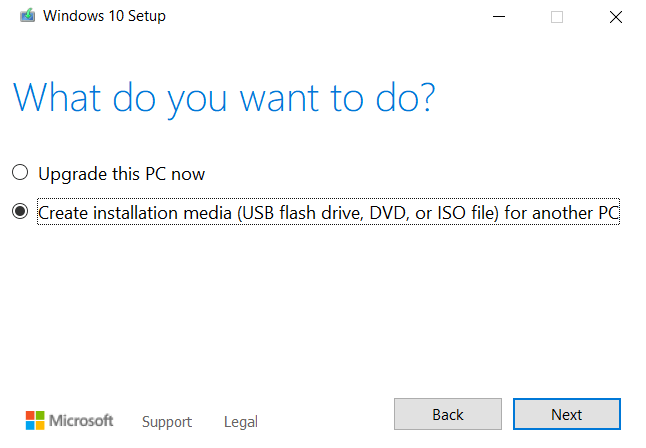
If the tool asks what you want to do, select Create installation media for another PC rather than upgrading the current computer.
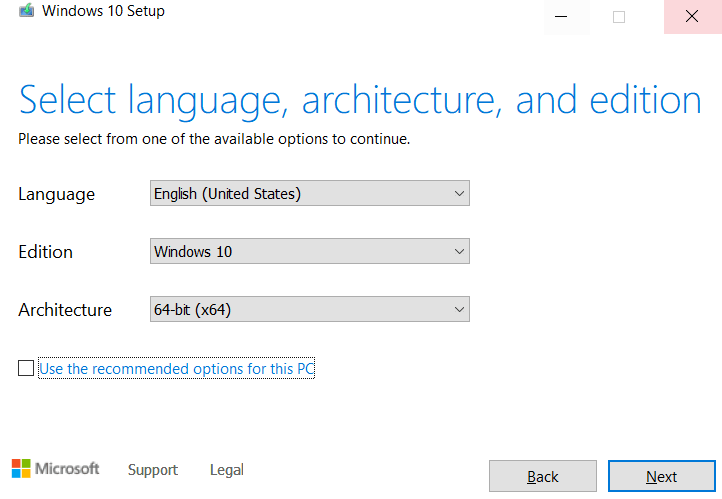
Check the language, edition, and architecture offered. Recommended settings refer to the PC running the tool. If creating media for a different computer, clear that recommendation where available and choose settings appropriate to the destination. Do not select an architecture just because it appears in an old screenshot.
3. Select the USB drive
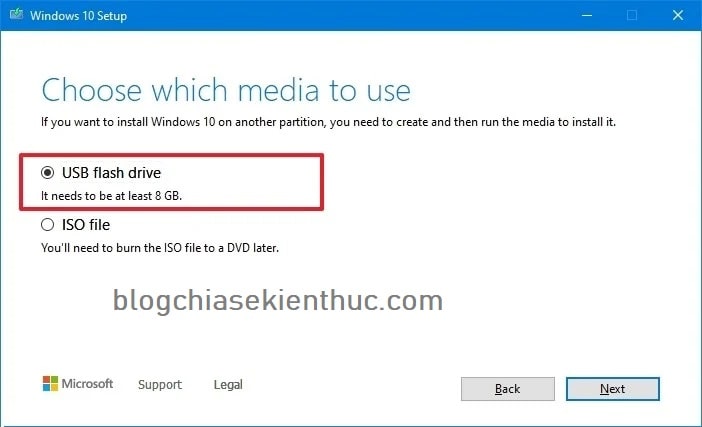
Choose USB flash drive to have the tool create the installer directly. Choose ISO file only if you want an image to use later; copying that ISO file onto an ordinary USB does not by itself create this installer.
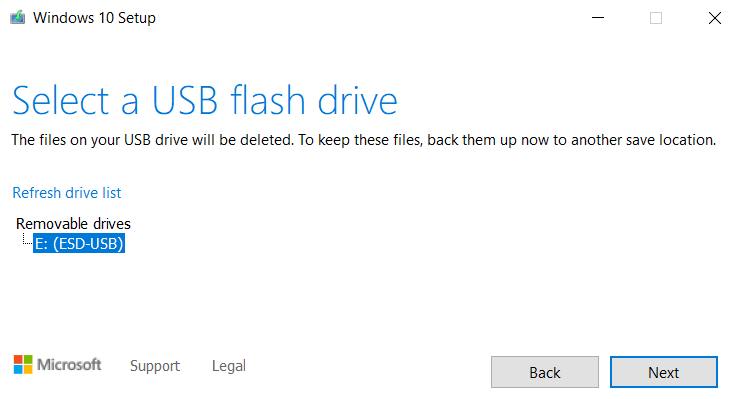
Select the intended drive from the list. Check its drive letter and capacity in File Explorer if necessary. Disconnect other removable drives to make the choice clearer. If the USB is absent, reconnect it and refresh the list.
4. Let the download and write finish
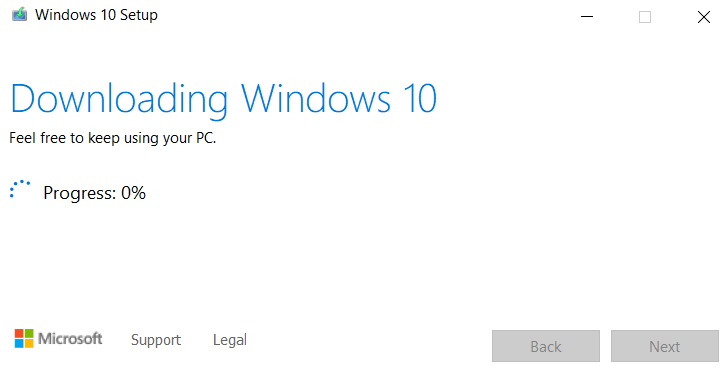
Proceed and keep the USB connected while the tool downloads, verifies, and writes the files. The time required depends on the connection and drive. Wait for the completion screen and select Finish, then eject the USB safely.
5. Start the destination computer from USB
- Back up the destination computer's files and keep any encryption recovery key accessible.
- Connect the installer and restart the computer.
- Open its one-time boot menu and select the USB entry appropriate for its firmware mode.
- Confirm that Windows Setup loads. Review your installation and partition choices before proceeding.
Use the boot-menu guide if you need the manufacturer's startup key. For a comparison with the ISO-and-Rufus route, see creating a Windows 11 installation USB.
If media creation fails
- Check the internet connection and free space on the working PC.
- Try another USB port or a different blank drive if writing repeatedly fails.
- Download the tool again from Microsoft if the executable is incomplete or will not run.
- If the USB is created but not listed at startup, check the destination computer's USB boot support and architecture.
Do not keep deleting or formatting partitions on the destination PC to troubleshoot a USB-creation problem. Creating installation media and installing Windows are separate stages.
Related Articles
 Microsoft confirms launch of exclusive Office apps for Windows 11, automatically installed and launched
 Microsoft proves Windows 10 computers are vulnerable to hacking to advertise Windows 11
 The Windows Store will be renamed to Microsoft Store in Windows 10
 Microsoft has declared Windows 8.1, but is still waiting without upgrading to Windows 10
 Microsoft confirms Windows 10X is dead
 An advertisement that Microsoft tried to insert into the system caused a recent Taskbar error on Windows 11
Reader Comments 0
Sign in with email or Google to join the discussion.