Table of Contents
For a QR code that opens your link directly without a generator's advertising page, create a static URL QR code and verify the address it contains. A free trial for a dynamic QR service can look similar but may depend on an account, subscription, or provider redirect.
Check what “ad-free” actually means
Advertisements on a generator's website do not necessarily appear when someone scans its codes. Conversely, a clean-looking image may encode a tracking or redirect URL. Before choosing a service, check both the downloaded image and the destination shown by your scanner.
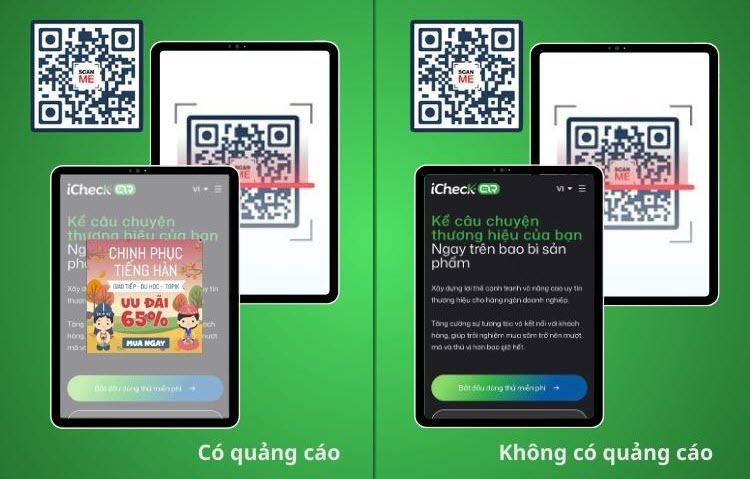
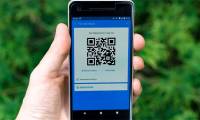
Check the image and scanning experience separately when comparing QR-code tools.
A static code stores fixed information. A dynamic code typically points to a provider-controlled address that redirects visitors, allowing destination changes and analytics. Dynamic features can be useful, but read the ongoing terms before printing thousands of copies.
Create and verify a static QR code
- Prepare the final HTTPS link. Open it yourself and confirm that readers have permission to access it.
- Choose a generator that explicitly offers static URL codes. QRCode Monkey is one option; its static codes do not require a subscription for continued scanning.
- Select the URL content type and paste the complete link. Avoid a tracking redirect unless you deliberately want one.
- Generate the code and download it. SVG is useful for resizing printed artwork; PNG works for many digital uses.
- Scan the downloaded image with more than one phone if possible. Compare the displayed destination with your original link, then open it and test access.
The code itself may remain readable indefinitely, but its website or file can still move, expire, or become private. Keep control of the linked content if the code will be used long term.
Using iCheckQR and other design tools
iCheckQR offers several content types, including links and files. Choose the type you need, enter the content, customize the appearance, and download the result. Check whether the chosen feature uses a static code or a hosted dynamic destination before relying on it for permanent printing.
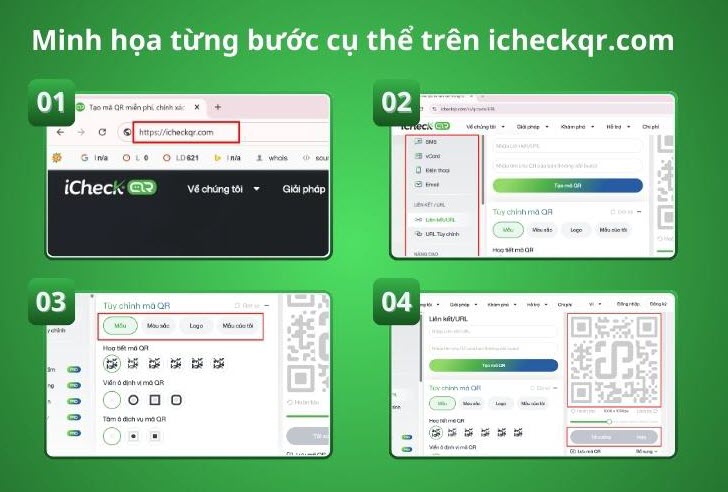
Example of the iCheckQR creation workflow; available controls and plan limits may change.
Canva can be convenient when adding a code to a poster or business card. With Canva, GenQRCode, or services named QR Code Generator, verify the exact product, selected QR type, export options, and plan conditions. Do not assume that a free signup includes unlimited editable codes or permanent file hosting.
For other workflows, see ways to create QR codes online. If the destination is a document, our guide to QR codes for PDFs explains the file-sharing approach.
Make the code easy to scan
- Use dark modules on a light background with strong contrast.
- Leave the clear border around the code intact.
- Keep decorative logos modest and away from the corner finder patterns. Test any customized design carefully.
- Print a sample at the intended size and scan it in realistic lighting and at the expected distance.
- Add a short label explaining where the code leads, plus a readable URL when practical.
For sensitive information, remember that anyone who can see the code may be able to read its contents. A QR image does not add access control or encryption to the destination.
Related Articles
 Free Fire MAX Redeem Codes for August 2026
 How to create QR codes with Google Sheets is very simple
 Instructions for creating QR codes on Photoshop
 How to create QR codes for videos
 Gym Race Simulator Code Get Free Gems, Pets, Items
 How to create QR codes for PDF, Word, Excel documents for free, super fast
Reader Comments 0
Sign in with email or Google to join the discussion.