Table of Contents
Install Zoom on Ubuntu by downloading the appropriate DEB package from Zoom's official site, then opening it in a compatible package installer or installing the local file with APT. Check the current supported Ubuntu release and architecture rather than copying the choices in an older screenshot.

Choose the correct package
Use Zoom's official Download Center and select the Linux distribution, architecture, and version that match your computer. The original tutorial used Ubuntu 20.04 and an amd64 package; those settings are not universal.
Zoom's Linux installation guide provides the current distribution-specific workflow. Avoid unofficial repackaged downloads when an official package is available.
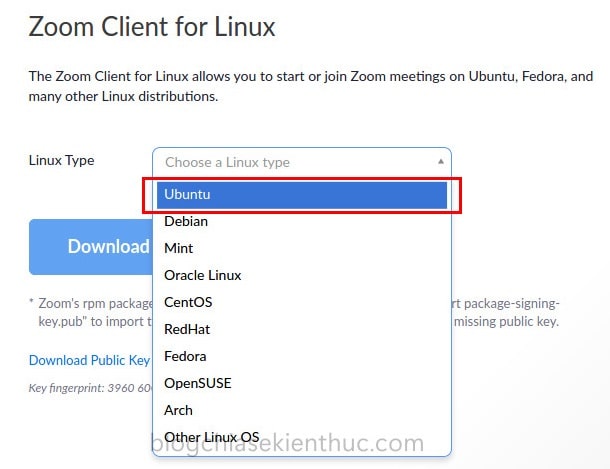
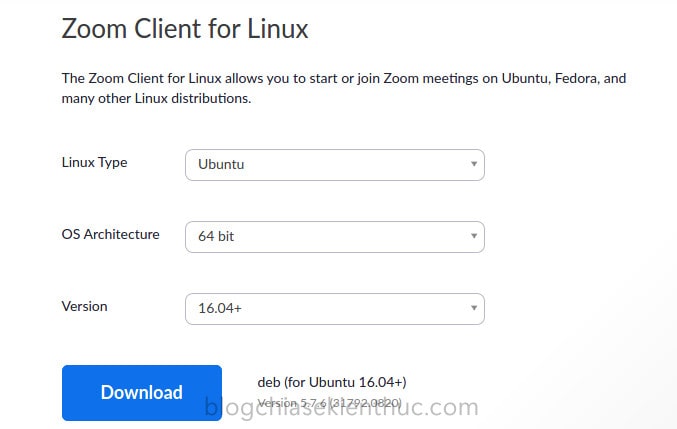
Downloaded package example; file size and filename can change.
Option 1: Install with a graphical package installer
- Open the folder containing the downloaded DEB file.
- Open it using an available compatible package installer. Zoom documents GDebi for this workflow; Ubuntu's default application may differ by release.
- Review the package name, origin, dependencies, and proposed changes.
- Choose Install and authenticate with an authorized administrator account when requested.
- Wait for a successful completion message before launching Zoom.
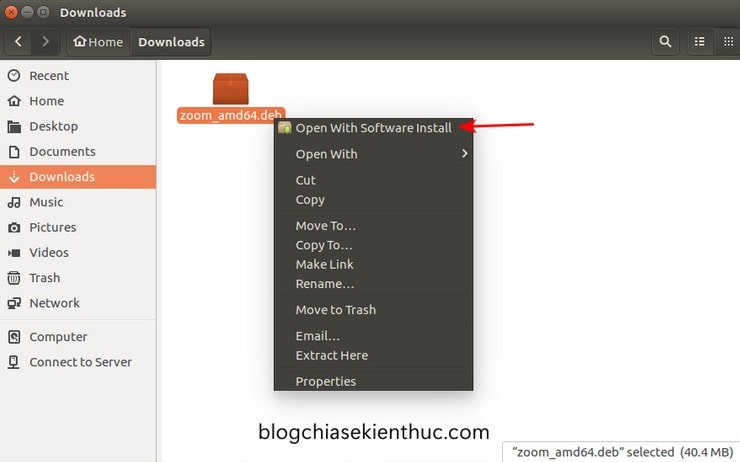
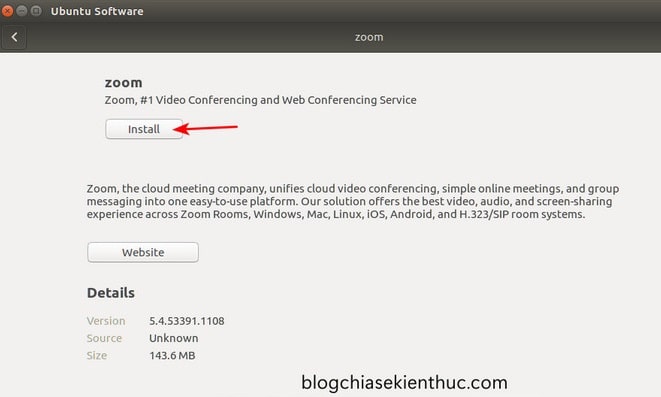
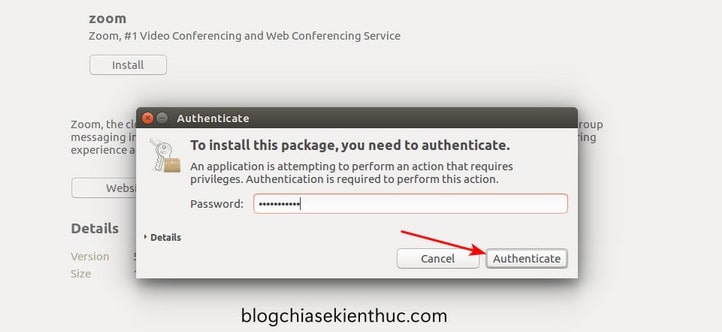
A downloaded DEB installed through a GUI is not necessarily an app-store listing. If the default software application cannot open it, use a compatible installer or the terminal method below.
Option 2: Install the downloaded DEB with APT
In the file manager, open a terminal in the download folder. Confirm the actual filename. For an official package named zoom_amd64.deb, run:
sudo apt install ./zoom_amd64.debThe ./ identifies a local file in the current directory. Substitute the real filename if it differs. Review dependencies before confirming. Password characters may not appear while typing in Terminal.
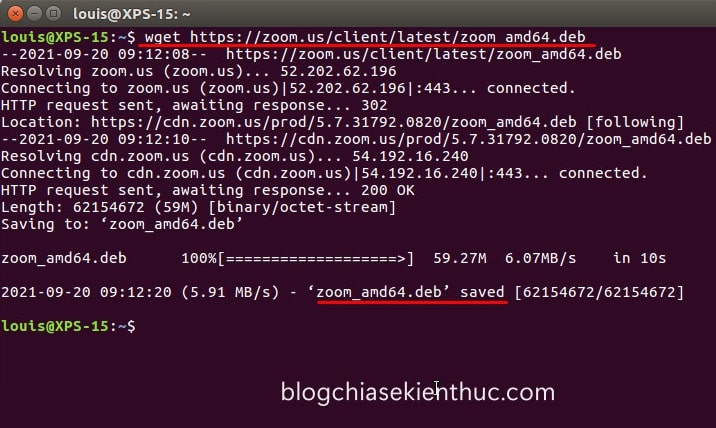
Older download example; select the current matching package from Zoom's site.
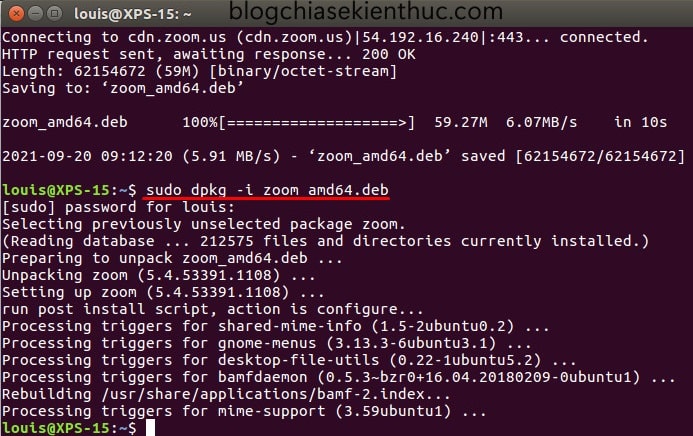
If APT cannot resolve dependencies, read the error, run sudo apt update, and retry only after checking package compatibility. Do not install libraries from another Ubuntu release merely to force an incompatible client to run.
Launch Zoom and test before joining
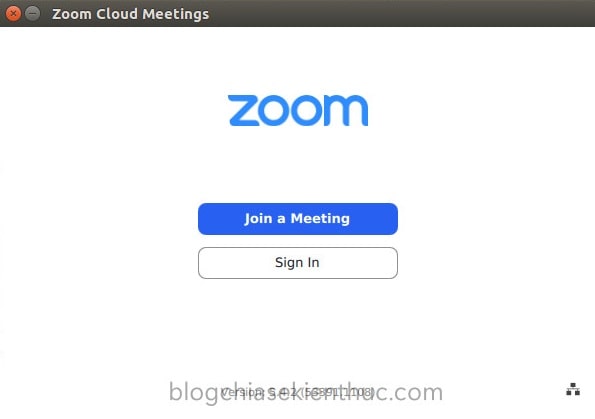
Search for Zoom in Ubuntu's application launcher and open the installed client.
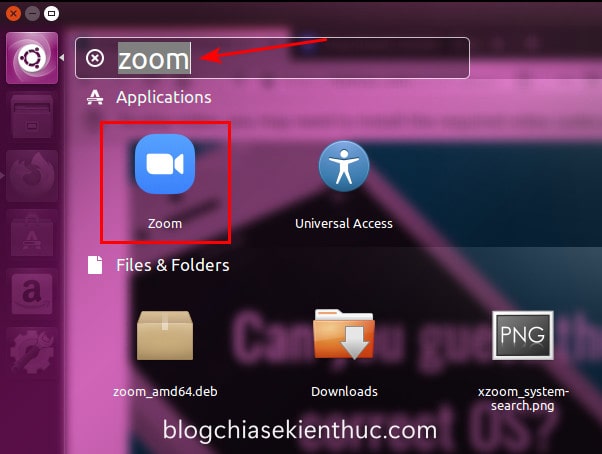
Use Join for a meeting invitation, or sign in using the method your organization requires. A successful installation does not guarantee that a particular meeting permits anonymous access.
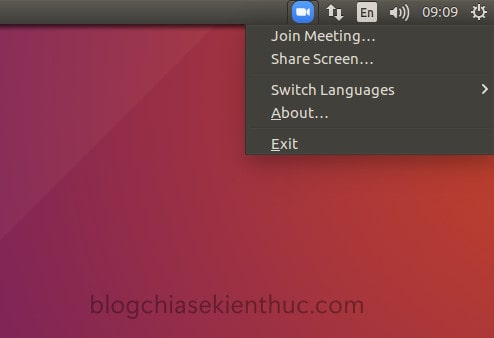
The status-area menu may provide quick access to client functions. Available controls can differ between Linux desktop environments.
- Check the selected speaker and microphone in Zoom's audio settings.
- Use the available audio test and confirm that the camera preview is correct.
- Close other applications that may be using the camera.
- Test screen sharing if you need it; Wayland/X11, desktop portals, and client support can affect the available choices.
- Join with the microphone muted when appropriate, then unmute deliberately.
For meeting controls, see using Zoom meetings and muting and unmuting in Zoom.
Update or uninstall
Keep the client updated through the official method for your installation. Do not assume a manually installed package is covered by every Ubuntu update mechanism.
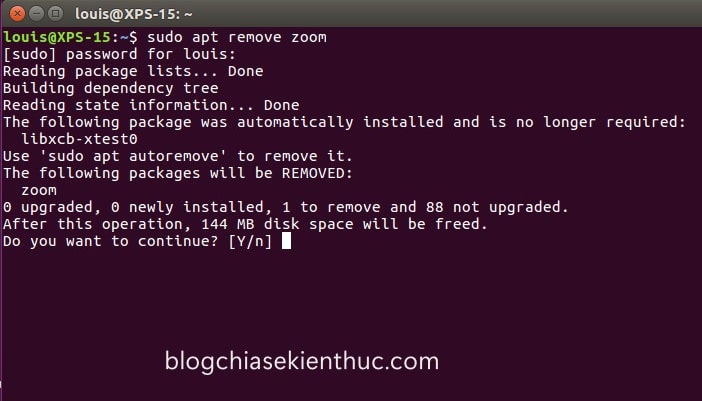
To remove the DEB-installed client, close Zoom and run:
sudo apt remove zoomReview the proposed removal before confirming. Preserve recordings and other local material separately if needed.
If installation is unavailable on your system, a meeting's browser-join option may be useful when offered, but browser support, host settings, and features can differ from the desktop client.






Reader Comments 0
Sign in with email or Google to join the discussion.