Table of Contents
AOMEI PE Builder can create a Windows PE rescue environment and include selected tools, files, and drivers. Build a small image for the tasks you actually need, then test it on the intended computer. WinPE is a temporary maintenance environment, not a full replacement for installed Windows.
Prepare the builder and your files
Download from the official AOMEI PE Builder page and check the supported host system and recovery environment. The screenshots show PE Builder 2.0; later releases can differ.

Run the official installer, read the license and component choices, and continue only if the terms suit your use. Complete installation and launch the builder.
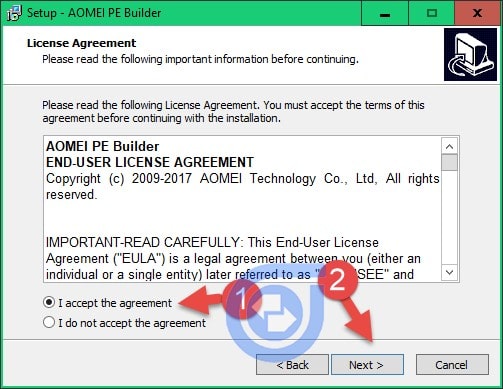
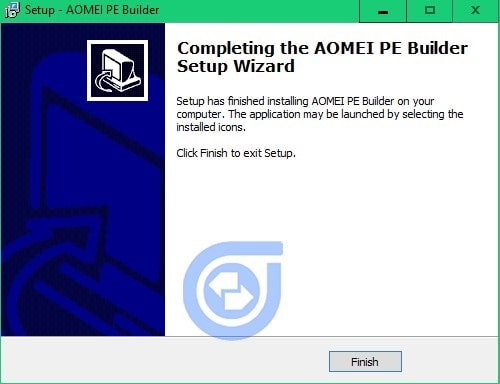
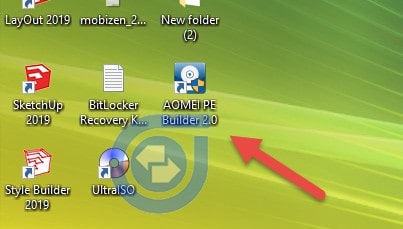
Before creating USB media, back up every needed file from that USB and verify the copy. Keep internal-disk backups and encryption recovery keys separately; a rescue environment does not replace them.
Choose the WinPE environment
Start the creation wizard and review the available environment options.
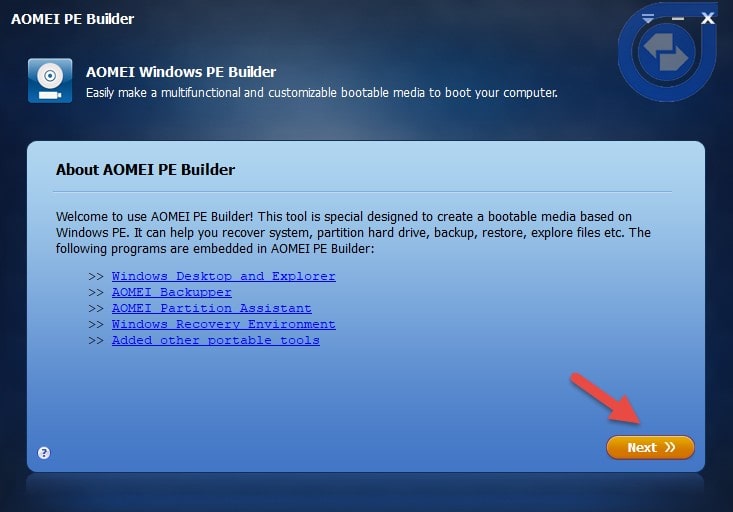
Select the architecture supported by your target firmware and tools. RAM capacity alone does not determine whether you need 32-bit or 64-bit PE. Confirm that your essential utilities and drivers match the environment.
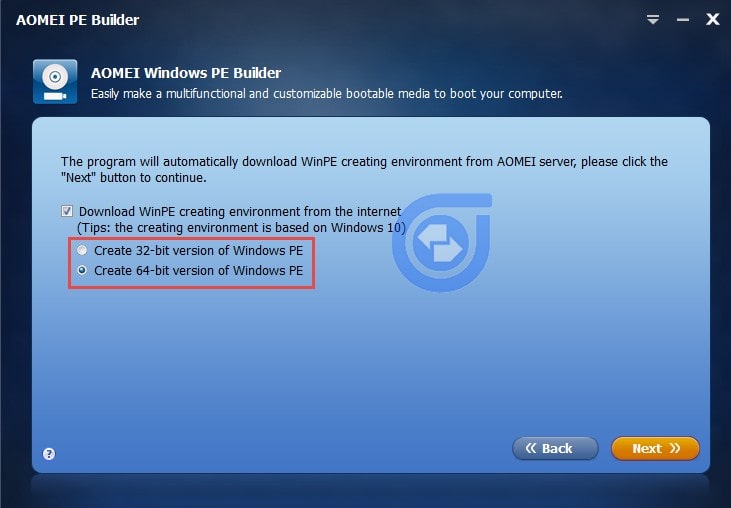
Allow the builder to obtain its required components through the supported method. If that download fails, use the publisher's current troubleshooting instructions. Do not replace internal configuration files with broken paths or download an unidentified PE image from a mirror.
Add only compatible rescue tools
Review the built-in tool list and include what you need. Keeping the image focused makes it easier to test and maintain.
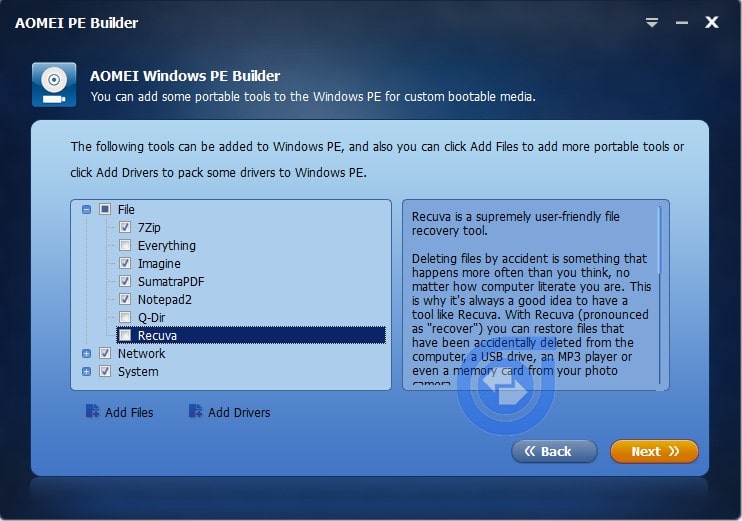
Use Add Files or the equivalent custom-tools option. Portable utilities are often easier to include, but a program labeled “portable” can still require libraries or services unavailable in WinPE.
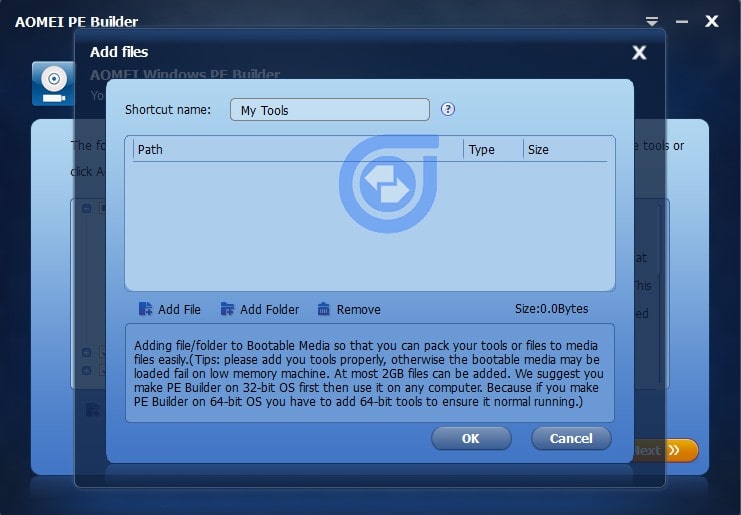
Add an individual executable only when it is self-contained, or add its folder with the required supporting files. Use software you are licensed to run and distribute in this way.
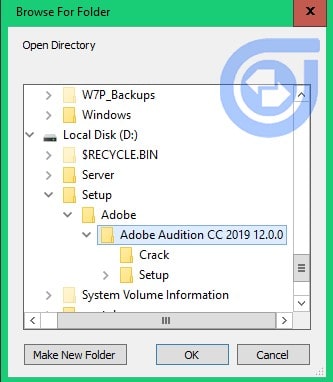
The original examples included an imaging tool and a full audio-editing application. Copying a desktop application's directory does not establish that it will work in PE. Prefer a small diagnostic utility for your first test.
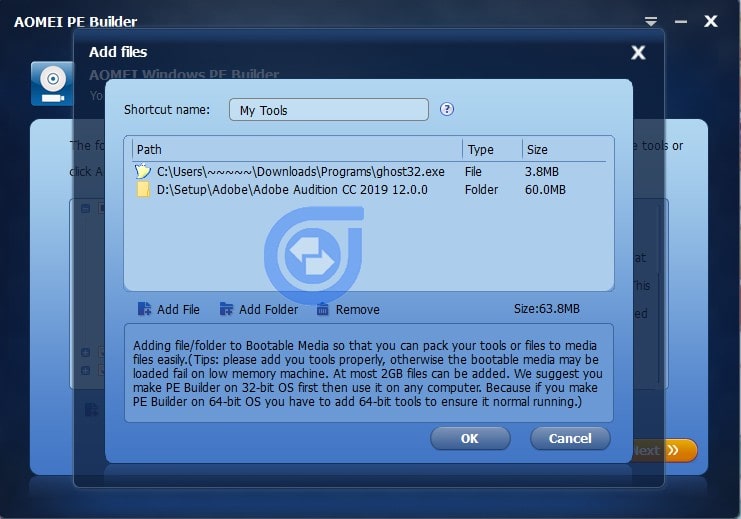
Review the size estimate and leave room for the PE environment and its dependencies. Do not use an arbitrary percentage or fixed allowance to predict the final ISO size.
If the target computer requires storage or network drivers, add compatible driver files through the supported driver control. Test detection of the actual device; the presence of a driver file in the image is not sufficient.
Export an ISO or create removable media
The builder offers output choices such as CD/DVD, USB, and ISO export.
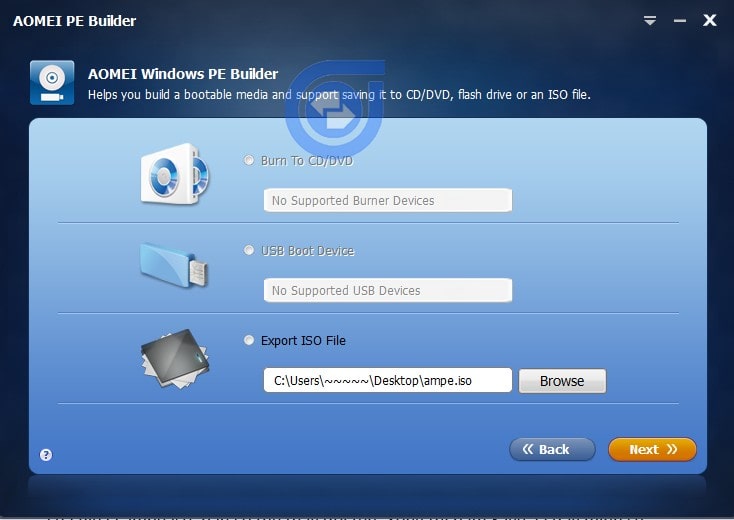
- ISO export: Keeps a reusable image that can be tested or written later. Record its version and included tools.
- USB output: Writes to the selected removable device and can erase its existing contents.
- CD/DVD: Requires suitable media and a compatible optical drive.
For ISO export, browse to a folder with sufficient free space and save the image with a descriptive filename.
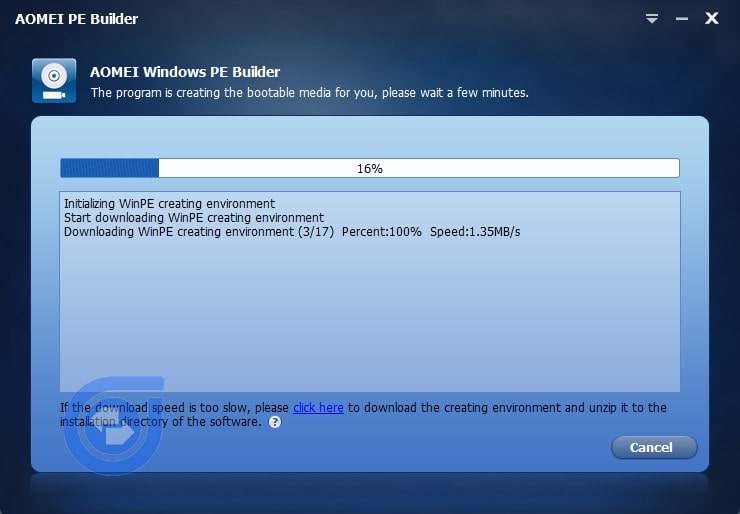
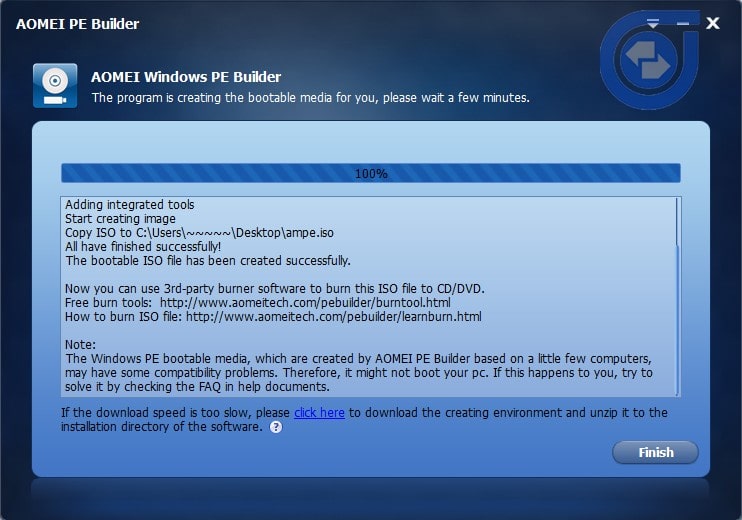
Wait for successful completion and read any warning or download error instead of assuming that an output file is complete.
Write the ISO to USB with Rufus
Use Rufus from its official distribution. Select the intended USB by model and capacity, then choose the ISO you built. Do not select an internal or backup disk.

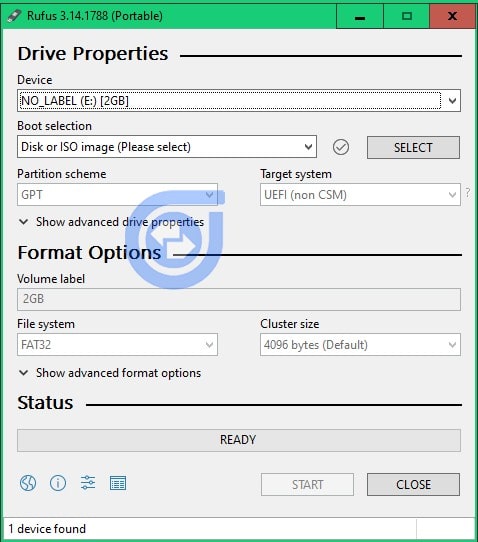
Choose a partition scheme and target firmware mode compatible with both the PE image and destination computer. “New PC means GPT” is not a sufficient rule; check whether you intend UEFI or legacy boot and whether the image supports it.
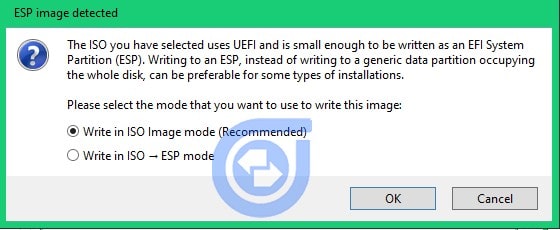
Read any additional write-mode prompt and use the mode recommended for that image. Stop if you cannot determine what the option will change.
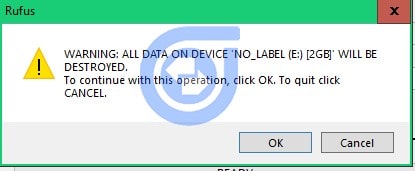
At the data-loss warning, verify the device and backup once more before confirming the write. Keep the USB connected until the operation finishes.
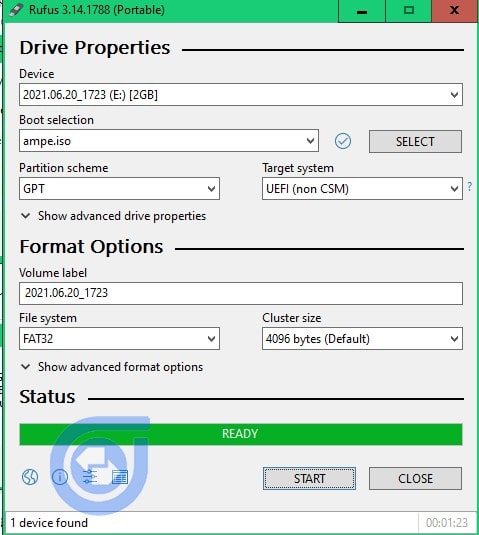
A completed write is only the first check. For background on firmware choices, see UEFI and legacy USB setup.
Test the rescue environment
Use the destination machine's one-time boot menu to start the USB without changing an internal disk. Confirm that the PE desktop loads, the keyboard and pointer work, and necessary storage and network devices are visible.
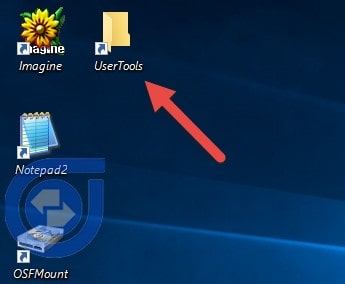
Open the custom-tools folder and launch each required program. Test a harmless operation, such as viewing device information or opening a sample file, before trusting the toolkit for recovery.
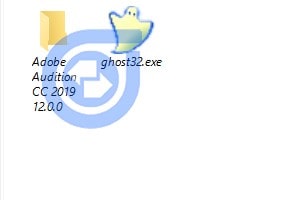
Record missing drivers, failed tools, and firmware limitations, then rebuild and retest. A VM boot test is useful for basic validation but does not prove physical-device compatibility.
For a ready-made environment to compare against your custom build, see Hiren's BootCD PE. Preserve data before attempting repairs, and do not write recovery output onto the same drive from which you are trying to recover lost files.
Related Articles
 Instructions to create WinPE file IOS, USB boot WinPE
 Please download the free AOMEI FoneTool iPhone data backup tool
 Instructions to receive 23 free software from AOMEI up to $ 1300
 Instructions for completely removing the 3D Builder application on Windows 10
 How to install Windows on WinPE
 What is a website builder?
Reader Comments 0
Sign in with email or Google to join the discussion.