Table of Contents
Use Windows keyboard shortcuts to open tools, arrange windows, switch desktops, and work with files or text. Start with a few actions you repeat often rather than trying to memorize a long list at once.
Windows means the key with the Windows logo. Hold the keys joined by a plus sign together. Some shortcuts depend on the active application, enabled features, and Windows version; the same combination can have a different action in a browser, editor, or terminal.
Windows key: tools, windows, and desktops
These are desktop shortcuts. Virtual desktops organize windows on one PC; they are different from physical monitors. Closing a virtual desktop normally moves its open windows to another desktop rather than closing the applications.
| No. | SHORTCUT KEYS | EFFECTS |
|---|---|---|
| 1 | Windows + Tab | Virtual Desktop (Task View) feature |
| 2 | Windows + A | Windows 10: Action Center. Windows 11: Quick Settings. |
| 3 | Windows + D | Show or hide the desktop. |
| 4 | Windows + E | Open File Explorer. |
| 5 | Windows + G | Activate Xbox Game Bar (supports recording videos and taking screenshots while playing). |
| 6 | Windows + H | Open dictation or voice typing on supported Windows builds. |
| 7 | Windows + I | Open Settings. |
| 8 | Windows + K | Open the connection or casting controls; available devices depend on Windows version. |
| 9 | Windows + L | Lock your computer screen. |
| 10 | Windows + P | Set up connections for external displays, such as outputting to a projector, LED screen, etc. |
| 11 | Windows + R | Open the Run dialog box. |
| 12 | Windows + S | Open Windows Search. |
| 13 | Windows + X | This corresponds to the menu that appears when you right-click on the Start button. |
| 14 | Windows + Arrow keys (left, right, up, down). | Left/Right: snap the window. Up: maximize. Down: restore or minimize, depending on its state. |
| 15 | Windows + Ctrl + D | Create a new virtual desktop. |
| 16 | Windows + Ctrl + F4 | Close the virtual desktop. |
| 17 | Windows + Ctrl + Left/Right Arrow | Switch to the adjacent virtual desktop. |
| 18 | Windows + 1/2/3/4 | Start or switch to the taskbar app at the numbered position. |
| 19 | Windows key | Turn the Start menu on/off. |
| 20 | Windows + B | Move keyboard focus to the notification area; use arrow keys to navigate. |
| 21 | Windows + Alt + D | Display the date, time, and detailed calendar information in the system tray. |
| 22 | Windows + F | Open Feedback Hub; behavior may vary by version. |
| 23 | Windows + M | Minimize all open windows. |
| 24 | Windows + T | Switch between applications on the Taskbar. |
| 25 | Windows + U | Open accessibility settings. |
| 26 | Windows + V | Open clipboard history; enable it if prompted. |
| 27 | Windows + Shift + V | Cycle through notifications. |
| 28 | Windows + . or ; | Open the emoji icon panel on Windows 10. |
| 29 | Windows + Shift + M | Restore minimized windows on the desktop. |
| 30 | Windows + Shift + Up Arrow | Stretch the working window to fit the top and bottom edges of the screen. |
| 31 | Windows + Shift + Down Arrow | Restore a snapped or maximized window; behavior depends on its current state and Windows version. |
| 32 | Windows + Shift + Left Arrow or Right Arrow | Move an application or window in the desktop from one screen to another. |
| 33 | Windows + Space (spacebar) | Switch input language and keyboard layout. |
| 34 | Windows + Ctrl + Spacebar | Change to the previously selected input. |
Windows + C has been omitted from the main list because its action has changed across releases and configurations. Old Cortana instructions are not a dependable description of current systems. The Windows Mixed Reality shortcut is also outside this general-purpose list.
For examples, see using Windows 11 virtual desktops and pinning clipboard-history items.
Ctrl key: editing, tabs, and File Explorer
The first editing shortcuts work in many applications. File and folder operations apply when File Explorer has focus. Browser tab shortcuts depend on the browser; for example, Ctrl + 9 commonly selects the last tab rather than literally the ninth tab.
| No. | SHORTCUT KEYS | EFFECTS |
|---|---|---|
| 1 | Ctrl + X | Cut the items you have selected. |
| 2 | Ctrl + C (or Ctrl + Insert) | Copy the item you have selected. |
| 3 | Ctrl + V (or Shift + Insert) | Paste the item you selected. |
| 4 | Ctrl + Z | Undo a previous action. |
| 5 | Ctrl + D (or Delete key) | Delete the selected item and move it to the Recycle Bin. |
| 6 | Ctrl + R (or F5) | Refresh the active window |
| 7 | Ctrl + Y | Redo a previously undone action where supported. |
| 8 | Ctrl + Right Arrow | Move the cursor to the beginning of the next word. |
| 9 | Ctrl + left arrow | Move the cursor to the beginning of the previous word. |
| 10 | Ctrl + down arrow | Move the cursor to the beginning of the next paragraph. |
| 11 | Ctrl + Up Arrow | Move the cursor to the beginning of the previous paragraph. |
| 12 | Ctrl + Alt + Tab | Use the arrow keys to switch between all open applications. |
| 13 | Ctrl + Shift + arrow keys | In text editing, extend the selection by words or paragraphs; behavior depends on the application. |
| 14 | Ctrl + Esc | Open Start Menu |
| 15 | Ctrl + Shift + Esc | Open Task Manager |
| 16 | Ctrl + Shift | Switch keyboard layouts when you have multiple keyboard layouts. |
| 17 | Ctrl + Spacebar | Turn the Chinese input method editor (IME) on or off. |
| 18 | Ctrl + M | In Command Prompt, enter Mark mode. |
| 19 | Ctrl + Home | In many text editors, move to the beginning of the document. |
| 20 | Ctrl + End | In many text editors, move to the end of the document. |
| 21 | Ctrl + Tab | Move forward through the tabs |
| 22 | Ctrl + Shift + Tab | Move back through the tabs |
| 23 | Ctrl + number (numbers 1 to 9) | Move to the nth tab |
| 24 | Ctrl + E | Select the search box |
| 25 | Ctrl + F | Search |
| 26 | Ctrl + N | Open a new window |
| 27 | Ctrl + W | Close the active window |
| 28 | Ctrl + mouse scroll wheel | Resize and display file and folder icons. |
| 29 | Ctrl + Shift + E | Display all folders above the selected folder. |
| 30 | Ctrl + Shift + N | Create a new folder |
Context matters: Ctrl + Shift + N creates a folder in File Explorer but opens a private-browsing window in some browsers. Ctrl + D is an Explorer deletion shortcut, not a universal delete command. Ctrl + E selects Explorer's search field, while other apps assign it different actions.
Alt key: switching and navigation
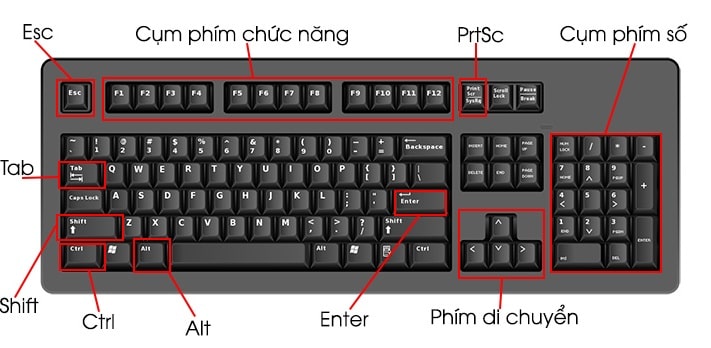
Use Alt + Tab to switch applications and Alt + F4 to close the active window. Save unfinished work before closing an application. Explorer-specific actions are identified in the table.
| No. | SHORTCUT KEYS | FUNCTION |
|---|---|---|
| 1 | Alt + Tab | Switch between open applications. |
| 2 | Alt + F4 | Close the applications that you currently have open. |
| 3 | Alt + F8 | Display your password on the login screen. |
| 4 | Alt + Enter | In File Explorer, open Properties for the selected item. |
| 5 | Alt + P | In File Explorer, toggle the preview pane. |
| 6 | Alt + Esc | Cycle through items in the order they were opened. |
| 7 | Alt + Space | Open the active window’s system menu. |
| 8 | Alt + Left Arrow | Go back where navigation history is supported. |
| 9 | Alt + Right Arrow | Go forward where navigation history is supported. |
| 10 | Alt + Up Arrow | In File Explorer, open the parent folder. |
Alt + F8 reveals the entered password only where the Windows sign-in interface supports that shortcut. Use care if someone can see the screen.
Three useful habits
- Try shortcuts in the application where you intend to use them, with the correct window focused.
- If a laptop requires Fn for its function keys, use the keyboard's documented function-key mode.
- If a shortcut stops working, check application overrides, keyboard layout, and whether the associated Windows feature is available.
For version-specific combinations and changes, consult Microsoft's Windows shortcut reference. A shortcut table is a quick reference; it cannot override an application's own key bindings.
Related Articles
 Summary of 60+ latest keyboard shortcuts on Windows computers
 Windows Keyboard Shortcuts for a Black Screen or Frozen Desktop
 Summary of new keyboard shortcuts on Windows 11 to help you work faster
 Keyboard shortcuts in Illustrator are often used, keyboard shortcuts are commonly used in AI
 All the keyboard shortcuts on obscure computers
 8 common keyboard shortcuts you need to know to use Windows professionally
Reader Comments 0
Sign in with email or Google to join the discussion.