Table of Contents
UltraISO can read an unprotected CD, DVD, or VCD in an optical drive and save its contents as an ISO image. The resulting file is useful for archival, mounting in a virtual drive, or recreating a disc when you have the right to copy the source.
Important: Create images only from discs you own or are authorized to copy. UltraISO cannot necessarily read damaged media or protected commercial discs, and this guide does not cover bypassing copy protection.
Before you start
- Install UltraISO and restart Windows only if the installer requests it.
- Insert the source disc into a working CD/DVD drive.
- Choose a destination drive with enough free space for the image.
- Clean a dirty disc carefully and close applications that may be using the optical drive.
If the program is not installed yet, see TipsMake's guide to installing and using UltraISO.
1. Confirm that Windows can read the disc
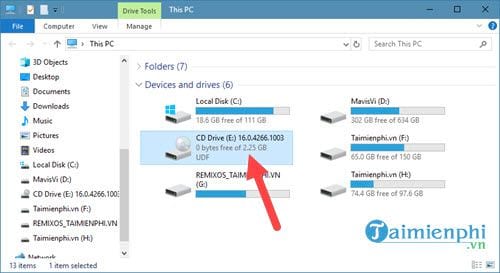
Open This PC and check that the optical drive recognizes the inserted CD, DVD, or VCD.
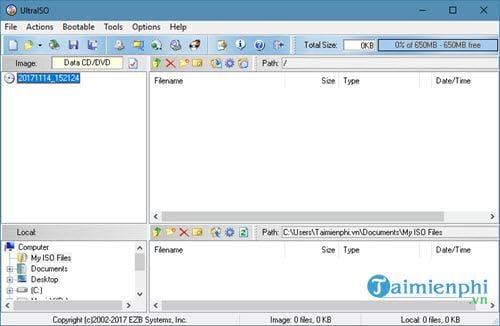
Open UltraISO.
2. Open the physical disc in UltraISO
Select File > Open CD/DVD.
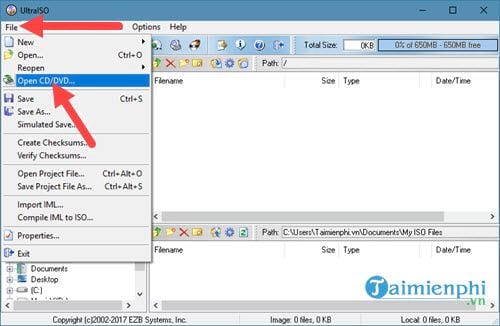
Choose the optical drive that contains the source disc.
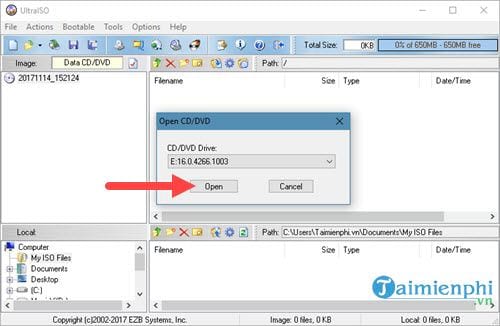
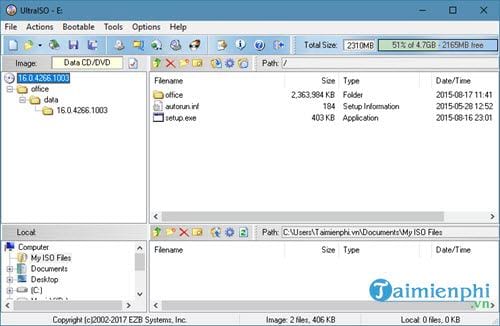
UltraISO should display the disc's folders and files. If the list is empty or errors appear, confirm that Windows can read the disc and that you selected the correct drive.
3. Save the disc as an ISO image
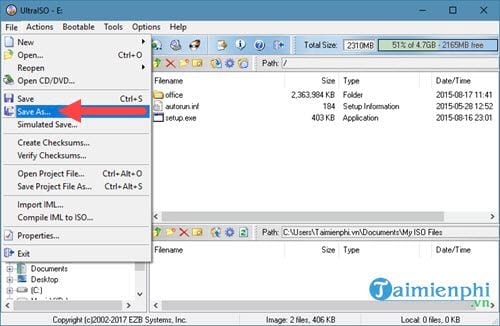
Select File > Save As.
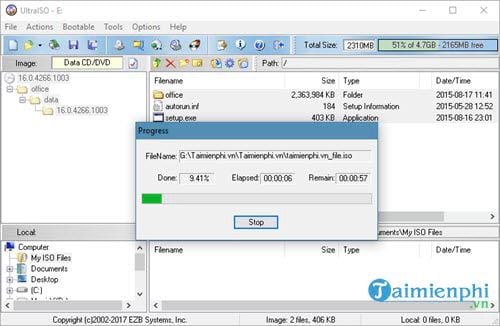
Choose a destination folder, enter a descriptive filename, select the ISO format if prompted, and choose Save.
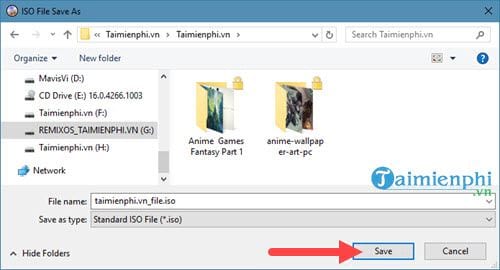
Keep the disc inserted while UltraISO reads it. The time required depends on the amount of data, drive speed, disc condition, and destination storage.
4. Verify the ISO
Confirm that the output file exists and has a plausible size. For a stronger check, mount the ISO and open several files rather than relying on the filename alone.
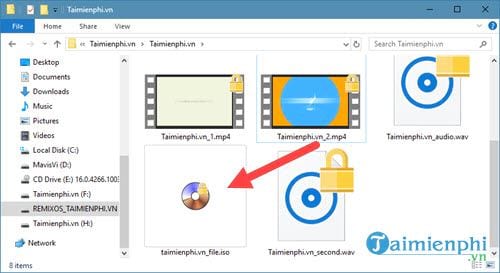
You can mount the new image with UltraISO or a current Windows File Explorer. For alternative applications, compare TipsMake's ISO file reading tools.
If the copy fails
- Try reading the disc in another optical drive.
- Check the destination for free space and filesystem errors.
- Use a filename and path without unusual characters if an older UltraISO version rejects the destination.
- If the disc is physically damaged or protected, use an appropriate lawful recovery or licensed playback workflow instead of repeatedly forcing reads.
Related Articles
 Ultraiso - Download Ultraiso5 minutes read
 What Is UltraISO? Instructions for Downloading, Installing and Using6 minutes read
 How to Install UltraISO and Creating Virtual Drives Using UltraISO3 minutes read
 What Is UltraISO? Features, Uses, and Key Details4 minutes read
 Create a Virtual Drive Using UltraISO on Your Computer4 minutes read
 Optical Discs and Milestones: What You Need to Know24 minutes read
Reader Comments 0
Sign in with email or Google to join the discussion.