What you will learn
- Write formulas beginning with an equal sign.
- Use cell references instead of duplicating values.
- Copy relative formulas and inspect adjusted references.
- Validate calculations by changing inputs and estimating expected results.
What you need
- Excel or a compatible spreadsheet application.
- Comfort entering text and numbers into cells.
Store inputs separately from calculations
Microsoft states that a simple Excel formula begins with an equal sign and can use arithmetic operators.
Cell references allow formulas to use values from other cells and update when those values change.
A row total such as quantity multiplied by unit price should refer to the input cells. The displayed currency format changes appearance, not arithmetic. Keep assumptions and rates in labeled cells so they can be reviewed and updated.
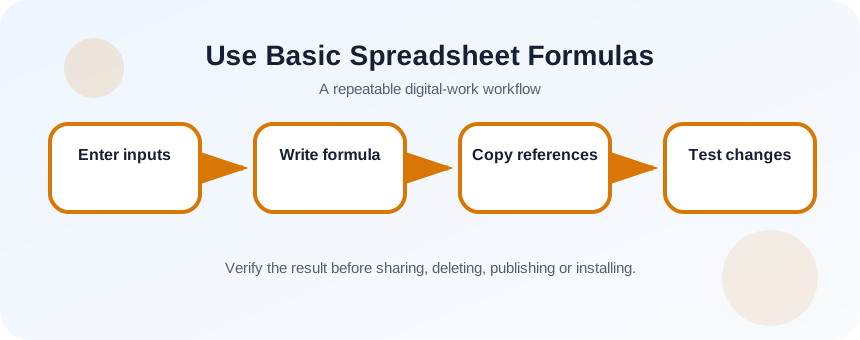
Build a small input table
Create columns for Item, Quantity, Unit price and Line total. Enter three items with simple values you can estimate mentally. Format quantity as a number and price as currency after entering the underlying values.
- 1
Create four headers.
- 2
Enter three item names.
- 3
Enter quantities.
- 4
Enter unit prices.
- 5
Estimate each line total on paper.
- 6
Save the workbook before adding formulas.
Write and copy the formula
In the first Line total cell, type =B2*C2 using the actual locations in your sheet. Press Enter and compare with the mental estimate. Copy the formula downward, then click each result and inspect the formula bar. Relative references should change by row.
- 1
Select the first result cell.
- 2
Type the multiplication formula.
- 3
Press Enter.
- 4
Compare the result with your estimate.
- 5
Copy the formula to the remaining rows.
- 6
Inspect the second and third formulas.
- 7
Add a grand total with SUM over the result range.
Recognize references and errors
Relative references such as B2 change when copied. Absolute references such as $B$2 remain fixed and are useful for a tax or exchange-rate cell. Mixed references lock only row or column. Use absolute references only when the business rule requires a fixed location.
A formula shown as text may be in a Text-formatted cell or begin with an apostrophe. #DIV/0! indicates division by zero; #VALUE! often means the formula received an unexpected type. A wrong number with no error requires checking references, parentheses and units.
- 1
Create a labeled tax-rate cell.
- 2
Write a formula that refers to it.
- 3
Copy the formula and observe the moving reference.
- 4
Add dollar signs to fix the rate cell.
- 5
Change the rate and verify all dependent rows.
Validate with estimation and edge cases
Estimate totals before trusting the worksheet. Test a quantity of zero, a decimal price and a changed input. Inspect the formula rather than only the displayed result. Protect or visually separate input and formula cells when others will use the file.
- Every calculated cell contains a formula rather than a typed answer.
- Copied formulas point to the intended row and fixed assumptions.
- Changed inputs produce plausible recalculated results.
Build a five-item purchase calculator
Create a reusable calculator with subtotal and a fixed discount or tax rate.
- 1
Enter five items and prices.
- 2
Calculate line totals.
- 3
Copy formulas and inspect references.
- 4
Add a subtotal with SUM.
- 5
Add a labeled fixed rate cell.
- 6
Change two inputs and confirm all results update.
Common mistakes to avoid
- Typing x instead of the multiplication operator *.
- Typing a result instead of a formula.
- Copying without checking references.
- Confusing currency formatting with the stored value.
Key takeaways
- Formulas begin with = and reference inputs.
- Relative and absolute references serve different rules.
- Estimate and change inputs to test calculations.
Frequently asked questions
Why does Excel show the formula instead of the result?
The cell may be formatted as Text, the formula may begin with an apostrophe, or Show Formulas may be enabled.
What is the difference between a formula and a function?
A formula is a calculation you write. A function such as SUM is a predefined operation used within a formula.
Sources and further reading
- Create a simple formula in ExcelMicrosoft Support
- Use cell references in a formulaMicrosoft Support
Ready to continue?
Mark the lesson complete so your Learning Path progress stays current on this device.