Table of Contents
Voyager, previously called Gemini Voyager, adds organization and navigation tools to the Gemini web interface. Its folders, message timeline, adjustable layout, and reusable prompt library are most useful when you manage many conversations. The extension's name and controls have changed since the screenshots below were captured.
Install and check access
Start from the developer's installation guide and choose the listing for your browser. Check the publisher, requested site access, update history, and current privacy notice before installing. An extension that works inside Gemini can access content on the Gemini pages for which it has permission; do not assume a “local” feature means the extension has no access to your conversations.
If you use work or private material, review your organization's extension policy and the optional cloud-sync settings. TipsMake's browser privacy checklist covers how to review and remove extensions you no longer need.
Organize conversations with folders
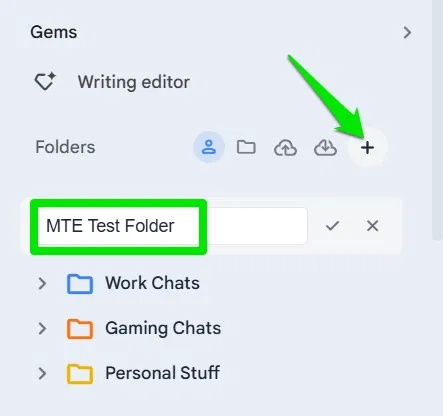
Open Gemini after enabling Voyager and look for its folder controls near the conversation list. Create a few broad folders, such as work, study, and personal, then move related chats into them. The project describes a two-level folder hierarchy with drag-and-drop support. Test with one chat before reorganizing a large archive, and export or sync a backup if you depend on the folder arrangement.
Make long chats easier to use
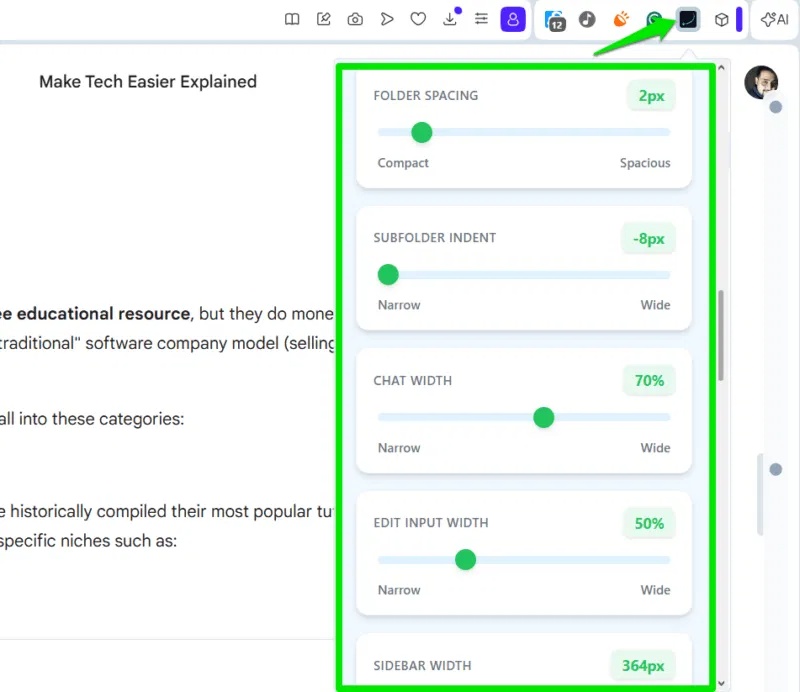
Use the extension settings to adjust the width of the conversation and sidebar for your screen. A wider chat can make code or tables easier to read, while a narrower layout may suit a laptop. Choose a setting you can comfortably scan instead of a fixed percentage from someone else's display.
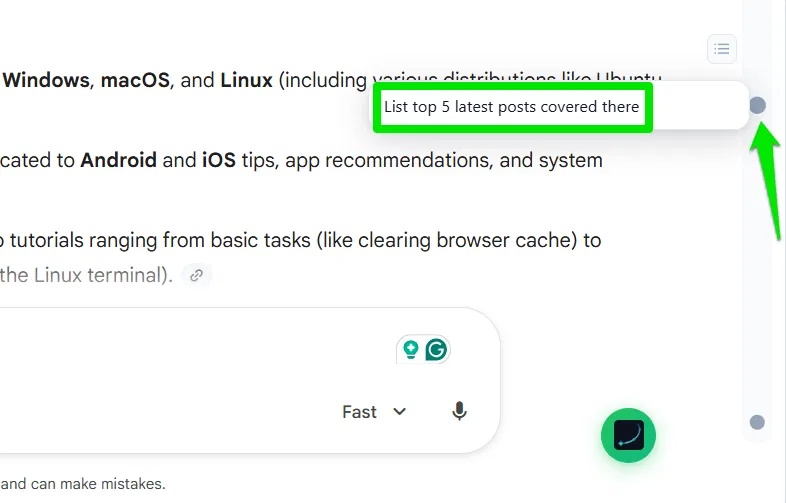
In a long Gemini thread, the timeline places navigation markers beside messages. Use them to return to a prompt or answer without repeatedly scrolling. Some versions also offer options to stop automatic jumping while you read earlier messages. The exact keyboard shortcuts and labels may differ by extension version.
Save reusable prompts
Voyager's prompt library, called Prompt Vault in current project documentation, stores prompts you reuse. Give each one a specific name and replace private names or account details with placeholders before saving. Organize prompts by task rather than keeping a long list of near-duplicates. See another approach to reusable prompts in Chrome if you prefer a browser-native workflow.
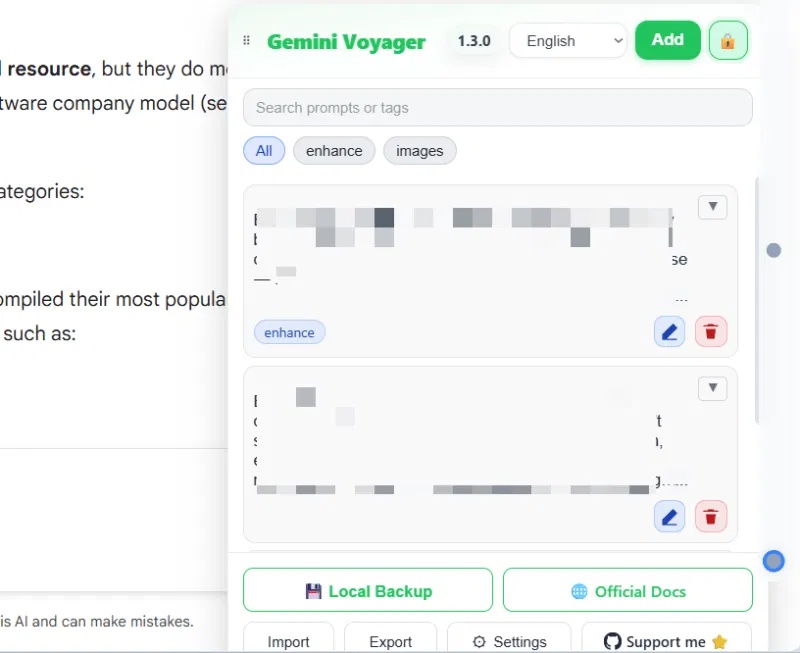
Finally, check whether you want local backup, export, or optional Google Drive sync. Those choices have different data-handling implications. The extension can improve navigation, but it does not change the quality of Gemini's answers; still verify important information and keep your own copy of work you cannot afford to lose.
Related Articles
 How to Use Gemini to Help Teams Work More Effectively in a Business6 minutes read
 Turn Your iPad into a Work Device with These 5 Apps!6 minutes read
 What Are Skills in Chrome?5 minutes read
 4 Google Apps That Work Better with Gemini: Explained5 minutes read
 How to Build a Complete Productivity System Using Windows 11's Default Features7 minutes read
 Gemini Advanced Is Now Google AI Pro: Current Plans15 minutes read
Reader Comments 0
Sign in with email or Google to join the discussion.