Table of Contents
Download and run major language models like Qwen, Mistral, Gemma, or gpt-oss in LM Studio!
Note: Sometimes, you may see terms such as open-source model or open-weighted model. Different models may be released under different licenses and have varying degrees of "openness". To run a model locally, you need access to its "weights", which are usually distributed as one or more files with extensions such as.gguf,.safetensors, etc.
What is LM Studio?
LM Studio is a local AI platform built to make large language models (LLMs) accessible, private, and easy to operate without cloud infrastructure. As the demand for AI tools continues to grow, many users—from developers to researchers and privacy-conscious professionals—are seeking solutions that avoid the complexities of remote APIs, recurring costs, and the risk of third-party data processing.
LM Studio addresses this problem by integrating a user-friendly interface, broad model compatibility, and offline functionality into a self-contained desktop environment.
System requirements
Supported CPU and GPU types for LM Studio on Mac (M1/M2/M3/M4), Windows (x64/ARM), and Linux (x64/ARM64)
macOS
- Chip: Apple Silicon (M1/M2/M3/M4).
- Requires macOS 14.0 or later.
- 16GB or more of RAM is recommended. You can still use LM Studio on an 8GB Mac, but it's advisable to choose smaller templates and a moderately sized context.
- Currently, Intel-based Macs are not supported.
Windows
LM Studio is supported on both x64-based and ARM (Snapdragon X Elite) systems.
- CPU: Requires AVX2 instruction set support (for x64)
- RAM: LLM can consume a lot of RAM. At least 16GB of RAM is recommended.
- GPU: At least 4GB of dedicated VRAM is recommended.
Linux
LM Studio is supported on both 64-bit (x64) and 64-bit (ARM64/aarch64) systems.
- LM Studio for Linux is distributed as an AppImage.
- Requires Ubuntu 20.04 or later.
- Newer versions of Ubuntu than 22 have not been thoroughly tested.
- CPU: On x64, LM Studio supports AVX2 by default.
Get started using LM Studio
First, install the latest version of LM Studio. You can download it from here.
After the installation is complete, you need to download the LLM first.
Download an LLM to your computer.
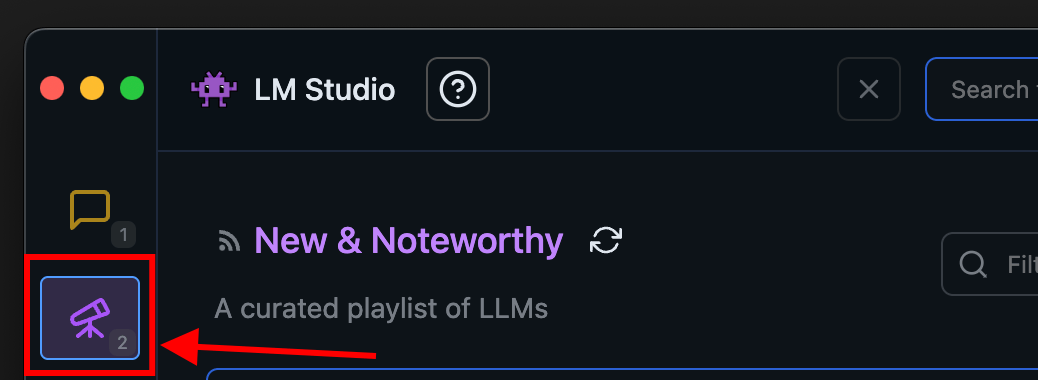
Go to the Discover tab to download the models. Select one of the curated options or search for a model using a search query (e.g., " Llama ").
Load the model into memory.
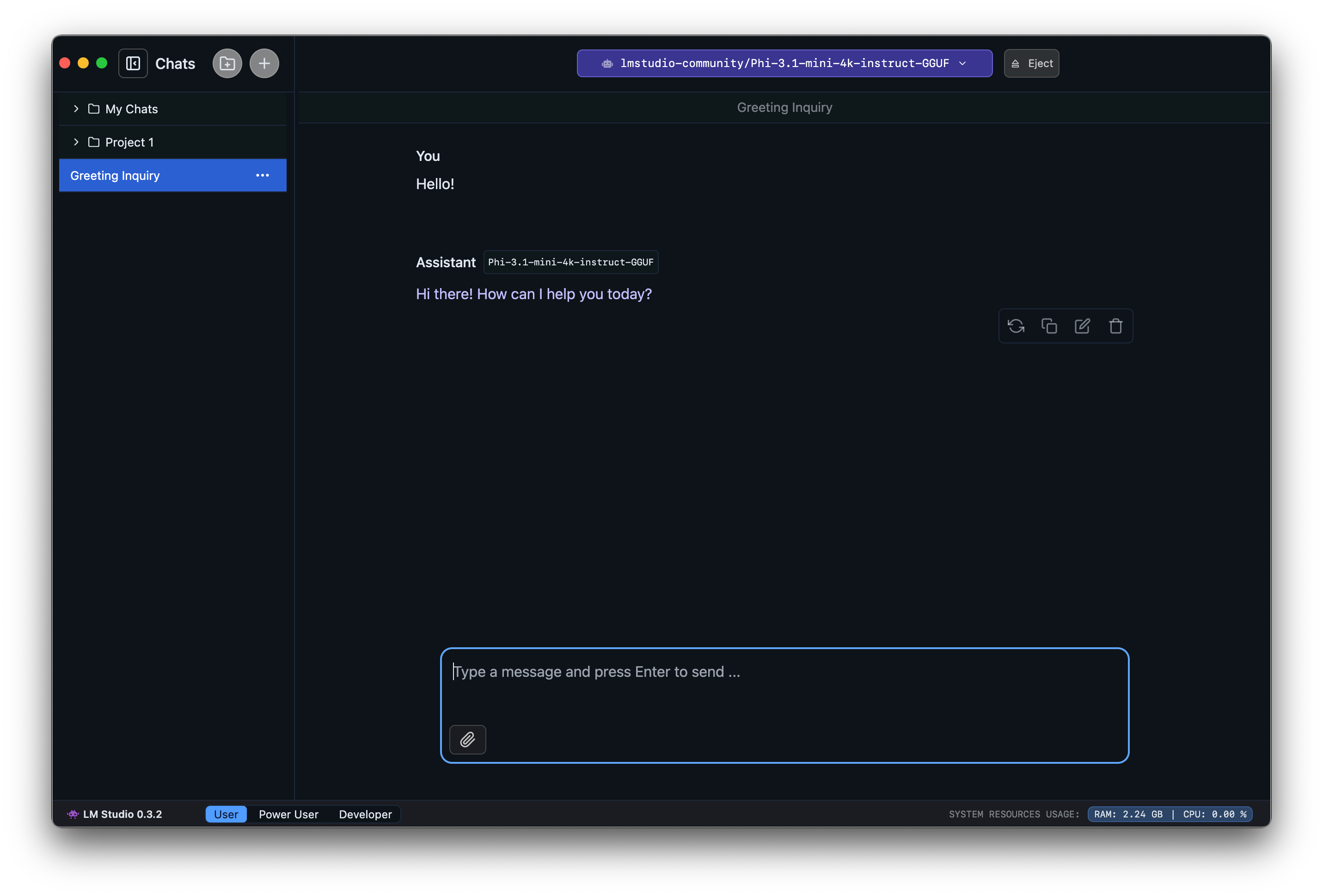
Go to the Chat tab and:
- Open the model loader.
- Choose one of the models you have downloaded (or sideloaded).
- Optionally, select to load configuration parameters.

What does "loading the model" mean?
Loading a model typically means allocating memory in the computer's RAM to store the model's weights and other parameters.
Let's chat!
Once the model is loaded, you can start a back-and-forth conversation with it in the Chat tab.
Related Articles
 What Is LM Studio? What Are Its Applications?6 minutes read
 6 Notable Differences Between Mac Studio and Mac Pro10 minutes read
 Roblox Studio13 minutes read
 What Is LM Studio? Complete Guide6 minutes read
 Overview of Copilot Studio11 minutes read
 The Main Difference Between Ollama and LM Studio10 minutes read
Reader Comments 0
Sign in with email or Google to join the discussion.