Table of Contents
In this article, teachers will find further instructions on how to create Reading comprehension exercises using NotebookLM from documents they upload.
How to create Reading comprehension exercises using NotebookLM
Step 1:
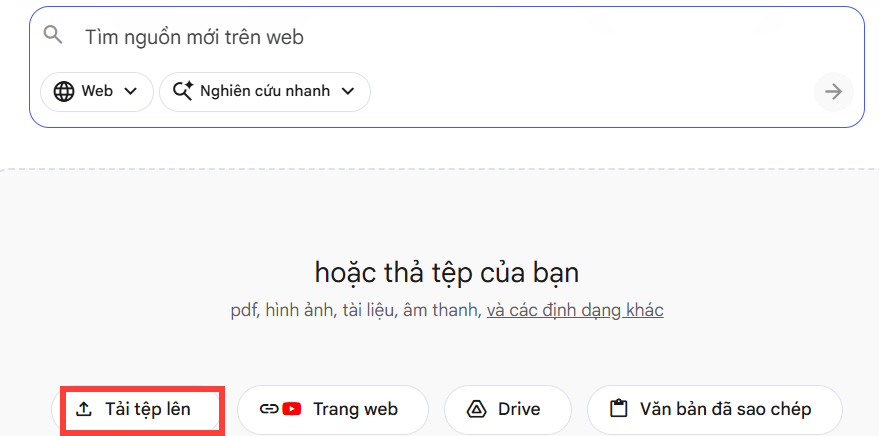
In the NotebookLM interface, click on "Create New". Next, teachers need to upload data to create a reading comprehension exercise from this original data. You can upload a data file or upload images of the lecture you want to use to create the reading comprehension exercise.
Step 2:
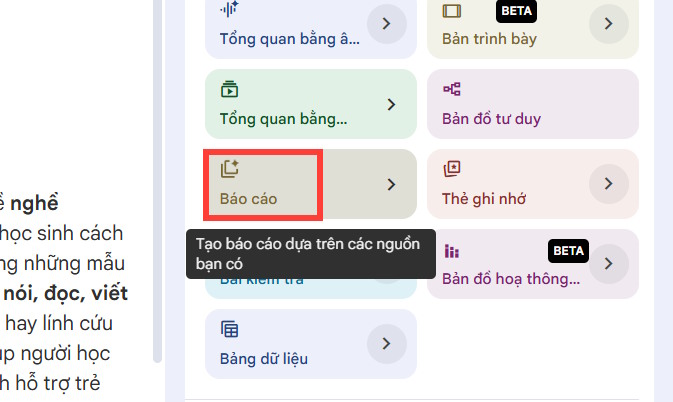
After uploading the original document, look to the side and click on the "Reports" option to expand the content settings for this section.
Step 3:
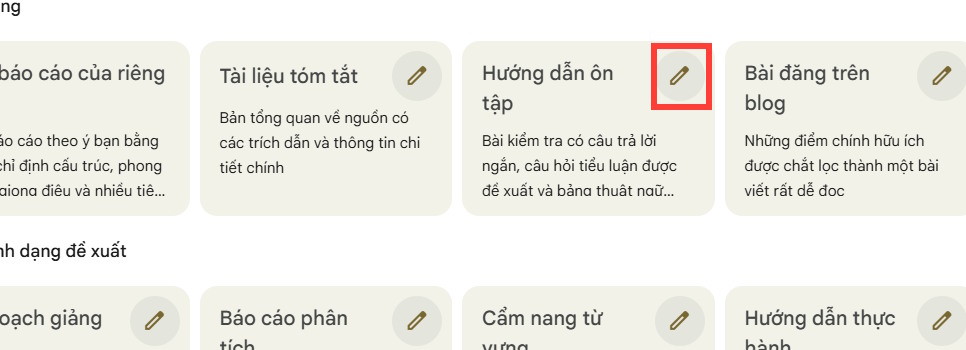
Then, when several options for the document are displayed, we click on the pen icon in the Study Guide to adjust them.
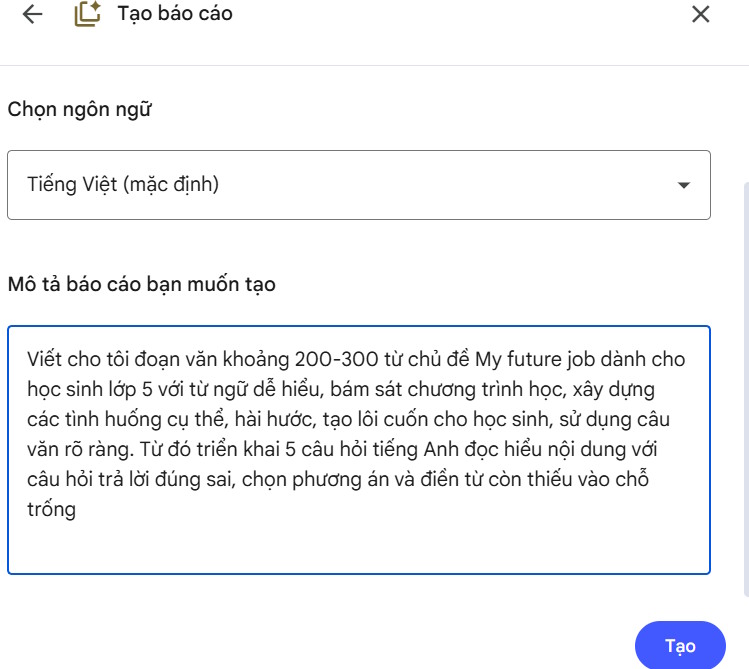
Here, we will enter the request to convert the uploaded content into Reading content. Teachers can refer to the command description below, then click Create.
Viết cho tôi đoạn văn khoảng 200-300 từ bằng tiếng Anh chủ đề My future job dành cho học sinh lớp 5 với từ ngữ dễ hiểu, bám sát chương trình học, xây dựng các tình huống cụ thể, hài hước, tạo lôi cuốn cho học sinh, sử dụng câu văn rõ ràng. Từ đó triển khai 5 câu hỏi tiếng Anh đọc hiểu nội dung với câu hỏi trả lời đúng sai, chọn phương án và điền từ còn thiếu vào chỗ trống
Step 4:
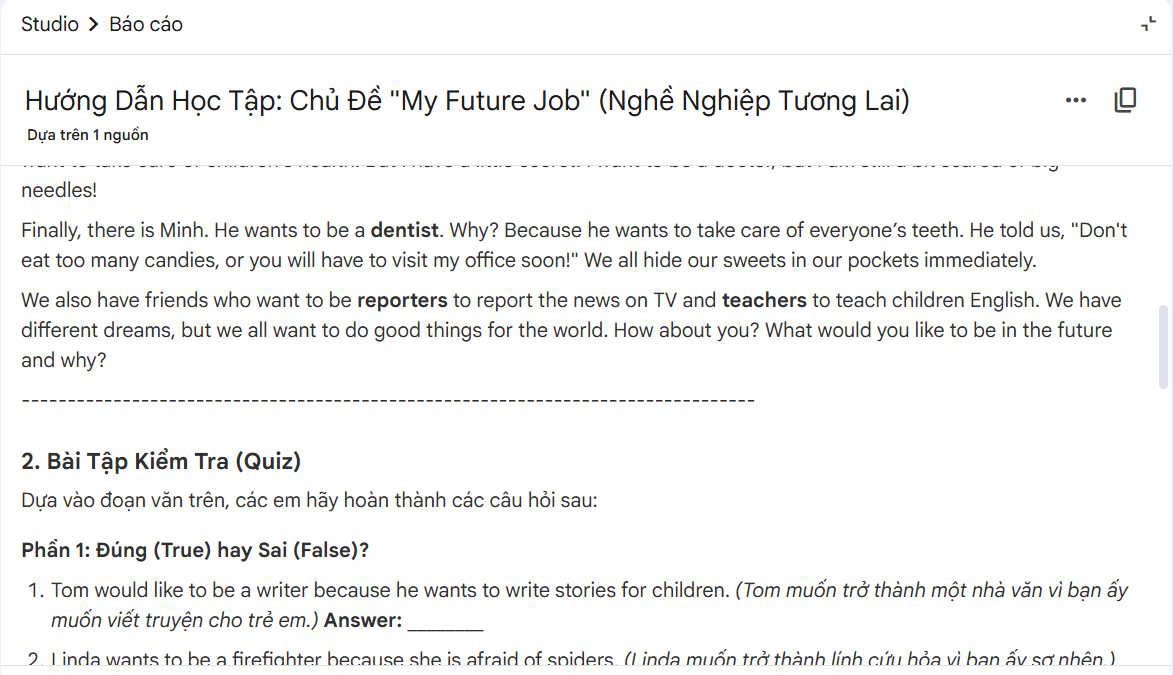
Immediately after, the process of creating the essay from the content you uploaded using NotebookLM begins. Click on the data and you will see the English reading comprehension essay developed from the data uploaded by the teacher.

The content is structured exactly as you requested: the reading comprehension passage is at the top, followed by the reading comprehension questions, a vocabulary list, and finally the answers.
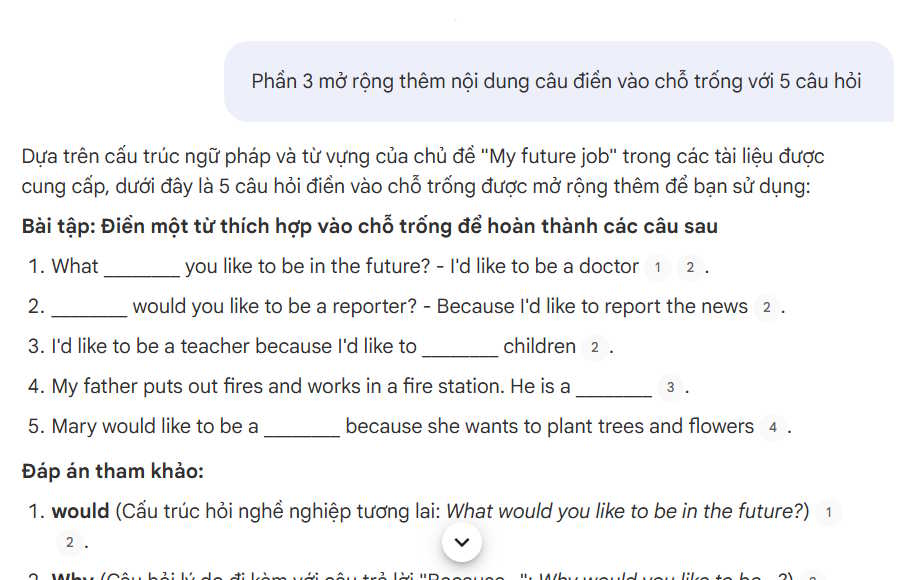
If any part of the content still doesn't meet the needs, teachers can enter commands to create additional content. This content will be created in a separate file.
Step 5:
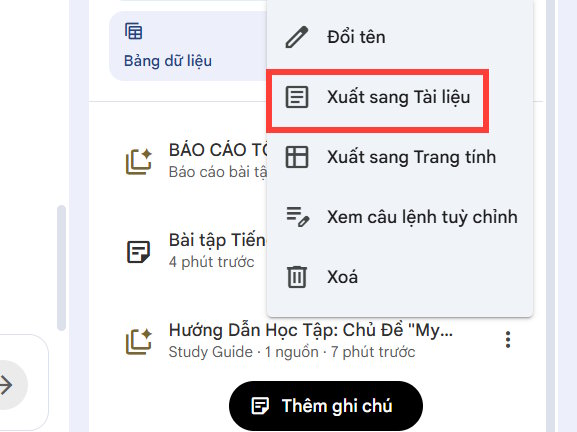
Returning to the main NotebookLM interface, click the three-dot icon in the document, then select Export to Document, and then proceed with further editing to create a higher-quality Reading comprehension exercise.
Related Articles
 Instructions on Creating Flashcards and Quizzes on NotebookLM5 minutes read
 Instructions on Converting Lessons into Videos on NotebookLM4 minutes read
 Create Data Tables at Lightning Speed in NotebookLM5 minutes read
 How to Create Flashcards and Quizzes on Notebooklm3 minutes read
 Guide to Creating Discussion Forums Using NotebookLM4 minutes read
 How to Create Mind Maps in NotebookLM3 minutes read
Reader Comments 0
Sign in with email or Google to join the discussion.