Table of Contents
Computer Use opens up a wide range of applications. Businesses can automate repetitive tasks and increase efficiency, while ordinary users can save time on daily activities.
This feature stands out as an advanced virtual assistant, offering the following capabilities:
- Large-scale automation: Ideal for repetitive desktop tasks.
- Hands-free operation: Allows users to focus on strategic activities, while AI performs predefined actions.
- Enhanced flexibility: Complementing workflow automation and filling gaps that traditional software cannot address.
Step-by-step installation guide for Claude AI's Computer Use Model.
Because this feature is in beta testing, Anthropic recommends running the AI in a sandbox environment to ensure privacy and security.
- Recommended tool: Docker, a free application for creating secure containerized systems.
- Installation steps:
- Download Docker from the official website and install the version compatible with your operating system.
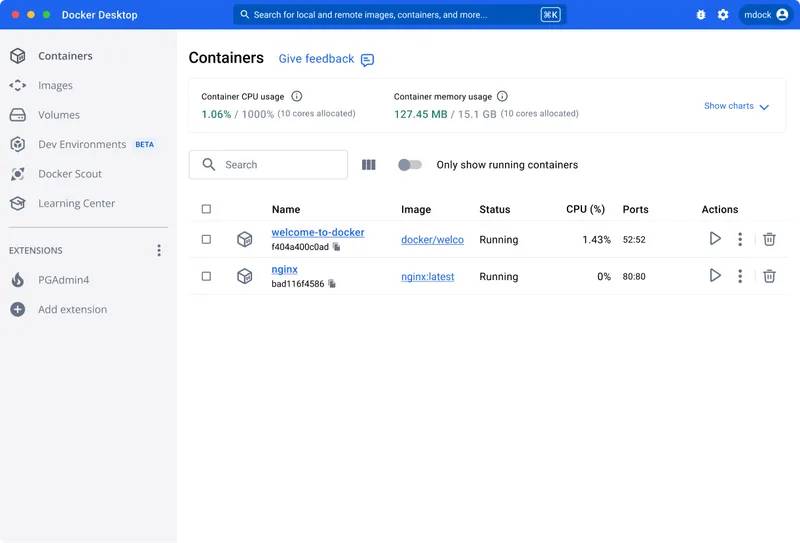
- Create an account and launch Docker. You will see the Docker console once the setup is complete.
The API key connects Claude AI to your local computer.
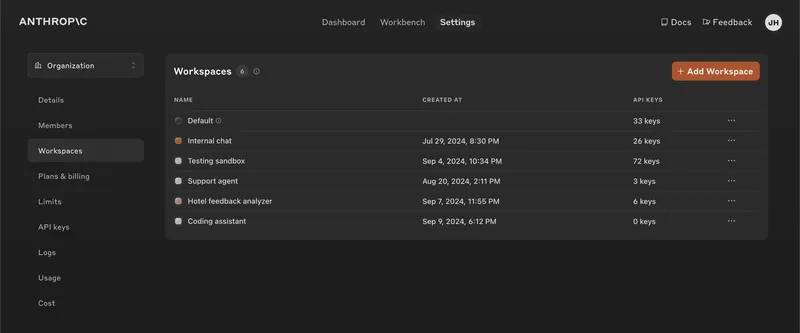
- Access the Anthropic Console and log in or create an account.
- In the Settings tab, set up your payment account (required to access the API).
- Select API Keys from the sidebar, generate a new key (e.g., 'Claude Computer Use'), and remember this key for later use. Do not share this key as it grants access to your AI resources.
Anthropic provides a reference implementation on GitHub.
- Visit Claude Computer Use Demo Repository.
- Open the terminal (Mac) or Command Prompt (Windows) and run the Docker command provided in the repository. Replace the placeholder text with your API key:
- Press Enter to execute the command. Docker will initialize and set up the environment.
- After setup, the terminal will display the localhost URL (e.g., http://localhost:8080 ).
- Copy and paste this link into your browser to access the Claude AI Computer Use interface.
Explore use cases for Claude AI's Computer Use Model.
After installation, you can explore various applications of this feature:
- Search and download images:
- Use Claude to find and download images directly from the web.
- Example prompt: 'Search for images of Nan Beach in Phuket, Thailand and download them'.
- Fill out the form:
- Automate basic forms, as long as they don't involve sensitive information or CAPTCHAs.
- Claude is designed to prioritize security and privacy.
- Book your flight tickets:
- While not perfect for complex itineraries, Claude can assist in researching travel options, such as searching for flights on platforms like Kayak or Skyscanner.
- Automate Google Sheets:
- Use Claude to create spreadsheets for tasks such as data entry or lead management.
Things to consider for effective use.
- Limitations of the Beta version: Errors or incomplete task execution may occur. Patience is key as the model develops.
- Security practice: Always use containerized environments for tasks involving sensitive data.
- Optimization tips:
- Provide specific, detailed requirements to improve accuracy.
- Use repeated testing to identify the strengths and limitations of the model.
How to apply it to an agentic system.
The Claude Computer Use model embodies Anthropic's vision of agentic systems, connecting conversational capabilities with actionable tools. By enabling AI to interact dynamically with its environment, this technology aligns with GTM engineering principles for workflow automation and task scaling.
Related Articles
 How to Install Claude Code on Windows 116 minutes read
 Claude Fable 5 Review: Real-World Strengths and Limits13 minutes read
 Learn About Claude Opus 4.7: the Latest AI Model from Anthropic, Just Released12 minutes read
 What Is Claude Fable 5?8 minutes read
 Guide to Connecting MCP GitHub Local Dev21 minutes read
 Which Is the Better LLM Model for Enterprise Applications: Claude 3 or GPT-410 minutes read
Reader Comments 0
Sign in with email or Google to join the discussion.