Table of Contents
Compared to AI-powered lesson plan creation apps like Google AI Studio that use predefined topics, NotebookLM generates lesson plans based on the content we upload.
NotebookLM offers a tool for designing lesson plans from any content that teachers upload. Compared to AI-powered lesson plan creation apps like Google AI Studio, which use predefined topics, NotebookLM generates lesson plans based on the content you upload. Below is a guide on creating lesson plans using NotebookLM.
How to create a lesson plan using NotebookLM
Step 1:
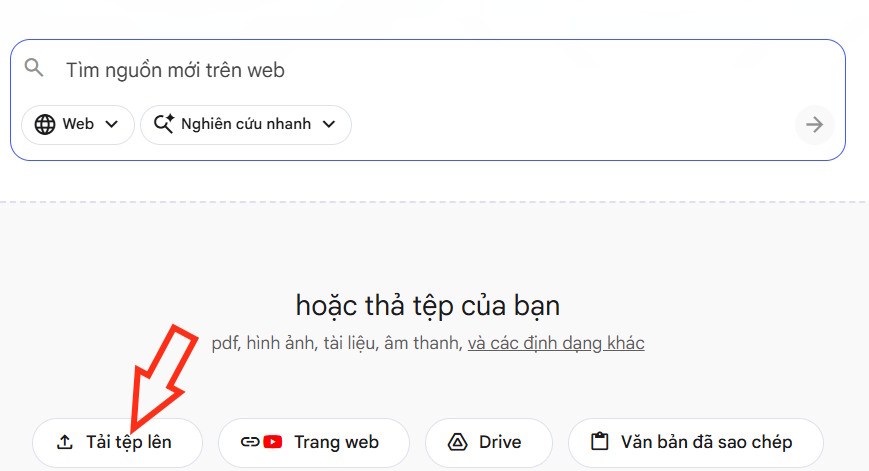
First, access NotebookLM and click "Create New ". Next, click "Upload File" to upload the textbook, document, or training materials that you have.
Step 2:
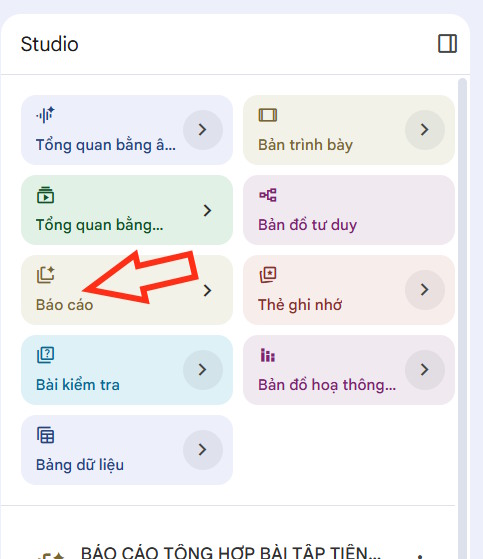
After uploading the original document, click on the "Report" button next to it to use it.
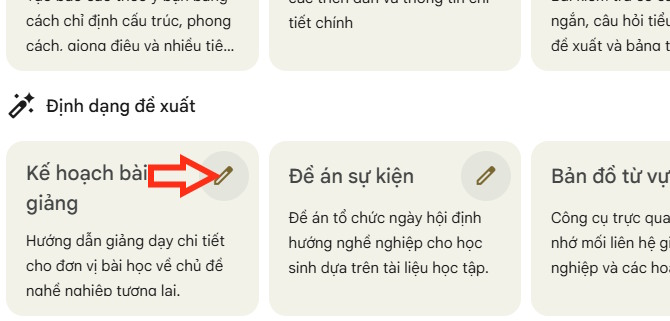
At this point, you will see several suggested content options based on the content you uploaded. Click on the pen icon in the Lesson Plan section.
Step 3:
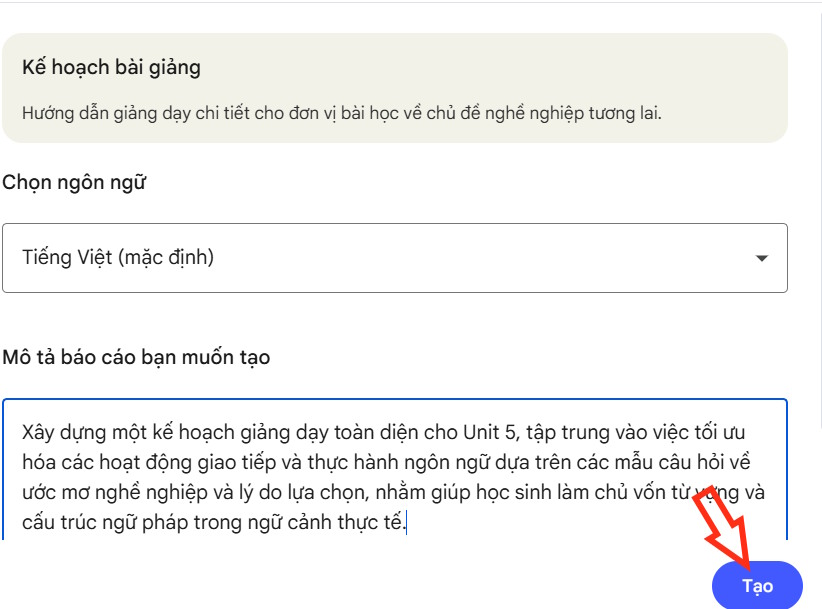
Here, we enter a description of how we want NotebookLM to deploy the lecture from the uploaded content. Refer to the description below. Then click Create to proceed.
Xây dựng một kế hoạch giảng dạy toàn diện cho Unit 5, tập trung vào việc tối ưu hóa các hoạt động giao tiếp và thực hành ngôn ngữ dựa trên các mẫu câu hỏi về ước mơ nghề nghiệp và lý do lựa chọn, nhằm giúp học sinh làm chủ vốn từ vựng và cấu trúc ngữ pháp trong ngữ cảnh thực tế.
Step 4:
Wait for the lesson design process to be built in NotebookLM. Once the document is ready, look to the right side and click on the lesson to view the content.
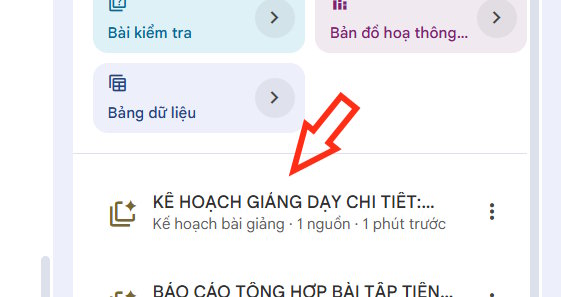
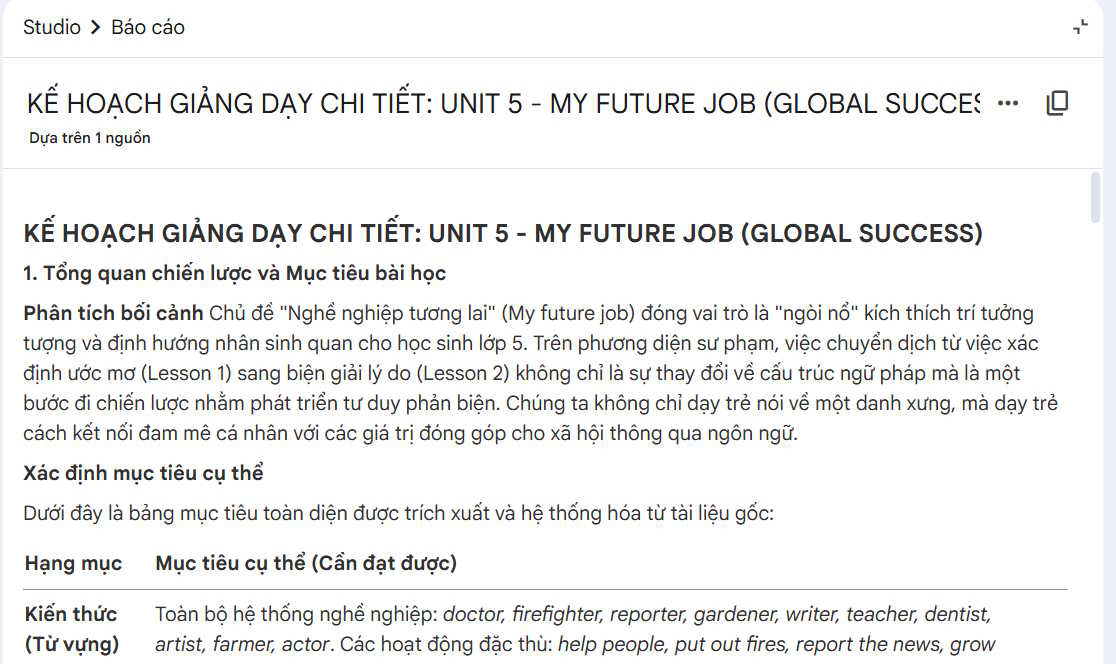
Then we will see the entire lecture created in NotebookLM for reference.
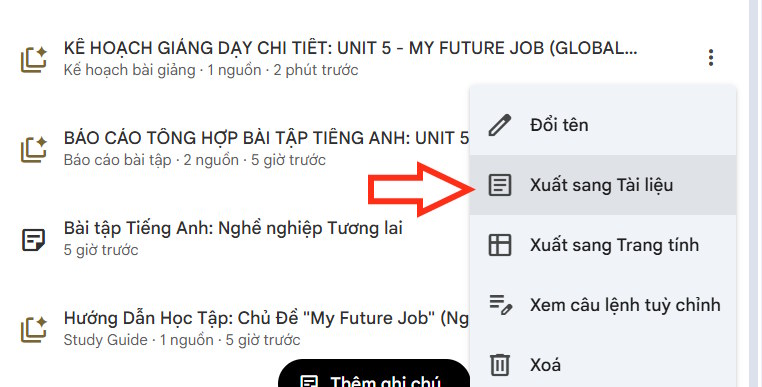
To download this content, click the three-dot icon next to the file name and then select Export to Document.
Related Articles
 Instructions on Converting Videos into Lesson Plans Using NotebookLM4 minutes read
 Create AI-Integrated Lesson Plans on NotebookLM3 minutes read
 Prompt Template for Building Lesson Objectives in NotebookLM4 minutes read
 Guide to Converting Videos into Lectures Using NotebookLM4 minutes read
 Guide to Building AI-integrated Lesson Plans4 minutes read
 Instructions on Creating Flashcards and Quizzes on NotebookLM5 minutes read
Reader Comments 0
Sign in with email or Google to join the discussion.