Table of Contents
This guide provides a clear, practical overview of "What Is TikTok Live Studio? Instructions for Using TikTok Live Studio". It organizes the most useful details, explains important considerations, and highlights the steps or choices that matter most.
What is Live TikTok Studio?
Live Studio TikTok is a video creation tool, livestreaming on TikTok increases the number of people reaching. The application has many tools so we can process videos more easily.
Professional video editing tools
The TikTok Live Studio interface has a full range of tools for you to edit videos, from basic to advanced. In addition, you also have many video filters to use, improving the quality of the video.
Create videos from photos and share directly
We can use images to create videos, combined with editing tools to create more complete videos. After creating videos, you have more options to post and share on many different platforms.
How to use TikTok Live Studio
Step 1:
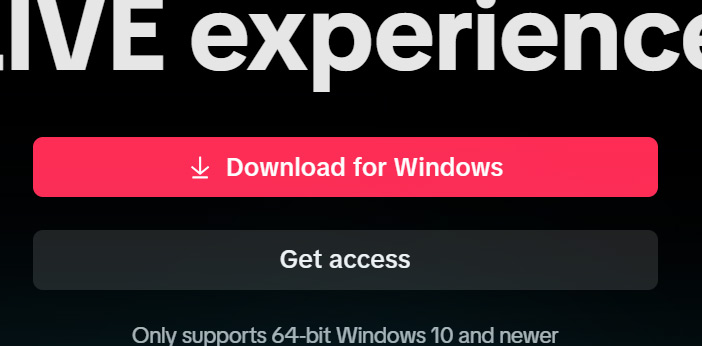
You can download Live Studio TikTok from the link below.
https://www.tiktok.com/studio/downloadNext we install the software on the computer to use.
Step 2:
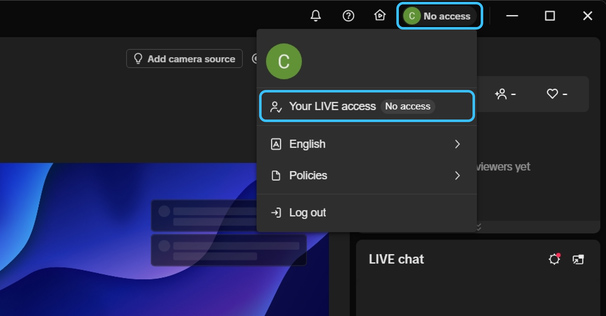
To use the features of TikTok Live Studio, especially LIVE access, you need to register. select your profile picture and select Your Live access to do so.
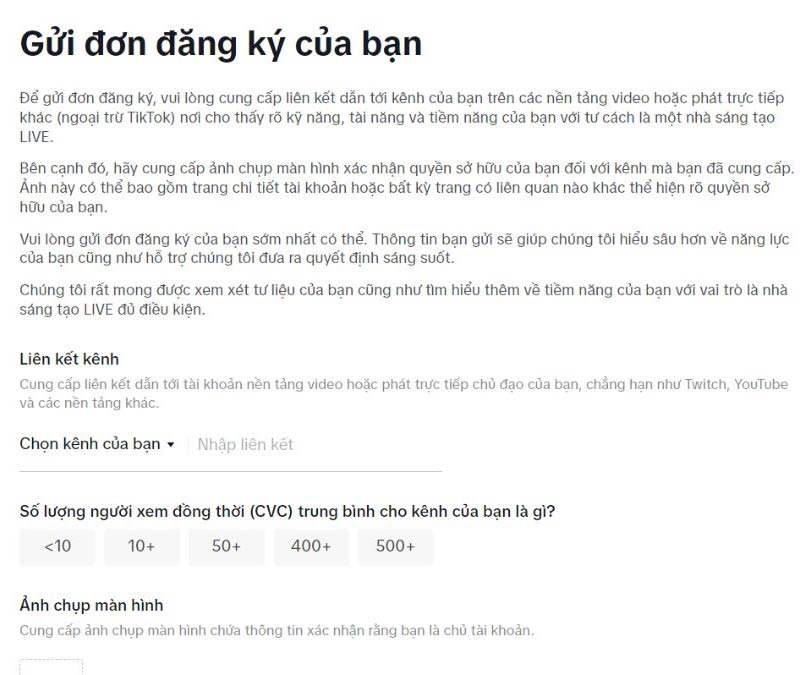
Now you will see the application form to enter the required content , we need to wait for TikTok to approve your application before you can continue using the livestream feature.
Step 3:
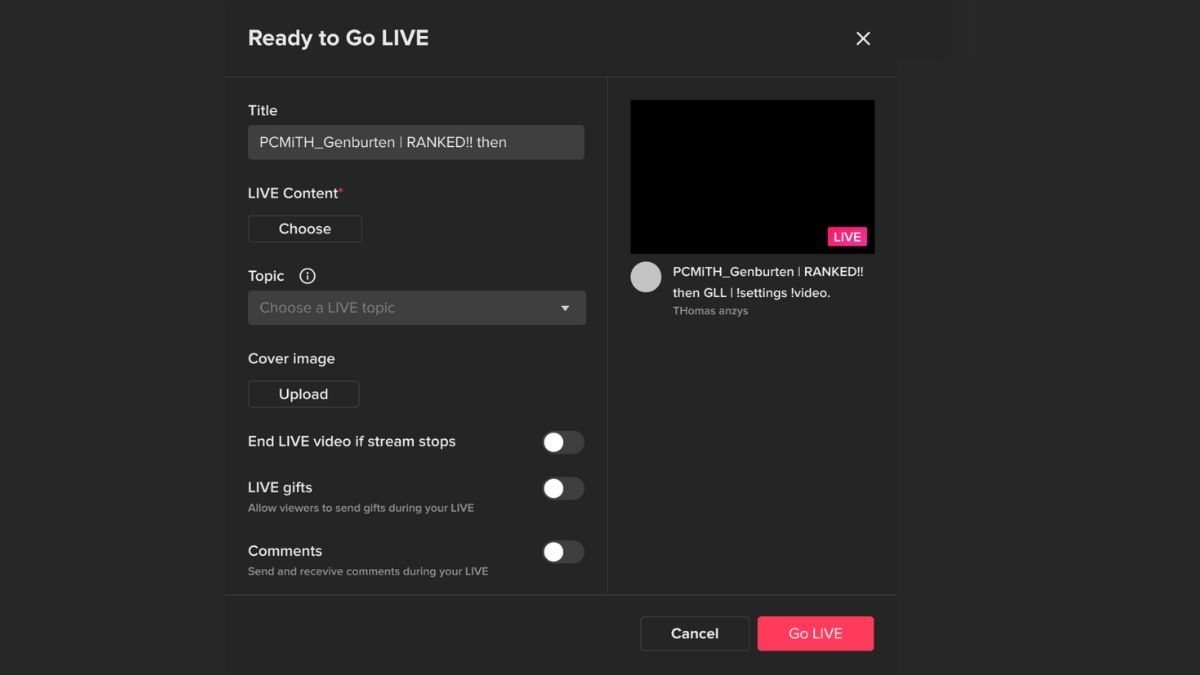
Once you have access to the livestream feature, click Go Live to start broadcasting live.
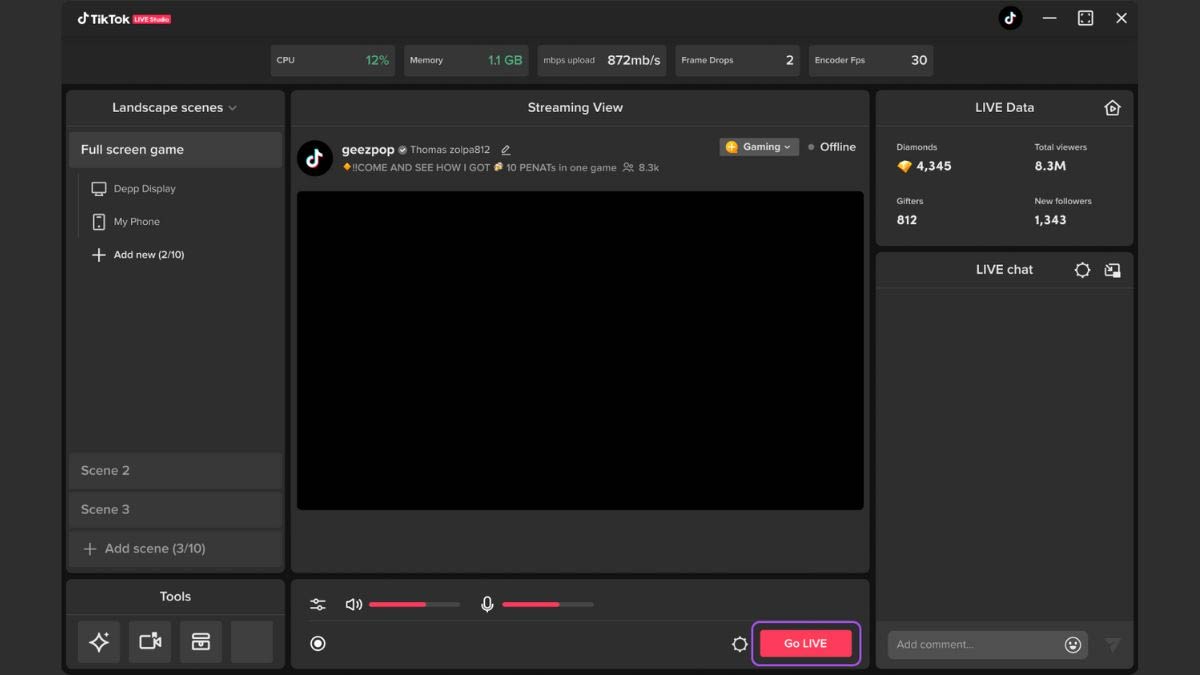
Next, we proceed to fill in the content for your livestream session on TikTok Live Studio.
FAQ
What is Live TikTok Studio?
Live Studio TikTok is a video creation tool, livestreaming on TikTok increases the number of people reaching. The application has many tools so we can process videos more easily.
How to use TikTok Live Studio?
You can download Live Studio TikTok from the link below.
What does this guide cover?
This guide explains TikTok live studio? instructions for using TikTok live studio, including the main steps, important details, and practical considerations.
Related Articles
 TikTok Studio: Creator Tools, Features, and Setup7 minutes read
 How to Live Stream Facebook with OBS Studio Software7 minutes read
 How to Using OBS Studio, Live Streaming and Screen Recording5 minutes read
 Why TikTok Live Video Is Ruining the App!: What You Need to Know5 minutes read
 What Is Zefoy TikTok? How to Use It3 minutes read
 How to Fix Your System Is Missing OBS Studio Installation Components4 minutes read
Reader Comments 0
Sign in with email or Google to join the discussion.