Table of Contents
The DirectX Diagnostic Tool (dxdiag) reports Windows, DirectX, graphics, sound, and input-device details. It does not repair a problem by itself, but its driver versions, feature levels, Notes fields, and exportable report can quickly narrow down game, video, or audio issues.

Open the DirectX Diagnostic Tool
- Press Windows + R.
- Enter
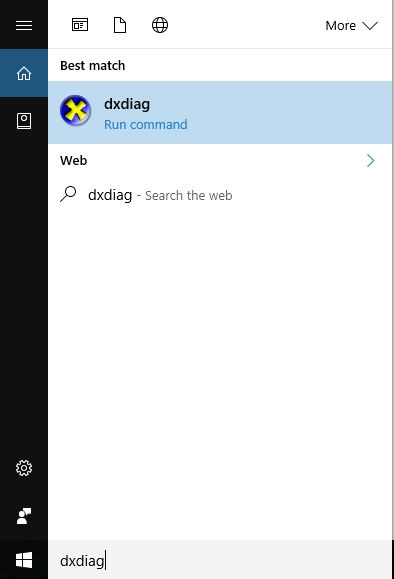
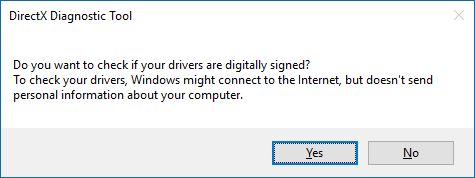
dxdiagand press Enter. You can also search for “dxdiag” from Start. - If Windows asks whether to check driver signatures, choose Yes. The tool may take a few seconds to collect information.
The tabs shown depend on the hardware connected to the PC. Multiple Display or Sound tabs are normal when the computer has more than one GPU, monitor, audio output, or adapter.
System tab: Windows and DirectX details
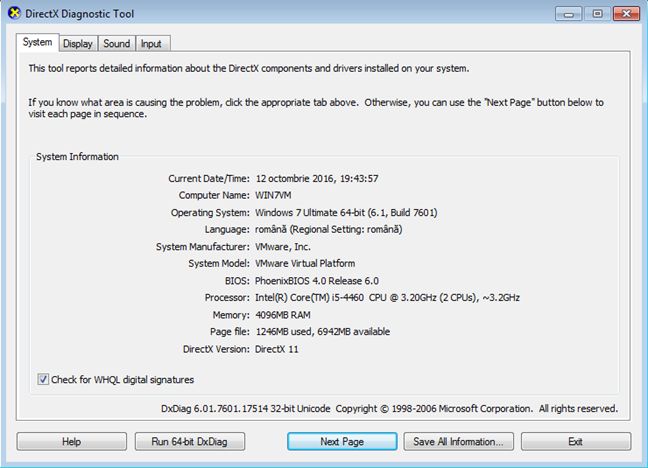
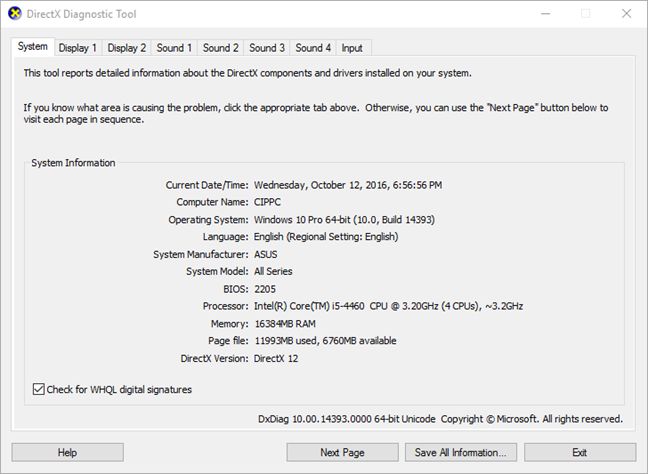
The System tab lists the Windows version and build, computer manufacturer and model, BIOS or UEFI version, processor, memory, page-file usage, and installed DirectX version.
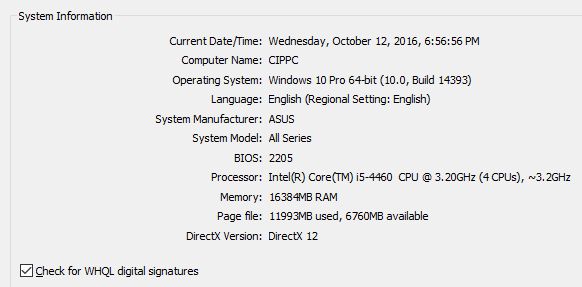
The DirectX version shown here is not the same as the highest feature level supported by the graphics card. For game compatibility, check Feature Levels on the Display tab as well.
Display or Render tabs: GPU and driver information
Use these tabs to identify the graphics adapter, display memory, current resolution, driver version and date, driver model, and DirectX feature levels. On hybrid-graphics laptops, one tab may represent the integrated GPU and another the discrete GPU.
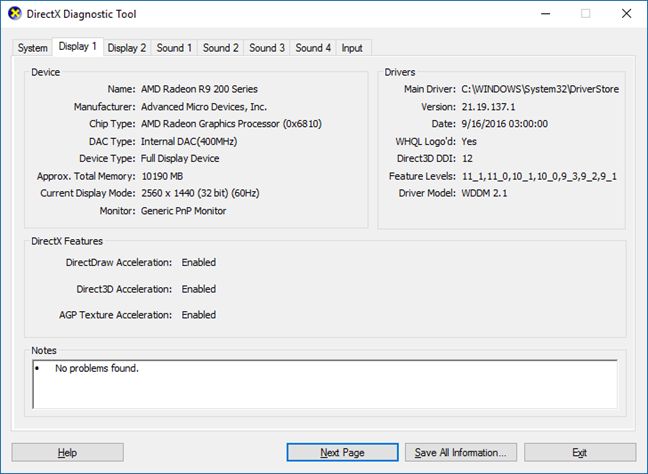
Check the Notes section for detected problems. If a game uses the discrete GPU, make sure you inspect the corresponding Display or Render tab rather than assuming the first tab is the relevant one.
Sound tabs: audio devices and drivers
Each Sound tab represents an output device or audio path, such as built-in speakers, a USB headset, or HDMI audio. Record the device name, driver provider, version, and date, then check Notes for reported issues.
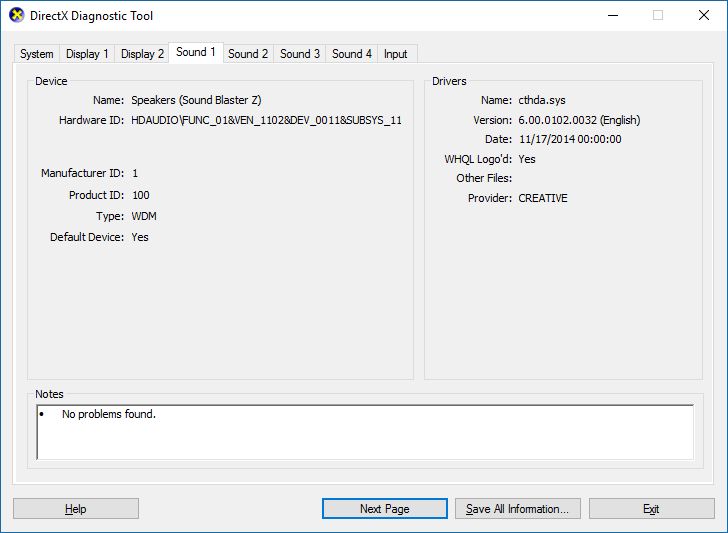
If only one application has no sound, confirm its output device in the Windows volume mixer before replacing a driver.
Input tab: controllers and other input devices
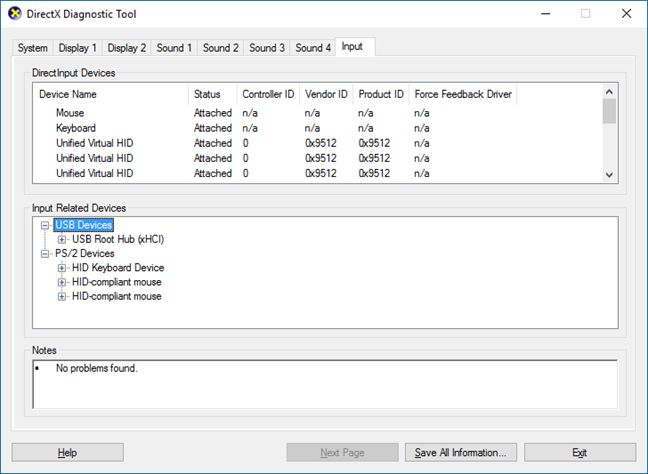
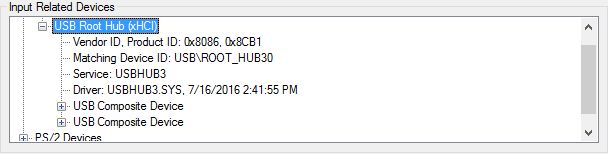
The Input tab lists detected keyboards, mice, game controllers, and related driver files. Expand the device categories when a controller is missing or behaves incorrectly.
Save a DxDiag report
Select Save All Information, choose a location, and save the text file. A game developer or hardware support technician may request this report because it captures the tab information in a portable form.
Before posting the file publicly, review it and remove details you do not want to share, including the computer name or other identifying system information. Attach it only to a trusted support channel.
What to do with the findings
- If the GPU driver is old or corrupt, obtain the correct driver from the PC or GPU manufacturer's support site.
- If a DirectX feature level required by a game is absent, updating DirectX alone cannot add hardware support the GPU does not have.
- If Notes reports no problem, compare the application's requirements with the Windows build, GPU, memory, and feature levels.
- For crashes, pair the DxDiag report with the exact error message, Windows Reliability Monitor history, and steps that reproduce the problem.
For other ways to identify the machine, see four ways to check Windows system configuration and how to view detailed system information.
Related Articles
 Download the Indexer Diagnostic Tool for Windows 103 minutes read
 Directx 11 - Directx 11 Download and Installation Guide3 minutes read
 Effective Network Diagnostics with Windows Network Diagnostic3 minutes read
 15 Diagnostic Tools to Check Windows PC Health: Top Picks and Buying Guide14 minutes read
 What Is Directx 12? How Important?7 minutes read
 What Is Microsoft Directx?9 minutes read
Reader Comments 0
Sign in with email or Google to join the discussion.