Table of Contents
When File Explorer search returns no results, first confirm that you are searching the correct folder and that the file is not hidden or excluded. If searches fail across multiple folders, restart File Explorer, check the Windows Search service, and rebuild the index. Do not change folder permissions unless you have confirmed an access error.
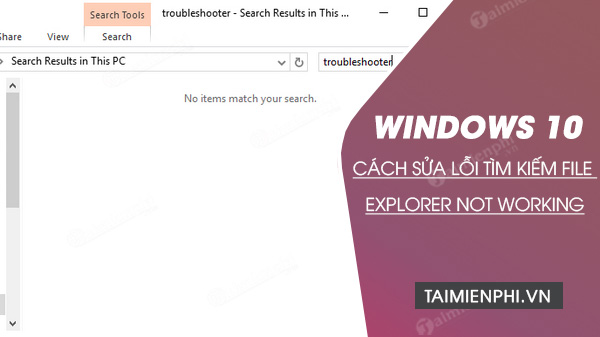
Check the search scope and query
- Open the folder that should contain the item. To search every local drive, select This PC, understanding that this is slower.
- Search for a distinctive part of the file name. Try an extension such as
*.docxor*.jpg. - Turn on View > Show > Hidden items if the file may be hidden.
- Sort the folder by Date modified to confirm the file exists and note its exact location.
File Explorer search and Start-menu app search are related but not identical. Failing to find Calculator or Word in Start does not prove that a folder search is broken.
Restart File Explorer
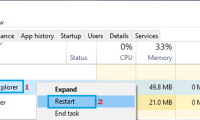
Press Ctrl + Shift + Esc, find Windows Explorer in Task Manager, and select Restart. If Task Manager itself will not open, use the alternative Task Manager shortcuts. Restart the PC if Explorer still does not respond.
Check indexed locations and rebuild the index
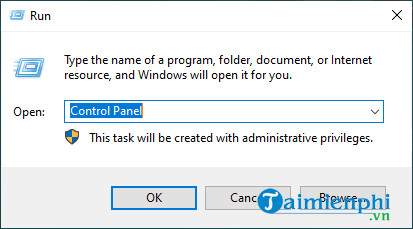
Search Windows Settings or Control Panel for Indexing Options. On older Windows 10 builds, the Run command shown below also opens it:
rundll32.exe shell32.dll,Control_RunDLL srchadmin.dll
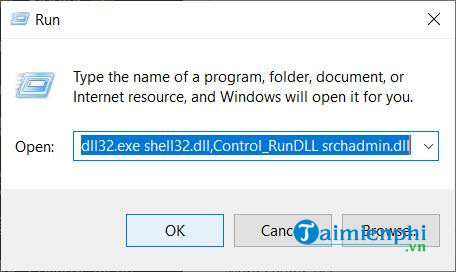
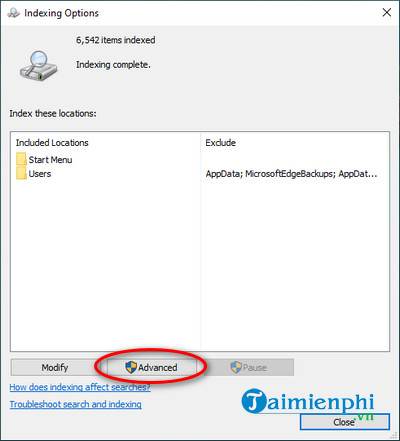
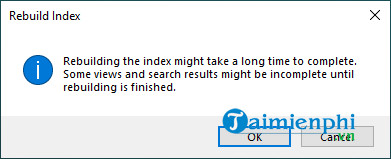
Select Modify and make sure the folder or library you need is included. Then choose Advanced > Rebuild. Rebuilding can take hours on a large library, and results may be incomplete until it finishes.
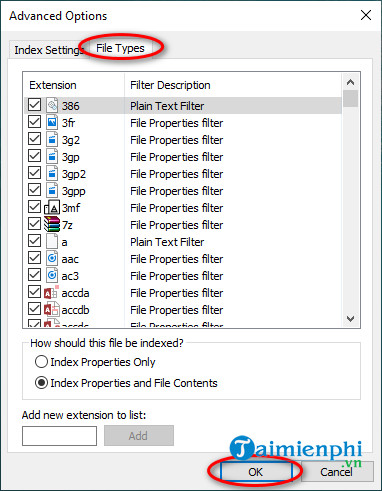
On the File Types tab, confirm that the relevant extension is indexed. Index Properties Only searches names and metadata; Index Properties and File Contents also searches text inside supported documents and uses more storage and processing time.
Make sure the Windows Search service is running
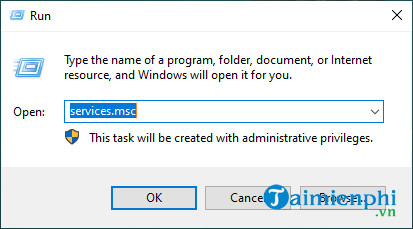
- Press Windows + R, enter
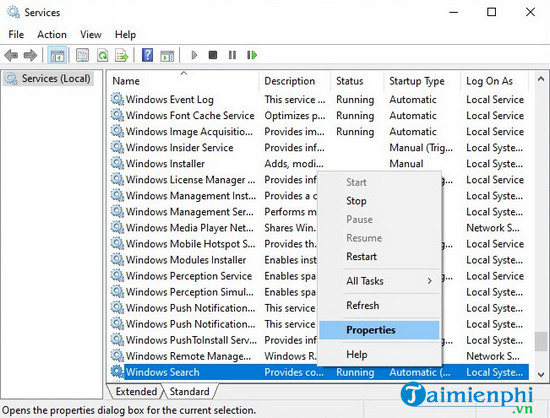
services.msc, and press Enter. - Open Windows Search.
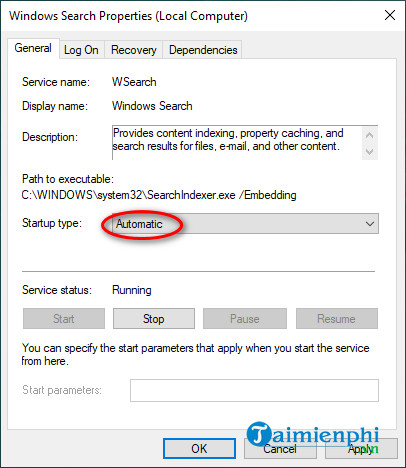
- Set the startup type to Automatic (Delayed Start) when available. If the service is stopped, select Start.
- Apply the change and restart Windows.
Do not use outdated Cortana advice
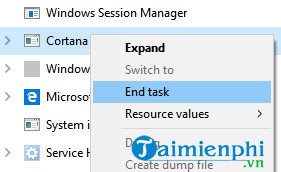
Early Windows 10 versions tied parts of search to the Cortana process, and ending that task could restart search temporarily. Cortana was later separated and retired, so this is not a current File Explorer repair step.
Check access only when one folder is affected
If you cannot open the folder or receive Access denied, search cannot read it either. Right-click the folder, open Properties > Security, and compare its permissions with the parent folder. On a work-managed PC, contact the administrator.
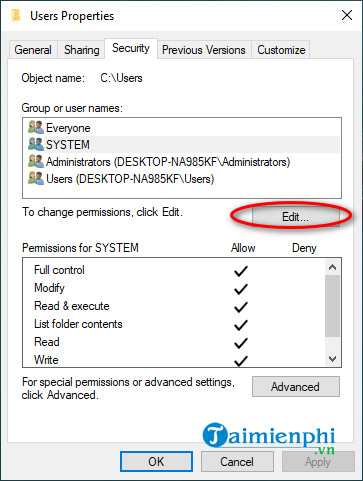
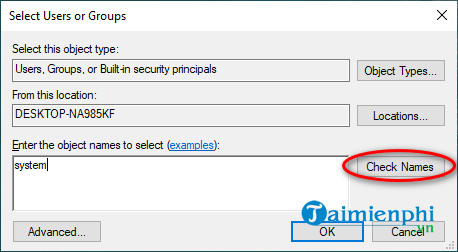
Do not add SYSTEM or grant Full control simply because a file is absent from results. Changing inherited permissions can expose private data or break applications. Correct only a verified permission fault and record the original access-control entries first.
Run the Search and Indexing troubleshooter
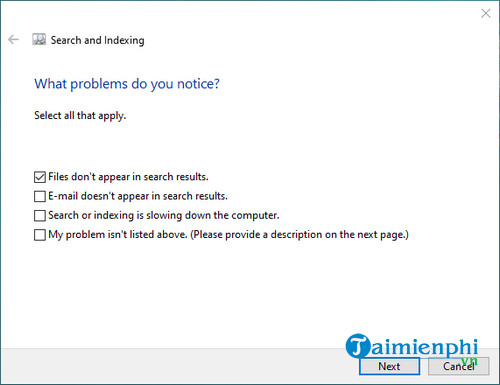
On Windows 11, open Settings > System > Troubleshoot > Other troubleshooters and look for Search and Indexing; newer builds may open the Get Help app. On older Windows 10 builds, the legacy Control Panel path was Troubleshooting > View all > Search and Indexing.
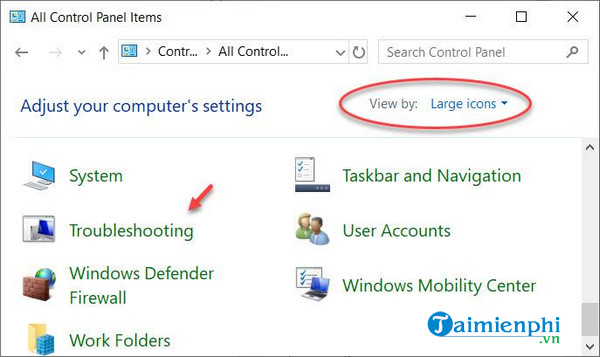
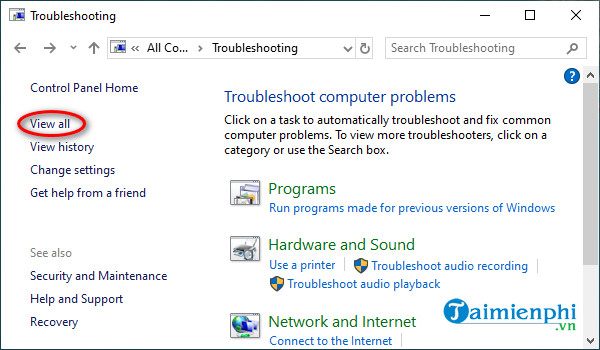
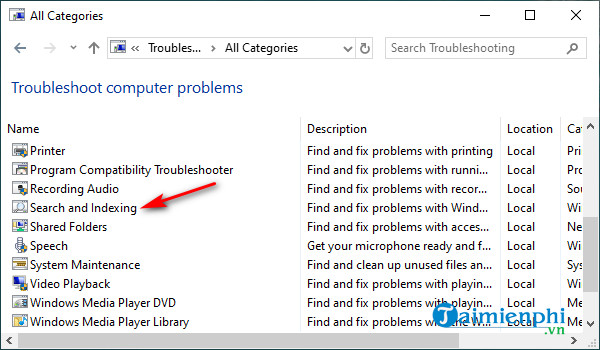
Select the symptom that matches, such as Files don't appear in search results, and complete the prompts.
Repair Windows files if every search fails
Open Terminal as administrator and run DISM.exe /Online /Cleanup-Image /RestoreHealth, followed by sfc /scannow. Restart after both complete. If only one user account is affected after a successful repair and index rebuild, test a new local account before resetting Windows.
For known files that search cannot locate, you can still browse directly using the techniques in How to Navigate the Windows Directory.
Related Articles
 5 File Explorer Search Tips You Need to Know8 minutes read
 Fix File Explorer Error Not Working on Windows 105 minutes read
 Fix File Explorer Not Responding Error in Windows 11/10: Complete Overview7 minutes read
 How to Fix Working on It on File Explorer Windows 104 minutes read
 How to Delete Folder and File Search History on File Explorer6 minutes read
 Warning File Explorer Error on Windows 10 Data Loss When Connected to Android5 minutes read
Reader Comments 0
Sign in with email or Google to join the discussion.