Table of Contents
A Windows blue screen is a crash, not a diagnosis. The stop code and any named driver on the screen are the best starting points. Photograph the message before the PC restarts, then note what changed immediately before the first crash—such as a driver, Windows update, application, RAM module, or storage device.
Start with the stop code
Search the exact code, such as MEMORY_MANAGEMENT or INACCESSIBLE_BOOT_DEVICE, rather than trying random fixes. TipsMake's BSOD code lookup explains common codes, and the Windows stop-code guide provides broader troubleshooting paths.
If Windows stays up long enough, open Reliability Monitor by searching for “View reliability history.” The timeline can reveal the driver, update, or application installed just before the failures began.
Undo a recent driver or software change
- If the crash began after a driver update, open Device Manager, open the device's properties, and use Roll Back Driver when available.
- If you installed hardware, shut down and disconnect it temporarily. For internal components, follow the manufacturer's handling guidance or ask a technician.
- Uninstall a recently added low-level utility, antivirus product, overclocking tool, or hardware-control application.
- Install drivers from Windows Update or the PC/component manufacturer's support site. Avoid automated third-party driver-download tools.
For a PC that will not remain stable in normal mode, use Safe Mode to remove or roll back the suspect change.
Repair Windows files
Open Terminal (Admin) and run these commands in order:
DISM.exe /Online /Cleanup-image /Restorehealth
sfc /scannow
Restart when both commands finish. These checks can repair damaged Windows components, but they will not fix failing RAM, storage, or another physical component.
Use a clean boot to test background software
A clean boot helps determine whether a non-Microsoft service or startup application is involved.
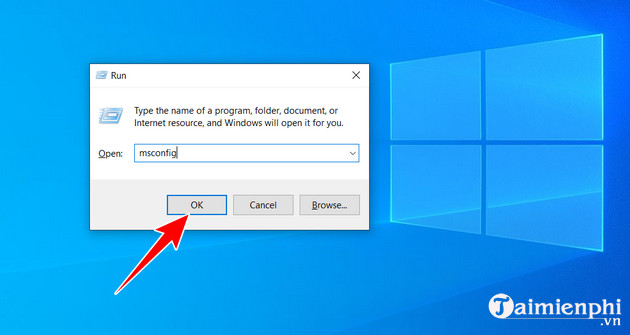
- Press Windows + R, enter
msconfig, and press Enter.
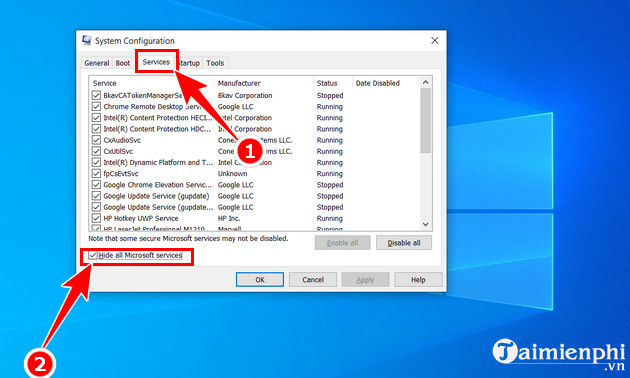
- On the Services tab, check Hide all Microsoft services before selecting Disable all. Do not skip this checkbox.
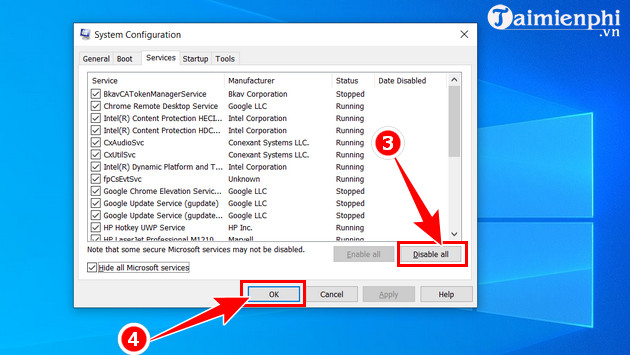
- Open Task Manager's Startup apps page and disable nonessential startup items. Restart and test.
- If the crashes stop, re-enable small groups of items until the problem returns. Restore normal startup when testing is complete.
Test memory, storage, and temperatures
- Memory: search for Windows Memory Diagnostic, choose to restart and test, then review the result. Repeated memory errors need hardware attention.
- Storage: check the SSD or hard-drive health with the manufacturer's diagnostic tool and back up important files immediately if it reports warnings.
- Temperature and power: clear blocked vents, return overclocked settings to defaults, and check that fans operate normally.
Do not switch the BIOS storage mode between AHCI, RAID, and IDE as a general blue-screen fix. Changing it without preparing Windows can create an INACCESSIBLE_BOOT_DEVICE error. Likewise, do not remove RAM or clean electrical contacts while the PC is connected to power.
If Windows cannot boot
After repeated failed starts, Windows normally opens the Recovery Environment. Try Startup Repair, uninstall the specific update that triggered the issue, or use System Restore if an appropriate restore point exists. A BitLocker-protected drive may require its recovery key.
Back up data before using Reset this PC or reinstalling Windows. A reinstall can repair operating-system corruption, but it cannot correct defective memory, a failing SSD, overheating, or unstable power.
Windows 7 and Windows 8 are no longer supported. The diagnostic principles still apply, but an internet-connected machine should be moved to a supported operating system rather than relying on legacy drivers and security software.
Related Articles
 Instructions to Fix Blue Screen Error on Computer15 minutes read
 Fix Blue Screen Error on Windows 10 Effectively4 minutes read
 Instructions on How to Fix Blue Screen Errors on Computers9 minutes read
 Who Wrote the 'Dead Blue Screen' Message for Windows?4 minutes read
 Prevent 'Blue Screen Errors' on Windows 82 minutes read
 How to Fix Thousands of Windows Computers Encountered the 'blue3 minutes read
Reader Comments 0
Sign in with email or Google to join the discussion.