Table of Contents
When Disk Management labels a drive Unknown, Not Initialized, the correct next step depends on the drive's history. Initialize a genuinely new, empty SSD or hard drive. If the drive previously contained files, stop: a damaged partition table, bad connection, or failing drive may be the real problem, and writing a new partition table can complicate recovery.
Before you initialize the disk
- Confirm the disk number, model, and capacity so you do not select the wrong device.
- For an external drive, try another cable, USB port, and powered enclosure. For an internal drive, shut the PC down before reseating data and power connections.
- If the disk clicks, repeatedly disconnects, reports the wrong capacity, or held important data, do not initialize or format it. Consider a data-recovery professional.
- If this is a brand-new blank disk, continue below.
Initializing writes a partition-table structure; it is not the same as formatting a volume. Nevertheless, it changes disk metadata and should not be used as a casual repair on a drive that once contained data.
Initialize a new SSD or hard drive
- Right-click Start and select Disk Management.
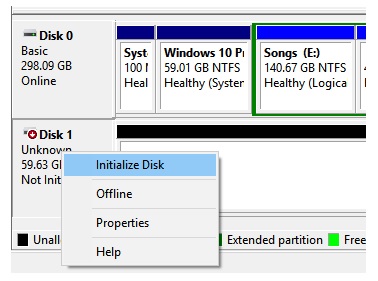
- In the lower pane, right-click the box on the left that says Disk n, Unknown, Not Initialized. Select Initialize Disk. Do not right-click the unallocated area on the right.
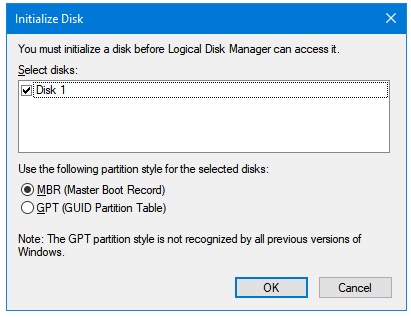
- Check that the correct disk number is selected.
- Choose a partition style:
- GPT is the normal choice for modern Windows PCs. It supports UEFI boot, large disks, and more partitions.
- MBR is mainly for compatibility with older BIOS-based systems or legacy devices. It is limited to about 2 TB of addressable space and four primary partitions.
- Select OK.
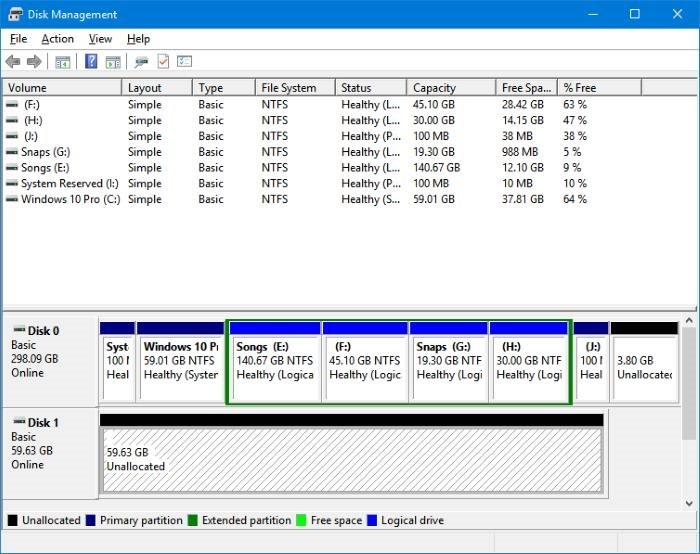
Create a volume so the drive appears in File Explorer
Initialization alone does not assign a drive letter. Right-click the Unallocated space, select New Simple Volume, and follow the wizard. For a Windows-only data drive, NTFS is usually appropriate; choose exFAT when broad device compatibility is more important. A quick format is suitable for a new healthy drive.
For more control over partitions, compare the built-in utility with the options in Windows drive-partition managers.
If Initialize Disk fails
- Incorrect function or I/O error: replace the cable or enclosure, try another port, and check the drive manufacturer's diagnostic tool.
- Access denied: open Disk Management or Terminal as an administrator and check whether organization policy restricts storage changes.
- Disk remains offline: right-click its disk label and choose Online, if available.
- Drive disappears: check Device Manager and firmware settings. Repeated disconnects often indicate hardware or power trouble.
Do not repeatedly initialize, clean, or format a suspect disk. If the hardware itself is unstable, follow the computer hardware troubleshooting checklist and prioritize recovering irreplaceable files.
Related Articles
 How to Fix Unknown Hard Error on Windows 105 minutes read
 How to Fix Unknown USB Device, Port Reset Failed Error on7 minutes read
 Fixed Unknown Error and Wmvcore.dll Is Missing on Camtasia4 minutes read
 How to Fix Error Code 43 for NVIDIA or Intel Gpus on Windows7 minutes read
 Steps to Fix Error 0xc004c003 When Activating Windows5 minutes read
 How to Activate a New Hard Drive on Windows6 minutes read
Reader Comments 0
Sign in with email or Google to join the discussion.