Table of Contents
A Windows black screen can come from a monitor or cable, the selected display output, a stalled graphics driver, Windows Explorer, a recent update, or failing hardware. Start with the least invasive checks and use the symptom—no power, no manufacturer logo, cursor visible, or failure after sign-in—to choose the next step.
Do not reinstall Windows, delete an account, or open a power supply as a first response. Those actions can lose data or create an electrical hazard without fixing the cause.
Identify where the black screen appears
| What you see | Most likely area to check first |
|---|---|
| No lights, fans, logo, or monitor message | Power outlet, charger/PSU, power button, or hardware |
| PC has power, but monitor says “No signal” | Display input, cable, GPU port, dock, or monitor |
| Manufacturer logo appears, then screen goes black | Windows, graphics driver, update, startup app, or storage |
| Black screen with a movable pointer | Windows Explorer or sign-in/startup process |
| Image works on an external monitor only | Laptop panel, backlight, cable, display mode, or panel driver |
1. Check power, cables, and the selected input
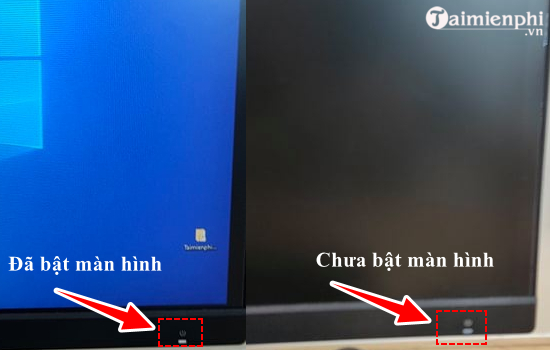
- Confirm the monitor is on and its power indicator appears. Try a known-working outlet.
- Select the monitor input that matches the cable: HDMI, DisplayPort, USB-C/Thunderbolt, DVI, or VGA.
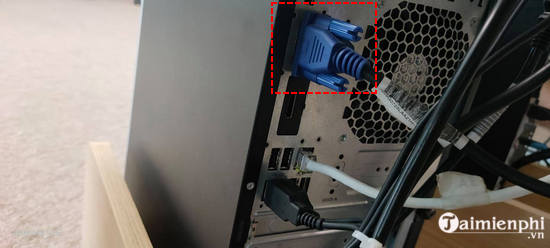
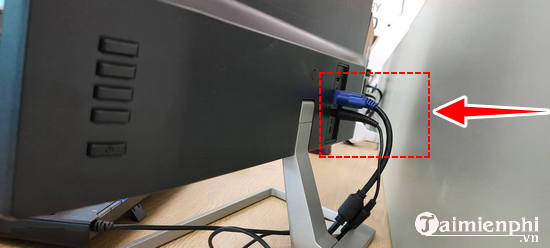
- Reconnect both ends of the video cable. Try a known-working cable or another monitor input.
- On a desktop with a separate graphics card, connect the monitor to that card's ports, not the motherboard port, unless the system is configured for integrated graphics.
- Disconnect docks, adapters, capture devices, and extra displays; test one monitor connected directly.
- For a laptop, connect its charger for at least several minutes and open any physical display or camera-related switches.
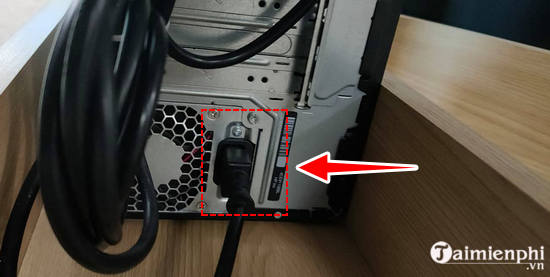
Safety: Do not open a desktop power-supply unit or probe mains voltage unless you are trained and equipped for electrical work. The PSU can retain dangerous energy after unplugging. If there are sparks, burning smells, liquid damage, or an unstable power connector, unplug the computer and use a qualified repair technician.
2. Wake the display and reset the graphics driver
- Press a key, move the mouse, and briefly press the power button once. Do not hold it unless you intentionally need a forced shutdown.
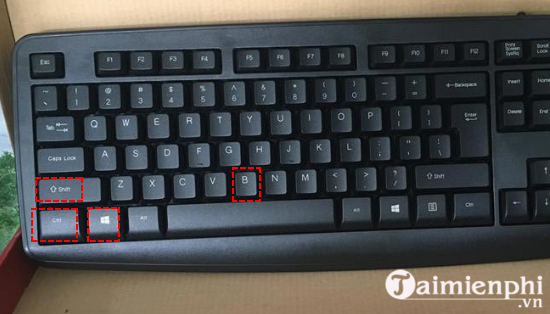
- Press Windows+Ctrl+Shift+B. Windows may beep and the display may flash while the graphics driver resets.
- Press Windows+P, wait a moment, then press an arrow key and Enter to cycle away from an incorrect external-display mode.
- Press Ctrl+Alt+Delete. If the security screen appears, Windows is running and the problem is probably above the hardware/firmware layer.
3. If the screen went dark because of power settings
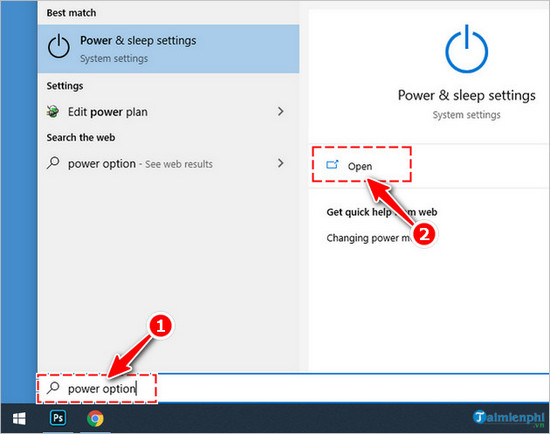
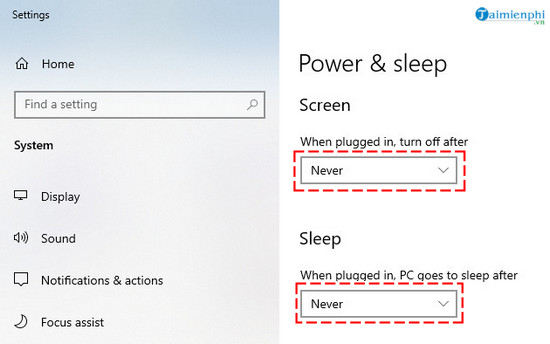
If the display returns immediately after input, review Settings > System > Power & battery > Screen and sleep. Choose practical timeouts rather than setting everything to Never, which wastes energy and does not fix a screen that fails to wake.
4. Restart Windows Explorer when a pointer is visible
- Press Ctrl+Shift+Esc to open Task Manager. If necessary, use Ctrl+Alt+Delete and choose Task Manager.
- Find Windows Explorer, right-click it, and select Restart.
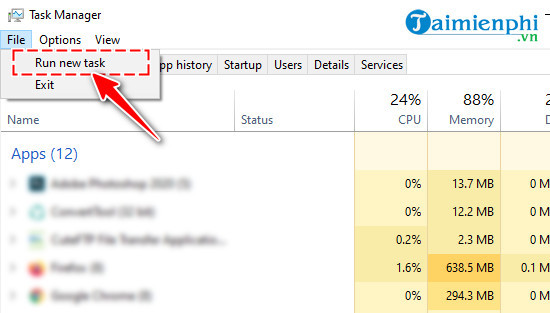
- If it is absent, choose Run new task, enter explorer.exe, and press Enter.
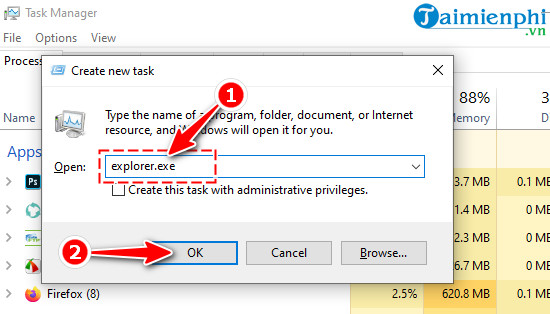
If the desktop returns only temporarily, note what changed just before the failure. Remove an untrusted startup app, scan with Windows Security, and continue with Safe Mode. A missing Explorer process does not by itself prove malware.
5. Enter Safe Mode and repair the display driver
If Windows reaches a logo but not a usable desktop, open Windows Recovery Environment (WinRE). After repeated failed starts Windows may enter Automatic Repair; alternatively use a recovery drive or official installation media and select Repair your computer. Keep the BitLocker recovery key available.
- In WinRE, choose Troubleshoot > Advanced options > Startup Settings > Restart.
- Choose Safe Mode or Safe Mode with Networking.
- Open Device Manager and expand Display adapters.
- If the problem began immediately after a driver update, open the GPU properties and use Roll Back Driver when available. Otherwise install a supported driver from Windows Update or the PC/GPU manufacturer.
- Restart normally and test before changing anything else.
Microsoft's blank-screen troubleshooting guide recommends hardware checks, Safe Mode, graphics-driver repair, Explorer restart, and System Restore.
6. Undo the specific recent change
- Recent Windows update: In WinRE, choose Advanced options > Uninstall Updates and remove the latest quality update first. Do not disable Windows Update permanently.
- Recent app or startup service: uninstall or disable only the item added just before the problem.
- Recent system change: use System Restore to choose a restore point from before the black screen. System Restore changes system files and settings but is designed not to delete personal files.
- Boot failure with no clear cause: try Startup Repair from WinRE.
Microsoft documents these recovery tools in its Windows Recovery Environment guide. Our Windows not-booting guide provides another recovery walkthrough.
7. Test Fast Startup only for a cold-boot pattern
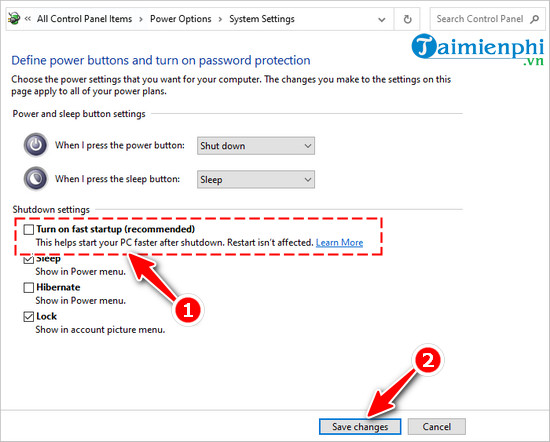
If the black screen happens after Shut down but not after Restart, temporarily disable Fast Startup:
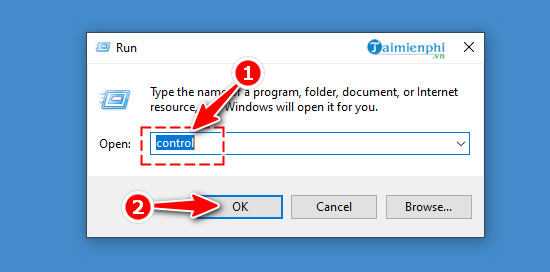
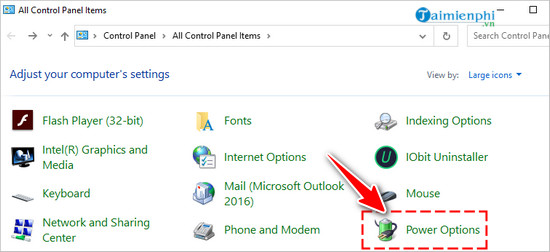
- Press Windows+R, enter control, and open Power Options.
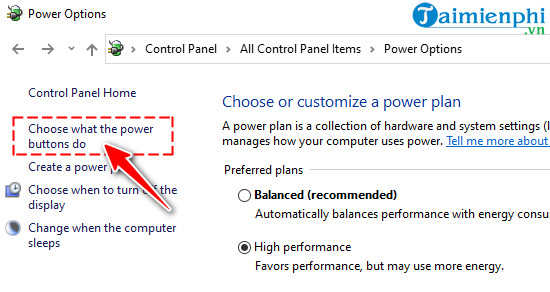
- Select Choose what the power buttons do.
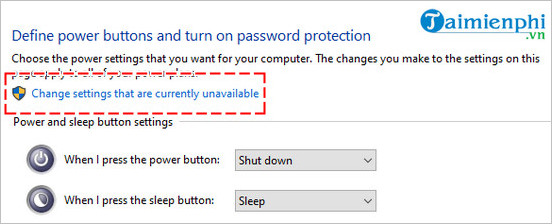
- Select Change settings that are currently unavailable.
- Clear Turn on fast startup, save, shut down fully, and test.
8. Check hardware without risking further damage
- Test another monitor and cable. On a laptop, compare the internal and external display.
- If the manufacturer logo never appears, Windows repair tools are unlikely to help; check firmware/hardware.
- Listen for diagnostic beep codes and note motherboard or laptop status LEDs. Look up the exact code in the manufacturer's manual.
- Return recent RAM, GPU, dock, or cable changes to the previous known-working configuration.
- If qualified to service a desktop, power it off, unplug it, discharge static safely, and follow the manufacturer's service manual before reseating RAM or a GPU. Laptop or sealed-device work is better left to an authorized technician.
- Repeated clicks from a hard drive, disappearing storage, overheating shutdowns, graphical artifacts, or a burning smell require immediate shutdown and hardware diagnosis.
Do not open a hard drive, and do not rely on touching it to prove it is healthy. Prioritize a data backup or professional recovery if storage failure is suspected.
9. Repair Windows while preserving data
If the display works in Safe Mode and hardware checks pass, run Windows Security, remove the specific faulty driver/app, and use System Restore. When Windows 11 can still open Settings, System > Recovery > Fix problems using Windows Update > Reinstall now can reinstall the current Windows version while preserving apps, files, and settings on supported systems. Review Microsoft's repair reinstall instructions.
Before Reset this PC or a clean installation, copy important files to another drive, verify the backup, save the BitLocker key, and record app licenses. “Keep my files” removes apps and settings and is not a substitute for a backup. Reinstalling Windows will not repair failed RAM, a defective GPU, a bad display, or a dying SSD.
Obsolete fixes from older Windows versions to avoid
The original article included three risky detours that do not belong in a modern black-screen workflow:
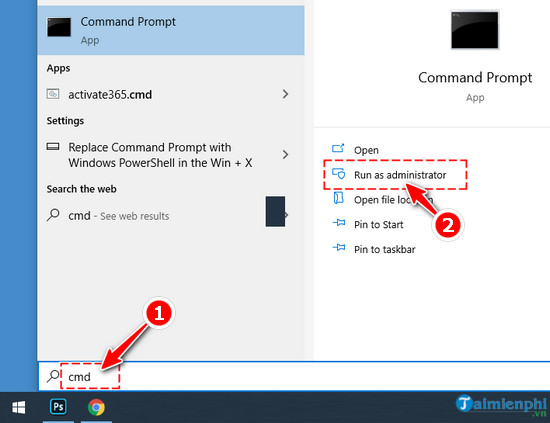
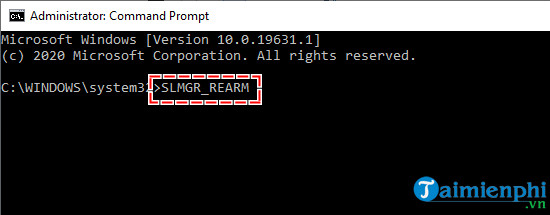
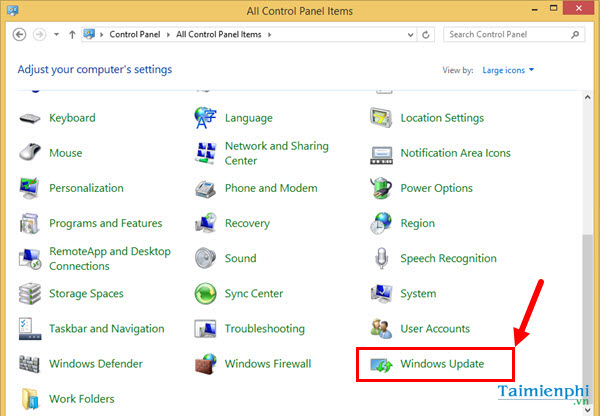
- Activation rearm commands: Windows activation warnings do not normally cause a modern Windows 10/11 screen to go completely black. Do not use slmgr /rearm as a display fix or to bypass licensing.
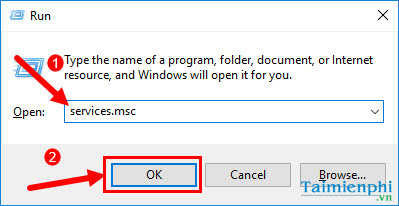
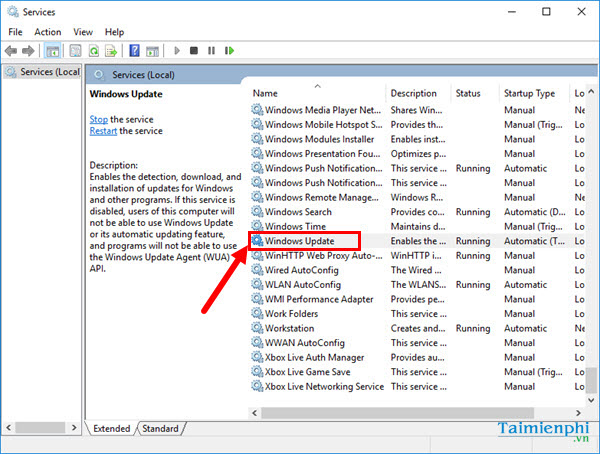
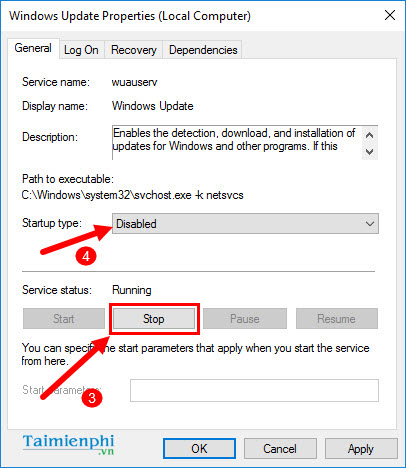
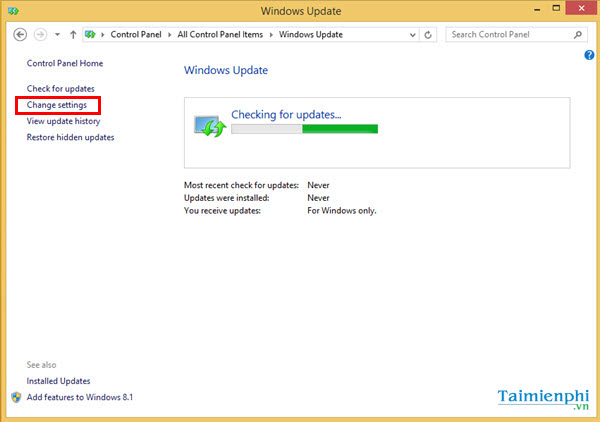
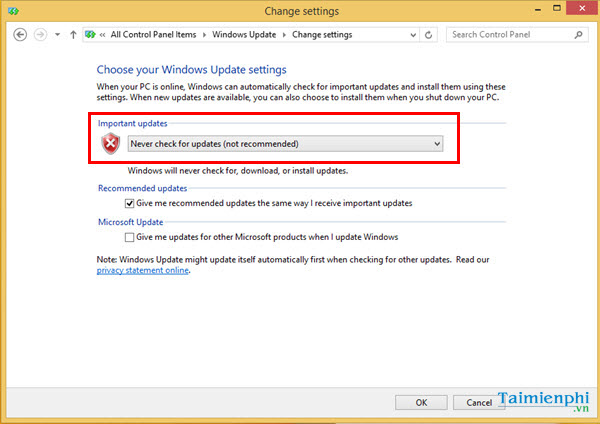
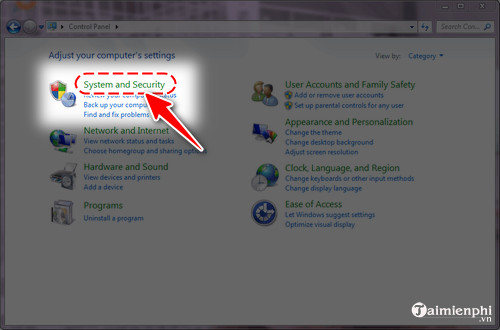
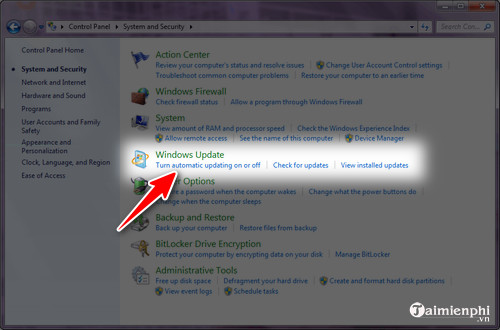
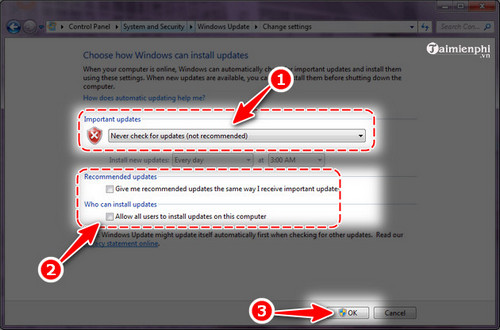
- Disabling Windows Update: turning off the Windows Update service removes security fixes and does not reliably undo the update that caused a problem. Uninstall the specific recent update in WinRE instead.
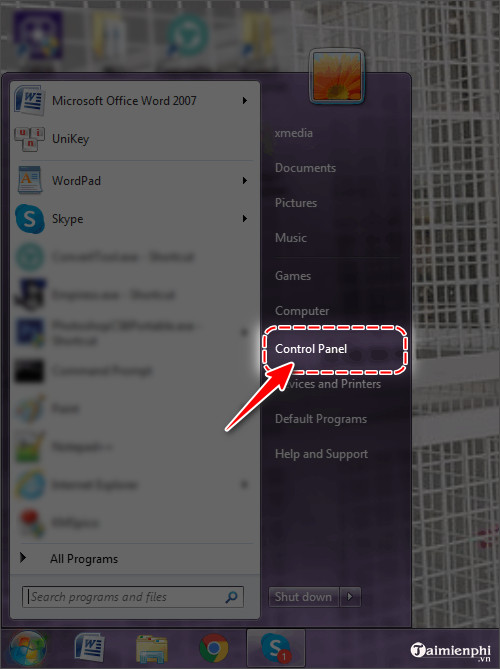
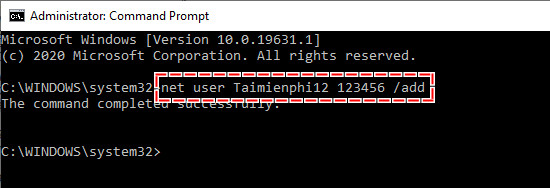
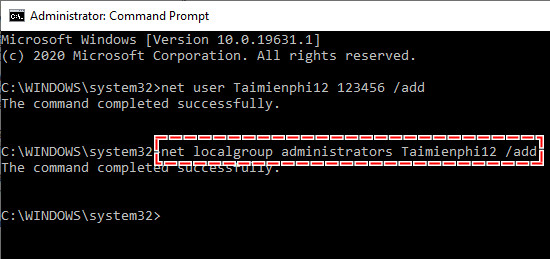
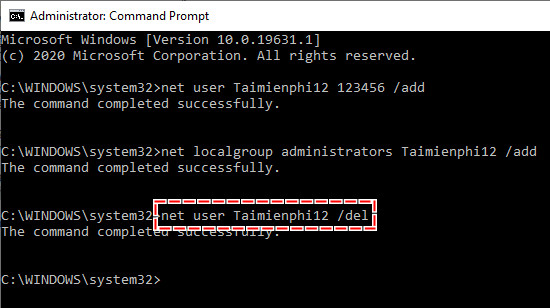
- Deleting the user account: creating an administrator with a command and deleting the old profile can orphan files, encryption keys, and settings. Test a new account only after backing up; do not delete the old one until every required file is migrated and verified.
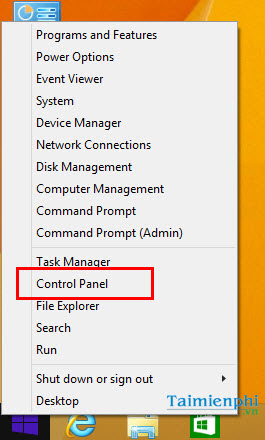
The screenshots below are preserved for historical context, not as recommended instructions.
Older Windows Update disable screens
Older command-line user-account screens
When to stop and get repair help
Seek hardware service when there is no manufacturer logo on any known-working display, the system repeatedly shuts off, liquid or electrical damage is possible, or memory/storage diagnostics report errors. If the drive may be failing and the data matters, minimize power cycles and discuss data recovery before authorizing a reinstall or drive replacement.
For failures that show a stop code or unexpected restart rather than a continuously blank display, use our Windows stop-code reference so the symptom is diagnosed correctly.
Related Articles
 Fix Windows 8 Error When Encountering a Black Screen4 minutes read
 How to Fix a Black Login Screen on Windows 77 minutes read
 How to Fix Black Screen Error When Starting Windows8 minutes read
 Simple Way to Clean and Preserve Jewelry: Cleaning Jewelry5 minutes read
 Summary of Some Ways to Fix Black Screen of Windows 1014 minutes read
 A Series of Windows 11 Users Have Black Screen Errors3 minutes read
Reader Comments 0
Sign in with email or Google to join the discussion.