Table of Contents
“Windows can't be installed on Drive 0 Partition 1” is only the first line of a Windows Setup warning. Select Show details or read the text below the partition list to find the real cause—such as a GPT/MBR mismatch, an unsupported partition type, insufficient space, storage-controller access, or selecting a reserved partition.
Do not run DiskPart's clean command until you have a verified backup and have identified the target disk by capacity and model. The command erases the partition table for the selected physical disk. “Disk 0” is not guaranteed to be the intended Windows drive, and the number can change when USB or other storage devices are connected.
Before changing any partition
- Back up every file you need from the target drive. A clean installation removes apps, settings, and data.
- Make sure you have the recovery key for any BitLocker-encrypted drive.
- Use installation media created from Microsoft's official Windows download tools.
- Disconnect nonessential external drives. If practical, disconnect secondary internal data drives so Windows Setup cannot place boot files on the wrong disk.
- In firmware settings, use UEFI mode for a modern installation. Windows 11 expects supported UEFI/Secure Boot hardware and a GPT system disk.
- Record the capacity and, if visible, model of the intended SSD/HDD before deleting anything.
You do not need two separate physical drives. One SSD can contain Windows and data partitions, but every partition on that disk is at risk if you choose the destructive clean-install method.
Match the error details to the fix
| Setup detail | Likely cause | Recommended response |
|---|---|---|
| Selected disk is not of the GPT partition style | Installer was booted in UEFI mode, but the disk uses MBR | Keep UEFI and convert/reformat the target disk as GPT |
| Selected disk has a GPT partition style | Installer was booted in legacy BIOS/CSM mode | Reboot the USB using its UEFI: boot-menu entry |
| Partition is reserved or unsupported | Recovery, EFI, MSR, OEM, or another non-install partition was selected | Select the main OS partition or perform a verified clean install |
| Not enough free space | Partition is too small or contains data | Back up data, delete or resize partitions, or choose a larger disk |
| Storage driver/controller error | Setup cannot access the SSD correctly | Check BIOS storage mode and load the PC/vendor storage driver |
Microsoft's MBR/GPT installation guidance explains why the firmware boot mode and disk partition style must agree.
Method 1: Let Windows Setup create the partitions
This is the preferred method for a true clean installation. It is destructive to the selected physical drive.
- Boot the installer using the UEFI entry for the USB drive.
- At Where do you want to install Windows?, identify the intended disk by capacity. Do not rely on the disk number alone.
- Delete each partition on that target disk only until it becomes one entry named Unallocated Space.
- Leave every other disk untouched.
- Select the target disk's unallocated space and click Next. Windows Setup will create the required EFI, Microsoft Reserved, recovery, and OS partitions automatically.
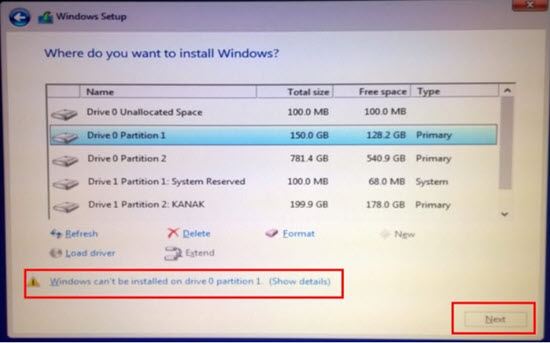
Microsoft's clean-install instructions use this unallocated-space workflow. If you need a complete installation walkthrough, see our Windows USB installation guide, while remembering that Windows 10 reached end of support in 2025 for most editions.
Method 2: Use DiskPart only after verifying the target
Use this when the graphical installer cannot delete or convert the target disk. The clean command below permanently removes all partitions from the selected disk.
- At Windows Setup, press Shift+F10 (or Shift+Fn+F10 on some laptops) to open Command Prompt.
- Enter diskpart, then list disk.
- Compare capacities carefully. Enter select disk N, replacing N with the verified target.
- Enter detail disk. Stop if the displayed model or volumes do not match the intended Windows drive.
- Only after verification, enter clean.
- For a UEFI installation, enter convert gpt.
- Enter exit to leave DiskPart, then exit again to close Command Prompt.
- Back in Setup, select Refresh, choose the unallocated space, and click Next.
diskpart
list disk
select disk N
detail disk
clean
convert gpt
exit
exit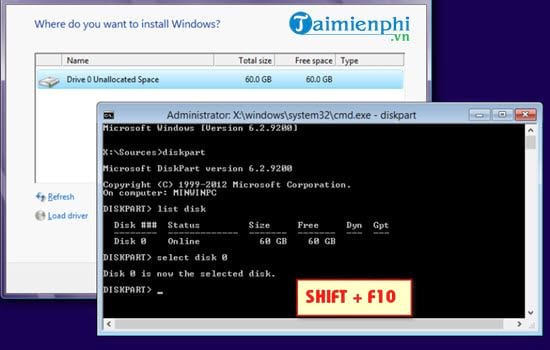
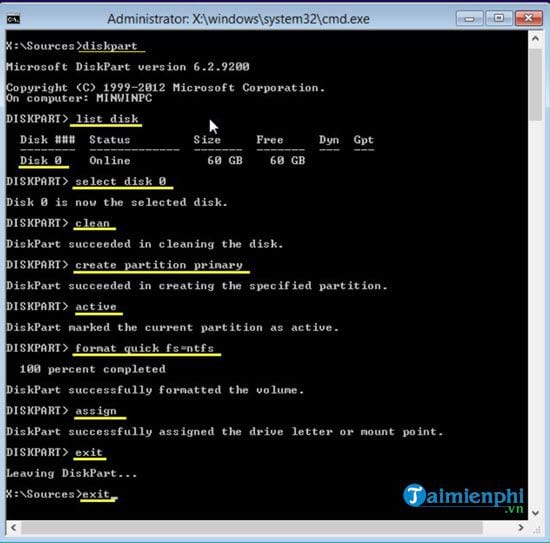
Do not copy the old sequence create partition primary / active / format / assign for a modern UEFI clean install. The active flag belongs to the legacy MBR boot process, and manually creating one NTFS partition can prevent Setup from building the correct UEFI layout. Selecting unallocated GPT space lets Windows create the right partitions.
Preserve data when Windows is already installed
If the disk contains a working Windows installation and you are changing an existing machine from legacy BIOS/MBR to UEFI/GPT, do not use clean. Microsoft's MBR2GPT can convert eligible system disks without deleting data, but it has prerequisites and must be followed by the correct firmware change. Back up first and follow the official validation and conversion commands exactly.
If the disk is only a data disk, cancel Setup and use a supported Windows environment to back up or move the data before changing its partition style.
If the disk does not appear or the error persists
- Check whether the SSD is detected in UEFI/BIOS.
- On systems using Intel RST/VMD, RAID, or a vendor storage controller, obtain the exact storage driver from the PC manufacturer and use Load driver in Setup.
- Recreate the USB installer if files may be damaged, and use the UEFI boot entry.
- Update system firmware only with the manufacturer's instructions and stable power.
- Run the SSD manufacturer's diagnostics if the disk disappears, reports I/O errors, or cannot retain partitions.
Our summary of common Windows installation errors covers related driver, media, and compatibility failures. Stop rather than experimenting with destructive commands if you cannot positively identify the target disk.
Related Articles
 Fix the Error 'Windows Cannot Be Installed to a Disk'9 minutes read
 Fix 'the Driver Being Installed Is Not Validated' Error on Windows5 minutes read
 How to Fix Windows Cannot Be Installed to This Disk. the Selected Disk5 minutes read
 How to Fix 'the Disk Selected Has an MBR Partition Table' When3 minutes read
 Summary of Driver Error Codes on Windows and How to Fix Them24 minutes read
 Fix Error the Selected Disk Has an MBR Partition Table When7 minutes read
Reader Comments 0
Sign in with email or Google to join the discussion.