Table of Contents
A black screen that appears after Windows starts is usually caused by a stalled desktop process, an incorrect display output, a graphics driver, or a recent update. Start with the keyboard shortcuts below, then use Safe Mode if the desktop still will not load. If the computer shows no power or manufacturer logo, troubleshoot the monitor, cable, and hardware first.
Try these quick display and desktop fixes
- Press Windows + Ctrl + Shift + B to reset the graphics driver. A beep or brief screen flicker is normal.
- Press Windows + P, then press P and Enter to cycle the projection mode. This helps when Windows is sending the picture to a disconnected screen.
- Press Ctrl + Alt + Delete. If the security screen appears, open Task Manager.
Check that the display cable is fully seated and that the monitor is using the correct input. On a desktop with a separate graphics card, the monitor should normally be connected to that card rather than the motherboard video port.
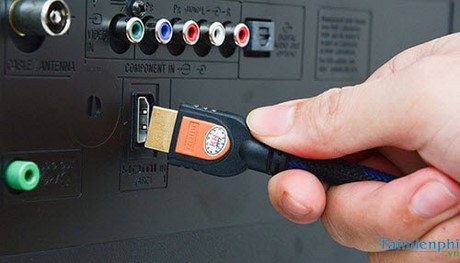
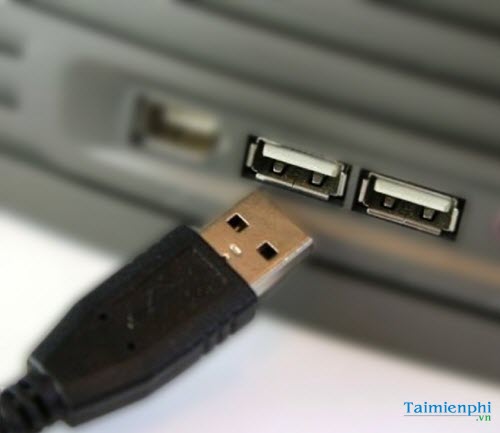
Disconnect docks, external drives, USB accessories, and extra monitors, leaving only the keyboard, mouse, and primary display. Restart and reconnect devices one at a time.
Restart Windows Explorer when you can see a cursor
If Task Manager opens, select More details, find Windows Explorer, and choose Restart. If it is missing, select File > Run new task, type explorer.exe, and press Enter. A desktop that returns after this step points to a sign-in or startup-process problem rather than a dead display.
Enter Safe Mode
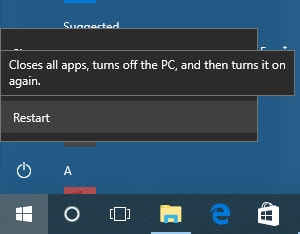
From the sign-in screen, hold Shift while selecting Power > Restart. If no usable screen appears, interrupt startup only as needed to reach the Windows Recovery Environment. Then select Troubleshoot > Advanced options > Startup Settings > Restart and press 5 or F5 for Safe Mode with Networking.
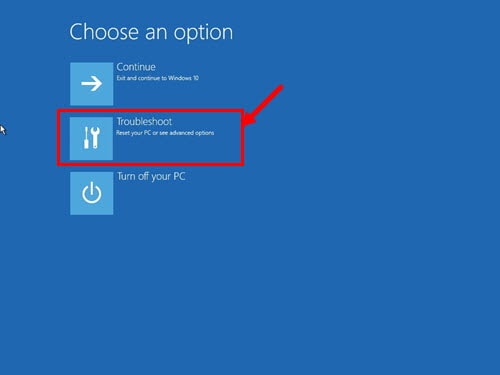
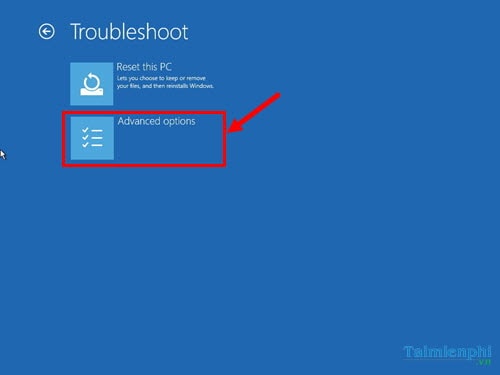
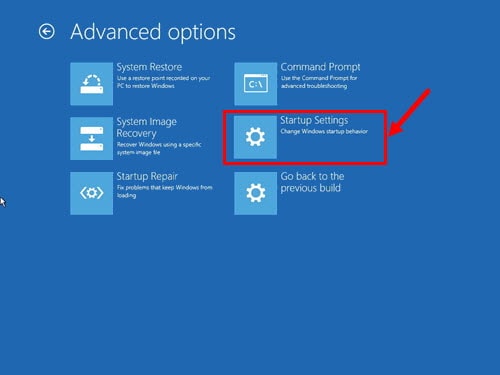
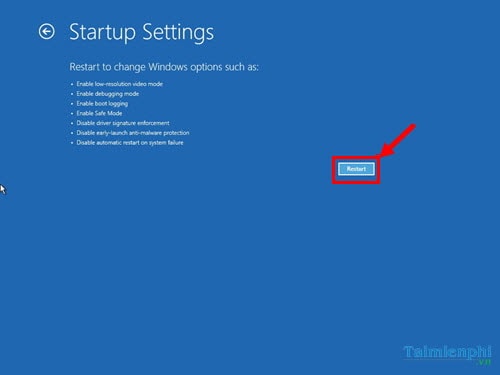
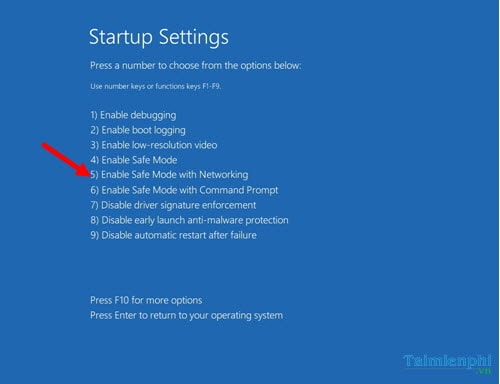
If Safe Mode also remains black, use Startup Repair or System Restore from Advanced options. The guide to fixing a Windows PC that will not boot explains the recovery choices in more detail.
Roll back or reinstall the graphics driver
In Safe Mode, right-click Start and open Device Manager. Expand Display adapters, open the graphics device, and select the Driver tab.
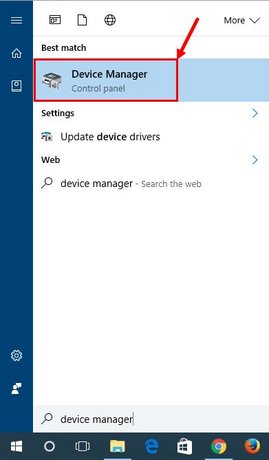
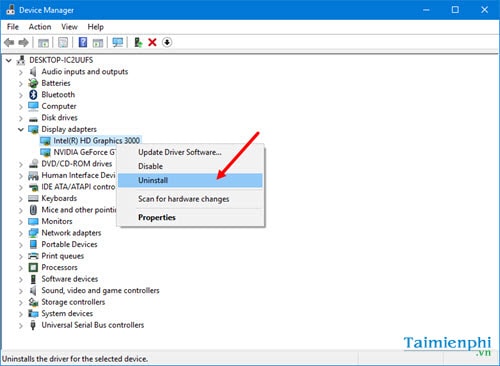
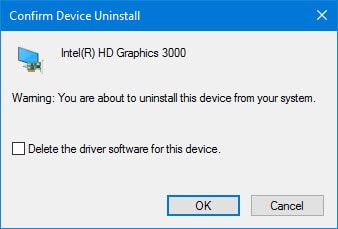
If the problem began immediately after a driver update, choose Roll Back Driver. If rollback is unavailable, choose Uninstall device, restart, and then install a compatible driver from Windows Update or the computer or GPU manufacturer's support page. Avoid third-party driver-download sites.
Test Fast Startup
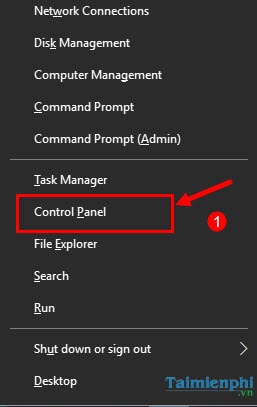
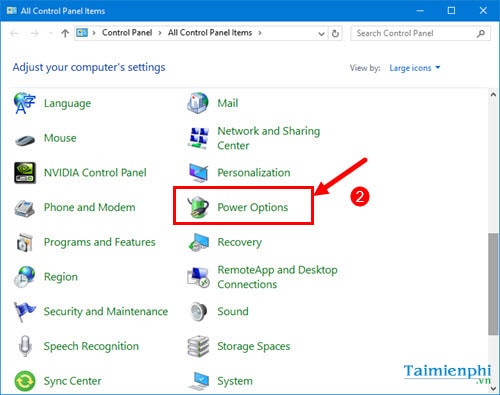
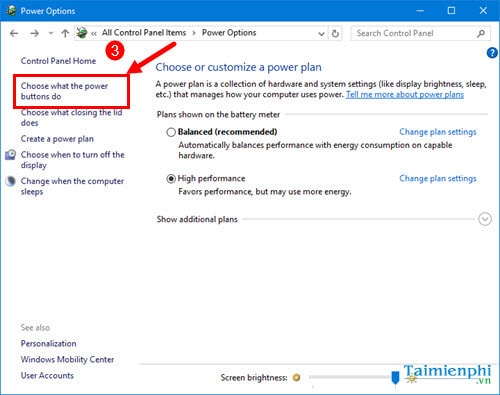
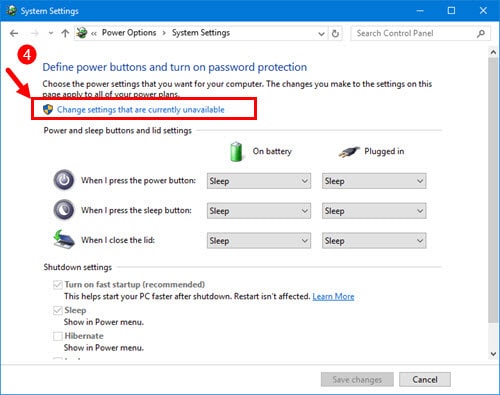
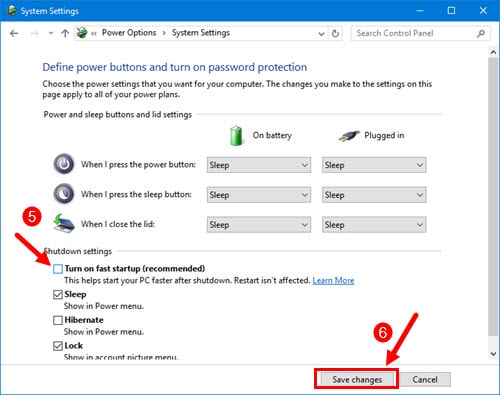
Fast Startup is relevant mainly when the black screen occurs after shutting down and powering on, but not after choosing Restart. Open Control Panel > Hardware and Sound > Power Options > Choose what the power buttons do, select Change settings that are currently unavailable, clear Turn on fast startup, and save.
Check whether it is a contrast theme
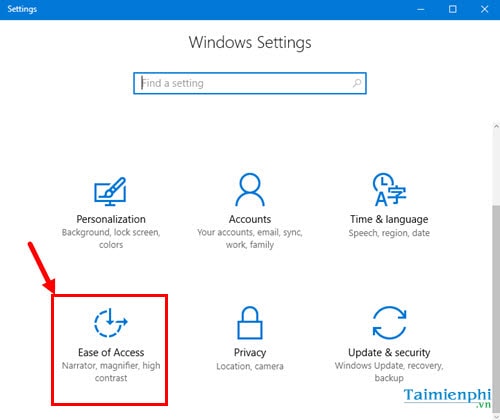
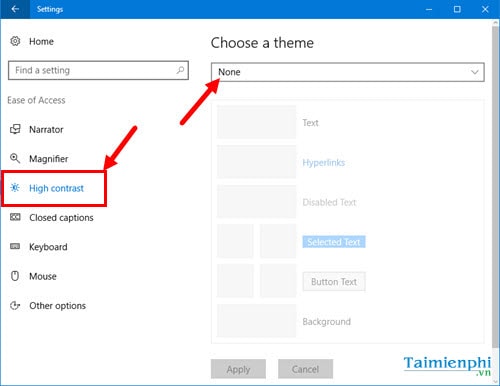
A high-contrast theme can make the desktop look mostly black, but it does not usually hide the entire display. If the screen is readable and only the colors look wrong, open Settings > Accessibility > Contrast themes and choose None. Older Windows 10 builds may label the page High contrast.
Remove the latest update or test another account
If the black screen started directly after an update, open Windows Recovery Environment and choose Troubleshoot > Advanced options > Uninstall Updates. Remove the latest quality update first. Do not permanently disable Windows Update.
If only one user account is affected, create a temporary local account from Settings > Accounts > Other users and sign in to test it. Keep the original account and its files until you have confirmed the cause and backed up important data.
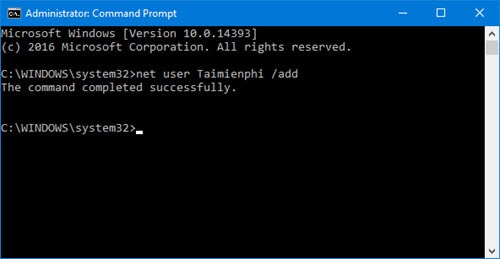
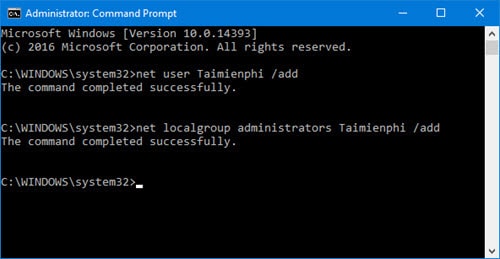
Older command-line account test shown in the original guide
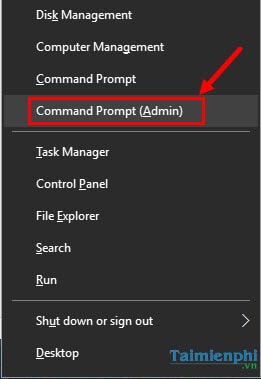
In an elevated Command Prompt, net user TestAccount * /add creates a local account and prompts securely for a password. Use a temporary account name, do not delete the original profile, and remove the test account after diagnosis.
Use recovery options if the screen stays black
Try System Restore from Advanced options when a suitable restore point exists. If Windows starts but remains unreliable, a repair reinstall can preserve personal files and installed apps; back up important data first. Microsoft's blank-screen troubleshooting page lists the current recovery sequence. For physical faults or a machine that never shows a startup logo, see how to diagnose and repair a computer.
Windows 10 note: Microsoft ended general support for Windows 10 on October 14, 2025. On compatible hardware, moving to a supported Windows release is safer than relying on an unpatched installation.
Related Articles
 Fix Windows 8 Error When Encountering a Black Screen4 minutes read
 Summary of Some Ways to Fix Black Screen of Windows 1014 minutes read
 How to Fix Black Screen Error When Starting Windows8 minutes read
 How to Fix Windows 11 Black Screen Error10 minutes read
 How to Fix Black Screen Error After Adjusting Display Settings in Windows6 minutes read
 How to Fix, Fix Windows 10 Black Screen Error5 minutes read
Reader Comments 0
Sign in with email or Google to join the discussion.