Table of Contents
Automatic rotation works only on tablets and convertible PCs that include an orientation sensor. If a detachable keyboard, dock, or external monitor makes Windows treat the device as a laptop, Rotation lock may be unavailable by design. Disconnect those accessories and fold or detach the keyboard before changing drivers or the Registry.
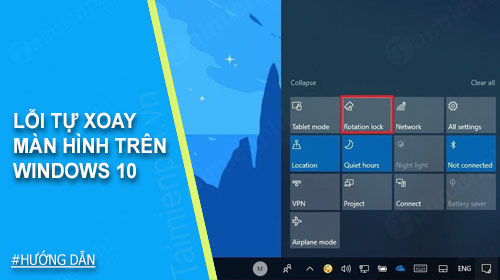
Unlock rotation and test tablet mode
- Disconnect the dock, detachable keyboard, and external display.
- Rotate the device into tablet posture according to its hinge or keyboard design.
- Press Windows + A to open Action Center on Windows 10, select Expand if necessary, and turn Rotation lock off.
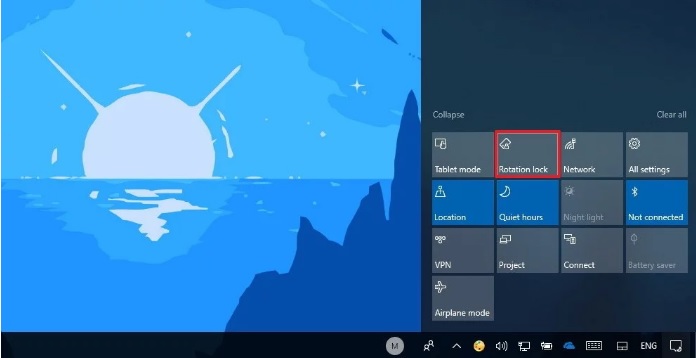
You can also open Settings > System > Display and check Display orientation. If you only need a fixed portrait or landscape layout, follow the screen-orientation settings guide. A desktop monitor without an orientation sensor will not rotate automatically.
Restart and check the sensor driver
Restart the device with the keyboard and dock still disconnected. Then right-click Start and open Device Manager. Look under Sensors for an orientation, accelerometer, or sensor-hub device.
- If the device is disabled, enable it.
- If it has a warning icon, open Properties > Driver. Use Roll Back Driver if rotation failed after an update.
- Otherwise, check Windows Update and the PC manufacturer's support page for chipset, sensor-hub, and graphics drivers that match the exact model.
Microsoft has retired the old downloadable Sensors Troubleshooter used by early Windows 10 guides, so do not download an unofficial copy. Use the current Device Manager driver procedure instead.
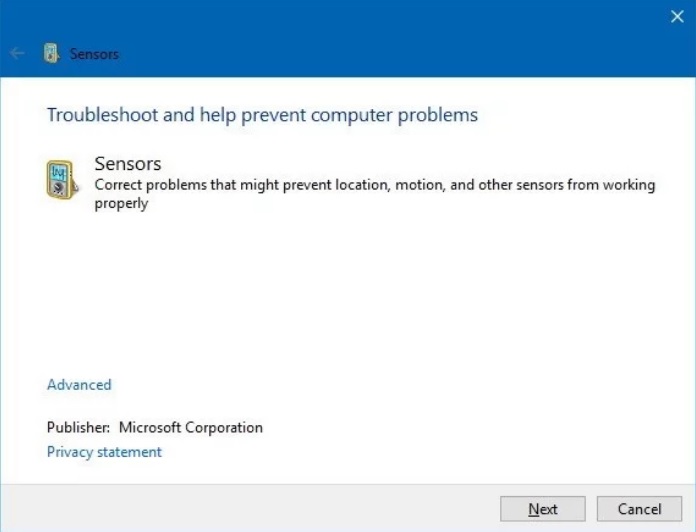
Legacy Registry check for a greyed-out Rotation lock
Use this section only when the manufacturer confirms that the PC has an orientation sensor, the correct drivers are installed, and rotation remains disabled. Create a restore point or export the key first.
- Press Windows + R, type
regedit, and press Enter. - Open:
HKEY_LOCAL_MACHINESOFTWAREMicrosoftWindowsCurrentVersionAutoRotation - Check these DWORD values:
Enable=1LastOrientation=0SensorPresent=1only when the supported sensor is actually presentSlateEnable=1
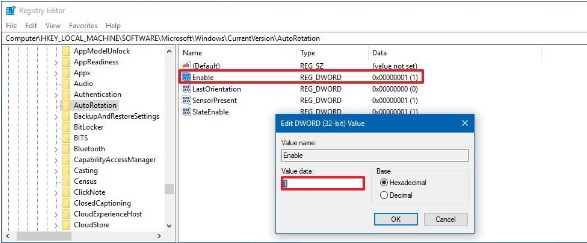
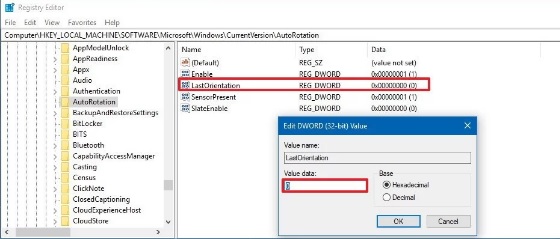
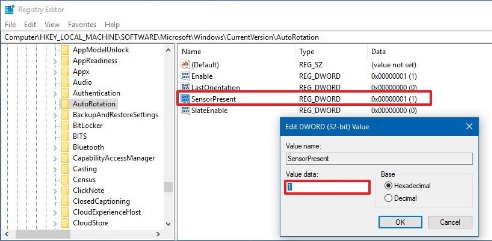
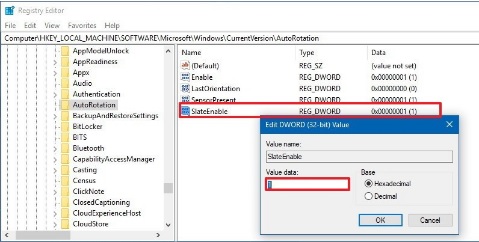
Do not create SensorPresent simply to make an unsupported PC appear to have a sensor. If a listed value already exists but differs, record its original data before editing, restart Windows, and test. Organization-managed devices may enforce these settings through policy.
If the picture is sideways rather than failing to rotate
Set the correct Display orientation manually and confirm the change. The sideways-screen troubleshooting guide covers accidental orientation changes on laptops and desktops.
Windows 10 note: General support ended on October 14, 2025. A supported Windows version and current manufacturer drivers are the best long-term fix when the device is eligible.
Related Articles
 How to Turn Off Automatic Screen Rotation in Windows 104 minutes read
 How to Set YouTube to Auto-rotate on Samsung Phones3 minutes read
 How to Rotate the Computer Screen, Laptop on Windows 10, Windows 72 minutes read
 How to Rotate Windows 10, 8, 7 Computer Screen Quickly3 minutes read
 Share the Solution When Facebook Cannot Rotate the Screen: What to Know7 minutes read
 4 Extremely Simple Ways to Rotate the Computer Screen to Your Liking: Expert9 minutes read
Reader Comments 0
Sign in with email or Google to join the discussion.