Table of Contents
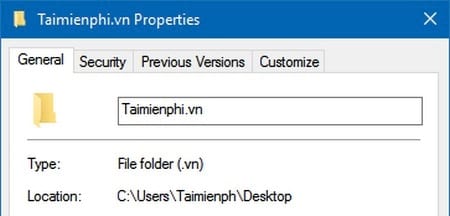
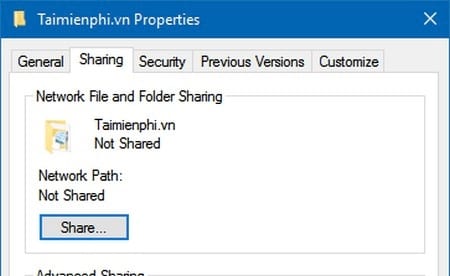
The Sharing tab normally appears when you open the properties of a local folder. If it is missing, make sure you selected a real folder, check the Windows Server service, and only then repair the Registry handler described below.
Check the folder and the Server service first
- Right-click a normal folder on a local NTFS drive and select Properties. The tab may not appear for a shortcut, a virtual library, some system locations, or an individual file.
- Press Windows + R, enter
services.msc, and press Enter. - Open Server. If it is disabled, set its startup type to Automatic and start it. This service supports file and printer sharing.
- Restart File Explorer or Windows, then check the folder again.
If the tab is present but other computers cannot reach the share, this is a network configuration issue rather than a missing-tab issue. Follow the Windows folder-sharing setup to enable Network Discovery and File and Printer Sharing on the appropriate private network.
Restore the Sharing property-sheet handler
This method edits a Windows shell registration. Sign in with an administrator account and export the affected key or create a restore point before continuing. The Windows Registry guide explains the backup options.
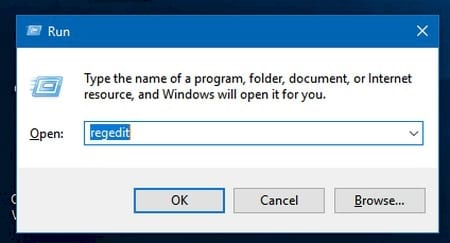
- Press Windows + R, type
regedit, and press Enter. Approve the User Account Control prompt.
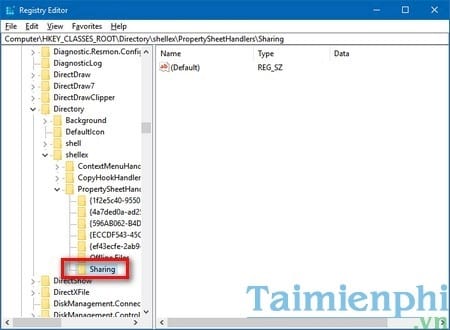
- Navigate to:
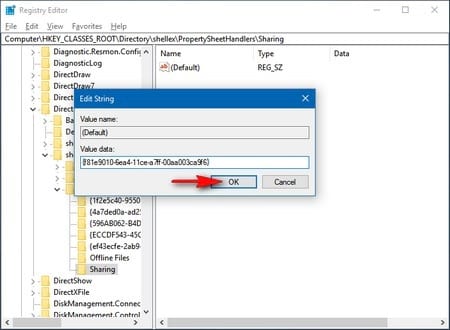
HKEY_CLASSES_ROOTDirectoryshellexPropertySheetHandlers - Look for a subkey named Sharing.
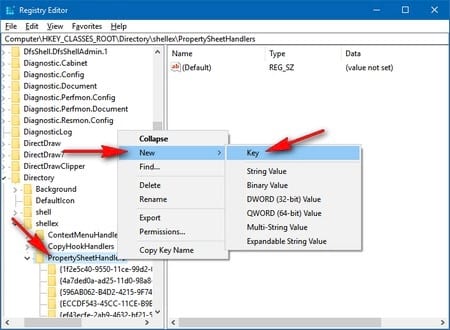
If the Sharing subkey is absent, right-click PropertySheetHandlers, select New > Key, and name the new key Sharing.
- Select the Sharing key and double-click (Default) in the right pane.
- Set Value data to
{f81e9010-6ea4-11ce-a7ff-00aa003ca9f6}. Do not include a comma or extra space. - Select OK, close Registry Editor, and restart File Explorer or the computer.
If the tab is still missing
Run these commands in an administrator Terminal, one at a time, and restart after they finish:
DISM /Online /Cleanup-Image /RestoreHealth
sfc /scannow
On a work-managed PC, sharing can also be restricted by policy. Contact the administrator instead of overriding organization settings. Windows 10 reached the end of general support on October 14, 2025, so use a supported Windows release when possible.
Related Articles
 How to Activate the Sharing Folder Tab on Windows 104 minutes read
 Fixed an Issue with Missing Mfreadwrite. DLL and Windows 88.1N4 minutes read
 How to Fix Missing or Missing Msvcp110. Dll File on the Computer3 minutes read
 How to Fix Missing File Gdi32full.dll on Windows 10, 117 minutes read
 How to Enable and Disable Public Folder Sharing on Windows 103 minutes read
 Instructions for Deleting Snapshot Properties in Windows 104 minutes read
Reader Comments 0
Sign in with email or Google to join the discussion.