Table of Contents
Windows 10 installs quality and security updates automatically because Microsoft designed Windows Update as a serviced security component, especially in Home editions. You can control timing, bandwidth, and restarts, but permanently disabling the service is unreliable and leaves the PC exposed. Since general Windows 10 support ended on October 14, 2025, the long-term solution is a supported Windows release or an applicable Extended Security Updates plan.
Why updates turn themselves back on
Windows uses several coordinated services and scheduled maintenance components to scan, download, stage, and repair updates. A temporary service change can therefore be reversed during maintenance or an operating-system repair. Work or school management policies may also override local settings.
The old four-choice control panel used by Windows 7 and 8.1 was replaced in Windows 10. Current controls focus on pausing, scheduling, and managing data use rather than choosing “never check.”
Pause updates temporarily
Open Settings > Update & Security > Windows Update and select Pause updates. Under Advanced options, supported builds let you choose a resume date within the allowed pause period. After that limit, Windows must check for updates before it can pause again.
Pausing is useful when a specific update has a confirmed issue or when a restart would interrupt a short project. It is not a permanent security strategy. The Windows 10 Pause Updates guide explains the edition and policy differences.
Prevent inconvenient restarts
- Open Windows Update > Change active hours.
- Set the hours when you normally use the PC, or let Windows adjust them from activity.
- When a restart is pending, choose Schedule the restart and select a suitable time.
- Save work before the scheduled window and keep laptops connected to power.
Enable restart notifications if the option is available. Active hours do not prevent downloads; they reduce unexpected automatic restarts.
Limit downloads on a metered connection
For Wi-Fi, open Settings > Network & Internet > Wi-Fi, select the connected network, and enable Set as metered connection. Windows 10 also supports metered settings for many Ethernet connections in later builds.
A metered connection reduces some background transfers, but important updates may still download. It also affects Microsoft Store apps, cloud synchronization, and other background services, so use it only when the connection genuinely has a data limit.
Use Group Policy on managed editions
Windows 10 Pro, Enterprise, and Education can expose update policies through gpedit.msc. Under Computer Configuration > Administrative Templates > Windows Components > Windows Update, an administrator can configure automatic-update behavior. Policy names vary by build.
Where supported, a notification-based download policy is safer than disabling updates. Organization-managed PCs should follow the administrator's patch schedule; do not change domain or mobile-device-management policy yourself.
Do not delete update components manually
The discontinued Windows 10 Update Assistant could be uninstalled normally from Apps & features when it was present.
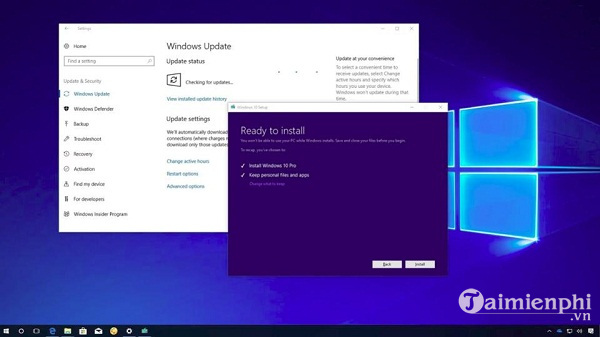
Do not delete Windows Update folders, disable Update Orchestrator tasks, or set the Windows Update service permanently to Disabled. These changes can break servicing and are often repaired automatically. If scanning or installation is stuck, use the structured steps in How to Fix Windows 10 Errors instead.
Driver updates are a separate decision
Device Installation Settings affects automatic driver delivery, not all Windows quality updates. Blocking every driver can leave security and reliability fixes unapplied. If one driver causes a problem, roll back that device in Device Manager or temporarily hide the specific update, then install a compatible version from the hardware manufacturer.
What to do now that Windows 10 support has ended
- Check whether the PC meets Windows 11 requirements and back up data before upgrading.
- If it cannot upgrade, review whether the device qualifies for Microsoft's current extended-update option.
- Replace the device or install another maintained operating system when no supported path remains.
Turning updates off does not extend the life of an unsupported system; it removes fixes the machine may still be eligible to receive.
Related Articles
 How to Stop Windows Updates on Your PC10 minutes read
 Turn Off Windows 10 Updates, 9 Ways to Completely Block Windows 10 Updates17 minutes read
 Instructions to Turn Off Chrome Automatic Updates in Windows4 minutes read
 How to Turn Off Automatic App Updates in Microsoft Store4 minutes read
 How to Turn Off Windows 7, Windows 8 // 8.1 Updates3 minutes read
 How to Disable Windows 10 Updates9 minutes read
Reader Comments 0
Sign in with email or Google to join the discussion.